In this article, you’ll learn how to add a progress bar to your Thrive Apprentice course pages using the built-in Thrive Apprentice Progress Bar widget—giving students a clear visual indicator of how far they’ve advanced through your course.
What Does the Progress Bar Show?
The progress bar displays a student’s completion percentage for the current course. As learners finish each lesson, the bar fills up accordingly, providing instant visual feedback on their overall advancement. This keeps students motivated and helps them understand how much content remains.
Adding the Progress Bar Widget
The Thrive Apprentice progress bar is a WordPress widget that you add through the standard WordPress widget interface. Once placed in a widget area, it automatically displays the current student’s progress on course pages.
- In your WordPress dashboard, go to Appearance > Widgets.
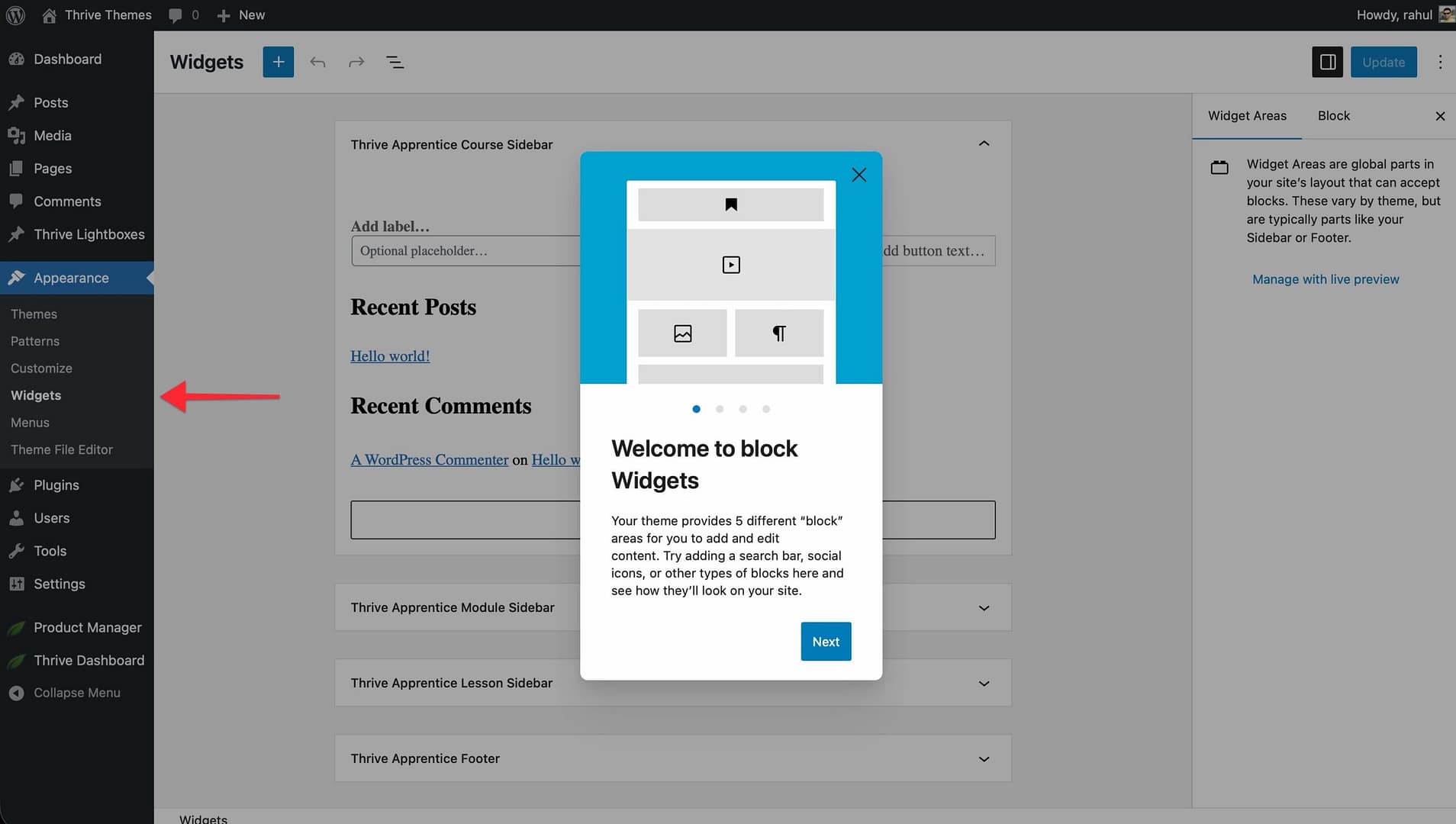
- Locate the Thrive Apprentice Sidebar widget area (or whichever widget area your theme uses for course pages).
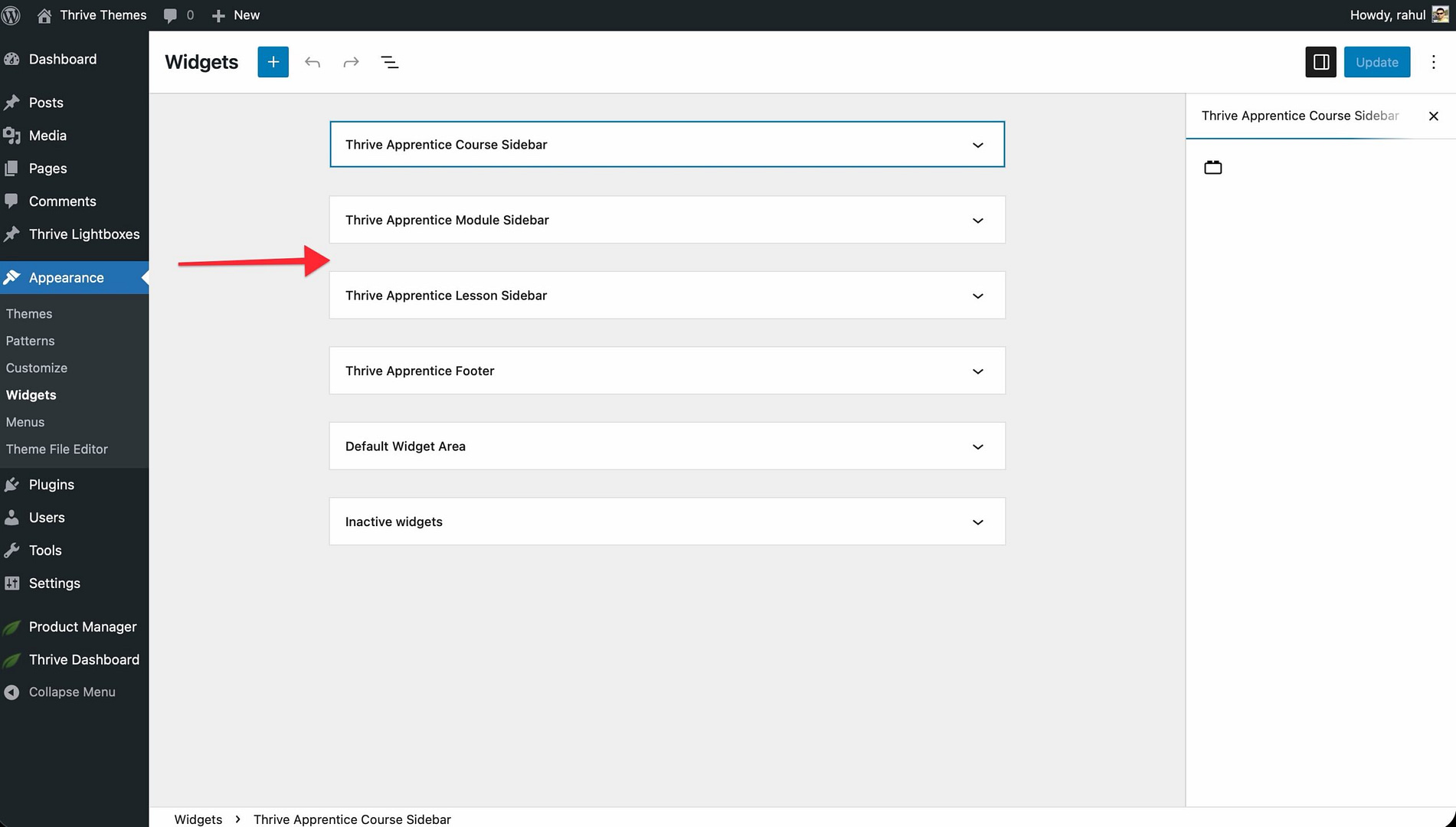
- Click the widget area to expand it.
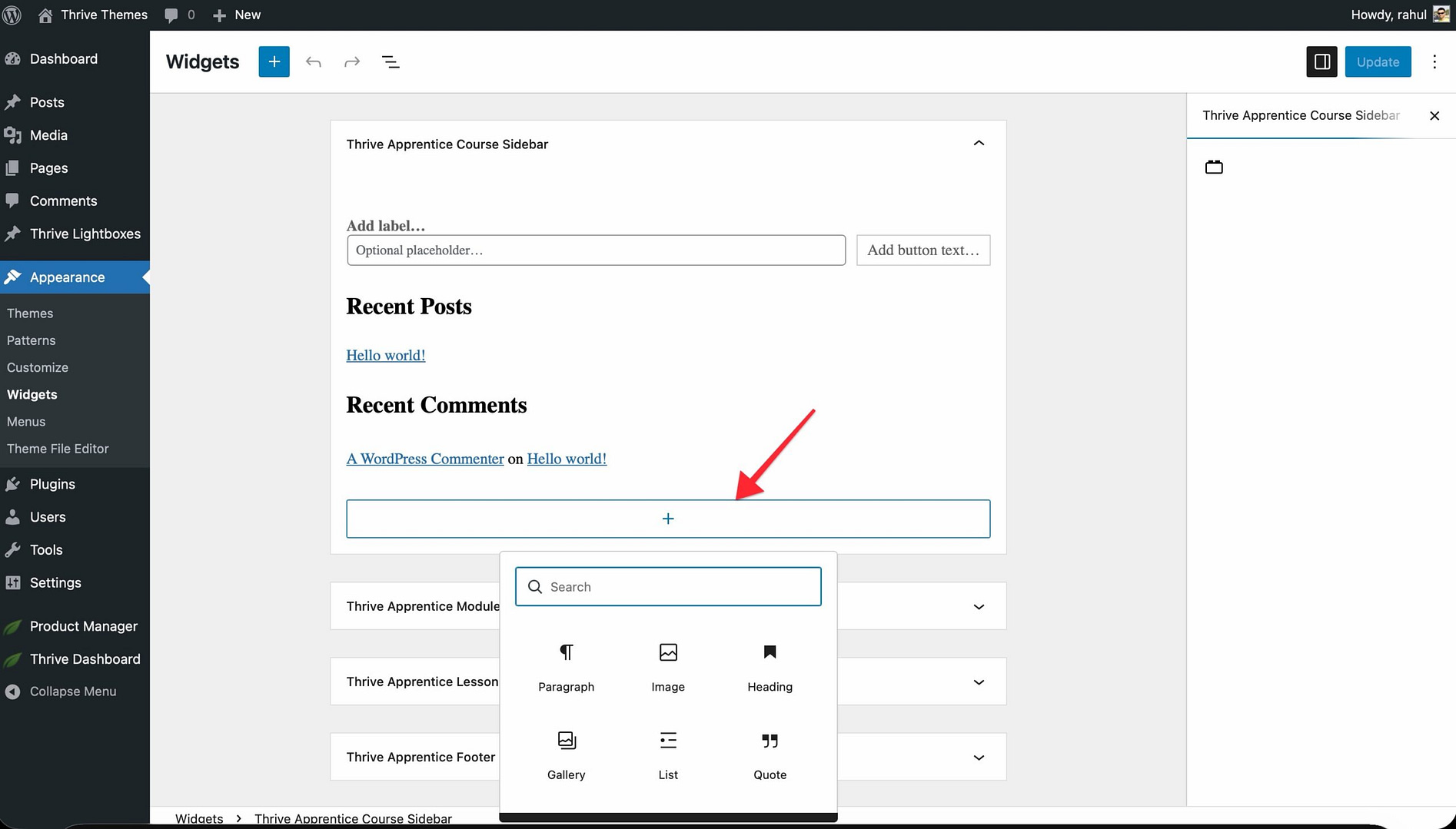
- Click the Add Widget button (or use the block inserter if you’re using the block-based widget editor).
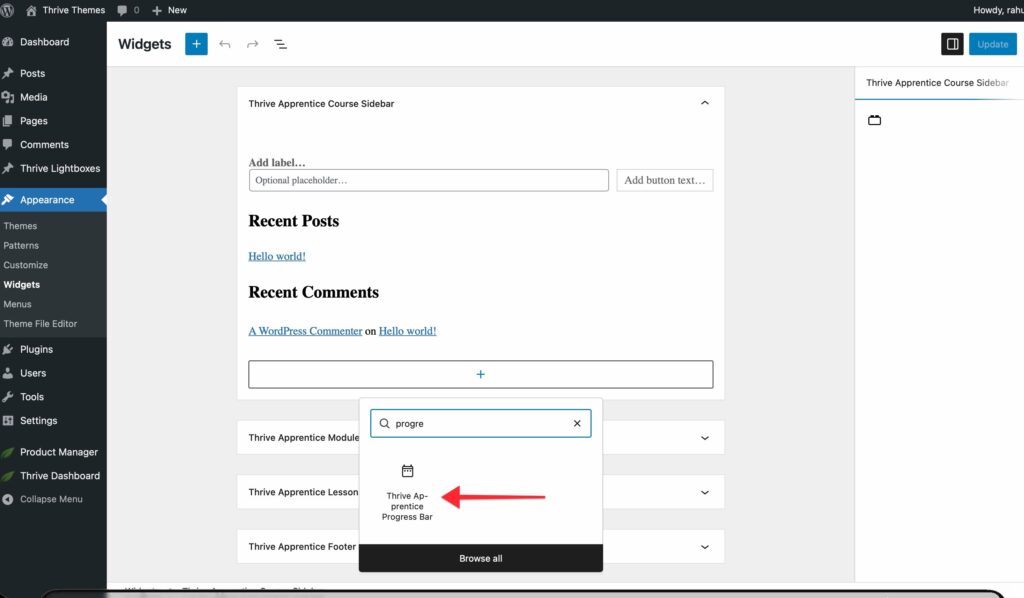
- Search for Thrive Apprentice Progress Bar and add it to the widget area.
- Optionally, enter a Title for the widget (e.g., “Your Progress” or “Course Progress”). Leave it blank for no heading.
- Click Save to apply your changes.
Where the Progress Bar Appears
The progress bar appears wherever your theme displays the widget area you placed it in—typically a sidebar on course and lesson pages. The exact placement depends on your active WordPress theme and any customizations you’ve made through Thrive Theme Builder.
The widget displays on:
- Individual Course Overview pages
- Lesson pages
- Module and Chapter pages
It does not appear on the main courses listing page (the page that shows all your courses).
How Progress Is Calculated
The progress bar automatically calculates completion based on the number of lessons a student has marked as complete within the course. You don’t need to configure the calculation logic—it works out of the box. As students mark lessons complete, the bar fills proportionally.
Note: The progress bar only displays for logged-in students who have access to the course. Guest visitors will not see the widget.
That’s it! You’ve successfully added a progress bar to your Thrive Apprentice course pages, helping students track their journey through your course at a glance.
Related Resources
- Widget Area: Learn how to use the Thrive Apprentice widget area for additional course page content.
- Course Structure: Understand how to organize modules, chapters, and lessons for a smooth learning flow.
- Content Types: Learn about course content types, navigation, and progress tracking.
- Lesson Types: Explore the different lesson types available in Thrive Apprentice.