In this article, you’ll learn how to populate your sidebar with useful content—including newsletter opt-in forms, latest articles, and WordPress widgets.
Adding a Newsletter Opt-In to the Sidebar
You can add a newsletter signup form to your sidebar using Thrive Leads.
Prerequisites
- Thrive Leads must be installed and activated.
- The opt-in form must be created as a Widget type—other form types (lightbox, ribbon, in-content, etc.) are not compatible with sidebar placement.
How to Set It Up
- In Thrive Leads, create a new opt-in form and select Widget as the form type.
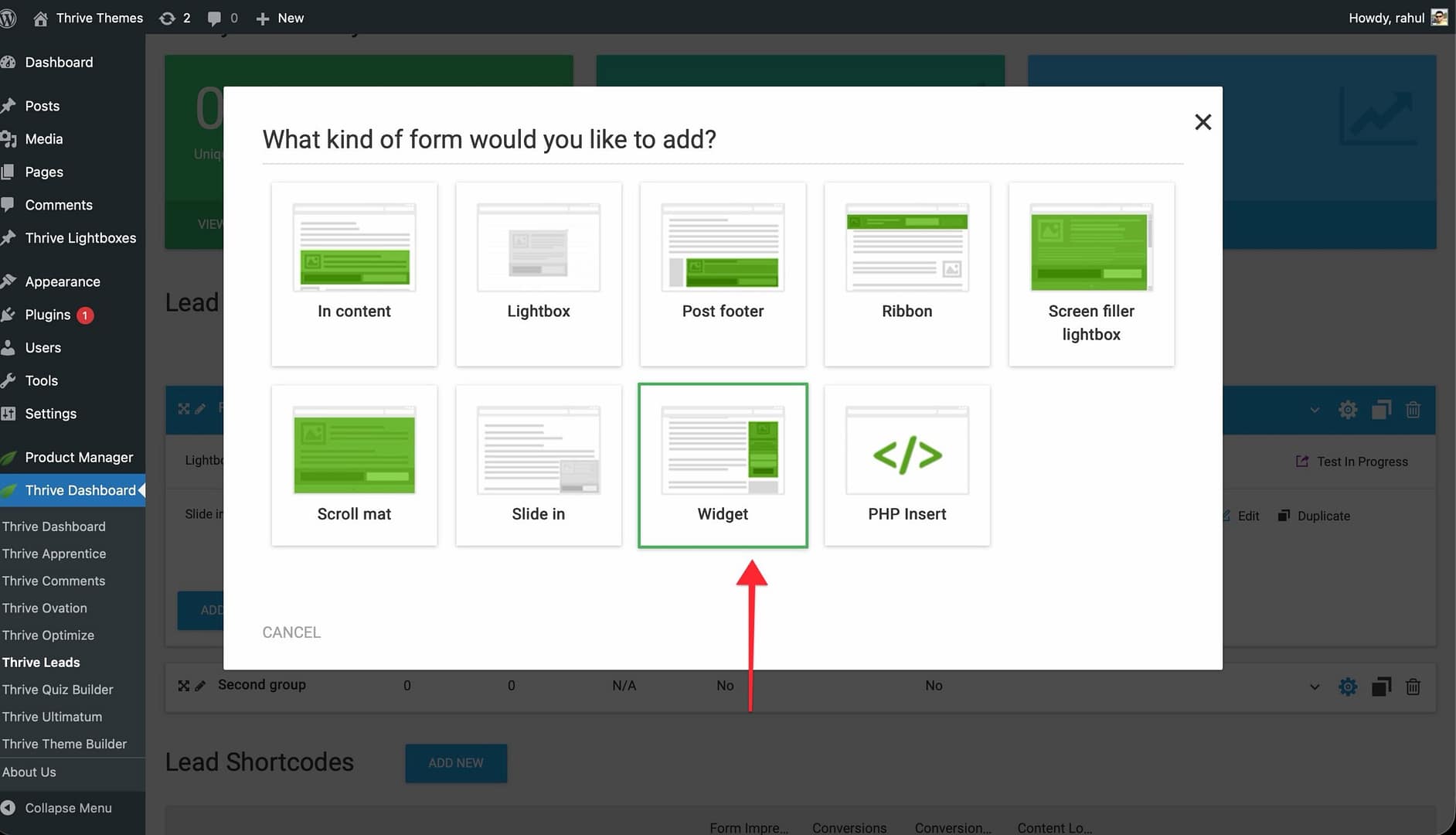
- Design and configure the opt-in form.
- In the Thrive Theme Builder editor, open the template with a sidebar.
- Add a Widget Area element to the sidebar section.
- Go to Appearance > Widgets in the WordPress admin.
- Add the Thrive Leads widget to the widget area assigned to your sidebar.
The newsletter opt-in form will now display in the sidebar on all pages using that template.
Listing Latest Articles in the Sidebar
There are two ways to display your most recent articles in the sidebar.
Method 1: Using the Post List Element
- Open the template in the Thrive Theme Builder editor.
- Select the sidebar section.
- Add a Post List element from the element panel.
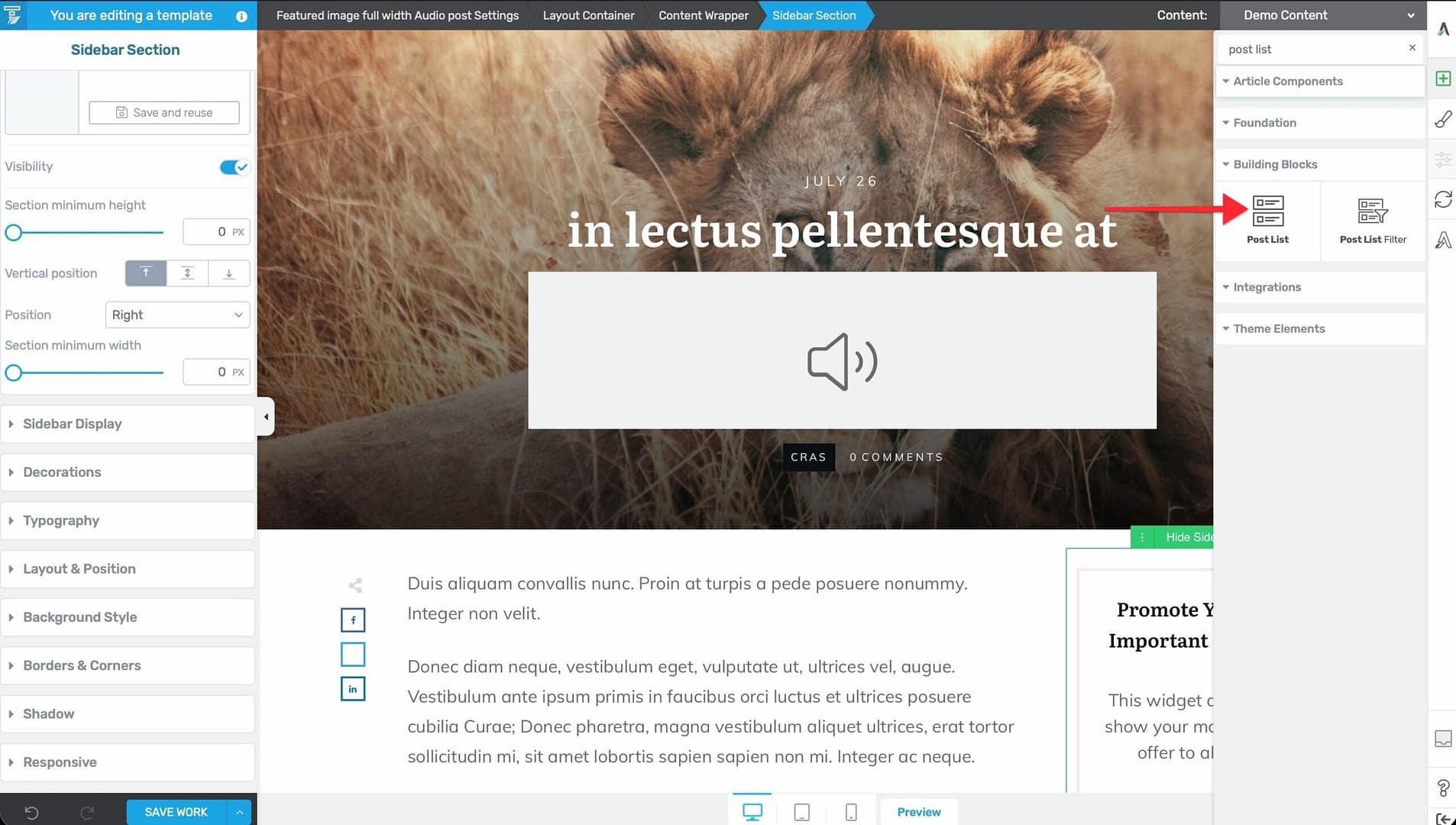
- Configure the post list to display your latest posts:
- Set the number of posts to show.
- Choose the display style (list, grid, masonry, or carousel).
- Select what information appears (title, excerpt, featured image, date).
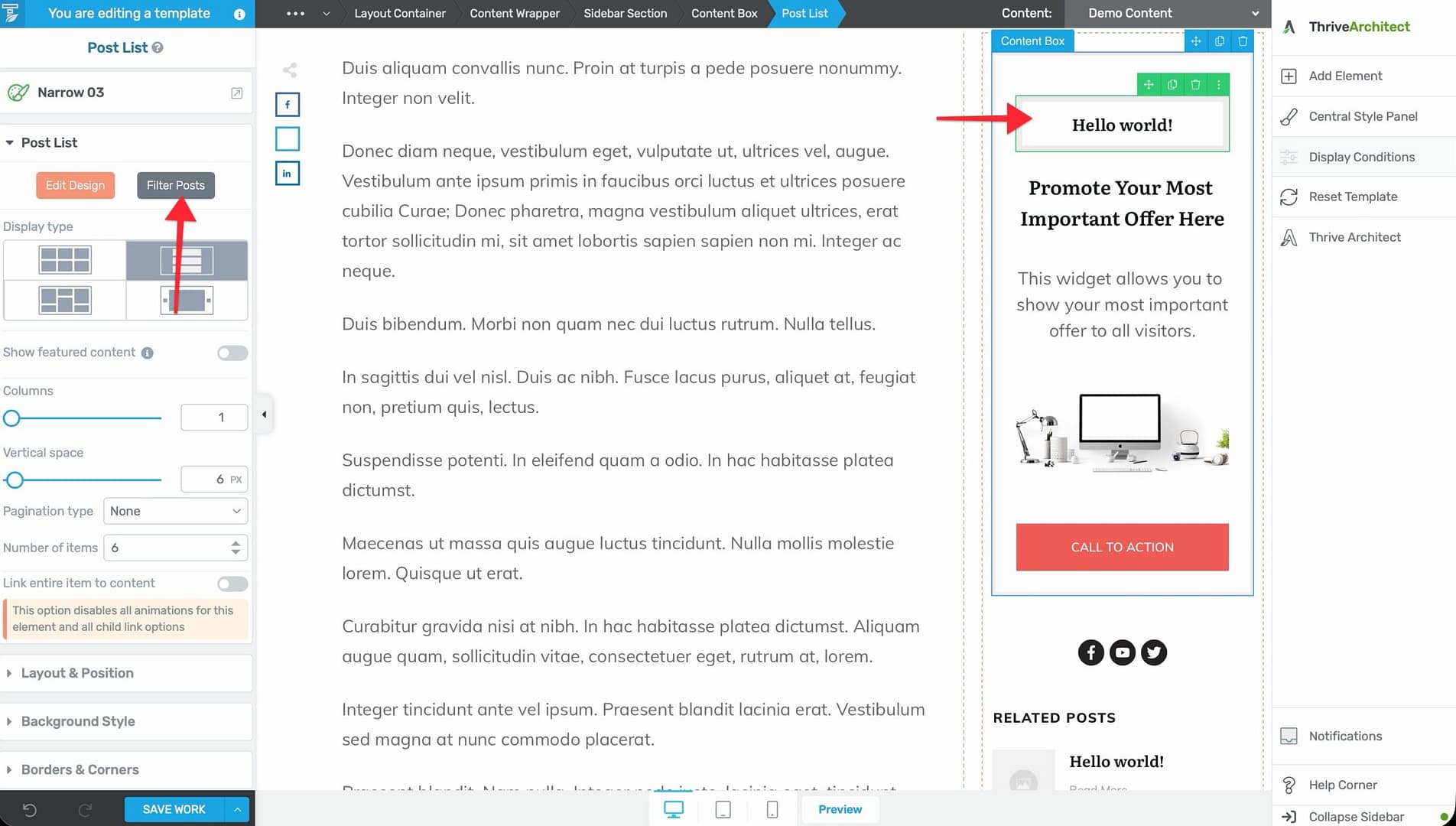
The Post List element gives you full visual control over how the articles are displayed.
Method 2: Using the Widget Area Element
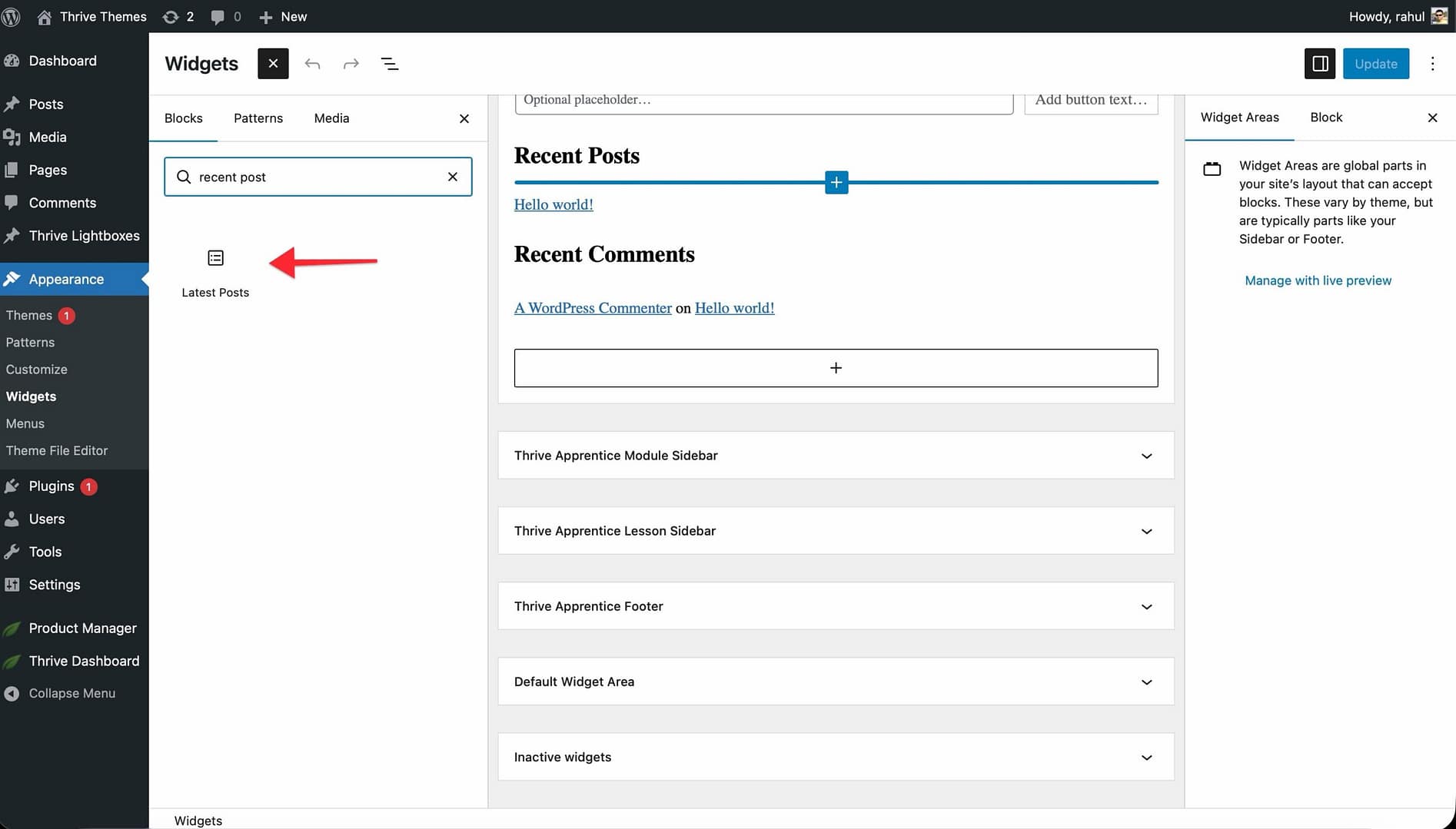
- Add a Widget Area element to the sidebar.
- Go to Appearance > Widgets in the WordPress admin.
- Add the Latest Posts widget to the widget area assigned to your sidebar.
- Configure the widget (number of posts, whether to show dates).
This method uses the standard WordPress widget system, which offers less visual customization but is simpler to set up.
Other Sidebar Content Ideas
Beyond newsletter signups and recent articles, consider adding:
- Search bar — Add a Search element so visitors can search your site.
- Categories list — Add a list of post categories for easy navigation.
- About section — A brief text block about your site or the author.
- Social follow icons — Links to your social media profiles using the Social Follow element.
- Custom banners — Promotional images or calls to action.
- Table of contents — For long-form content, a table of contents in the sidebar helps navigation.
Best Practices
- Prioritize content relevance — Place the most useful items at the top of the sidebar (e.g., search, navigation) and less critical items below (e.g., social links, ads).
- Limit the number of items — A sidebar with too many widgets feels cluttered. Aim for 3–5 focused items.
- Consider making the sidebar sticky — If the main content is long, a sticky sidebar keeps supplementary content visible as visitors scroll. See Using the Content and Sidebar Sections.
- Test on mobile — If the sidebar is visible on mobile, make sure it doesn’t push the main content too far down. Consider hiding the sidebar or using an off-screen sidebar on mobile.
Related Resources
- Using the Content and Sidebar Sections: Learn how to customize the sidebar section.
- Using the Header Section: Learn how to customize the header.
- Creating Post Templates: Learn how to create post templates with sidebars.