In this article, you’ll learn how to apply a specific template to an individual page or post, how to use different template variations, and how to reset a page or post back to the default template.
Before You Begin
Before applying a template to a live page or post, make sure:
- You have finished customizing the template in the Thrive Theme Builder editor.
- You have previewed the template with sample content and are satisfied with the design.
Applying a template changes how the page or post looks on your live website immediately.
Applying a Template to a Page
You can assign a specific template to a page using the WordPress editor.
Method 1: From the WordPress Pages List
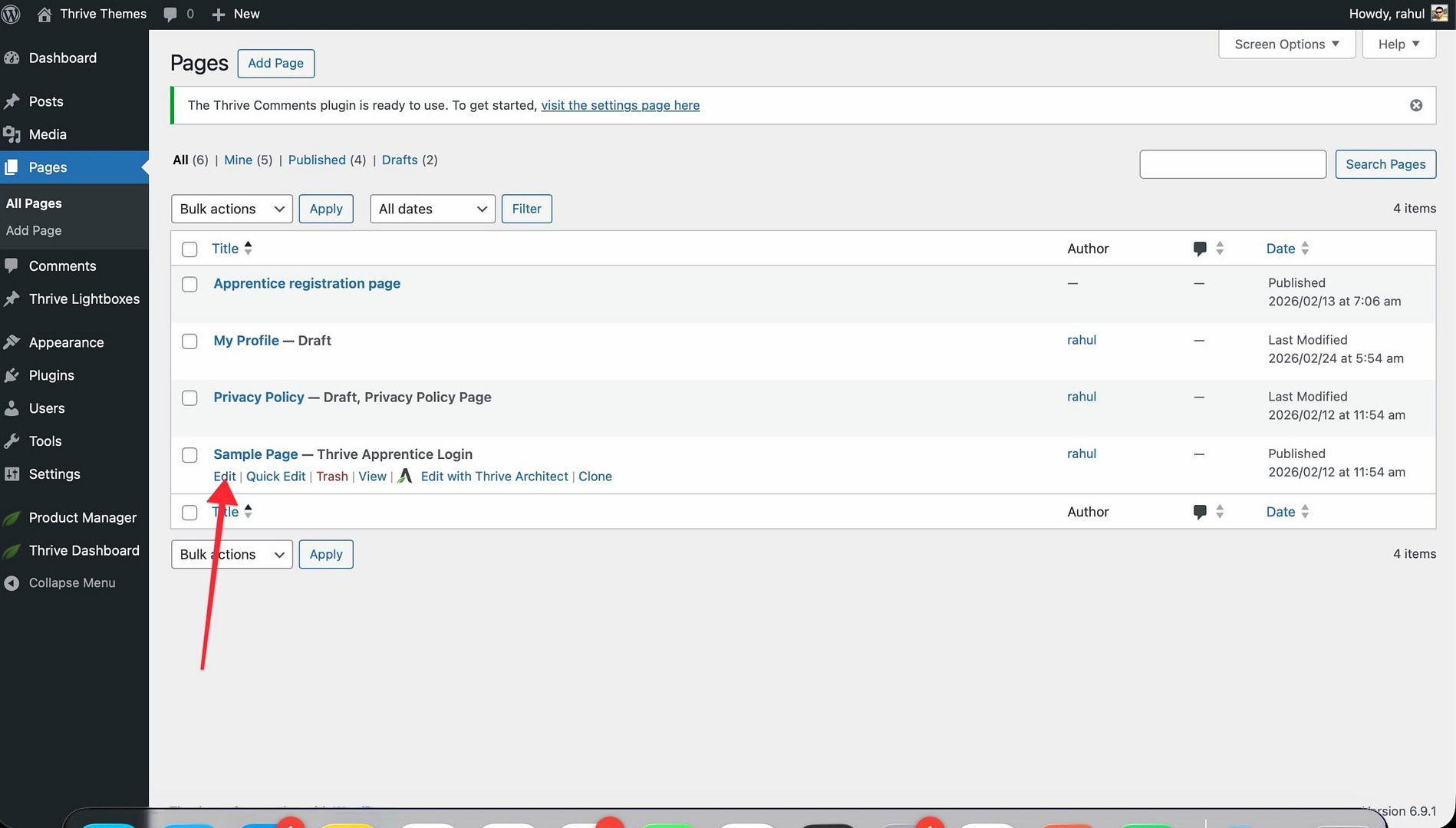
- In the WordPress admin dashboard, go to Pages > All Pages.

- Hover over the page you want to modify.
- Click Edit to open the page in the WordPress editor.
- In the right sidebar, look for the Theme Builder Templates metabox.
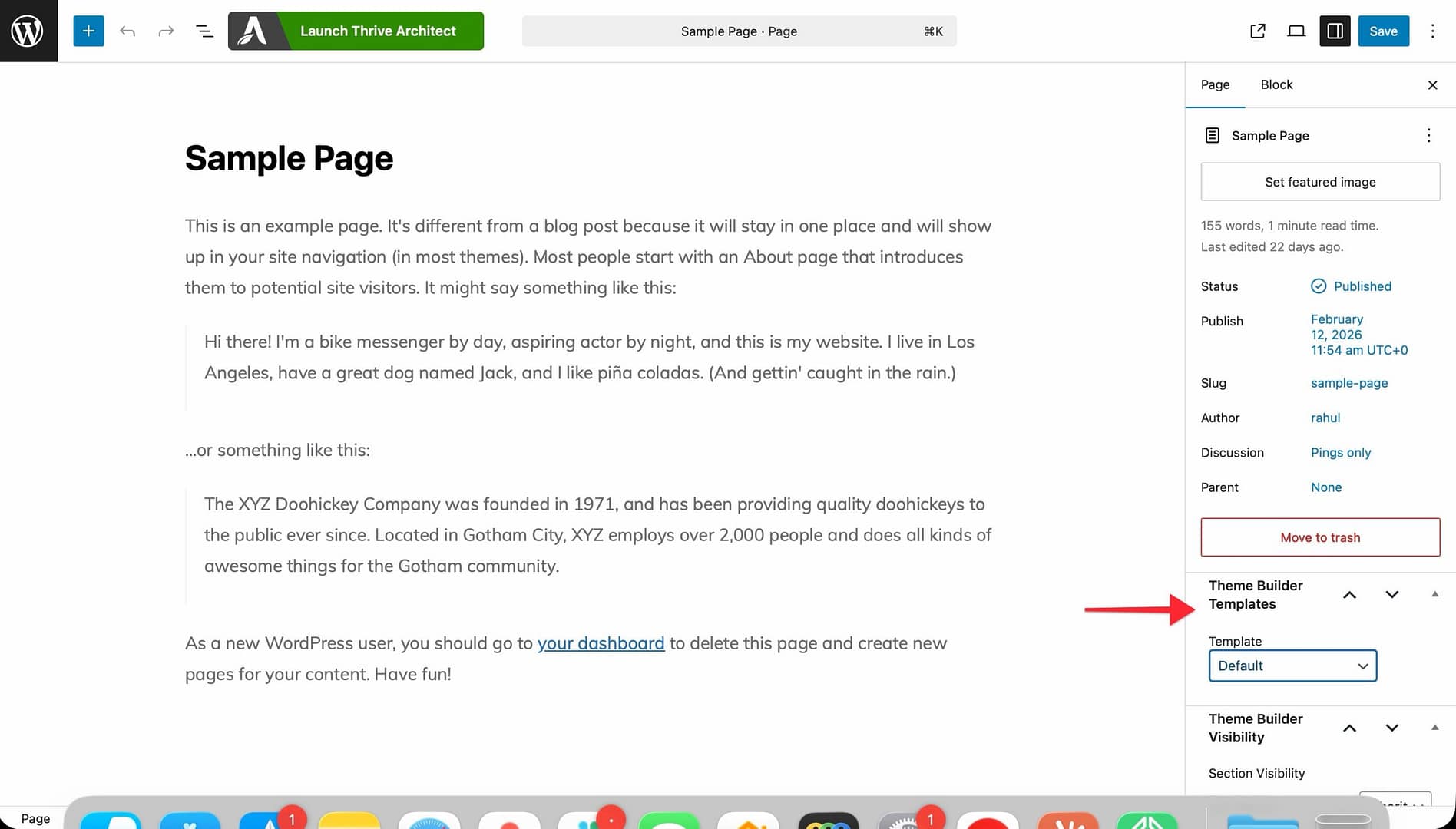
- Select the desired Thrive Theme Builder template from the dropdown.
- Click Update to save the change.
Method 2: From Thrive Architect
- Open the page in Thrive Architect.
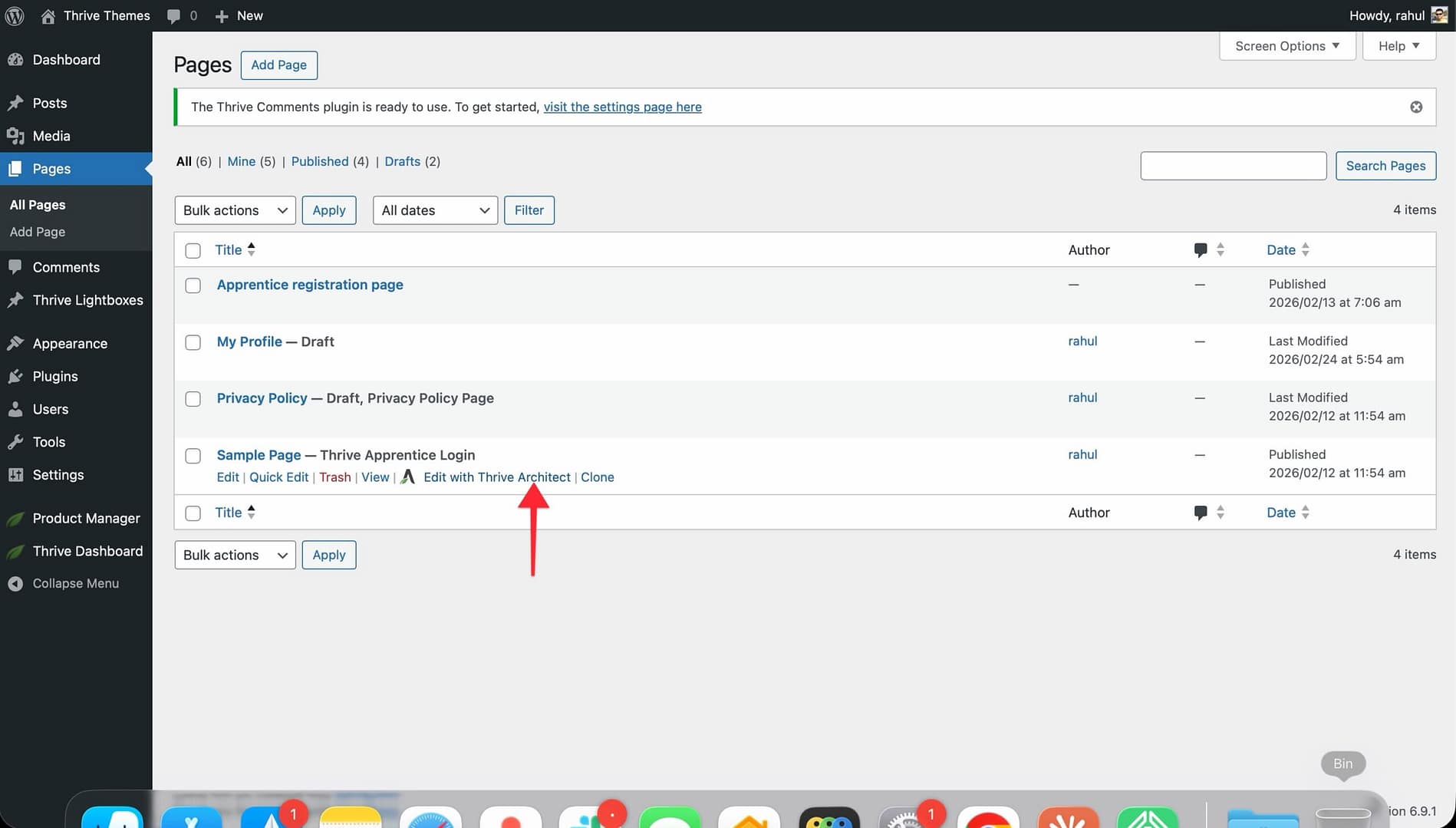
- In the editor, access the page settings.
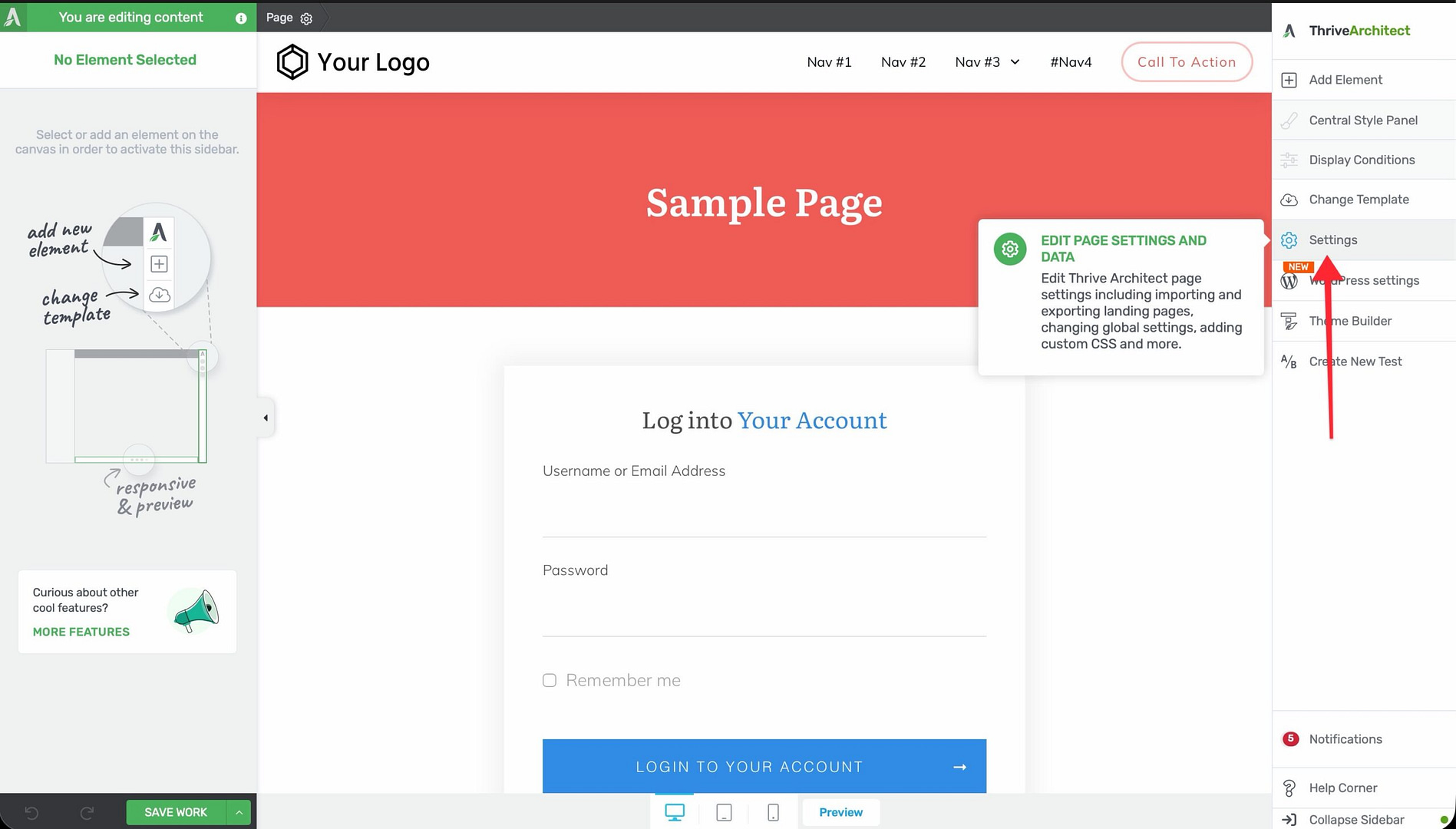
- Select the desired template.
- Save your changes.
Applying a Template to a Post
The process for posts is similar to pages.
Method 1: From the WordPress Posts List
- In the WordPress admin dashboard, go to Posts > All Posts.
- Hover over the post you want to modify.
- Click Edit to open the post in the WordPress editor.
- In the right sidebar, look for the Theme Builder Templates metabox.
- Select the desired Thrive Theme Builder template from the dropdown.
- Click Update to save the change.
Method 2: From Thrive Architect
- Open the post in Thrive Architect.
- Access the post settings.
- Select the desired template.
- Save your changes.
Using Different Template Variations on Different Pages
You can use the same base template with slight modifications on different pages or posts. For example, you might want the same template with a sidebar on some pages and without a sidebar on others.
To achieve this:
- Duplicate the template — In the Templates section, hover over the template, click the More option, and select Duplicate. This creates an independent copy.
- Customize the copy — Edit the duplicate to make the desired changes (e.g., hide the sidebar, change the layout width).
- Apply the variation — Assign the customized copy to the specific pages or posts where you want the modified design.
Each duplicate is independent—changes to one do not affect the others.
Resetting a Page or Post to the Default Template
If you’ve assigned a custom template to a page or post and want to revert it back to the default template:
- Open the page or post in the WordPress editor.
- In the right sidebar, locate the Theme Builder Templates metabox.
- Select the Default template option from the dropdown.
- Click Update to save.
The page or post will now use the default template for its content type (the template marked as “Default” in the Thrive Theme Builder Templates section).
How Template Assignment Works
Understanding the assignment priority helps you predict which template will be used:
- Manually assigned template — If you’ve assigned a specific template to a page or post (using the methods above), that template is always used.
- Post format template — For posts, if no manual assignment exists but a template matching the post’s format (video, audio, image) is set as default, it’s used.
- Default template — If no manual assignment or format match exists, the default template for that content type is used.
This means manually assigned templates always take priority over defaults.
Best Practices
- Preview before applying — Always preview a template with your actual content before assigning it to a live page or post.
- Use defaults for consistency — Rely on default templates for most of your content. Only assign custom templates to pages or posts that need a unique design.
- Duplicate instead of modifying — If you need a slight variation of an existing template, duplicate it rather than modifying the original. This preserves the original design for other pages.
- Document your assignments — Keep track of which pages and posts use custom template assignments, especially if you have many variations.
Related Resources
- Understanding Templates: Learn about template types and how they work.
- Template Settings & Defaults: Learn how to set default templates and configure settings.
- Creating Post Templates: Learn how to create and customize post templates.
- Creating Page Templates: Learn how to create and customize page templates.