Thrive Comments includes powerful engagement features that transform passive readers into active participants. In this guide, you’ll learn how to enable comment voting, award badges to top contributors, and track engagement with detailed reports.
What You’ll Learn
In this article, you’ll discover how to:
- Enable and configure comment voting (upvotes, downvotes, or likes)
- Create and manage badges for user achievements
- Access and interpret engagement reports
- Use analytics to identify top commenters and popular posts
- Optimize your comment strategy based on data
Comment Voting Overview
Comment voting allows your visitors to express their opinion on comments without writing a reply. This feature increases engagement, highlights valuable comments, and creates a sense of community.
Benefits of Comment Voting
- Increases engagement without requiring users to write responses
- Highlights quality content through community voting
- Encourages participation with visible vote counts
- Provides social proof for valuable comments
- Reduces moderation burden by surfacing popular comments
Setting Up Comment Voting
Thrive Comments offers three voting options to match your community’s needs.
Accessing Voting Settings
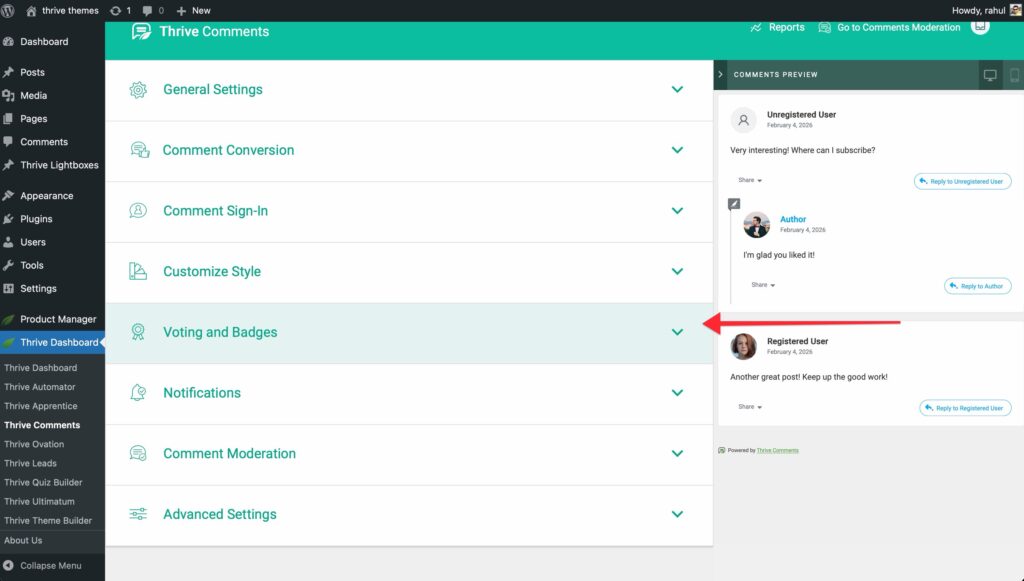
- Navigate to Thrive Dashboard > Thrive Comments.
- Click on Voting and Badges in the dashboard.
Choosing Your Voting Type
Thrive Comments offers three voting options:
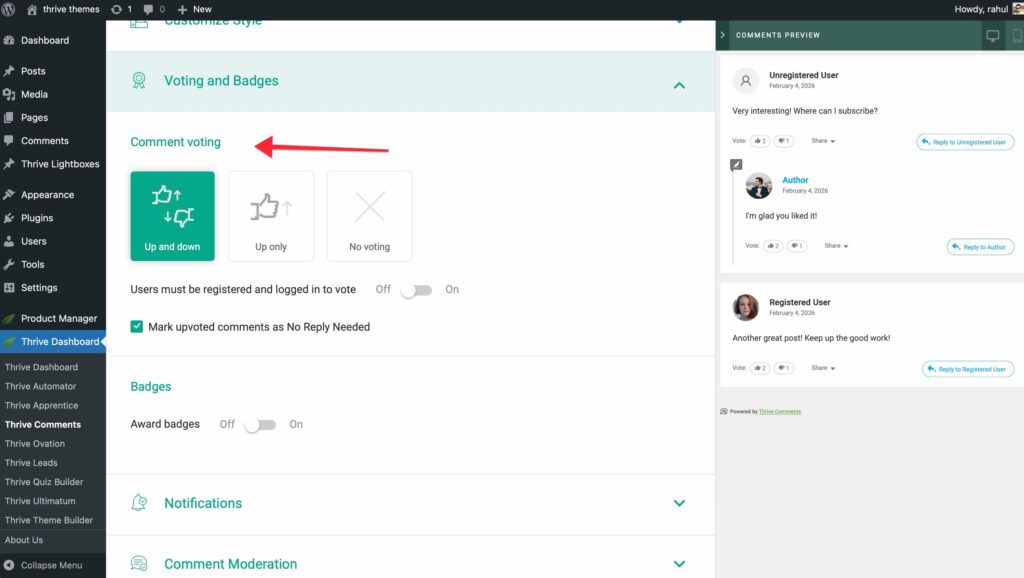
1. Upvote Only
Users can only upvote comments they find valuable.
Best for:
- Positive, supportive communities
- Educational content where you want to highlight helpful answers
- Avoiding negativity in comment sections
How it works:
- Single upvote button appears on each comment
- Vote count displays next to the button
- Users can remove their upvote by clicking again
2. Upvote and Downvote
Users can upvote valuable comments or downvote unhelpful ones.
Best for:
- Discussion forums and debate-focused content
- Communities that value balanced feedback
- Sites where comment quality varies significantly
How it works:
- Both upvote and downvote buttons appear
- Net vote count displays (upvotes minus downvotes)
- Users can change their vote or remove it
- Alt text: Comment showing both upvote and downvote buttons with net vote count
3. Like Only
Users can “like” comments similar to social media.
Best for:
- Casual, social communities
- Blogs with a friendly, informal tone
- Users familiar with social media conventions
How it works:
- Heart or thumbs-up icon appears
- Like count displays
- Users can unlike by clicking again
- Alt text: Comment showing like button with like count
Configuring Voting Settings
Once you’ve selected your voting type, configure these additional settings:
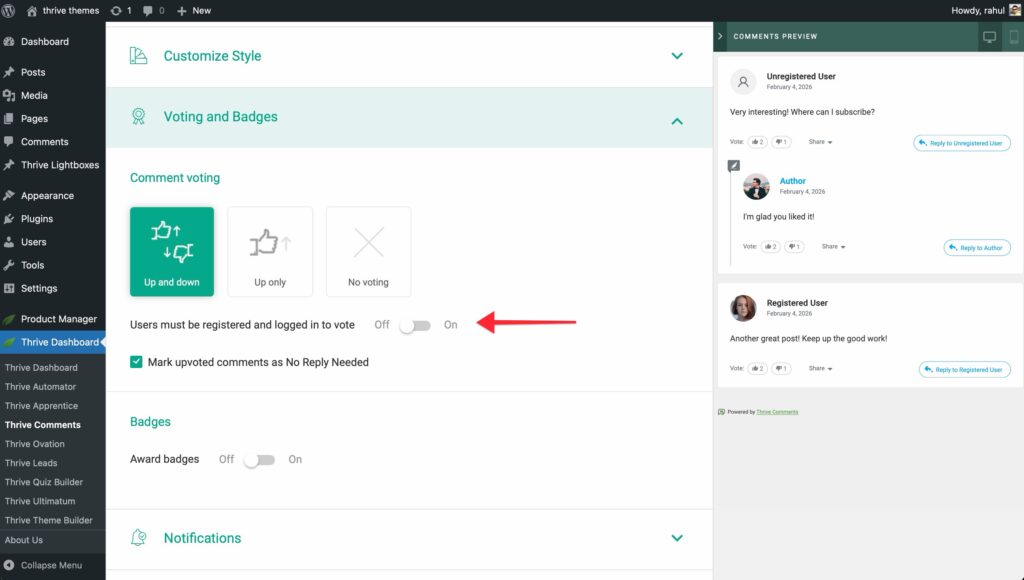
Who Can Vote
Allow all visitors to vote
- Anyone can vote, including guests
- No login required
- Best for maximizing engagement
Only logged-in users can vote
- Requires user authentication
- Prevents vote manipulation
- Best for member communities
Saving Your Voting Settings
After configuring your preferences:
- Review all settings to ensure they match your goals.
- Click Save at the bottom of the page.
- Clear your cache if you use a caching plugin.
Creating and Managing Badges
Badges reward users for their engagement and contributions, encouraging continued participation and building community loyalty.
What Are Badges?
Badges are visual awards displayed next to a user’s name when they achieve specific milestones. Examples include:
- First Comment – Awarded for posting their first comment
- Top Contributor – Awarded for 50 approved comments
- Community Favorite – Awarded for receiving 100 upvotes
- Discussion Starter – Awarded for comments that receive 10+ replies
Accessing Badge Settings
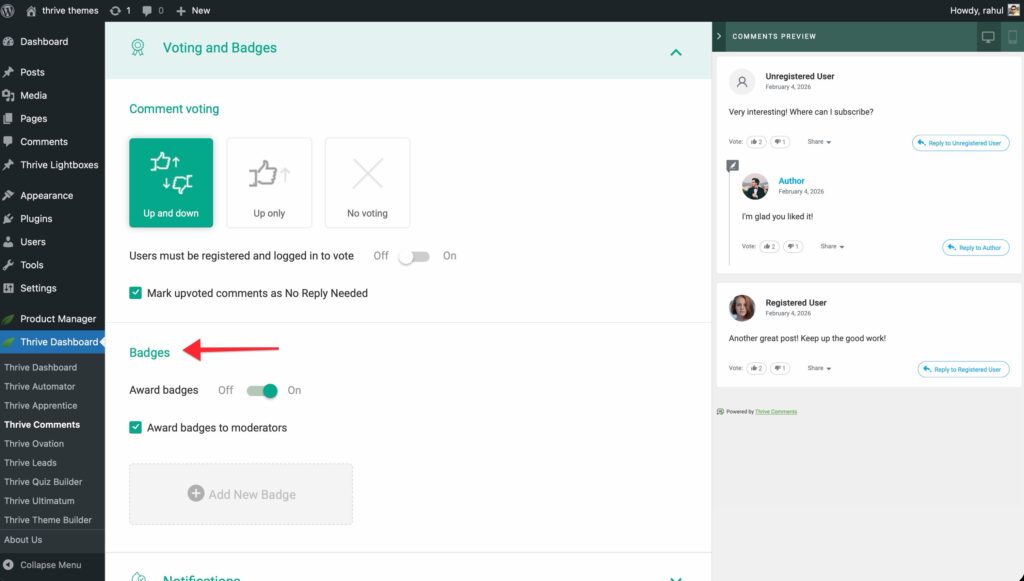
From the Voting and Badges section, scroll down to the Badges area.
Creating a New Badge
- Click Add New Badge.
- Configure the badge settings:
Badge Name
Enter a descriptive name for the badge (e.g., “Top Contributor”, “Helpful Member”).
Best practices:
- Keep names short (2-3 words)
- Make them aspirational and positive
- Use clear, understandable language
Badge Icon
Select an icon that represents the achievement.
How to choose an icon:
- Click the Icon field.
- Browse the icon library or search for specific icons.
- Select an icon that visually represents the achievement.
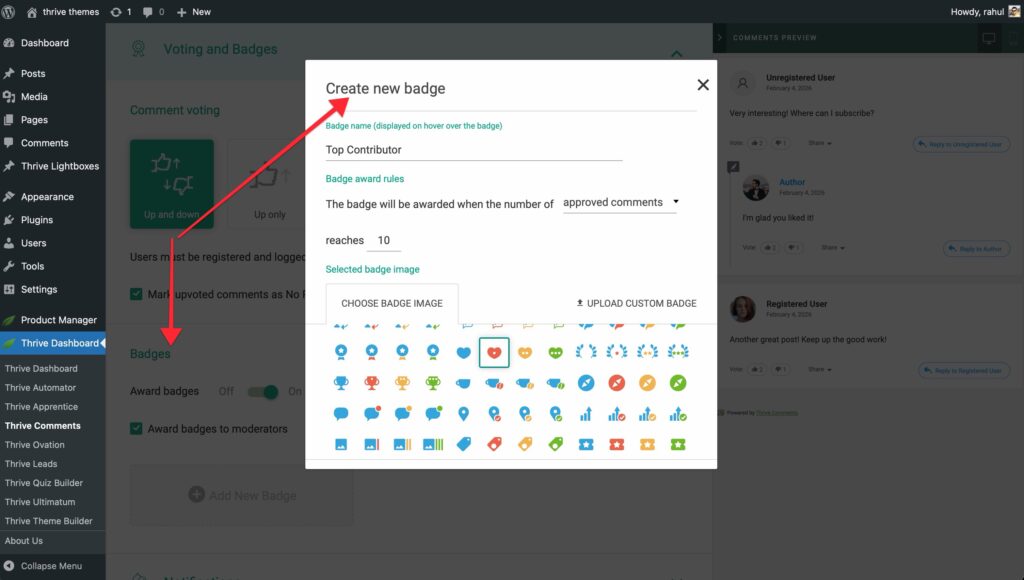
Icon suggestions:
- Star icons for achievement milestones
- Trophy icons for top performers
- Heart icons for community favorites
- Crown icons for elite contributors
Badge Criteria
Set the conditions that trigger the badge award.
Available criteria:
Number of approved comments
- Award badge when user reaches X approved comments
- Example: 10 comments, 50 comments, 100 comments
Number of upvotes received
- Award badge when user’s comments receive X total upvotes
- Example: 25 upvotes, 100 upvotes, 500 upvotes
Number of replies received
- Award badge when user’s comments receive X replies
- Example: 10 replies, 50 replies
Combination criteria
- Set multiple requirements (e.g., 20 comments AND 50 upvotes)
- Creates more prestigious badges
Badge Display Settings
When to display the badge
Always display
- Badge appears next to the user’s name on all their comments
- Best for prestigious achievements
Display only on comments that earned it
- Badge appears only on comments that contributed to earning it
- Best for specific achievements (e.g., “Most Upvoted Comment”)
Display on user profile only
- Badge appears in the user’s profile but not on comments
- Reduces visual clutter
Managing Existing Badges
After creating badges, you can:
Edit badges
- Click the Edit icon next to the badge name.
- Modify any settings.
- Click Save.
Delete badges
- Click the Delete icon next to the badge name.
- Confirm deletion.
Reorder badges
- Drag and drop badges to change their display priority
- Higher-priority badges appear first when users have multiple badges
Badge Strategy Tips
Create a progression system:
- Bronze level: 5 comments
- Silver level: 25 comments
- Gold level: 100 comments
Reward different behaviors:
- Commenting frequency (number of comments)
- Comment quality (upvotes received)
- Community building (replies received)
Keep it achievable:
- Set realistic milestones
- Ensure most active users can earn at least one badge
- Create aspirational top-tier badges for super users
Using the Reports Area
The Reports area provides detailed analytics on comment engagement, helping you understand what content resonates with your audience.
Accessing Reports
- From the Thrive Comments dashboard, click Reports in the top navigation bar.
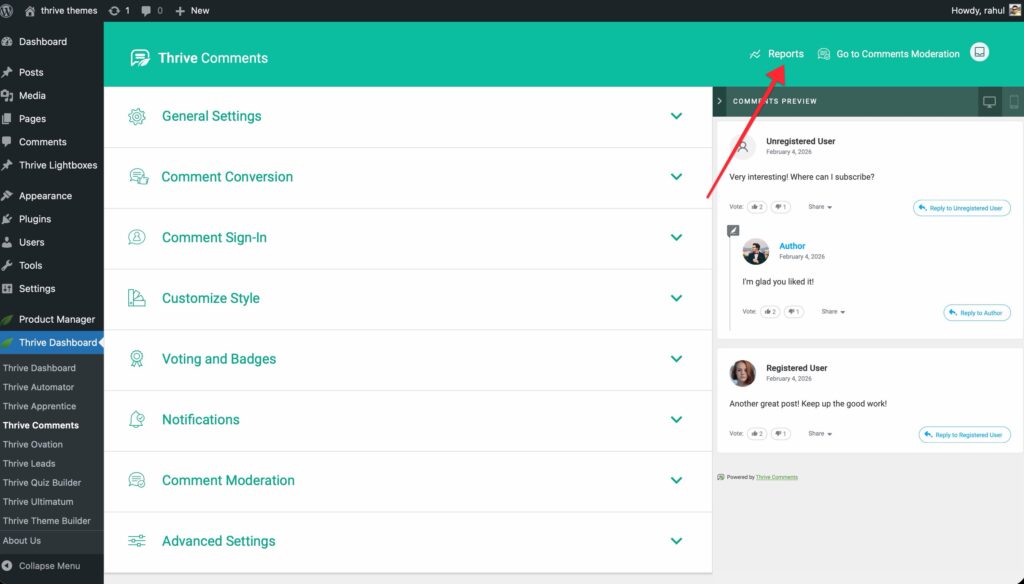
This opens a separate Reports dashboard with comprehensive analytics.
Understanding the Reports Dashboard
The Reports area is divided into four main sections:
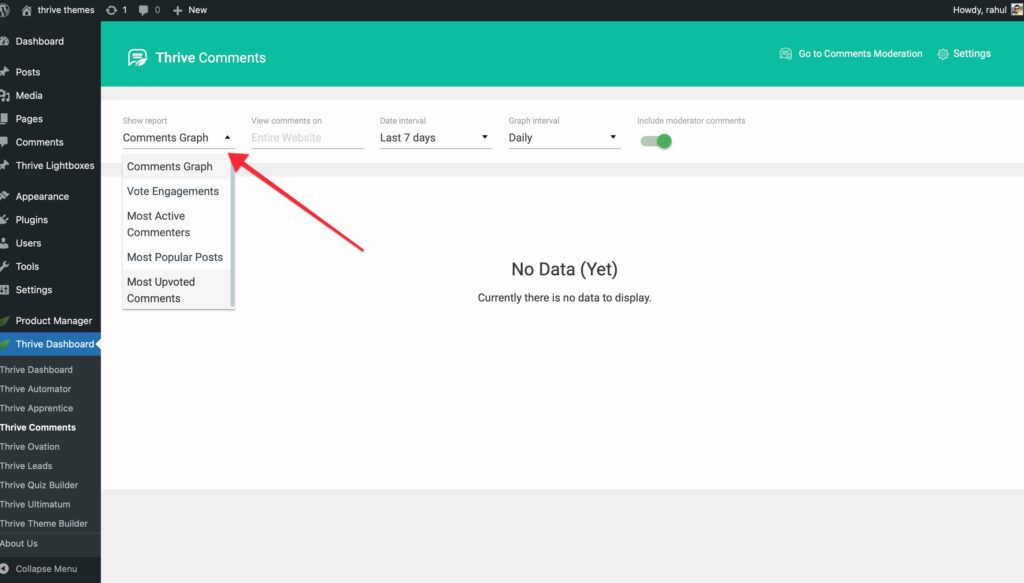
1. Comments Over Time
A visual chart showing comment activity over your selected time period.
What you’ll see:
- Daily comment counts
- Trend lines showing increases or decreases
- Spikes indicating viral content or campaigns
How to use it:
- Identify your most active days
- Correlate comment spikes with content publication
- Track the impact of engagement strategies
Time period options:
- Last 7 days
- Last 30 days
- Last 90 days
- Custom date range
2. Vote Engagements
Analytics on voting activity across your site.
Metrics displayed:
- Total upvotes given
- Total downvotes given (if enabled)
- Total likes given (if using like-only mode)
- Vote engagement rate (votes per comment)
What this tells you:
- How actively users engage with voting
- Whether your voting system is being used
- Which voting type generates most engagement
3. Most Active Commenters
A leaderboard showing your top contributors.
Information displayed:
- Commenter name
- Total approved comments
- Total upvotes received
- Badges earned
- Join date
How to use it:
- Identify your community champions
- Reach out to top contributors personally
- Feature top commenters in content or newsletters
- Award special recognition or perks
Sorting options:
- By number of comments
- By upvotes received
- By join date
4. Popular Posts
Shows which posts generate the most comment engagement.
Metrics for each post:
- Post title
- Number of comments
- Number of votes
- Average votes per comment
- Last comment date
How to use it:
- Identify topics that resonate with your audience
- Create more content on popular topics
- Update and promote highly-engaged posts
- Analyze what makes certain posts more engaging
Sorting options:
- By total comments
- By total votes
- By recent activity
Exporting Report Data
Export your analytics for further analysis or reporting.
- Click Export in the top right corner of the Reports dashboard.
- Choose your export format:
- CSV (for spreadsheets)
- PDF (for presentations)
- Select the data to include:
- Comments over time
- Vote engagements
- Most active commenters
- Popular posts
- Click Download.
Using Reports to Improve Engagement
Identify content gaps:
- If certain post types get few comments, consider different topics or formats
Optimize posting schedule:
- Publish when your audience is most active (based on comment time data)
Recognize contributors:
- Feature top commenters in your content
- Create a “Commenter of the Month” program
Refine your strategy:
- If voting is low, promote the feature or change voting type
- If badges aren’t being earned, adjust criteria to be more achievable
Best Practices for Engagement
Encourage Voting
Mention it in your content:
- “Upvote the most helpful comments below”
- “Let me know which answer helped you most”
Respond to highly-voted comments:
- Shows you value community input
- Encourages more voting
Feature top-voted comments:
- Highlight them in follow-up posts
- Share them on social media
Promote Badges
Announce new badges:
- Write a post explaining your badge system
- Show examples of badges users can earn
Display badge requirements:
- Make criteria transparent
- Create a “How to Earn Badges” guide
Celebrate badge earners:
- Congratulate users when they earn badges
- Feature badge holders in newsletters
Leverage Reports
Review reports weekly:
- Track trends and patterns
- Identify emerging topics
Share insights with your team:
- Inform content strategy
- Guide community management
Test and iterate:
- Try different engagement tactics
- Measure results in Reports
- Double down on what works
Troubleshooting Common Issues
Voting Isn’t Working
Check these settings:
- Ensure voting is enabled in Voting and Badges settings
- Verify you’ve selected a voting type (Upvote, Upvote/Downvote, or Like)
- Clear your cache if using a caching plugin
- Check that JavaScript is enabled in the browser
Badges Aren’t Being Awarded
Verify badge criteria:
- Ensure criteria are achievable (not set too high)
- Check that users have met the requirements
- Confirm badge is set to “Active” status
Check badge display settings:
- Verify badge display option matches your expectations
- Ensure badge isn’t set to “Profile only” if you expect it on comments
Reports Show No Data
Common causes:
- No comments have been posted yet
- Selected time period predates comment activity
- Reports cache needs refreshing (click Refresh button)
Summary
That’s it! You’ve successfully learned how to:
Enable and configure comment voting (upvote, downvote, or like
- Choose who can vote and how votes are displayed
- Create badges with custom icons and criteria
- Manage and organize your badge system
- Access and interpret engagement reports
- Identify top commenters and popular posts
- Export data for further analysis
- Use analytics to improve your engagement strategy
You now know how to leverage Thrive Comments’ engagement features to build an active, thriving community. Use voting to surface quality content, badges to reward contributors, and reports to guide your strategy!
Frequently Asked Questions
Q: Can users vote on their own comments?
A: No. Thrive Comments automatically prevents users from voting on their own comments.
Q: Can I change voting types after enabling voting?
A: Yes. You can switch between Upvote Only, Upvote/Downvote, and Like Only at any time. Existing votes will be preserved and converted to the new system.
Q: What happens to badges if I change the criteria?
A: Users who already earned the badge keep it. The new criteria apply only to users who haven’t earned it yet.
Q: Can I manually award badges to specific users?
A: Currently, badges are awarded automatically based on criteria. Manual awarding isn’t available, but you can create custom criteria for specific achievements.
Q: Do votes from guests count toward badges?
A: Yes, if you allow guest voting. All upvotes received count toward badge criteria, regardless of who cast the vote.
Q: Can I see who voted on a comment?
A: No. Voting is anonymous to protect user privacy and encourage honest feedback.
Q: How often do Reports update?
A: Reports update in real-time. Click the Refresh button to see the latest data.
Q: Can I create unlimited badges?
A: Yes. There’s no limit to the number of badges you can create.
Related Articles
- Getting Started with Thrive Comments
- Comment Moderation & Management
- Styling & Customizing Comments
- Sign-in Options & Comment Conversion
- Advanced Usage & Integrations
Thrive Comments Documentation: Explore the full Thrive Comments knowledge base.
Need more help? Visit our support center or contact support.