In this article, you’ll learn about the different lesson types available in Thrive Apprentice, how to change a lesson’s type, and when to use each format for the best learning experience.
Available Lesson Types
Thrive Apprentice offers three lesson types, each designed for a different content delivery style:
- Text — A written lesson built using the Thrive Architect editor. Use text lessons for detailed explanations, step-by-step tutorials, downloadable resources, or any content that benefits from a rich text format with images, buttons, and other visual elements.
- Video — A lesson centered around an embedded video. Use video lessons for demonstrations, walkthroughs, lectures, or any content that’s easier to teach visually. You can still add supporting text below the video.
- Audio — A lesson built around an embedded audio file. Use audio lessons for podcasts, interviews, guided meditations, or any content where students can listen on the go without needing to watch a screen.
Tip: You’re not locked into your initial choice. You can change a lesson’s type at any time without losing the content you’ve already added. The existing content is preserved—only the lesson’s primary media format changes.
How to Change a Lesson Type
Follow these steps to switch a lesson from one type to another:
- Navigate to Thrive Dashboard > Thrive Apprentice.

- Click Courses in the left sidebar and select the course that contains the lesson you want to modify.
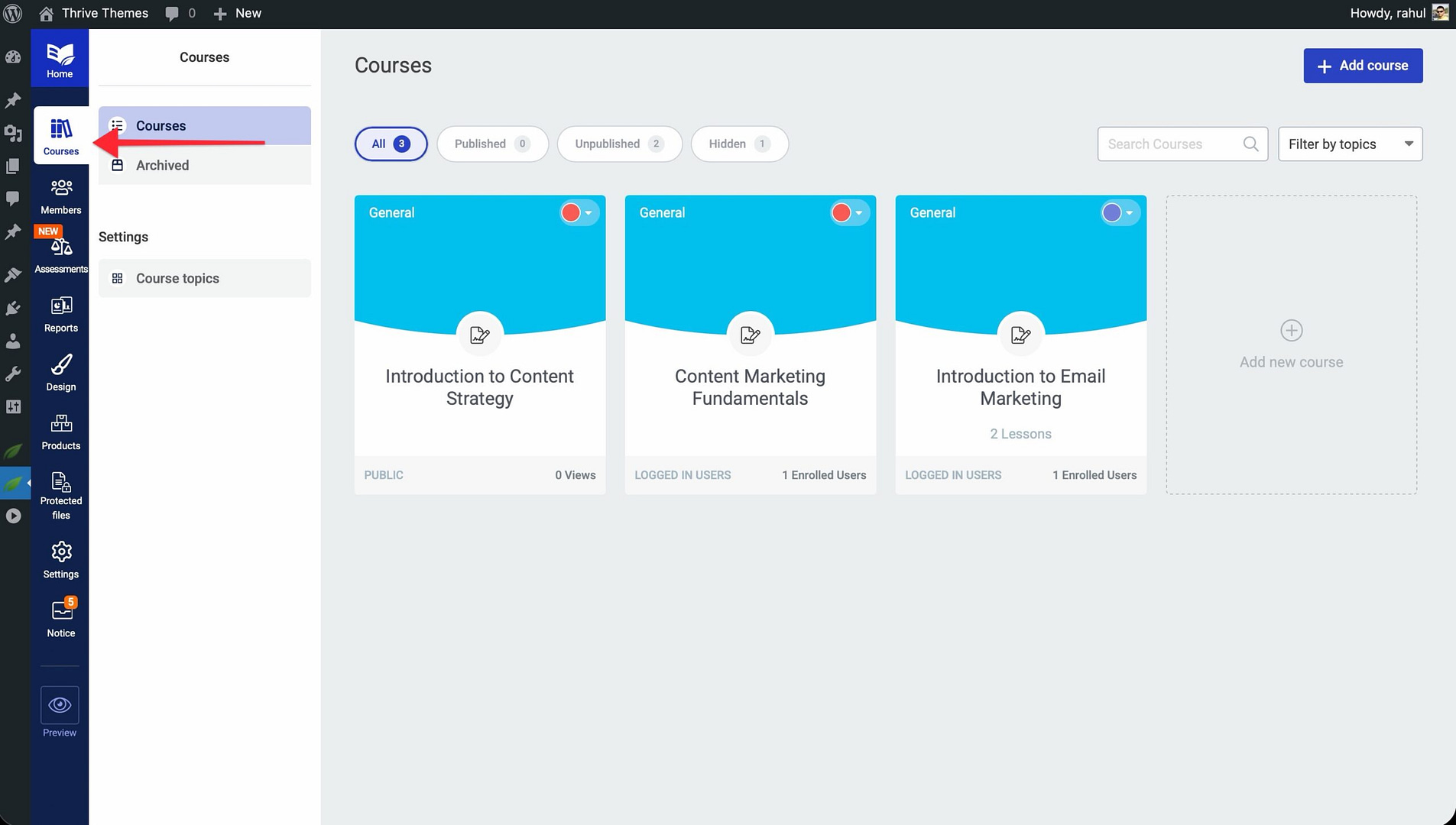
- Open the Content tab to see all modules, chapters, and lessons.

- Hover over the lesson you want to change.
- Click Edit Details from the options that appear.

- In the lesson details panel, locate the Lesson Type setting.

- Select the new type: Text, Video, or Audio.
- If you selected Video or Audio, add the media source (e.g., a YouTube URL, Vimeo link, or uploaded file).
The lesson will now display in the new format when students access it.
When to Use Each Lesson Type
Choosing the right lesson type depends on your content and your audience’s learning preferences. Here’s a quick guide:
Text Lessons
Best for:
- Detailed, reference-heavy content that students may want to search or skim.
- Step-by-step instructions with screenshots or diagrams.
- Lessons that include downloadable files, code snippets, or formatted tables.
- Content that needs frequent updates—text is the easiest format to edit.
Video Lessons
Best for:
- Visual demonstrations such as software tutorials or physical processes.
- Lecture-style teaching where seeing the instructor builds connection.
- Complex concepts that are easier to explain with animations or screen recordings.
- Courses where engagement and completion rates are a priority—video tends to hold attention longer.
Audio Lessons
Best for:
- Conversational content like interviews, discussions, or Q&A sessions.
- Material that students can consume while multitasking—commuting, exercising, or doing chores.
- Guided exercises such as meditations, language practice, or pronunciation drills.
- Supplementary content that complements a primary video or text lesson.
Note: You can mix lesson types within the same course. A well-structured course often combines all three formats to cater to different learning styles and keep students engaged.
Conclusion
That’s it! You’ve successfully learned how to change a lesson’s type in Thrive Apprentice and when to use each format. Experiment with different lesson types to find the mix that works best for your content and your students.
Related Resources
- Course structure — How to Organize Lessons in Chapters
- Course management — How to Manage Course Status and Bulk Actions
- Settings overview — How to Navigate and Configure Thrive Apprentice Settings