Instead of showing a results page on your site, you can redirect users to an external URL or a custom landing page. In this article, you’ll learn how to set up redirects and forward quiz results as URL parameters.
Enabling URL Redirects
By default, every quiz has a results page. To change this to a redirect:
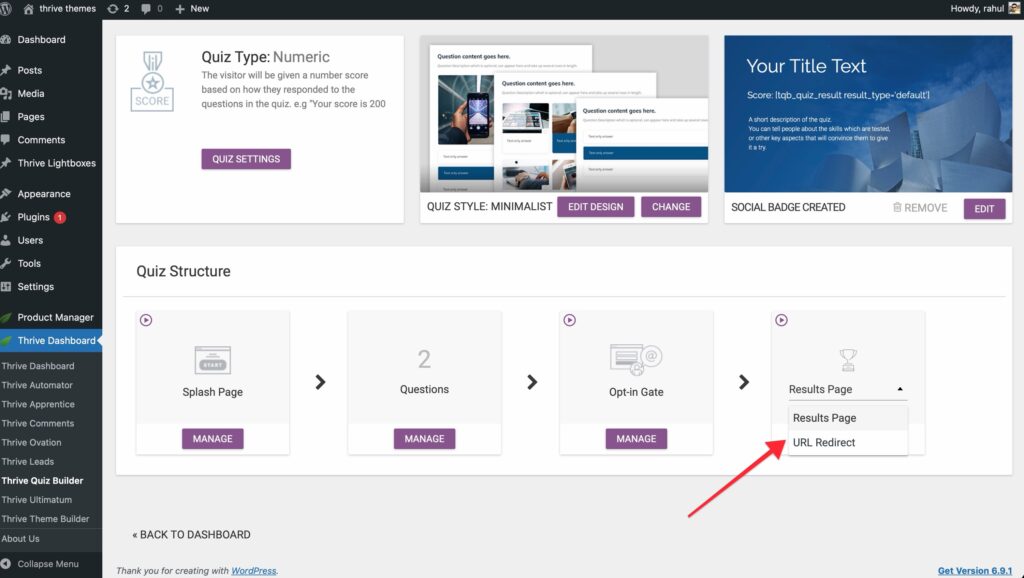
- In the Quiz Structure dashboard, click the Dropdown menu on the Results Page card.
- Change the Results Page Type to URL Redirect.
- Click Manage to define your destination URLs.
Setting Up Redirect Logic
You can redirect users to different pages based on their score or category.
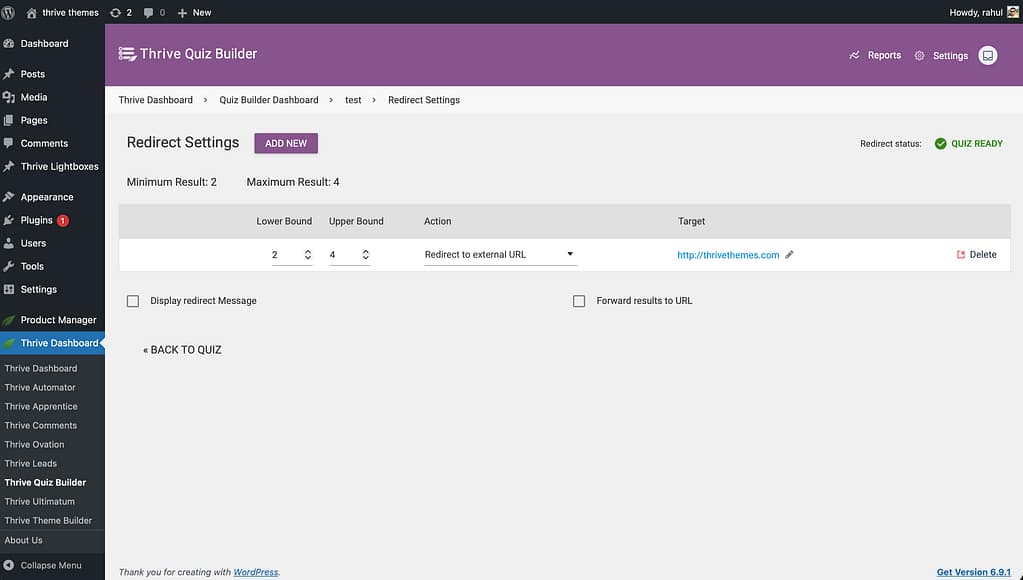
- Define Intervals: Create score ranges (e.g., 0-10, 11-20) or specific categories.
- Enter URLs: provide the specific URL for each result.
- Default Redirect: Make sure to set a default URL for any results that don’t fall into your specified intervals.
Forwarding Results to the Destination URL
If you want to use the quiz data on the page you’re redirecting to, you can “forward” the results.
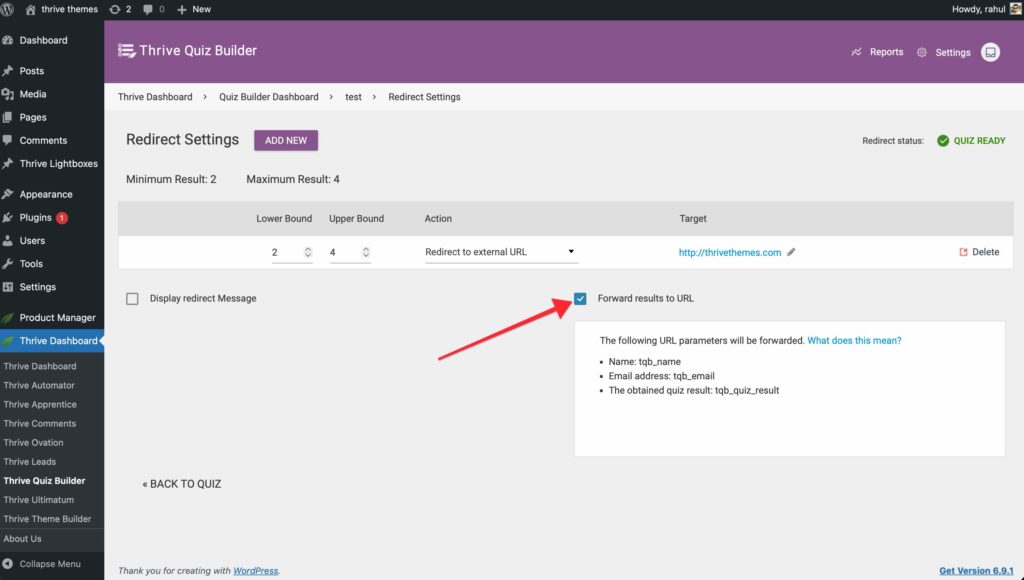
- On the Redirect settings page, toggle the Forward Results to URL switch to ON.
- This will append the user’s score, category name, and other data to the end of the URL as query parameters (e.g.,
?result=Beginner&score=42). - Dynamic Display: On the destination page, you can use Thrive Architect’s Dynamic Text feature to grab these parameters and display them (e.g., “Welcome, [result] specialist!”).
The Redirect Message
To improve the user experience, you can show a brief message before the redirect occurs.
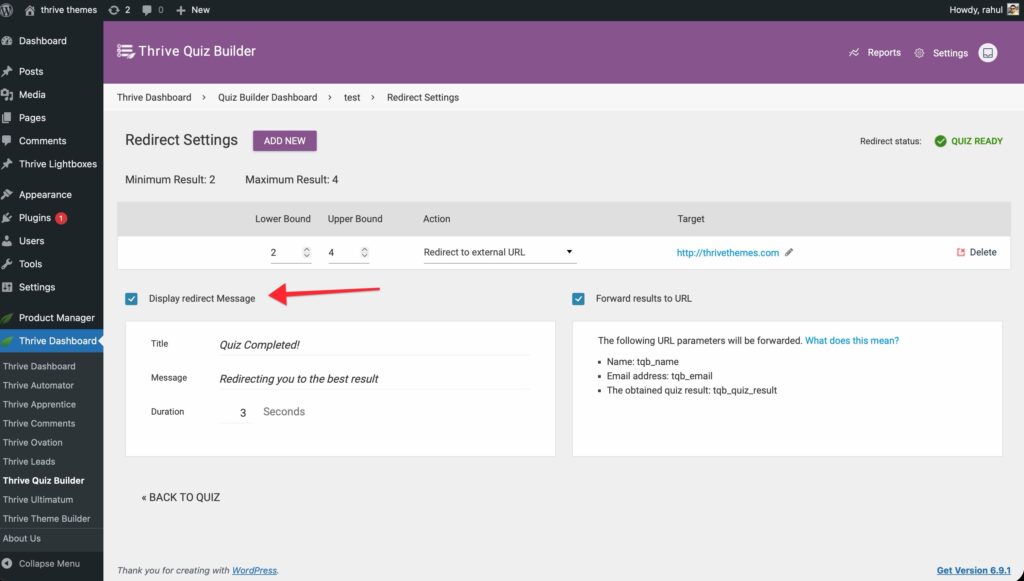
- Enable the Display Redirect Message toggle.
- Customize the text (e.g., “Calculating your results… please wait while we redirect you”).
- Set the duration (in seconds) that the message should be visible.
Related Resources
- Results Page: How to Customize Your Quiz Results Page
- Opt-in Gates: Using the Opt-in Gate in Thrive Quiz Builder
- Publishing: How to Publish and Display Your Quiz
- Thrive Quiz Builder Documentation: Explore the full Thrive Quiz Builder knowledge base