In this article, you’ll learn how to connect your social media profiles to Thrive Theme Builder so they automatically appear in theme elements like the Social Follow element in your headers and footers.
Social media profiles are managed through Global Fields in the Thrive Dashboard’s Smart Settings. Once configured, these profiles are available across all Thrive products—not just Thrive Theme Builder.
Setting Up Your Social Media Profiles
Step 1: Access the Smart Settings
- Go to your WordPress admin dashboard.
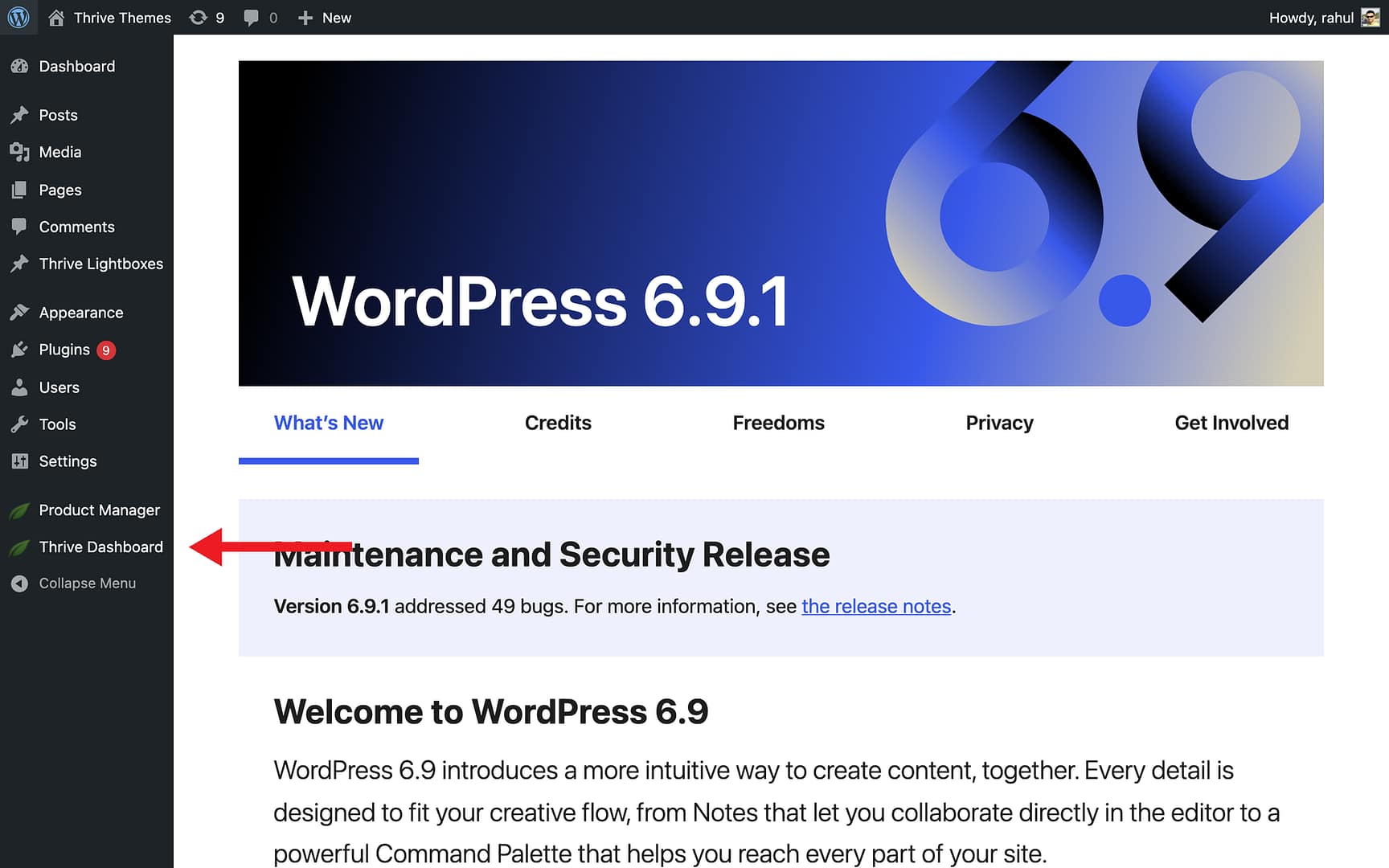
- In the left sidebar, click Thrive Dashboard.
- Scroll down to the Smart Site card and click Smart Settings.
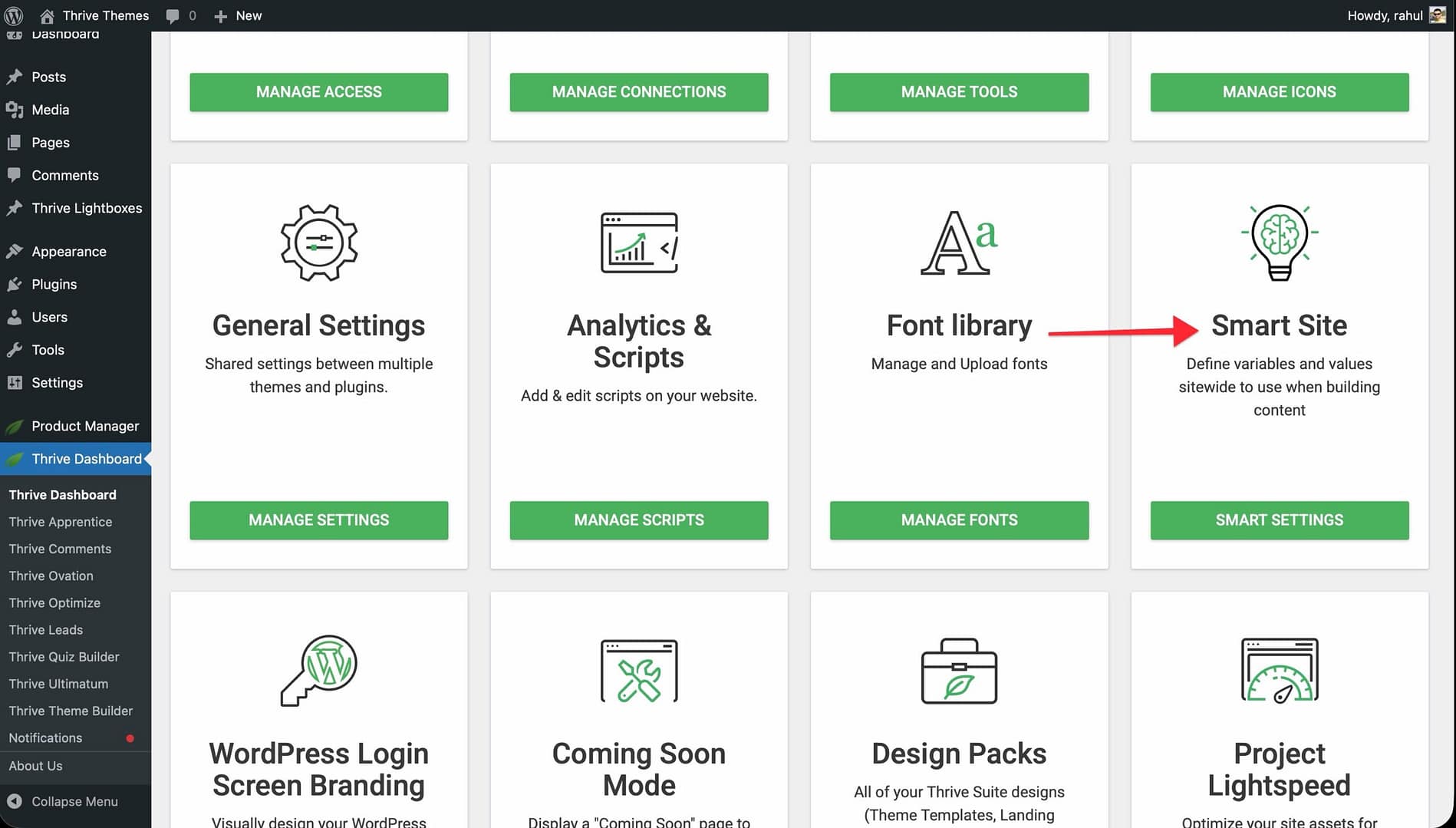
- This opens the Global Fields page.
Step 2: Configure the Social Global Fields
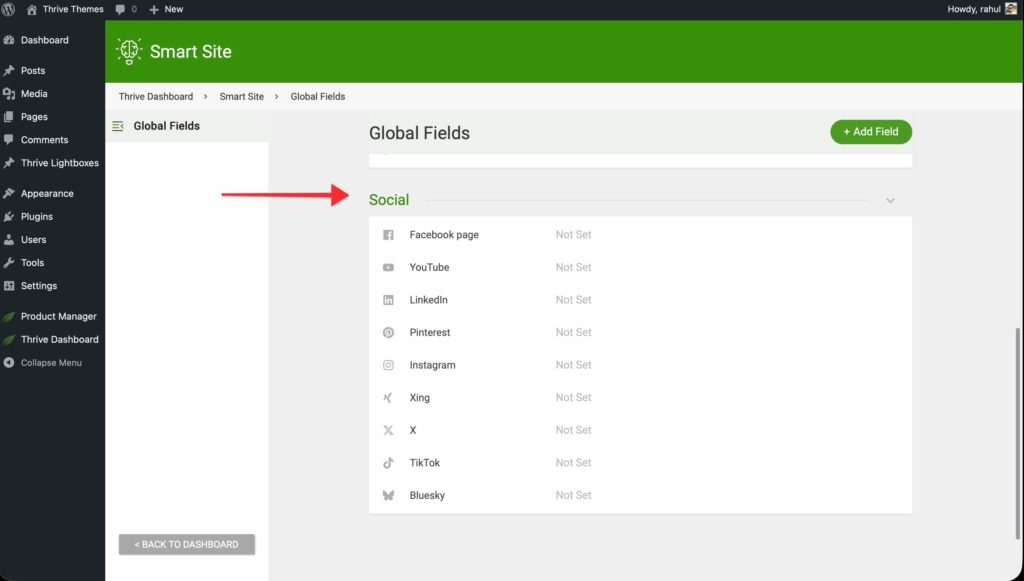
- Locate the Social group on the Global Fields page.
- Each social field initially shows a Not Set status.
- Hover over a field (e.g., Facebook) and click the Edit (pencil) icon.
- A pop-up window opens with two fields:
- Link Text — A name for the social media link (e.g., “Facebook profile”).
- Link URL — The full URL of your social media profile page.
- Click Save.
- Repeat for each social media platform you want to connect.
Supported Social Platforms
Thrive Theme Builder supports the following social platforms:
- Facebook Page
- X (Twitter)
- YouTube
- TikTok
- Bluesky
Step 3: Use the Connected Profiles
Once configured, your social media profiles are automatically available wherever social elements are used in your theme. For example, the Social Follow element in your header or footer will display the connected profiles without needing to re-enter the URLs manually.
To edit a profile later, go back to the Global Fields page, hover over the field, and click Edit.
Author-Level Social URLs
Thrive Theme Builder also supports per-author social media URLs. These appear in author-related elements (e.g., the Author Social Links element).
To set these up:
- Go to Users > Your Profile in the WordPress admin.
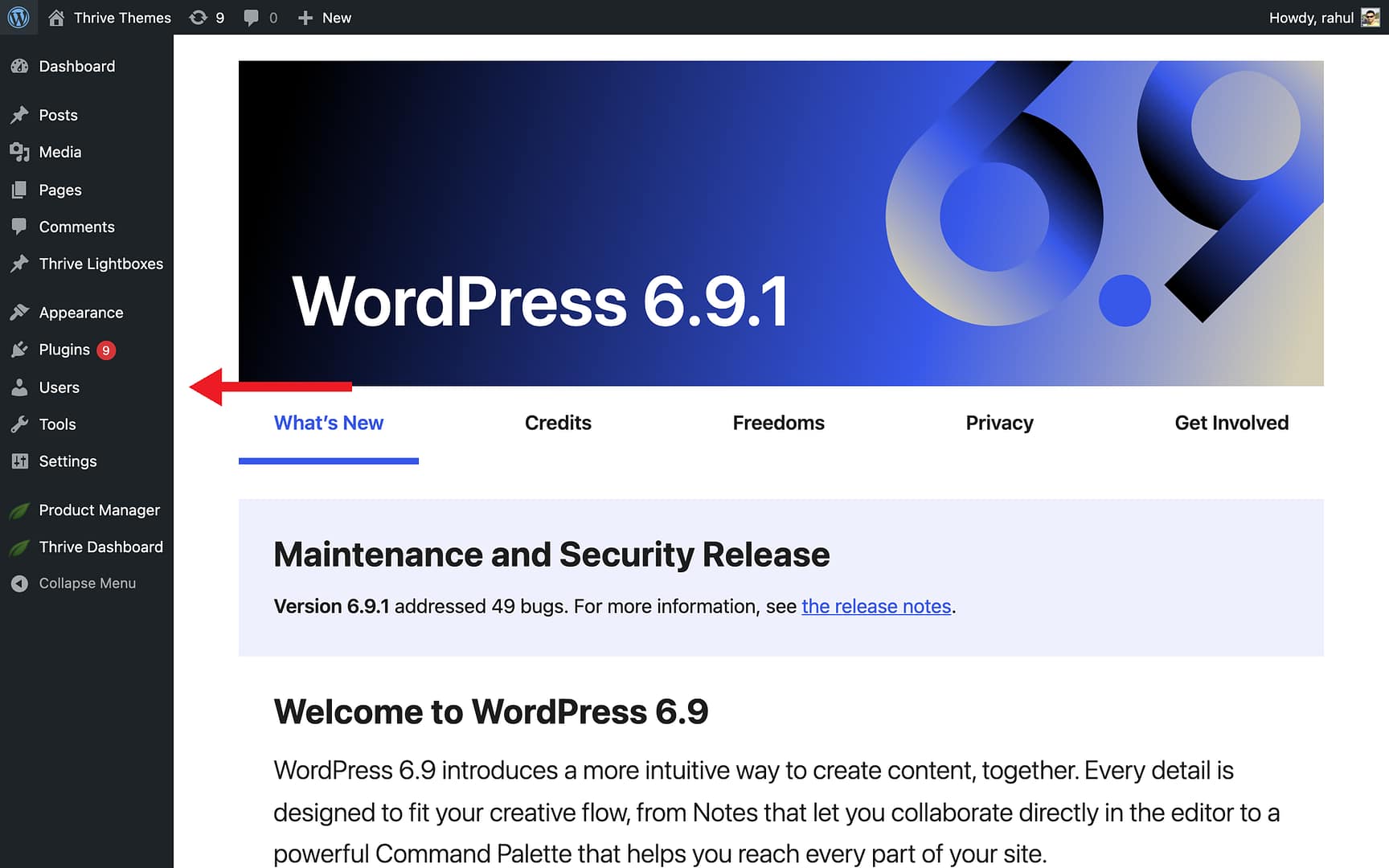
- Scroll down to the Thrive Social URL Settings section.
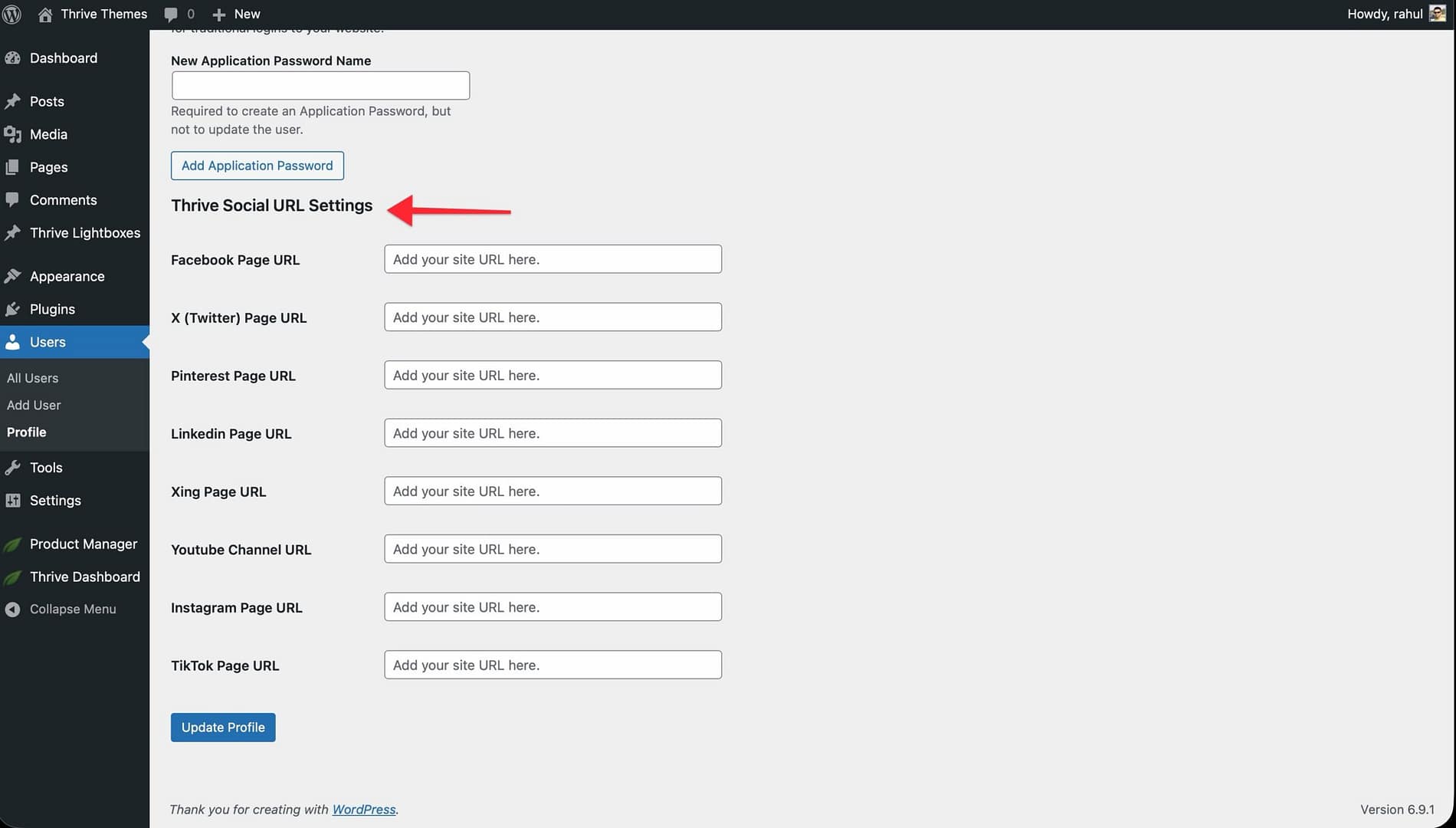
- Enter your social media URLs in the provided fields.
- Click Update Profile to save.
Related Resources
- Setting Up Branding: Configure your logo, favicon, and theme colors.
- Using the Social Follow Element: Learn how to add the Social Follow element to your templates.
- Author Elements: Display author information and social links on your templates.