In this article, you’ll learn about child theme functionality in Thrive Theme Builder and the recommended alternatives for customizing your theme safely.
Traditional Child Themes Are Not Supported
Thrive Theme Builder does not support traditional WordPress child themes. Unlike standard WordPress themes where you create a child theme folder with a style.css and functions.php to override the parent theme, Thrive Theme Builder uses a completely different architecture.
This is because Thrive Theme Builder is a fully visual, template-based system. All customization happens through the Thrive Theme Builder dashboard and visual editor—not through theme files.
The Recommended Alternative: Duplicate Your Theme
Instead of child themes, Thrive Theme Builder provides a theme duplication feature that serves a similar purpose—letting you create a safe copy of your theme for experimentation without affecting the original.
How to Create a Theme Copy
- In the Thrive Theme Builder dashboard, click Themes in the left sidebar.
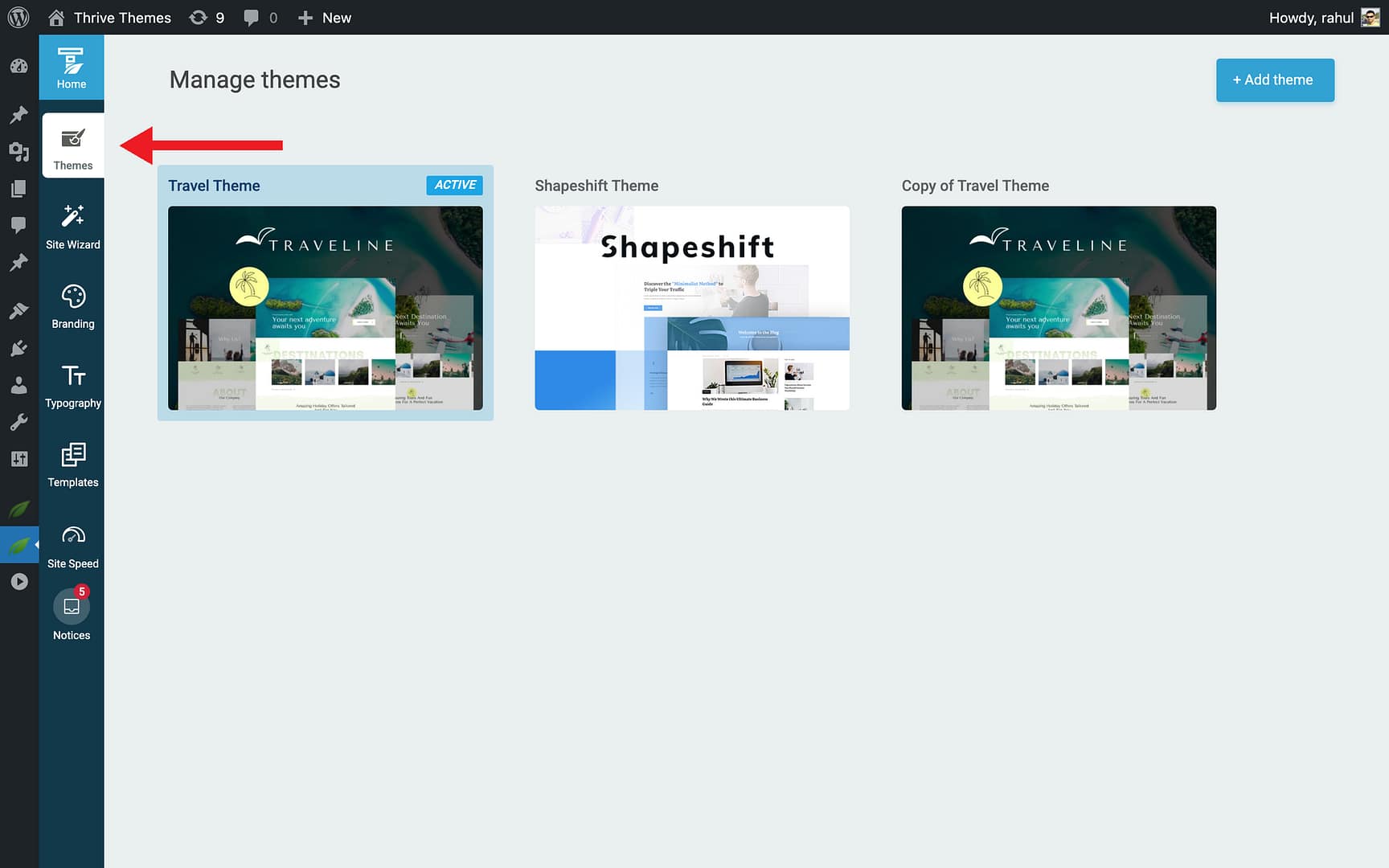
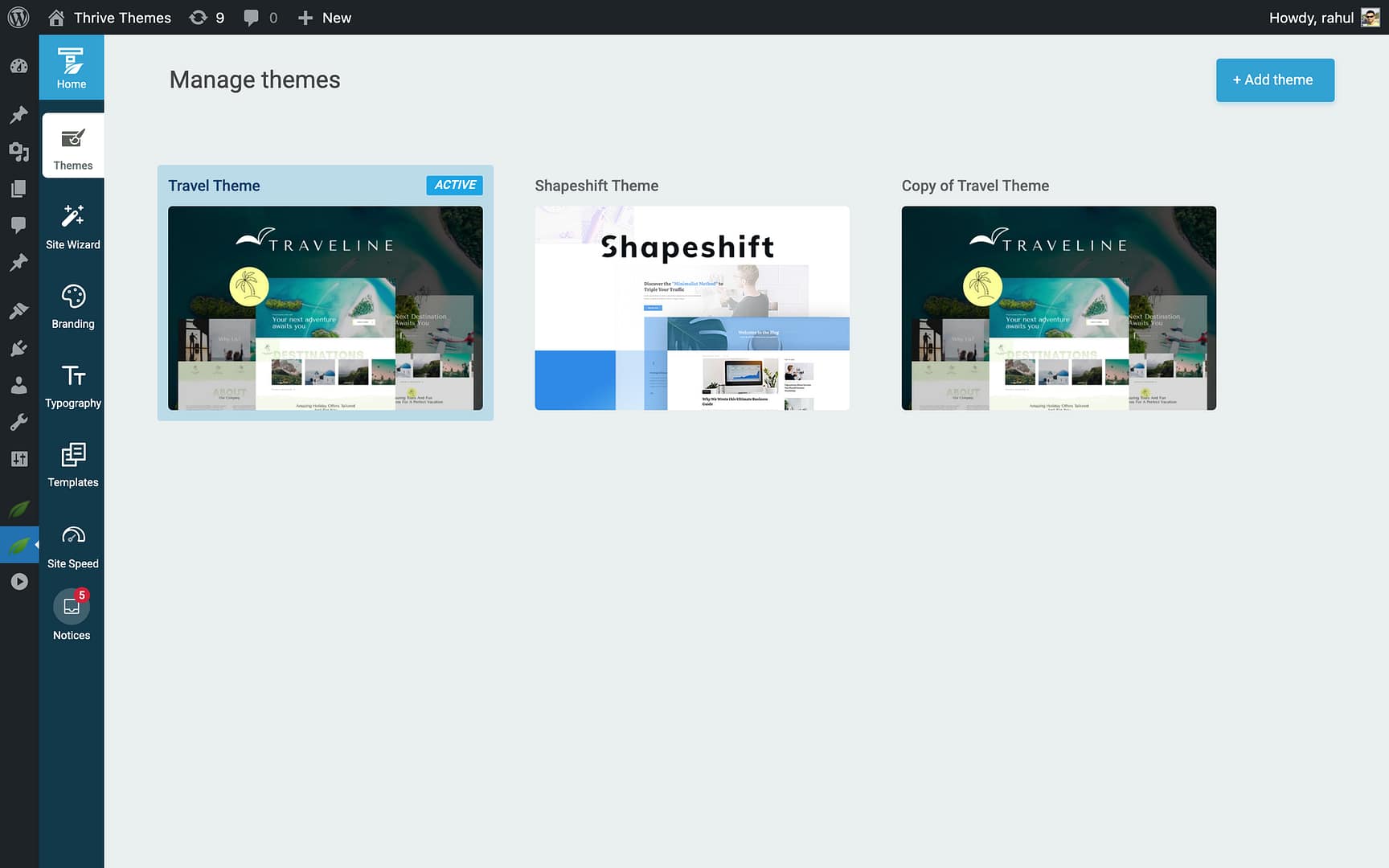
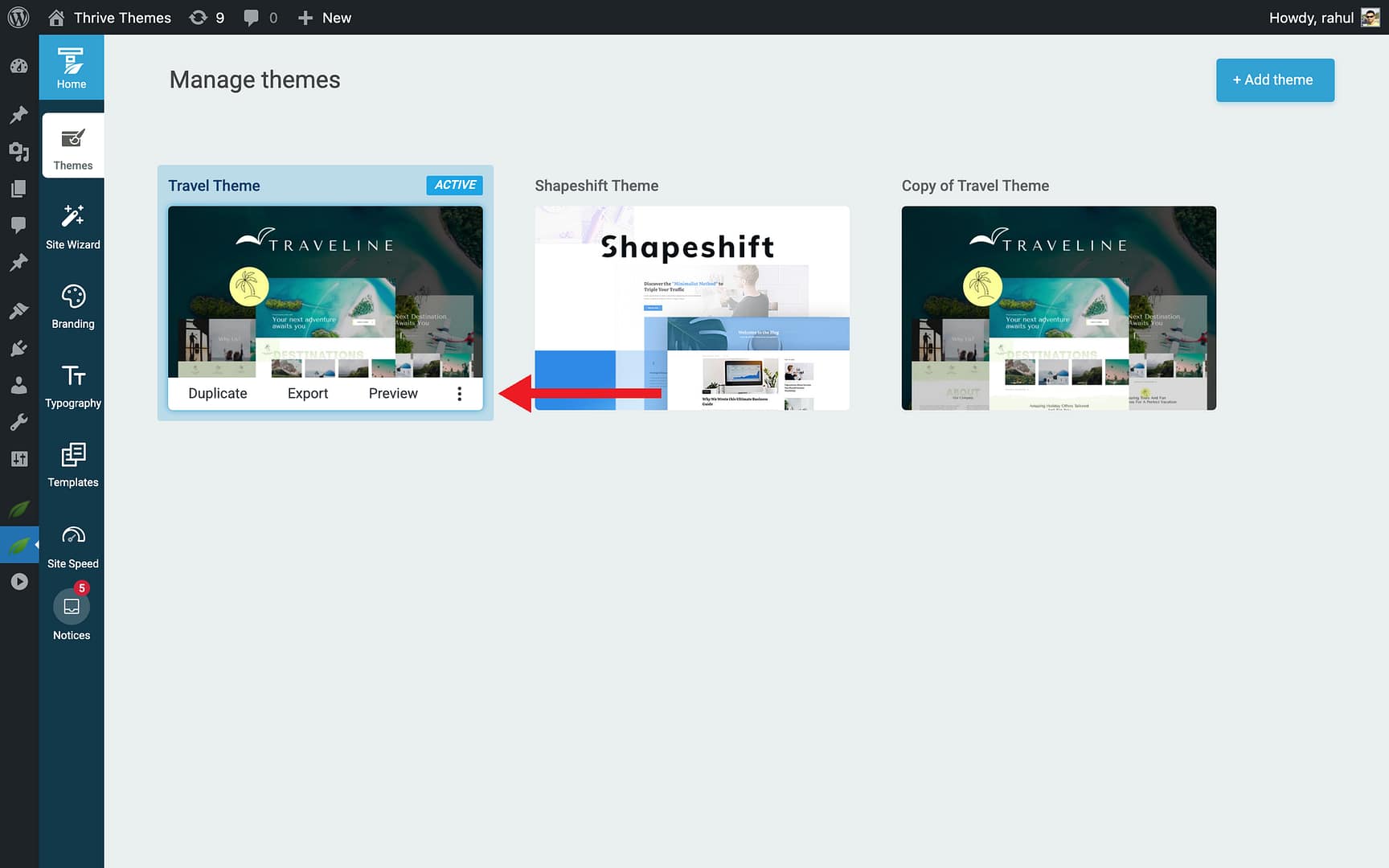
- Hover over the theme you want to duplicate.
- Click the Duplicate Button.
- A complete copy of the theme is created with all templates, layouts, typography, color palettes, and sections.
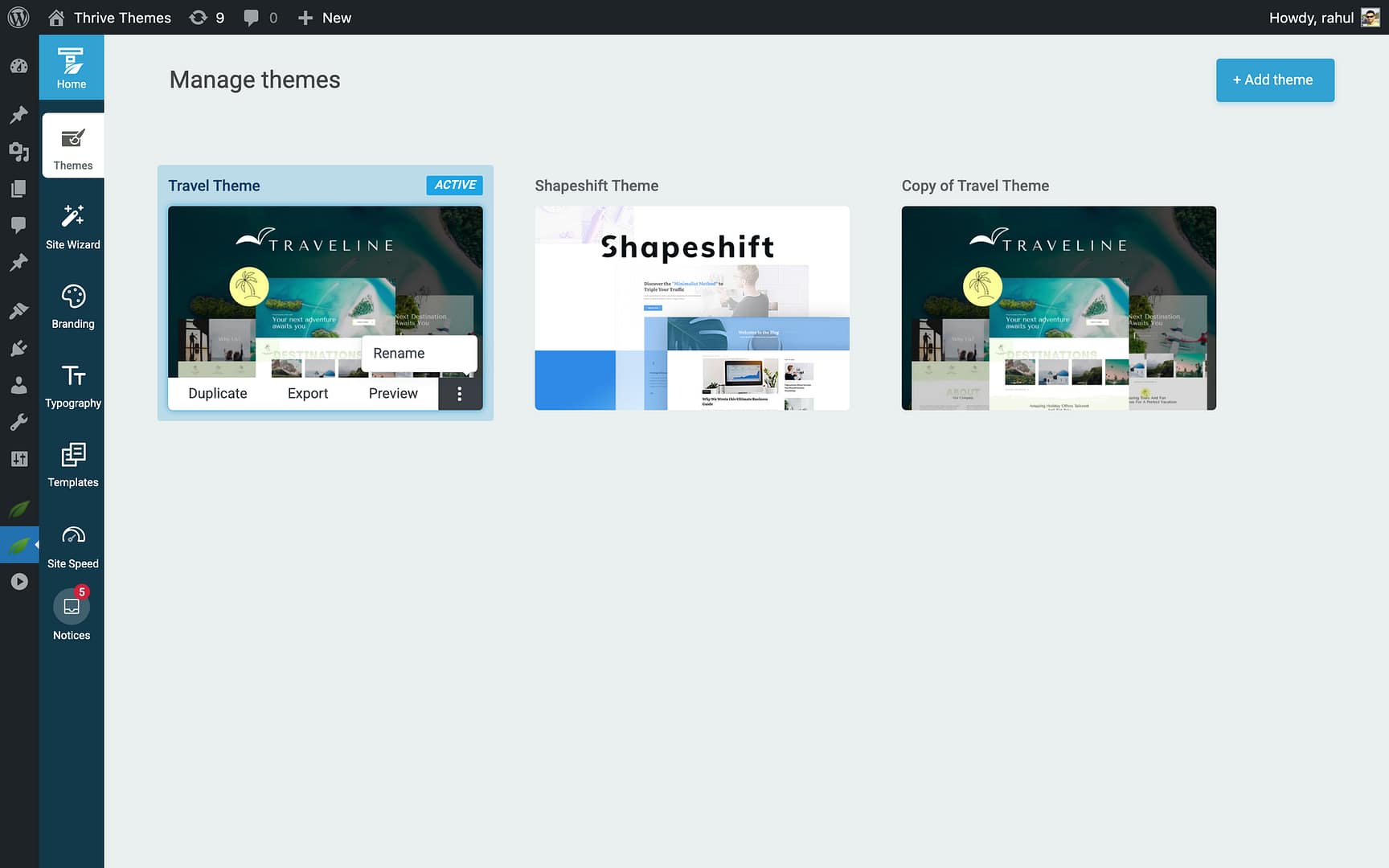
The duplicate is fully independent—changes to the copy do not affect the original.
When to Use Theme Duplication
- Before making major design changes — Duplicate your active theme, then experiment on the copy. If you’re happy with the result, activate the copy and delete the old one.
- Creating seasonal or campaign-specific designs — Duplicate your base theme and customize it for a specific event or campaign, then switch back afterward.
- A/B testing designs — Create multiple theme variations and switch between them to test different approaches.
Adding Custom Code
If you need to add custom PHP functions or hooks (the typical use case for WordPress child themes), use these alternatives:
- Custom CSS — Add custom CSS directly in the Thrive Theme Builder editor via the Custom CSS option. See Adding Custom CSS.
- Custom Scripts — Add custom JavaScript or tracking scripts per-page via the Custom Scripts meta box in the WordPress editor. This allows you to add scripts to the header, body (top), or body (bottom) of individual pages and posts.
- Code Snippets plugin — Use the Code Snippets plugin to add custom PHP functions without creating a child theme.
Related Resources
- Managing Your Themes: Learn how to rename, duplicate, and delete themes.
- Adding Custom CSS: Learn how to add custom CSS in the editor.
- Adding Scripts: Learn how to add tracking scripts and custom code.