In this article, you’ll learn how to use a single Thrive Suite license to customize Thrive Theme Builder on a staging site and then move your finished design to a live website.
A Thrive Suite license can only be active on one website at a time. However, you can deactivate it from one site and reactivate it on another at any time—making it easy to use a staging site for design work before going live.
Step-by-Step Workflow
Step 1: Activate the License on Your Staging Site
Set up a staging site using your hosting provider’s staging tools (most hosts offer this as a one-click feature). Then:
- Install the Thrive Product Manager plugin on the staging site.
- Log in with your Thrive Themes account.
- Install and activate Thrive Theme Builder.
For detailed installation instructions, see the installation guide.
Step 2: Customize Your Theme
With the license active on your staging site, customize your theme to your liking:
- Run the Site Wizard to set up your site structure.
- Configure your branding (logo, colors, typography).
- Customize your templates (homepage, posts, pages, blog lists).
- Test everything across desktop, tablet, and mobile.
Step 3: Deactivate the License from the Staging Site
Once your design is ready:
- Go to the Thrive Product Manager in your WordPress admin.
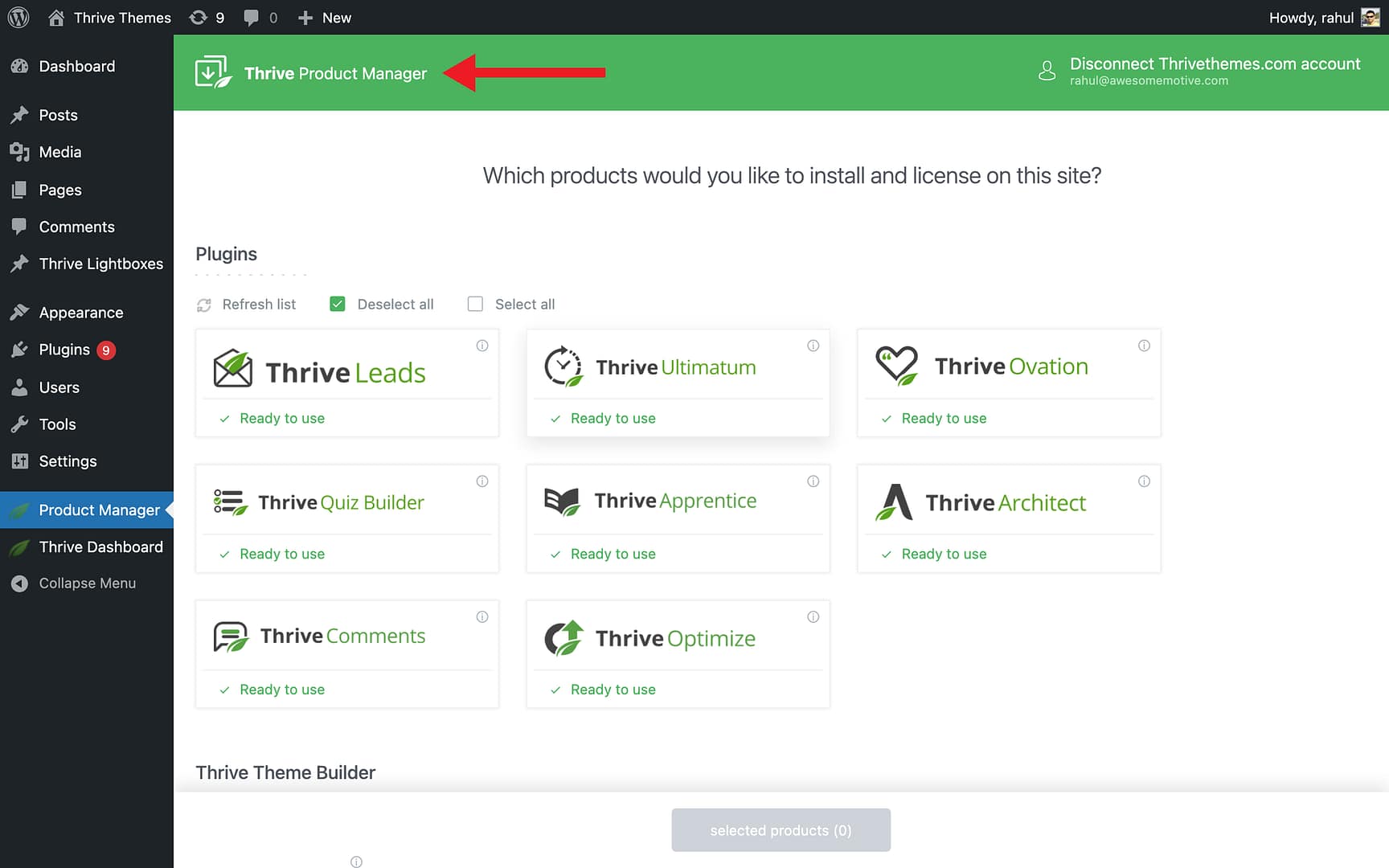
- Deactivate the Thrive Theme Builder license from the staging site.
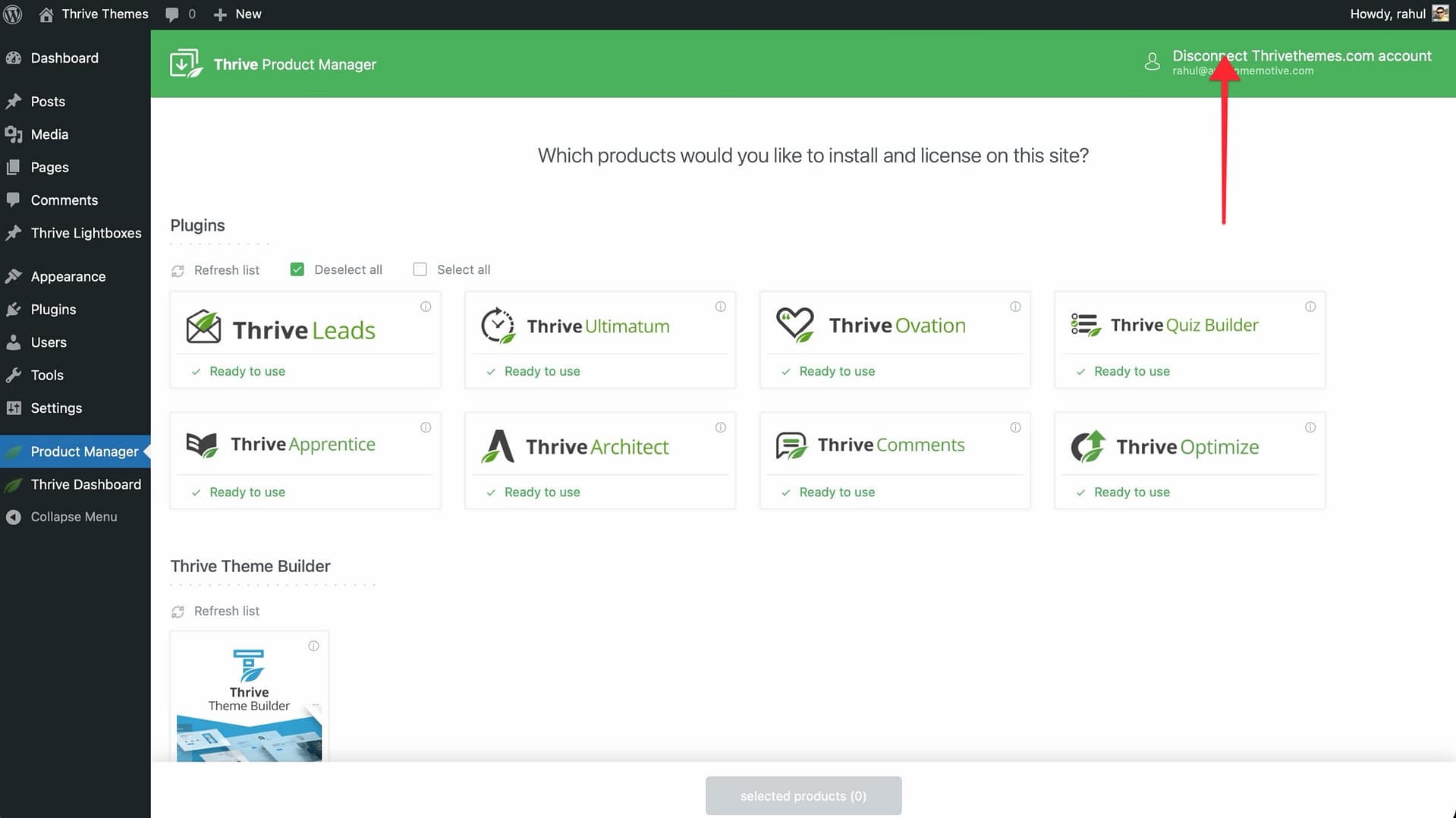
This frees up the license for use on your live site.
Step 4: Copy the Staging Site to Your Live Site
Migrate your staging site to your live website. The method depends on your hosting setup:
- Many hosting providers (e.g., WPX Hosting) offer built-in migration tools.
- You can also use WordPress cloning/migration plugins like Duplicator.
Step 5: Reactivate the License on the Live Site
After the migration:
- Go to the Thrive Product Manager on your live site.
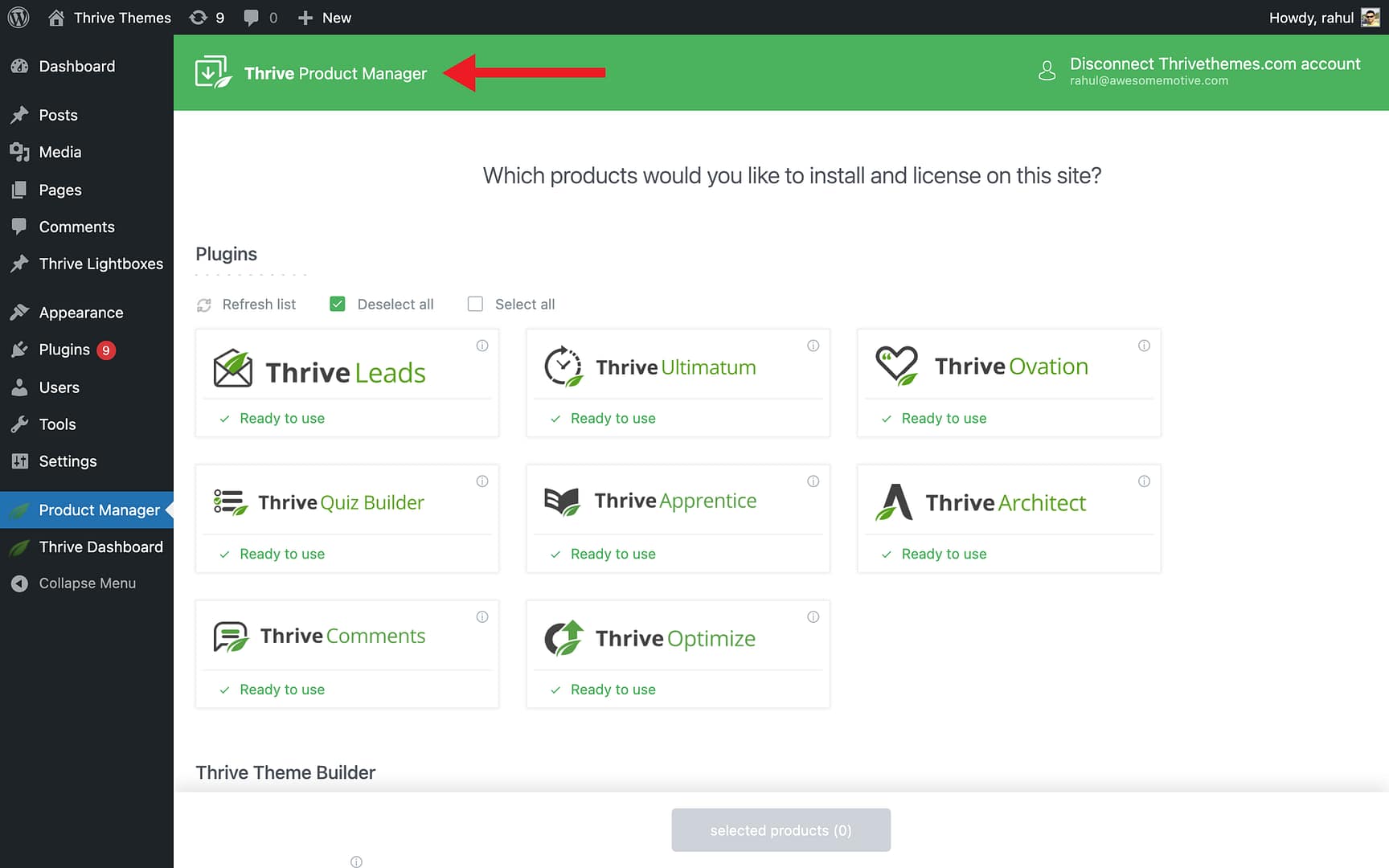
- Log in with your Thrive Themes account.
- Reactivate the license.
Your fully customized Thrive Theme Builder site is now live.
Related Resources
- Installing Thrive Theme Builder: Follow the installation and activation guide.
- Getting Started: Learn how to use the Site Wizard and dashboard.
- Importing and Exporting Themes: Learn how to export and import themes between sites.