In this article, you’ll learn how to create and customize list templates in Thrive Theme Builder. List templates control how pages that display collections of posts look—including your blog page, category archives, tag archives, search results, and more.
What Are List Templates?
List templates (also called archive templates) define the design for pages that display multiple posts. Unlike single content templates that control how one page or post looks, list templates control how a list of posts is presented.
Every Thrive Theme Builder theme includes two default list templates:
- Blog — Controls the appearance of your main blog page (the post list).
- All Archives — Controls how category, tag, author, and date archive pages look.
You can create additional list templates for different archive types or to provide alternative designs.
List Template Types
When creating a new list template, you choose from three list types:
Post Types
Templates for custom post type archives. Use this when you have custom post types (e.g., WooCommerce products, portfolio items) and want to control how their archive pages look.
Archives
Templates for standard WordPress archive pages. Archive templates can be configured for specific archive types:
- Categories — Controls how category archive pages look (e.g., “All posts in the Marketing category”).
- Tags — Controls how tag archive pages look.
- Authors — Controls how author archive pages look.
- Dates — Controls how date-based archive pages look (e.g., “All posts from January 2025”).
Search
Templates that control how the search results page looks when visitors use the site search.
Creating a New List Template
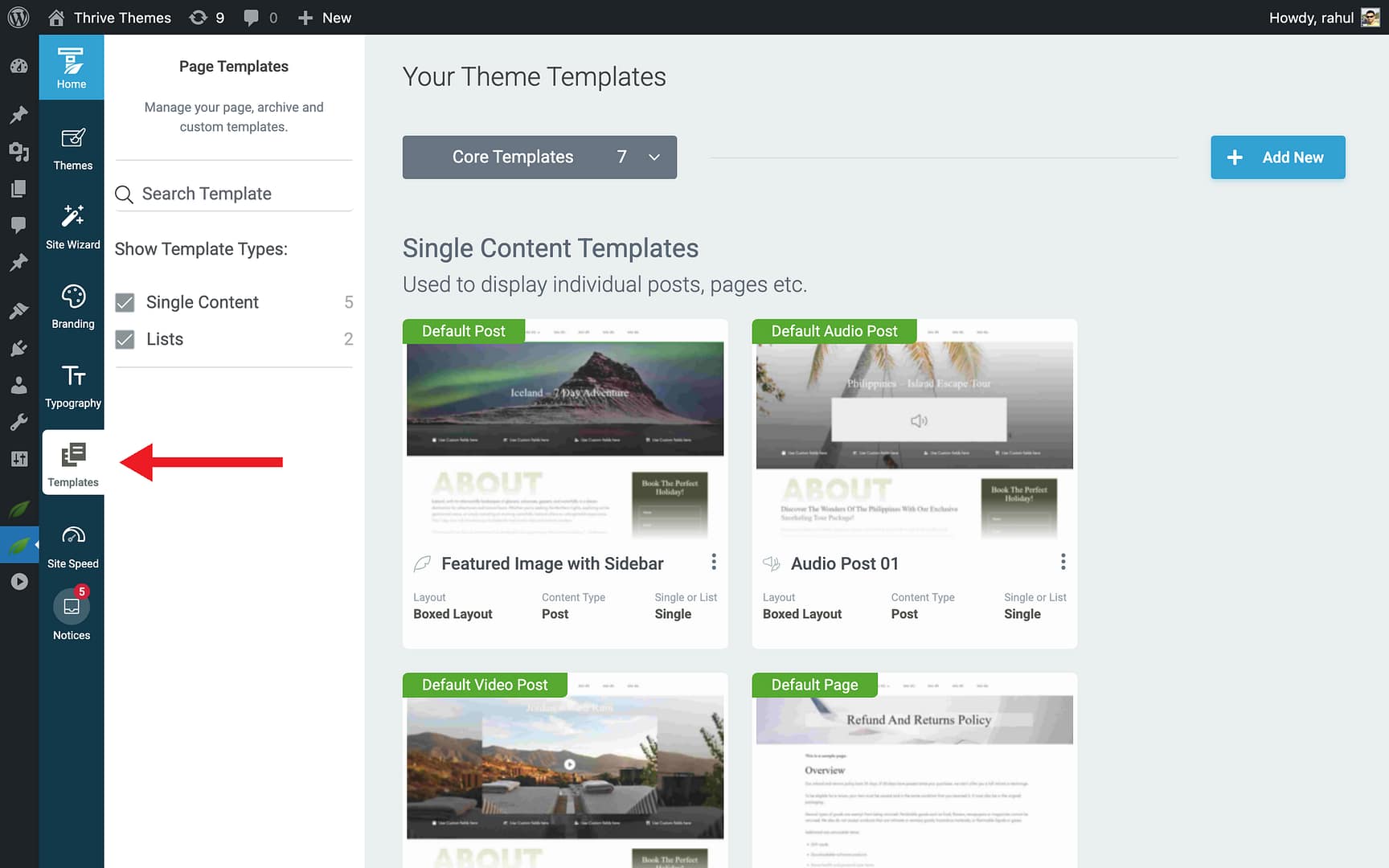
Step 1: Open the Templates Section
- In the Thrive Theme Builder dashboard, click Templates in the left sidebar.
Step 2: Add a New Template
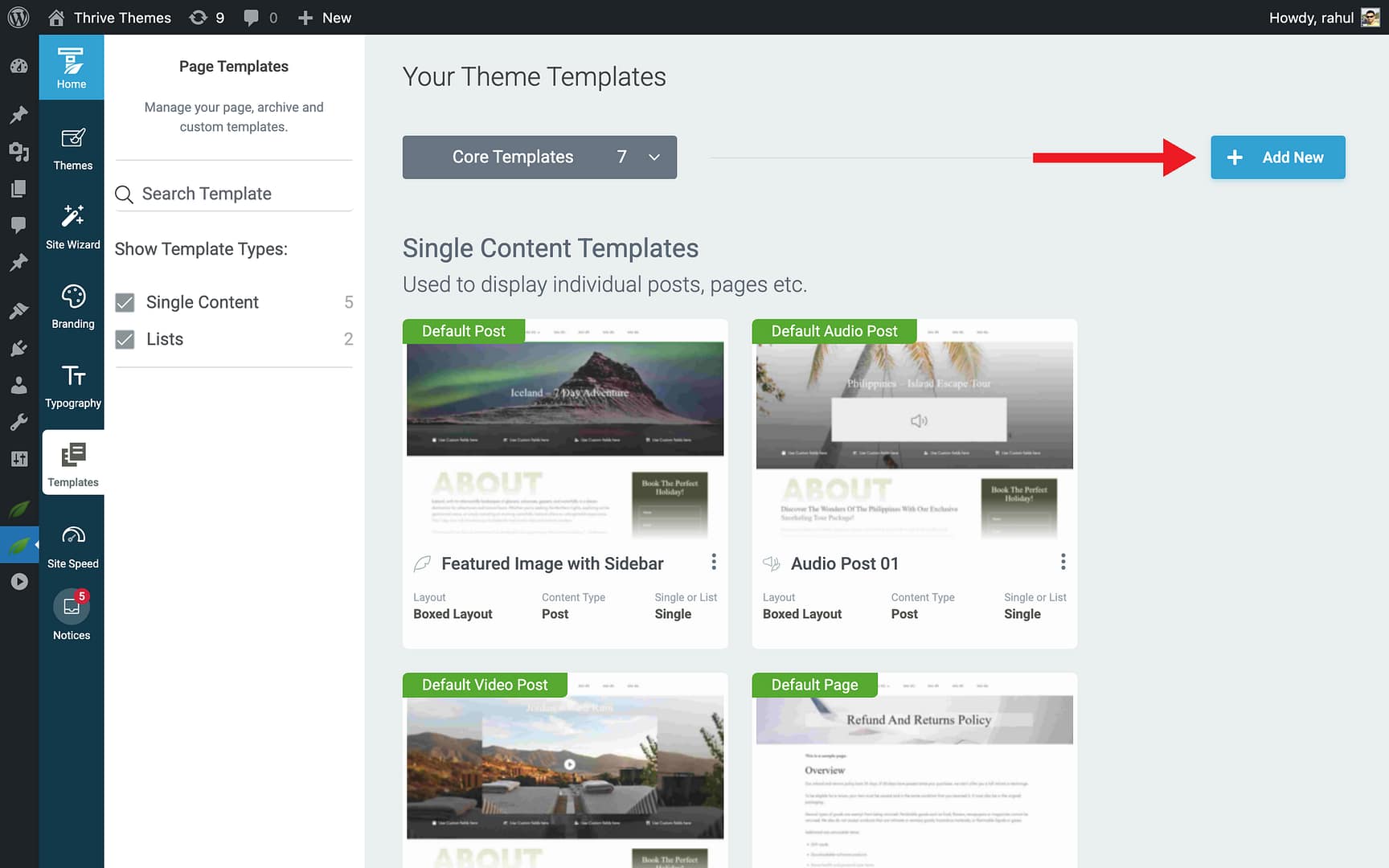
- Click the Add New button in the top-right corner.
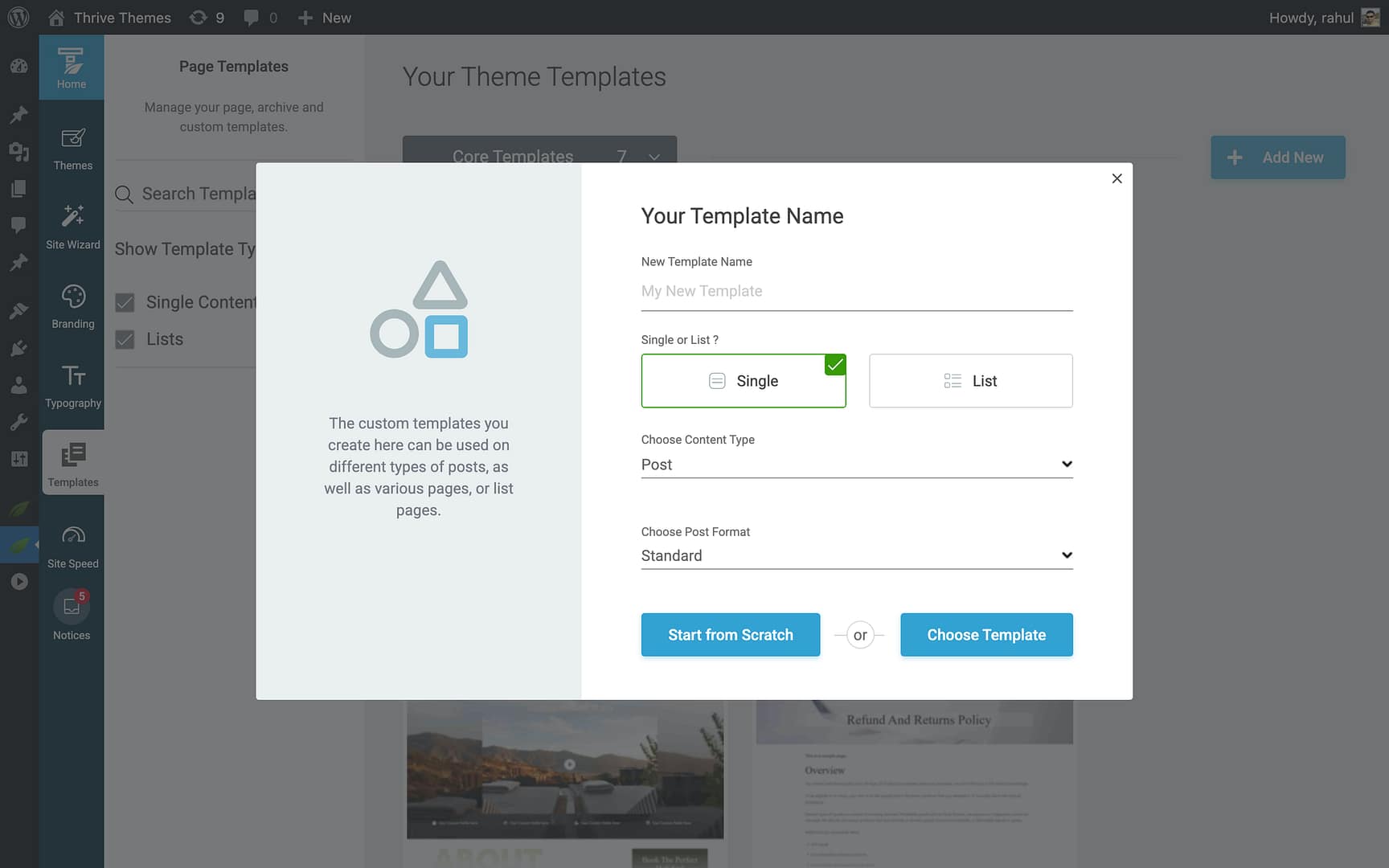
- A setup popup opens.
Step 3: Configure the Template
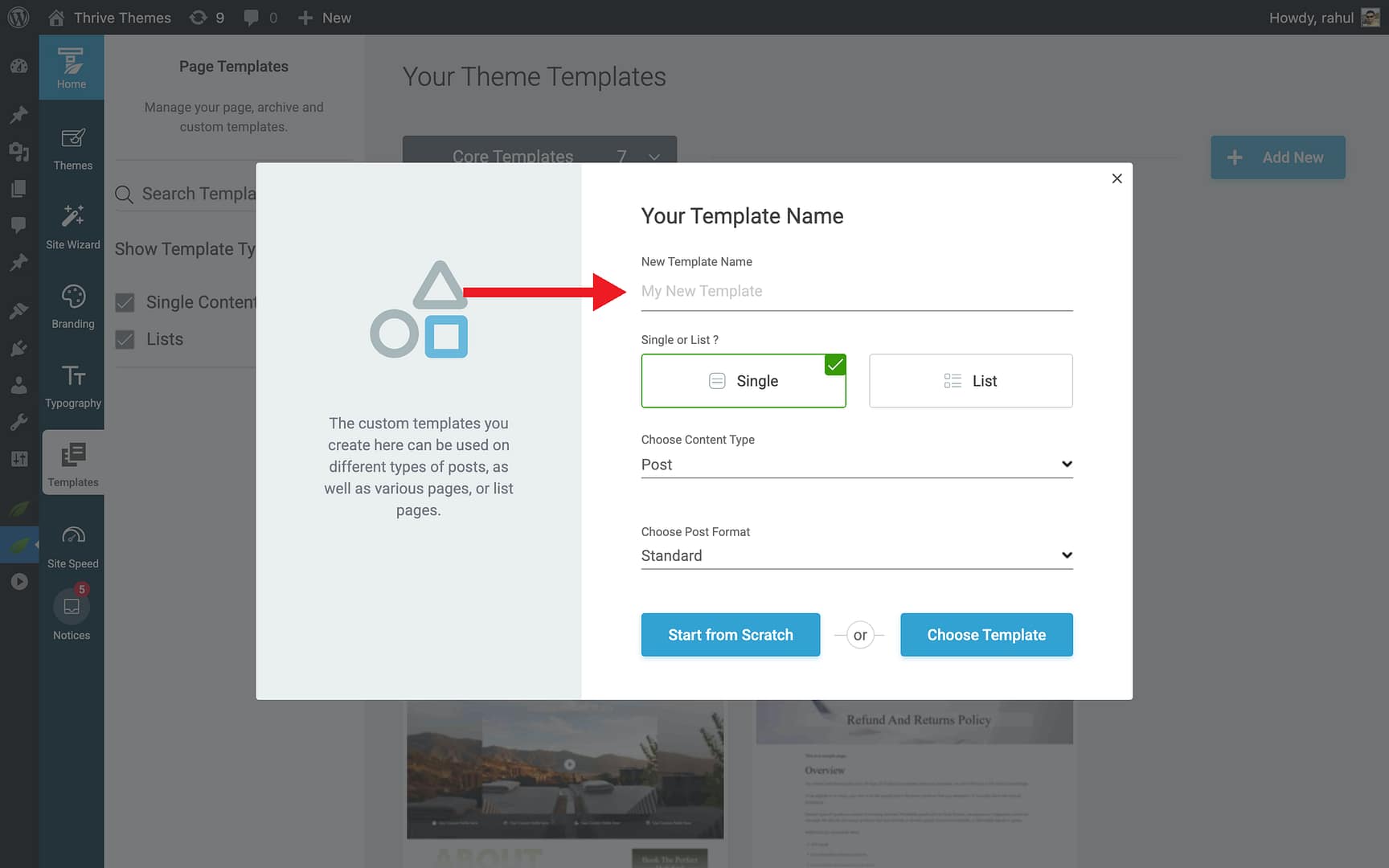
- Enter a descriptive name in the New Template Name field (e.g., “Category Archive — Grid Layout” or “Search Results — Sidebar”).
- Click List in the Single or List? toggle.
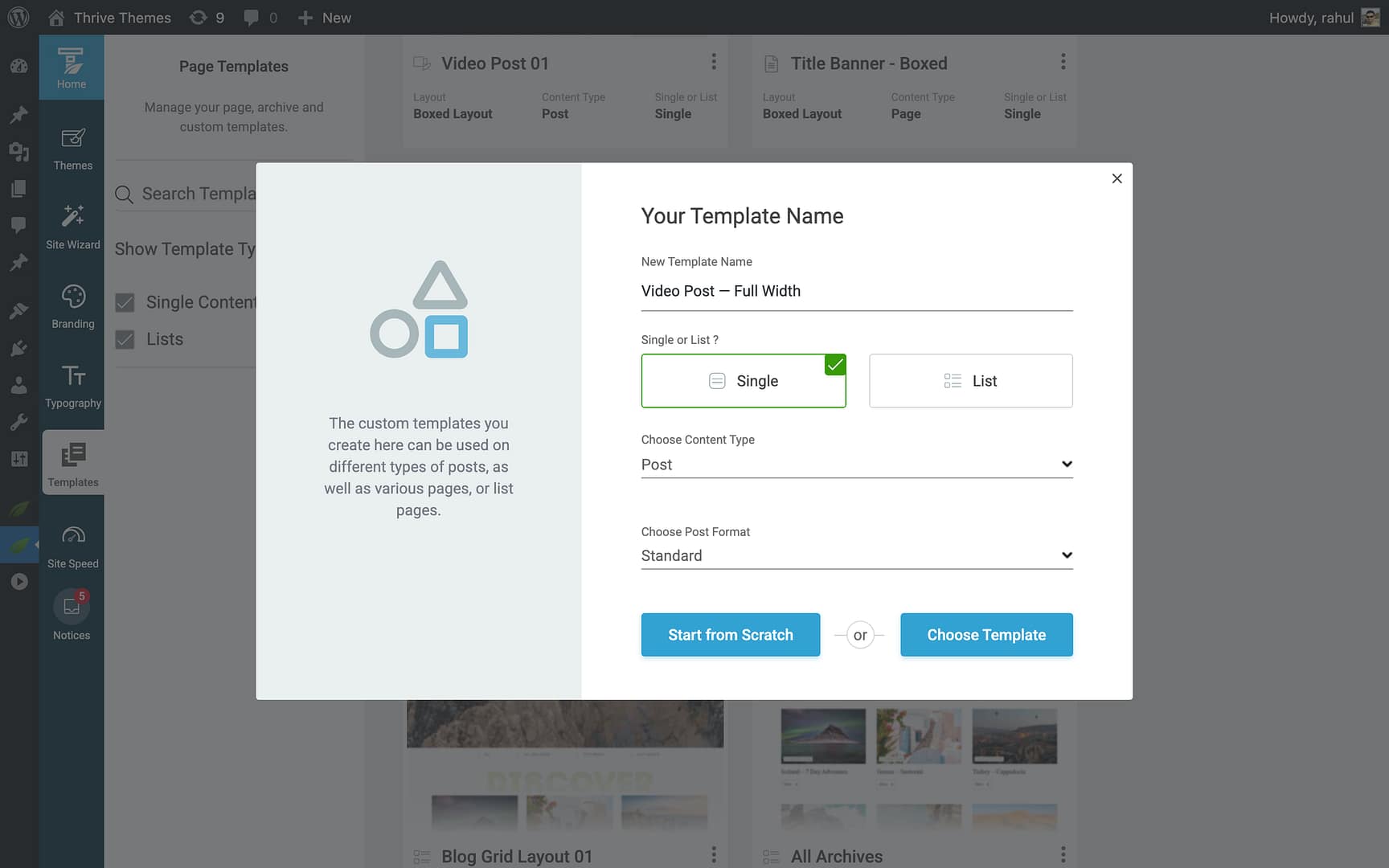
- Select the list type from the dropdown:
- Post Types — For custom post type archives.
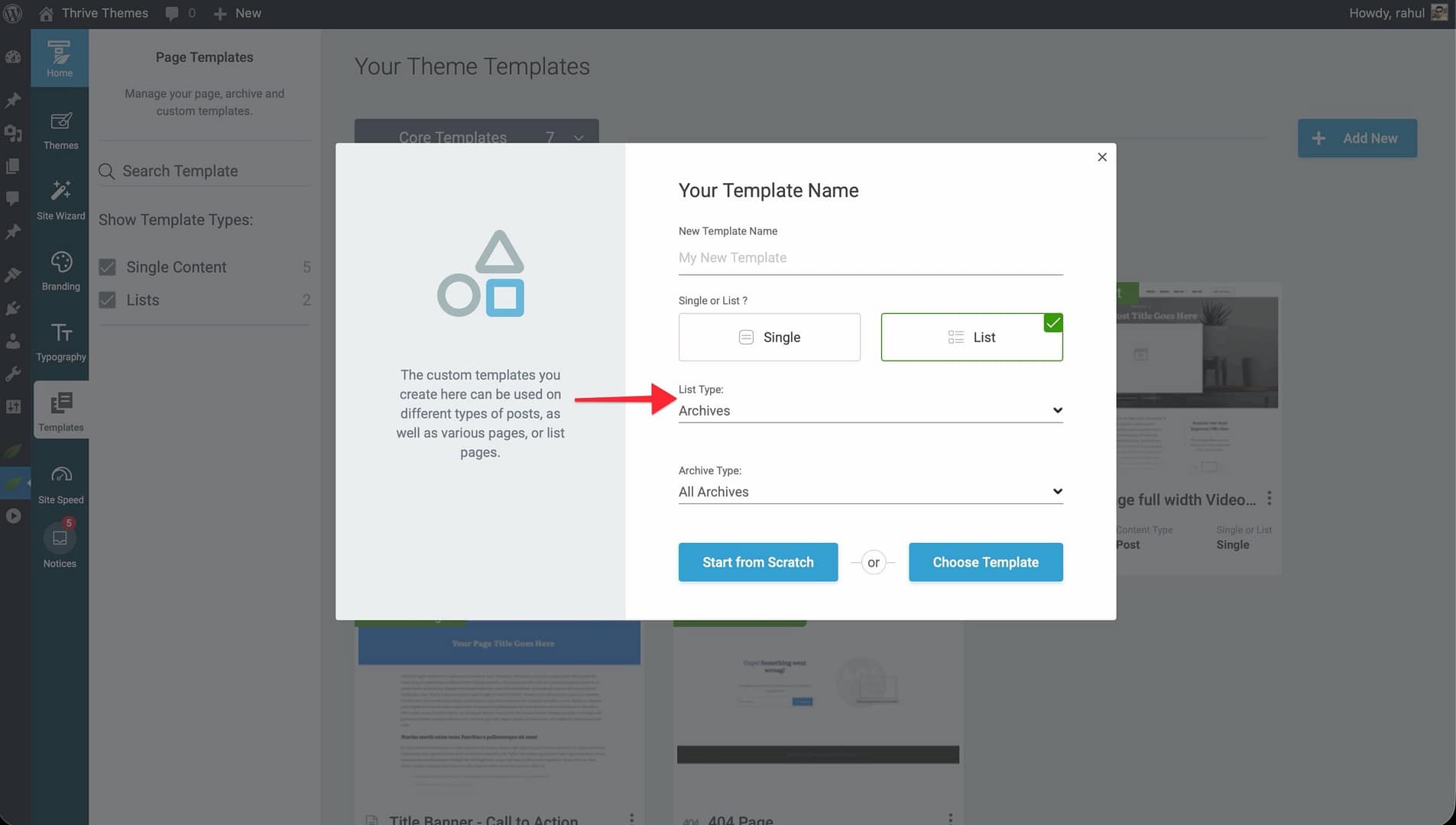
- Archives — For category, tag, author, or date archives. After selecting Archives, choose the specific archive type from the additional dropdown.
- Search — For the search results page.
Step 4: Choose a Starting Point
- Start from Scratch — Creates a blank list template with the basic structure.
- Choose Template — Opens the template library with pre-designed list templates. Browse the available designs, hover over one, and click Choose to select it.
The new template appears in the Templates section, ready for customization.
Creating a Category List Template
Category list templates control how automatically generated category archive pages look on your site.
- Follow the steps above to add a new list template.

- Click List in the Single or List? toggle.
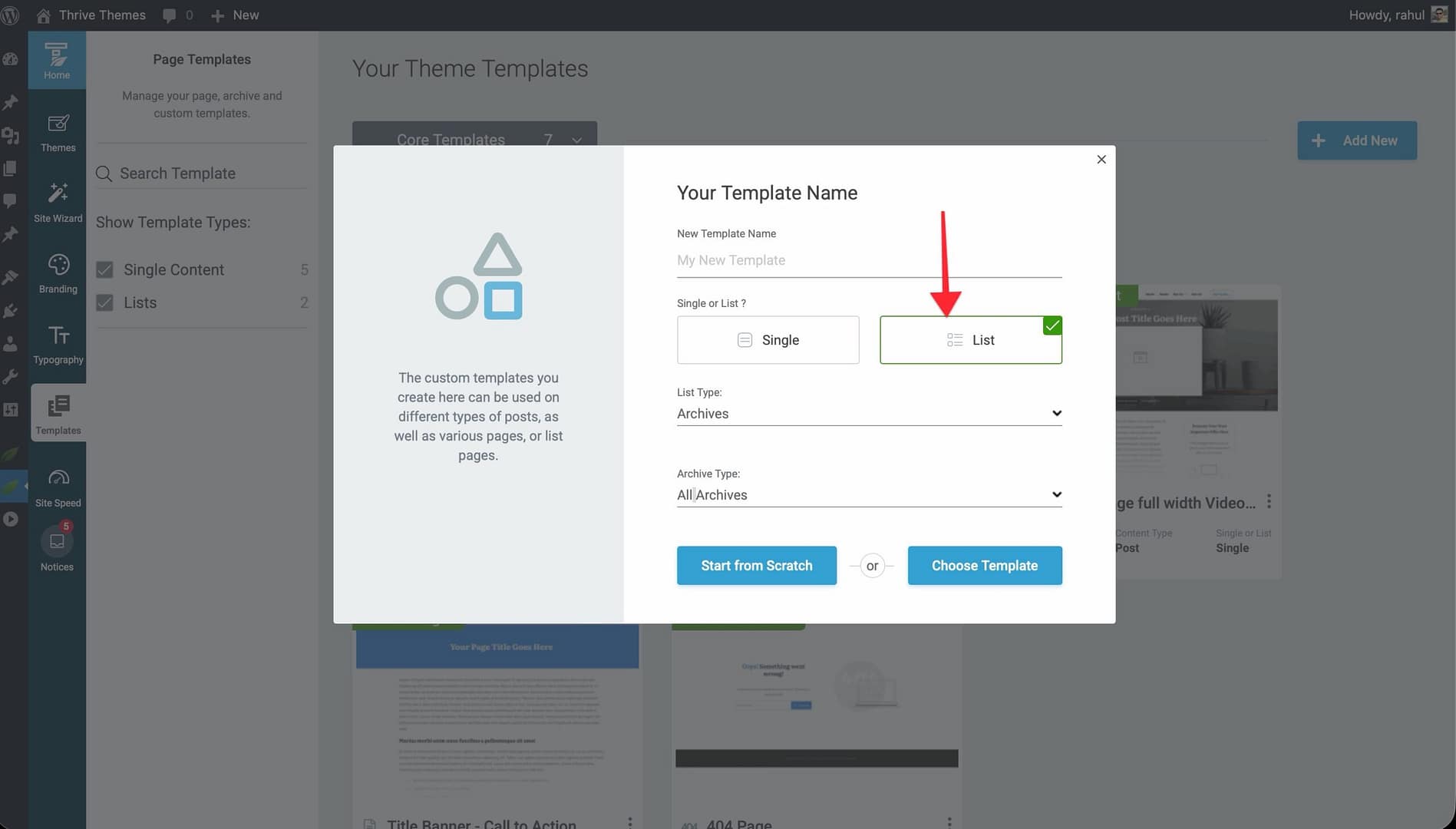
- Select Archives as the list type.
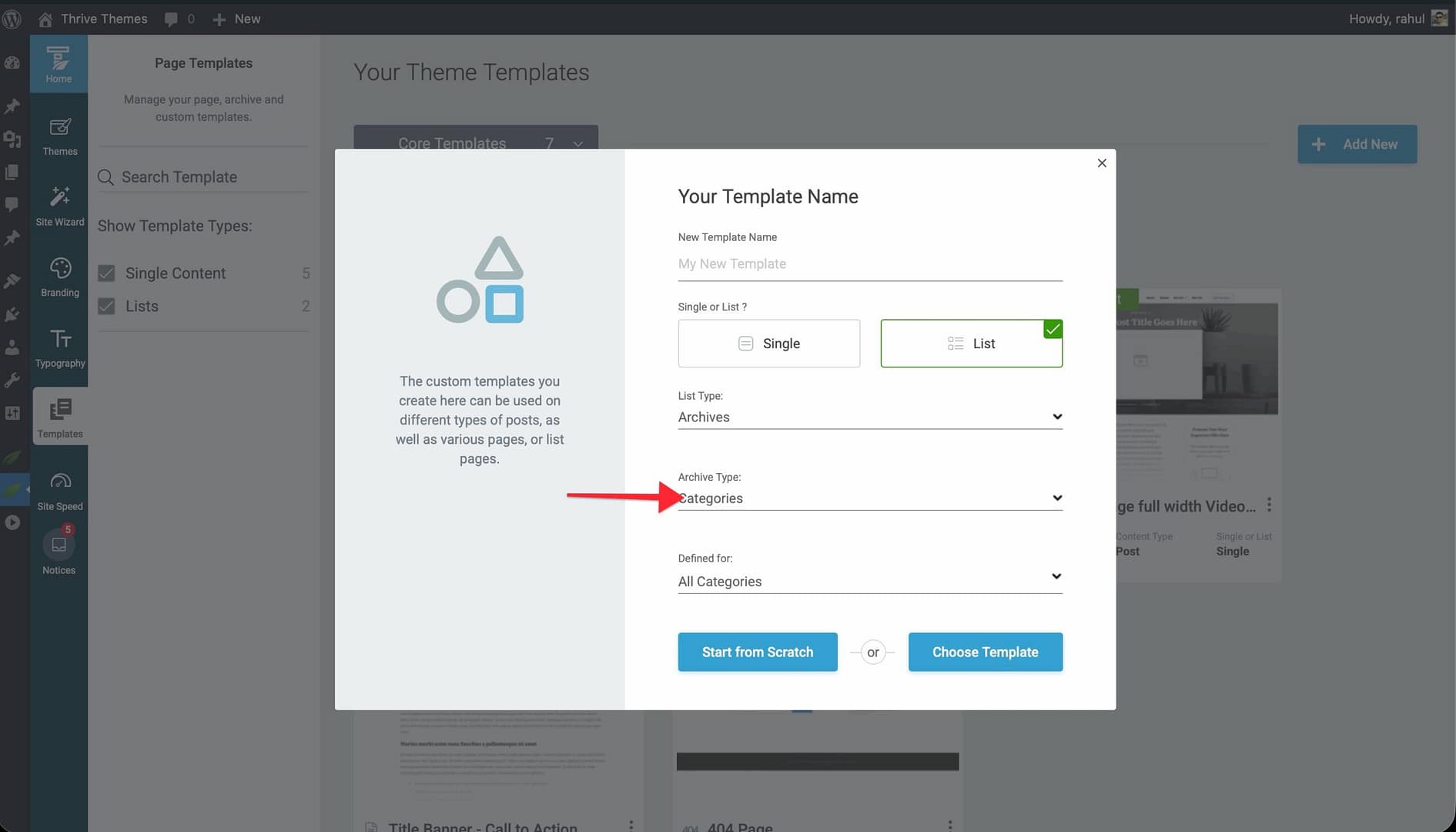
- In the archive type dropdown, select Categories.
- Choose a starting point (scratch or library) and create the template.
You can create a single category template that applies to all category archive pages, or create templates for specific individual categories. See Creating Templates for Tags, Categories & Custom Post Types for details on creating templates for specific categories.
Customizing the Blog Template
The Blog template is one of the core templates set up during the Site Wizard (Step 7). It controls how your main blog page looks.
Opening the Blog Template Editor
- In the Templates section, locate the Blog template.

- Hover over it and click Edit.
- The template opens in the Thrive Theme Builder editor.
What You Can Customize
- Post List Layout — Configure how posts are displayed (list view, grid view, etc.).
- Post Card Design — Control what information appears for each post (title, excerpt, featured image, author, date, categories).
- Pagination — Configure how visitors navigate between pages of posts.
- Sidebar — Add, remove, or reposition the sidebar.
- Header and Footer — Modify or replace the header and footer sections.
- Typography and Colors — Override theme defaults for the blog page.
Managing List Templates
Hover over any list template in the Templates section and click the More option to access:
- Preview — View the template with sample content.
- Set as default — Make this template the default for its list type.
- Rename — Change the template name.
- Delete — Permanently remove the template.
- Duplicate — Create an independent copy.
- Reset — Revert to the original design.
Best Practices
- Start with the defaults — Customize the built-in Blog and All Archives templates before creating new ones.
- Use category templates for distinct sections — If your site has clearly different content categories (e.g., Tutorials vs. News), consider creating separate category templates to give each section its own look.
- Keep search results simple — The search results template should prioritize readability and clear navigation to help visitors find what they’re looking for.
- Preview with real content — Always preview list templates with actual posts to make sure the layout works with your content.
Related Resources
- Understanding Templates: Learn about template types and how they work.
- Creating Templates for Tags, Categories & Custom Post Types: Learn how to create templates for specific content types.
- Template Settings & Defaults: Learn how to set default templates and configure settings.