In this article, you’ll learn how to save your form designs as templates to reuse them across different Lead Groups and campaigns.
Saving a Custom Template
Once you have designed a form exactly how you want it, you can save it for future use.
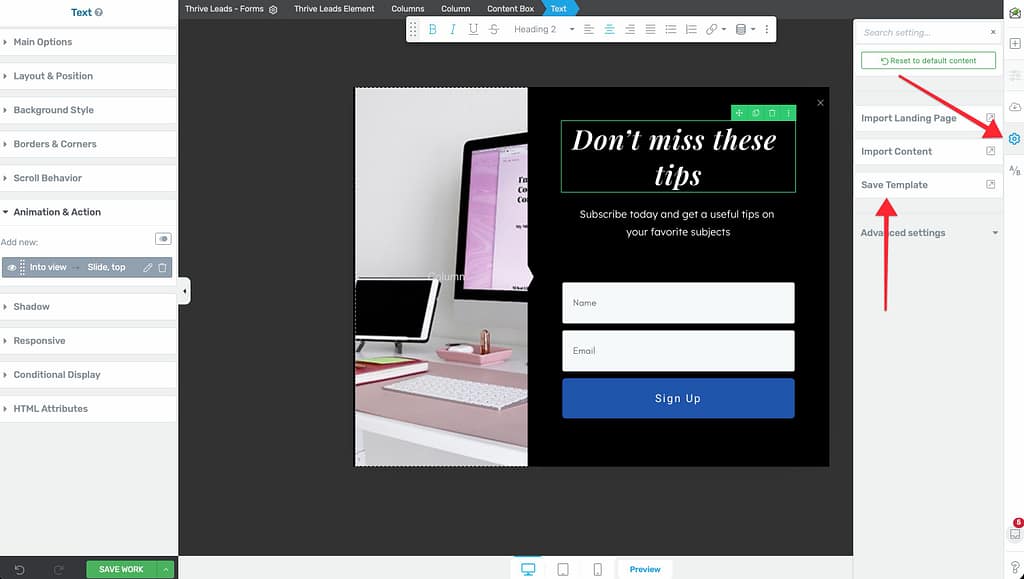
- Open your form in Thrive Architect.
- In the right sidebar, click the Gear Icon (Settings).
- Choose Save as Template.
- Enter a name for your template (e.g., “My Brand Lightbox”).
- Click Save.
Loading a Template
When creating a new form, you can load your saved designs.
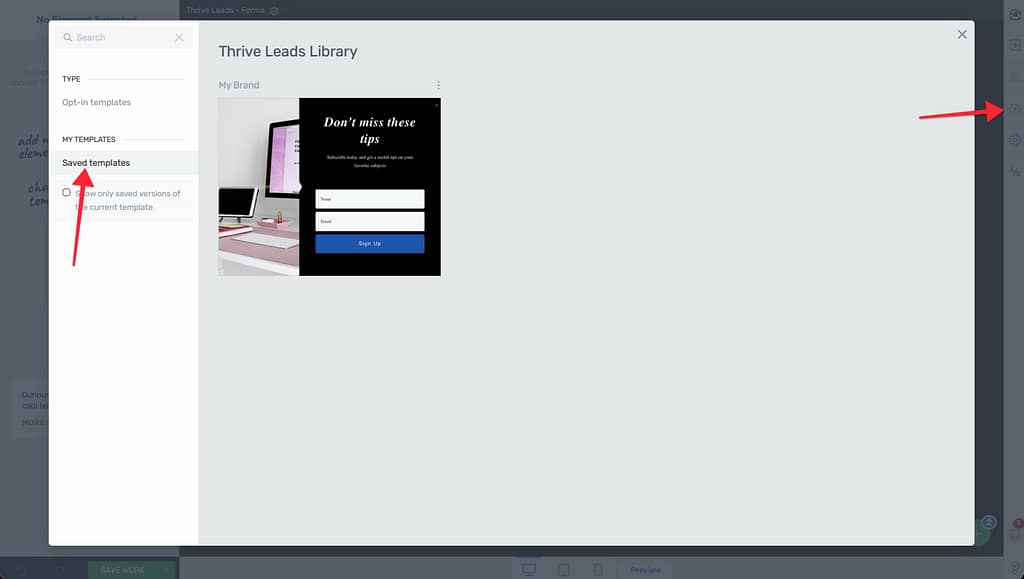
- Create a new form in your Lead Group.
- When the editor opens, a template library popup usually appears.
- Filter by “Saved Templates” (or look for the My Templates tab).
- Select your template.
If you are already in the editor:
- Click the Cloud Icon (Change Template) in the right sidebar.
- Warning: This will replace your current design entirely.
- Select your saved template from the library.
That’s it! You can now reuse your high-converting designs anywhere.
Related Resources
- Building Forms: Building and Displaying Your First Form
- Styling: Adding Interactive Elements to Your Opt-in Forms