In this article, you’ll learn how to create course bundles in Thrive Apprentice—allowing you to package multiple courses together and sell them at a single price point using the Products framework.
What Are Course Bundles?
A course bundle is a collection of two or more courses grouped together and sold as a single product. Bundles let you offer more value to your students at a discounted rate while increasing your revenue per transaction.
For example, if you sell three individual courses at $25 each, you could bundle all three together and offer the package for $60—giving students a $15 discount while earning more per sale than a single course purchase.
Understanding the Products Framework
In Thrive Apprentice, bundles are created through the Products section. A product is the mechanism that protects and sells your content. Products extend beyond just courses—you can use them to bundle courses with pages, posts, and custom content, making it possible to build entire membership websites.
Note: Every piece of content you want to restrict or sell needs to be associated with a product. Think of products as the “access keys” your students purchase to unlock content.
Prerequisites
Before you begin, make sure you have:
- Thrive Apprentice installed and activated on your WordPress site.
- At least two published courses ready to bundle together.
- A payment integration configured if you plan to sell the bundle (e.g., SendOwl, WooCommerce, or ThriveCart).
Creating a Course Bundle Step by Step
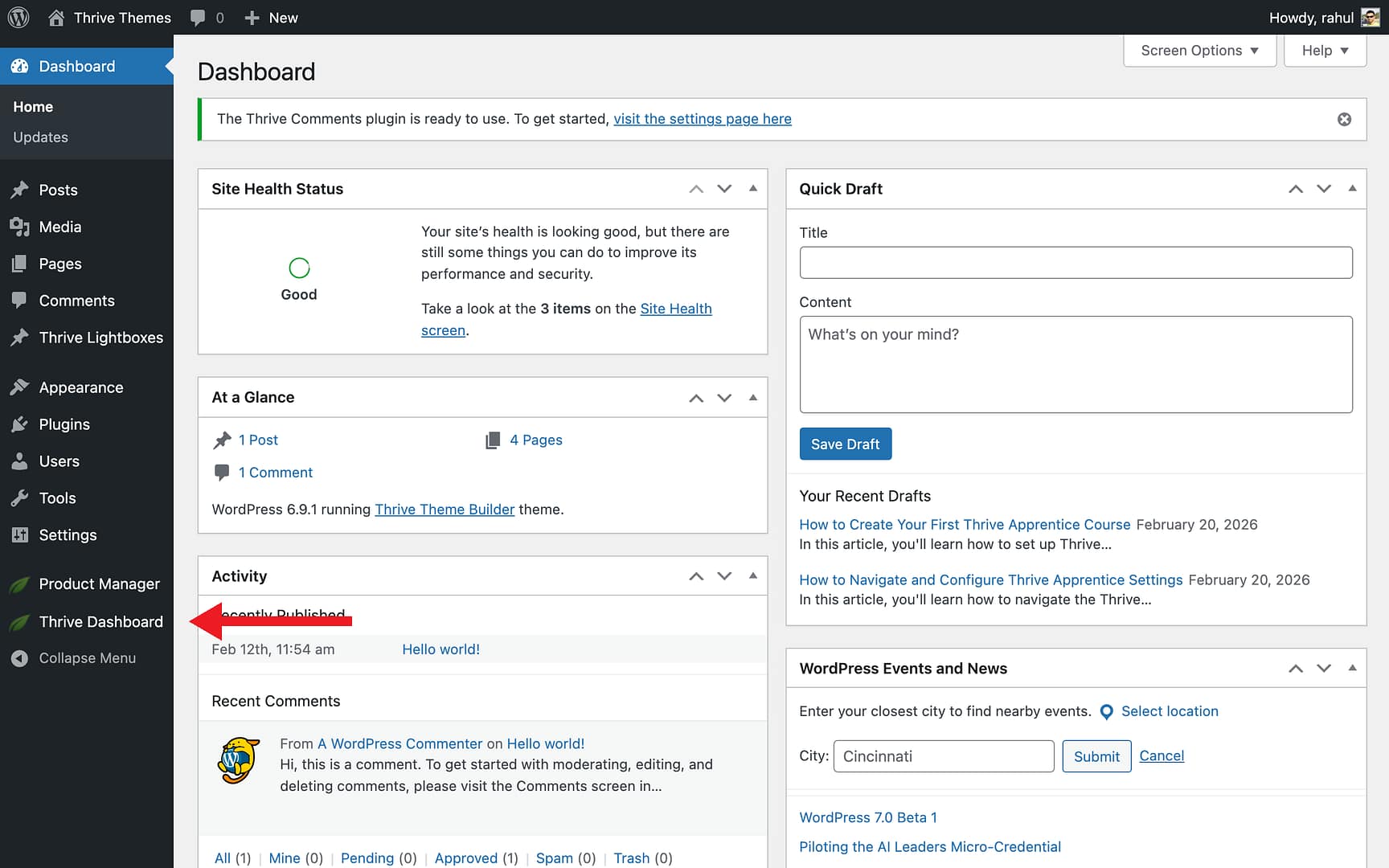
- Navigate to Thrive Apprentice in your WordPress admin.
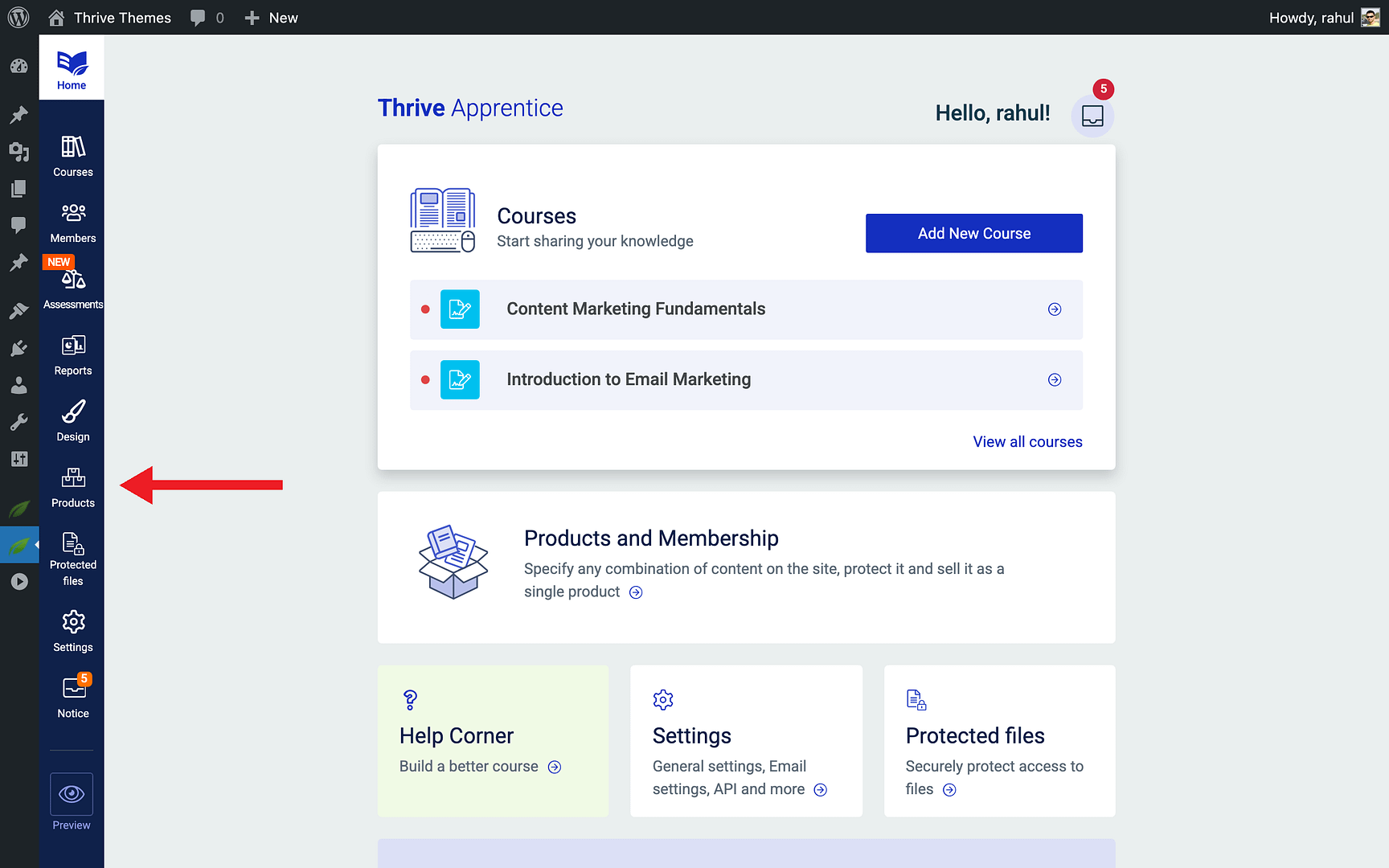
- Click the Products tab in the left sidebar.
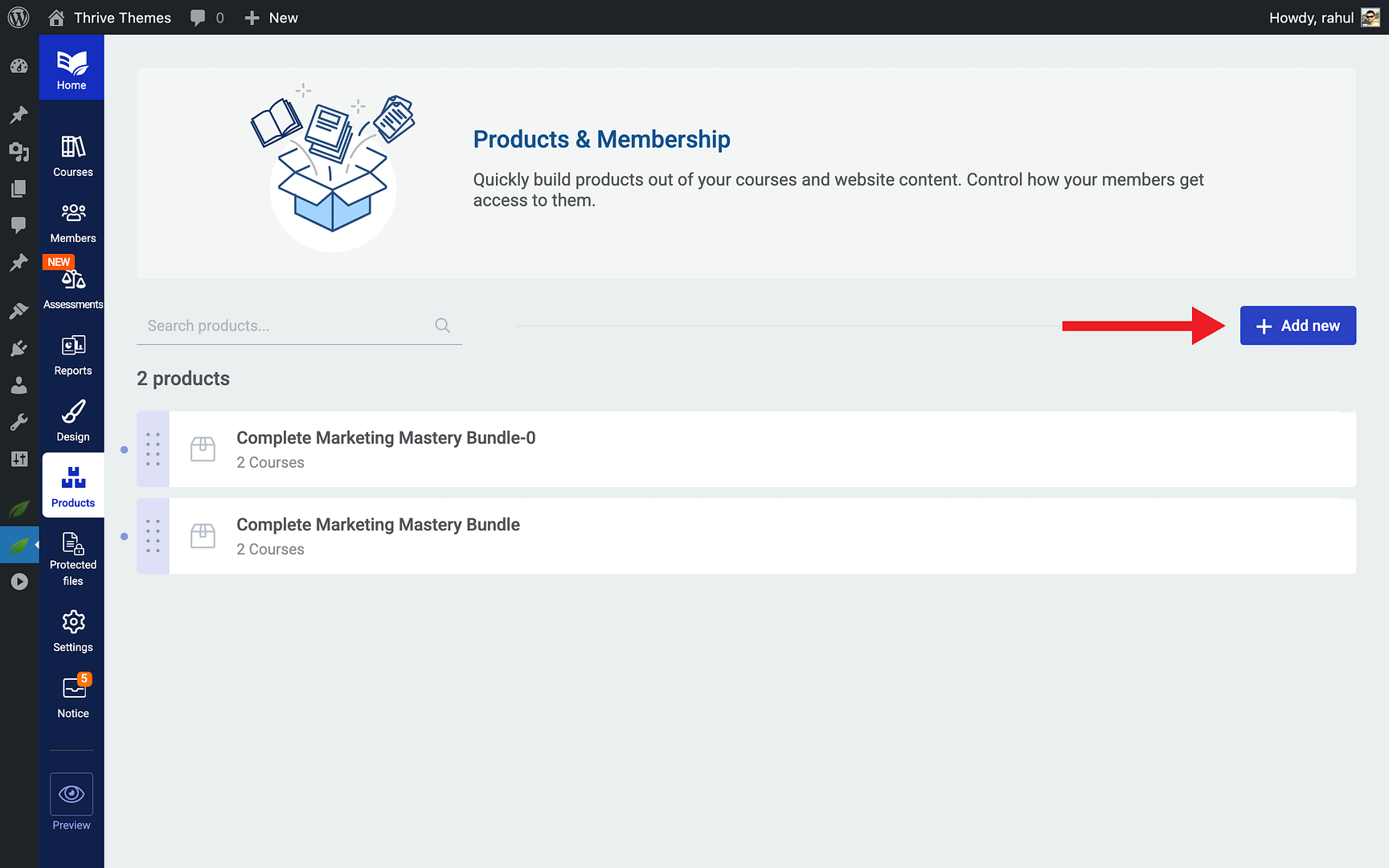
- Click the + Add new product button (or Create your first product if you haven’t created one yet).
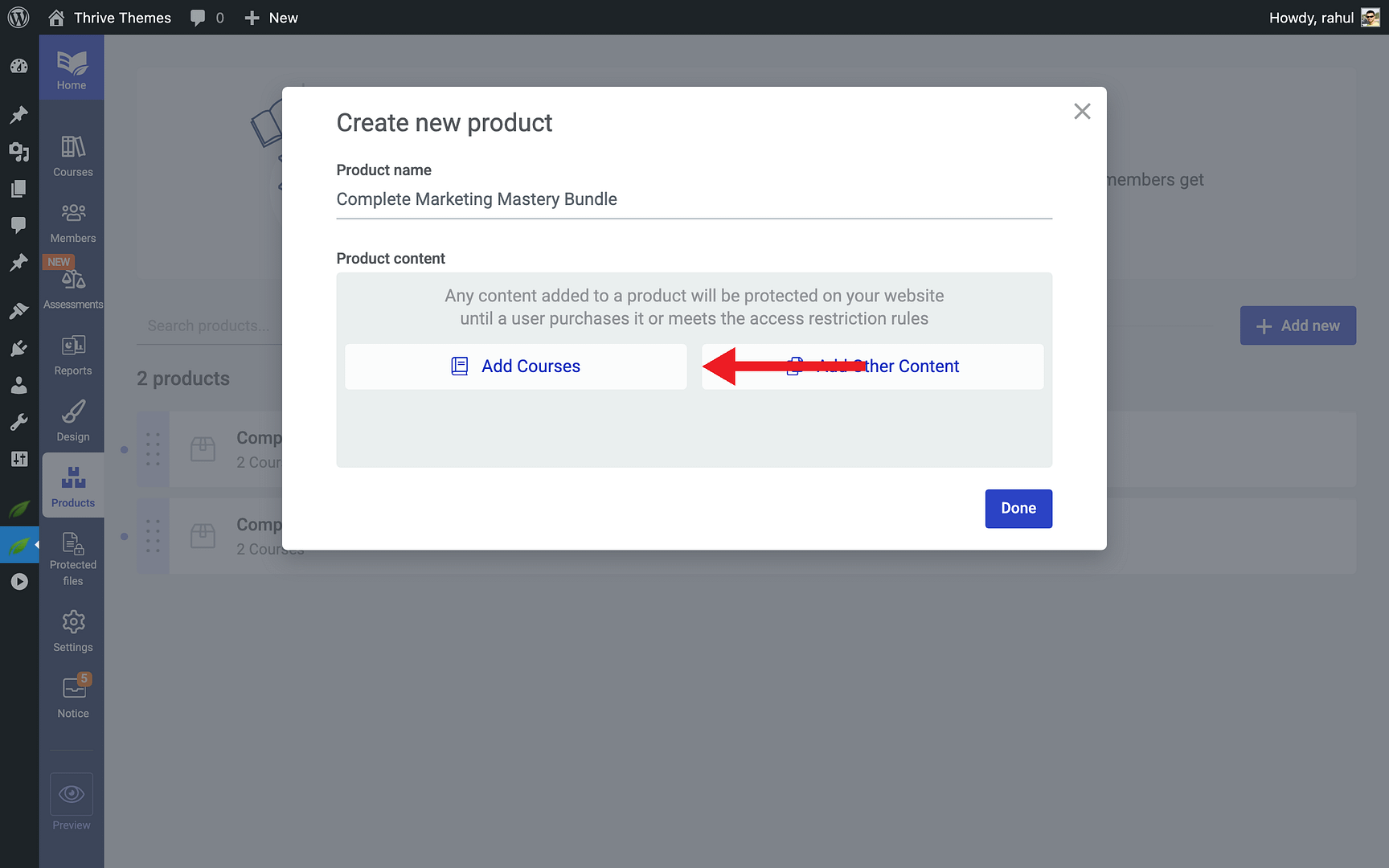
- Enter a Product name for your bundle (e.g., “Complete Marketing Mastery Bundle”).
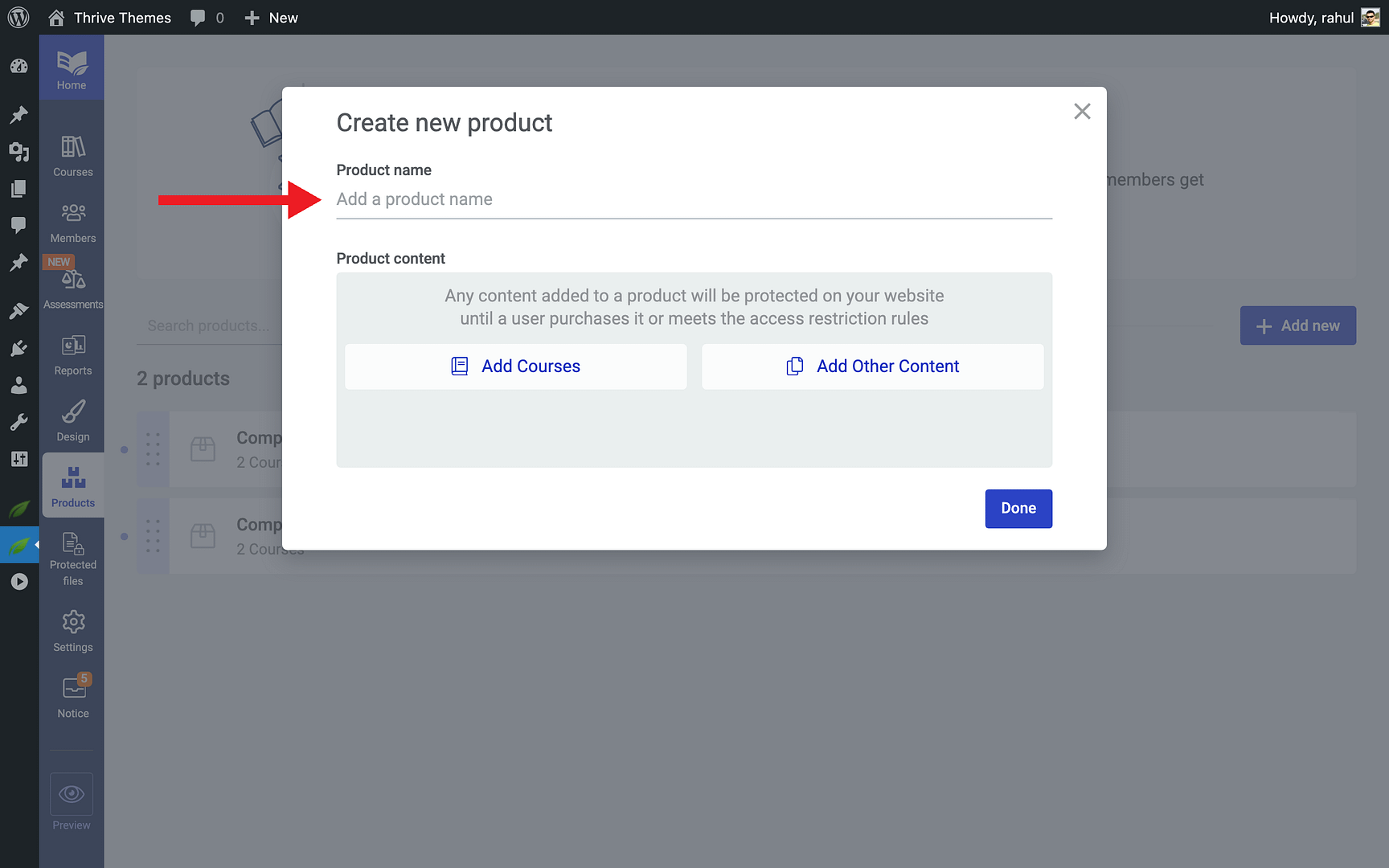
- In the Product content area, click Add Courses.
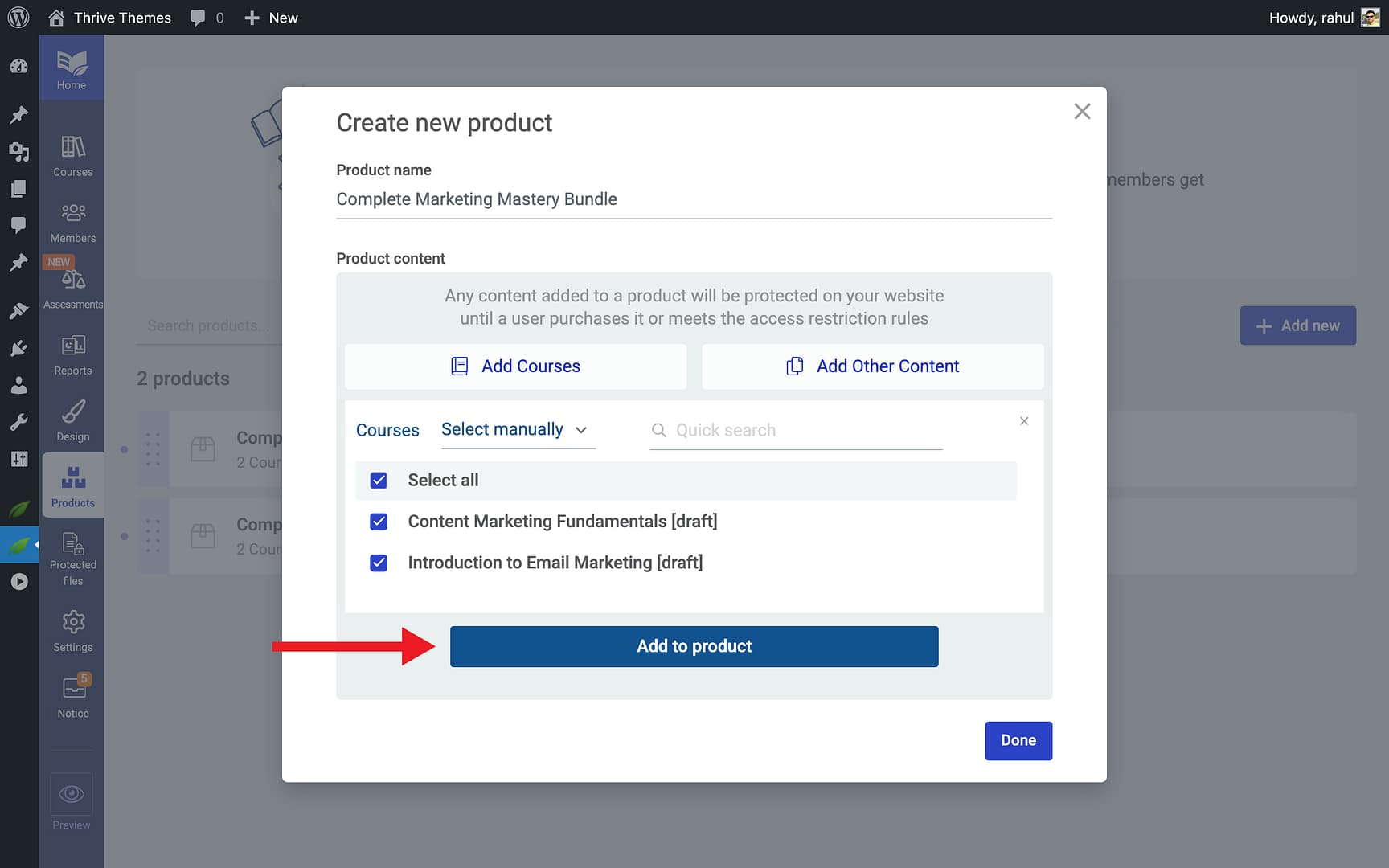
- Select the courses you want to include in the bundle, then click Add to product.
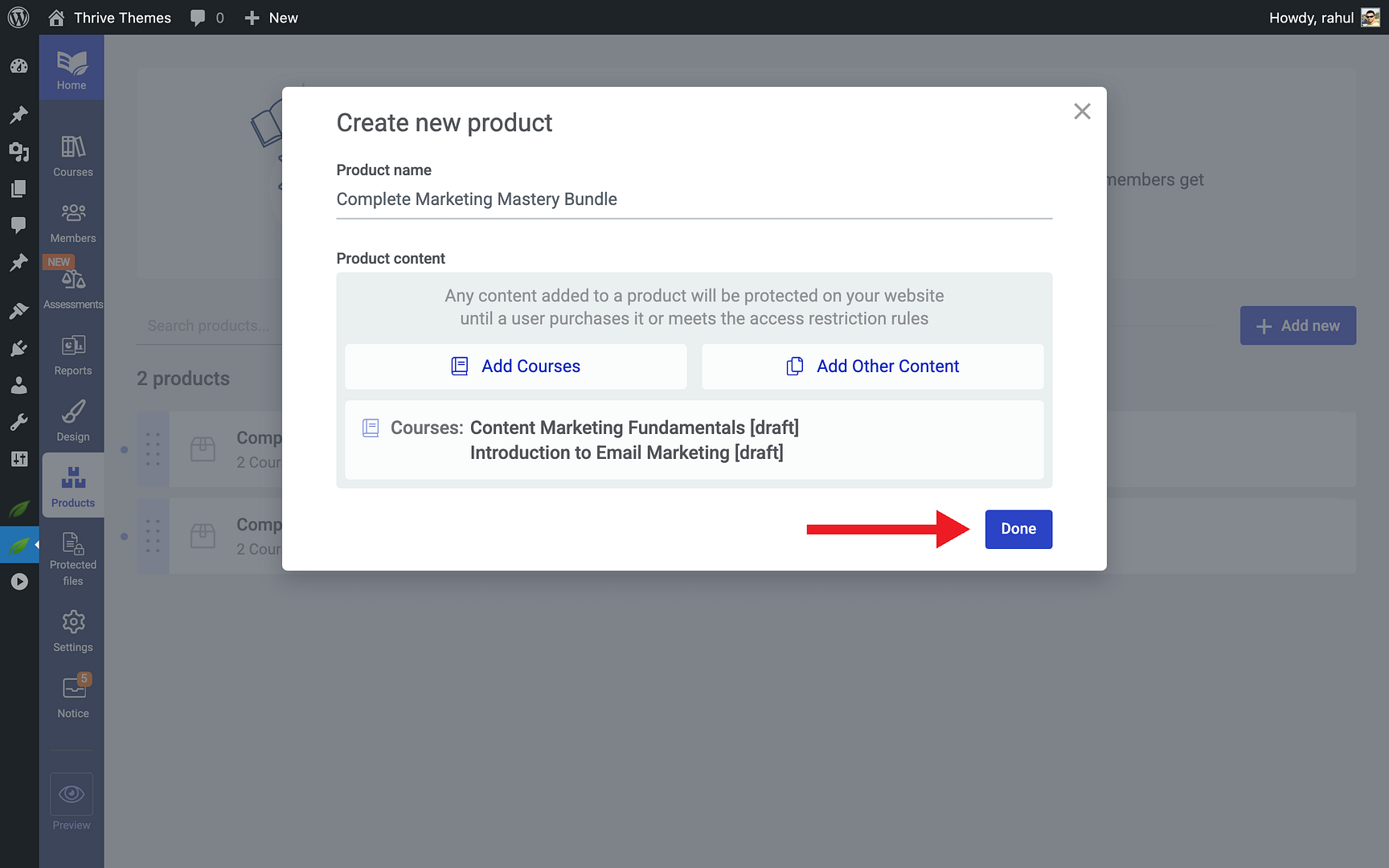
- Click Done to create the product.
Configuring Access Rules
After creating your product, you’ll be taken to the product editing screen. From here you can configure how students gain access to the bundled content:
- Click Access requirements in the left sidebar of the product editor.
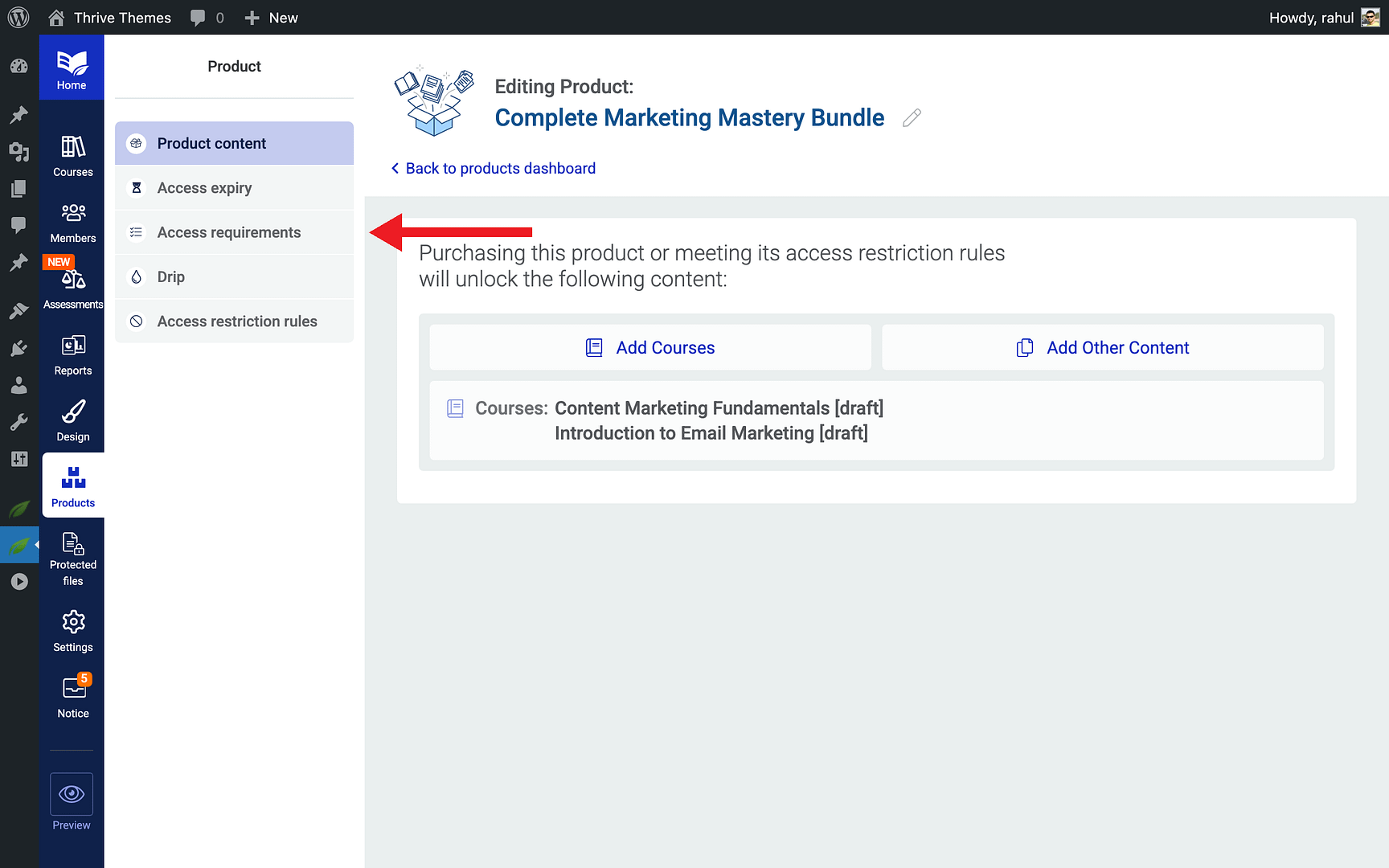
- Configure how students gain access—through a direct purchase, a membership, or a manual grant.
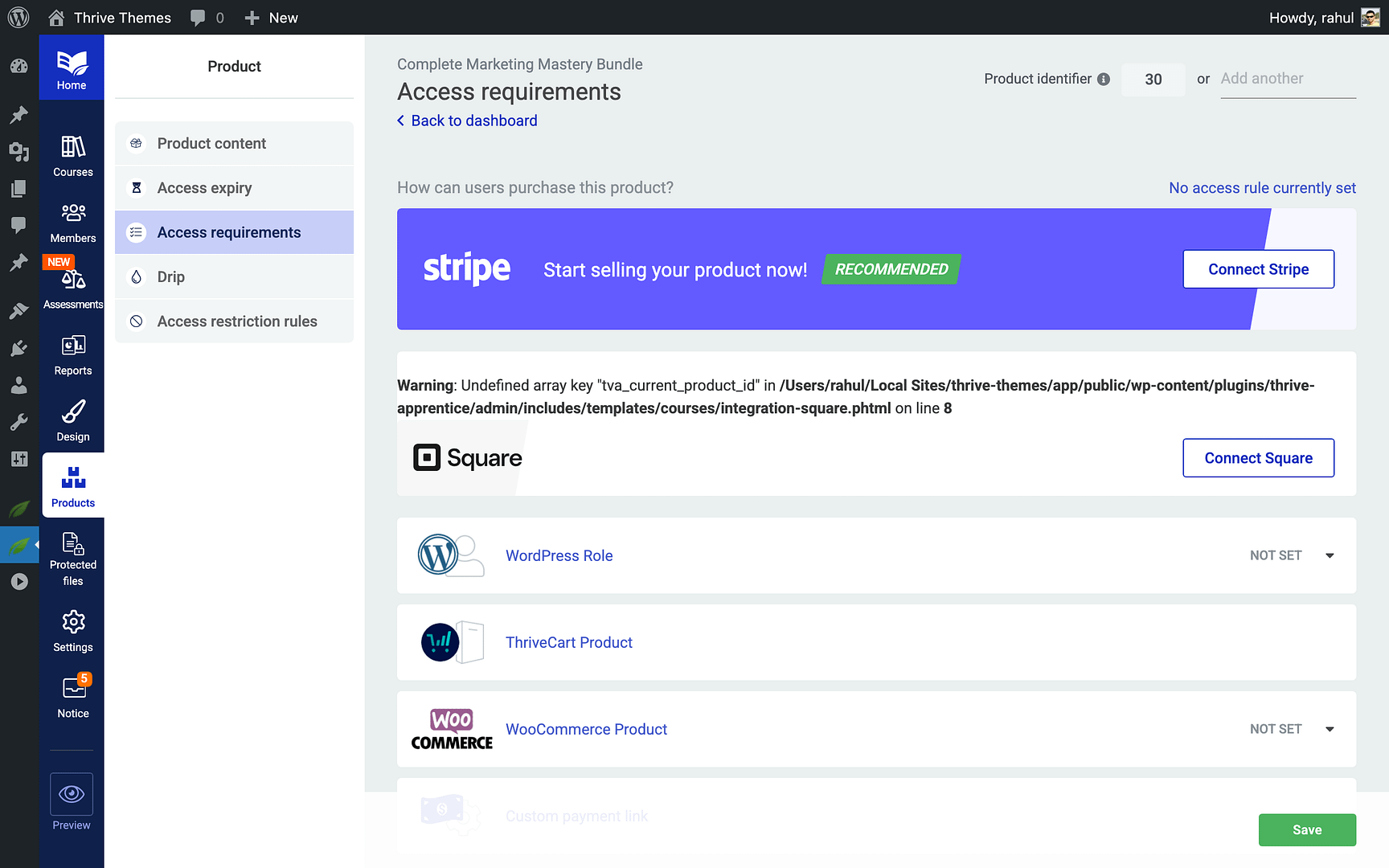
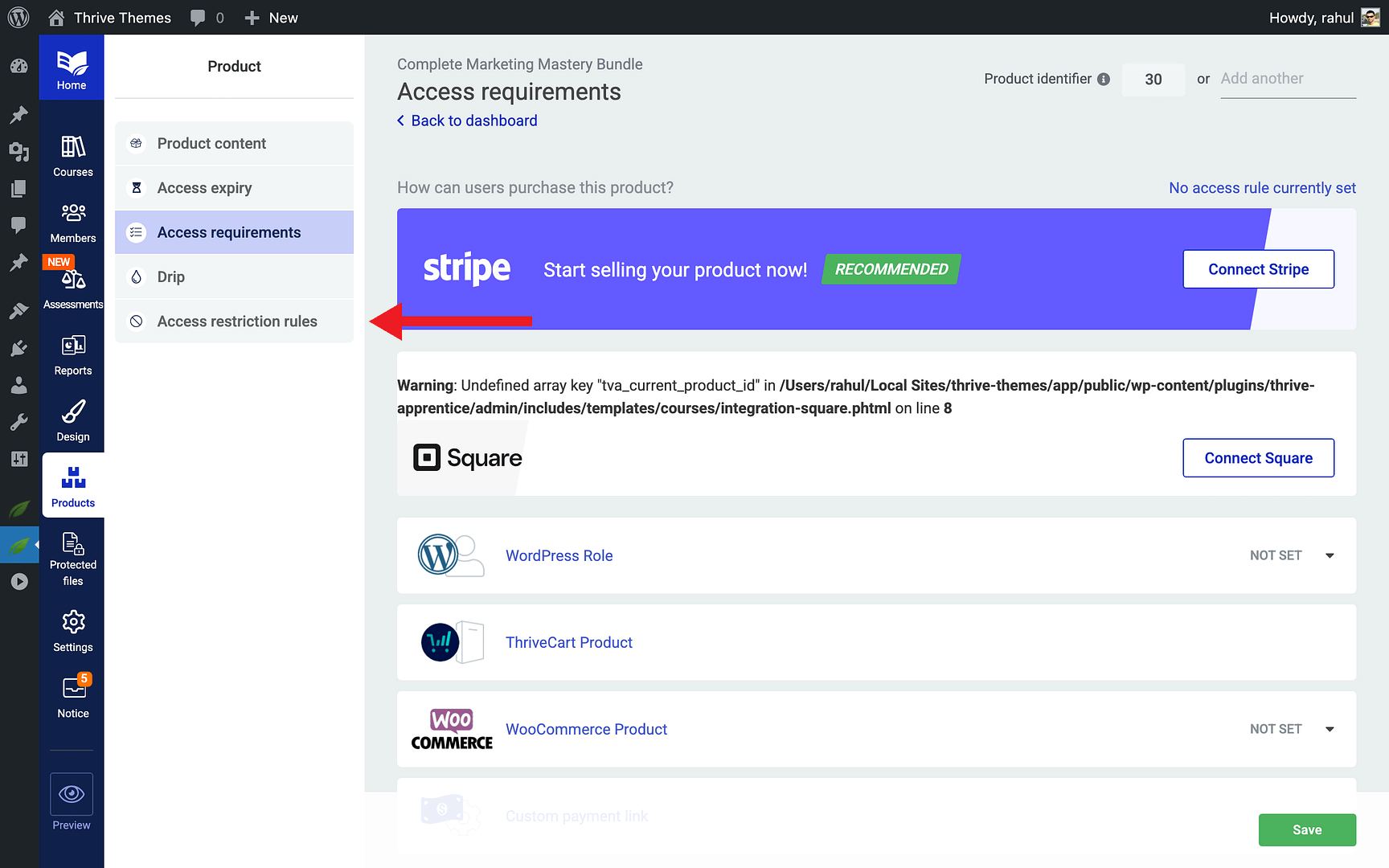
- Optionally, click Access restriction rules to set additional restrictions for who can view the content.
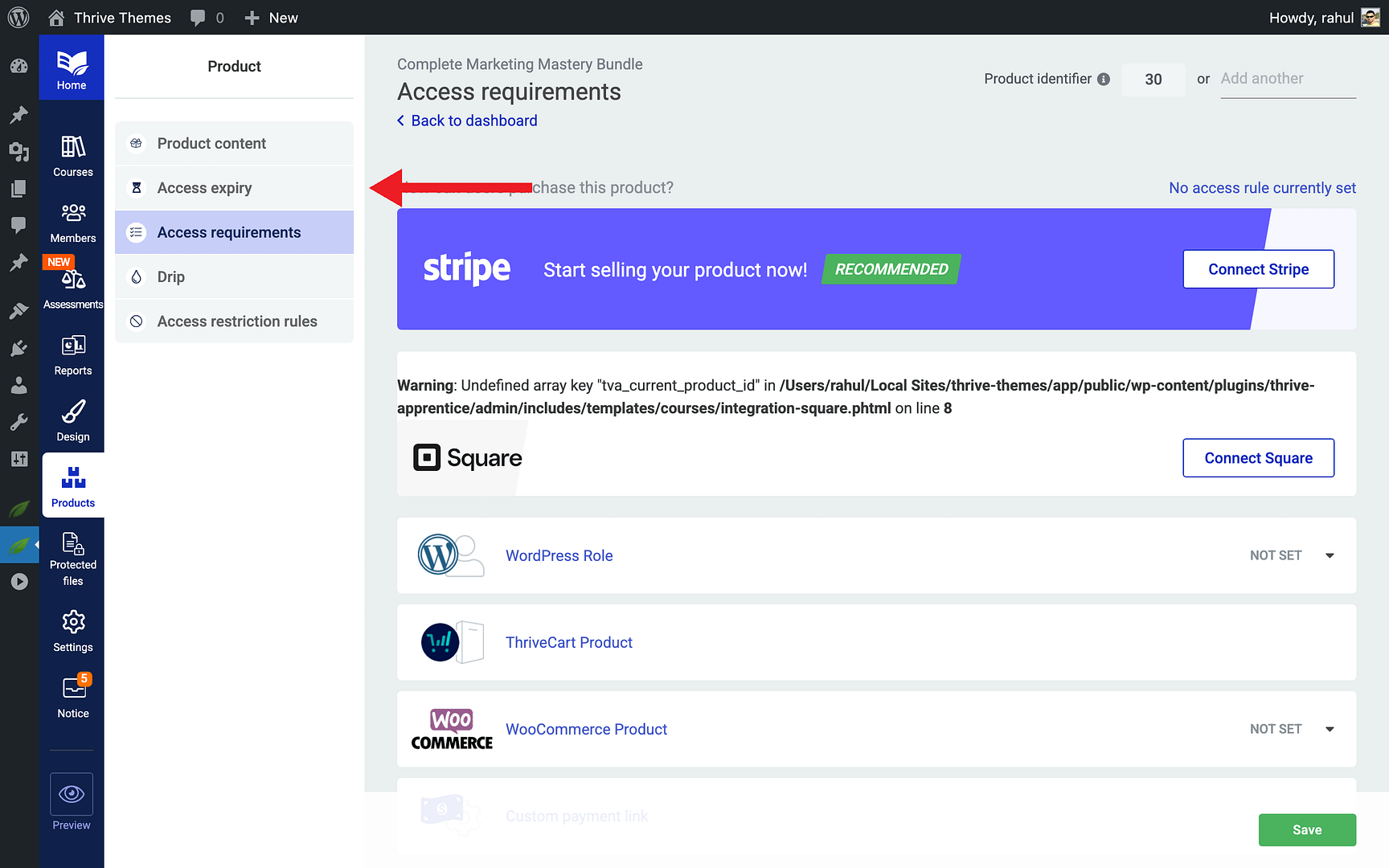
- Use Access expiry if you want to set time-limited access for students.
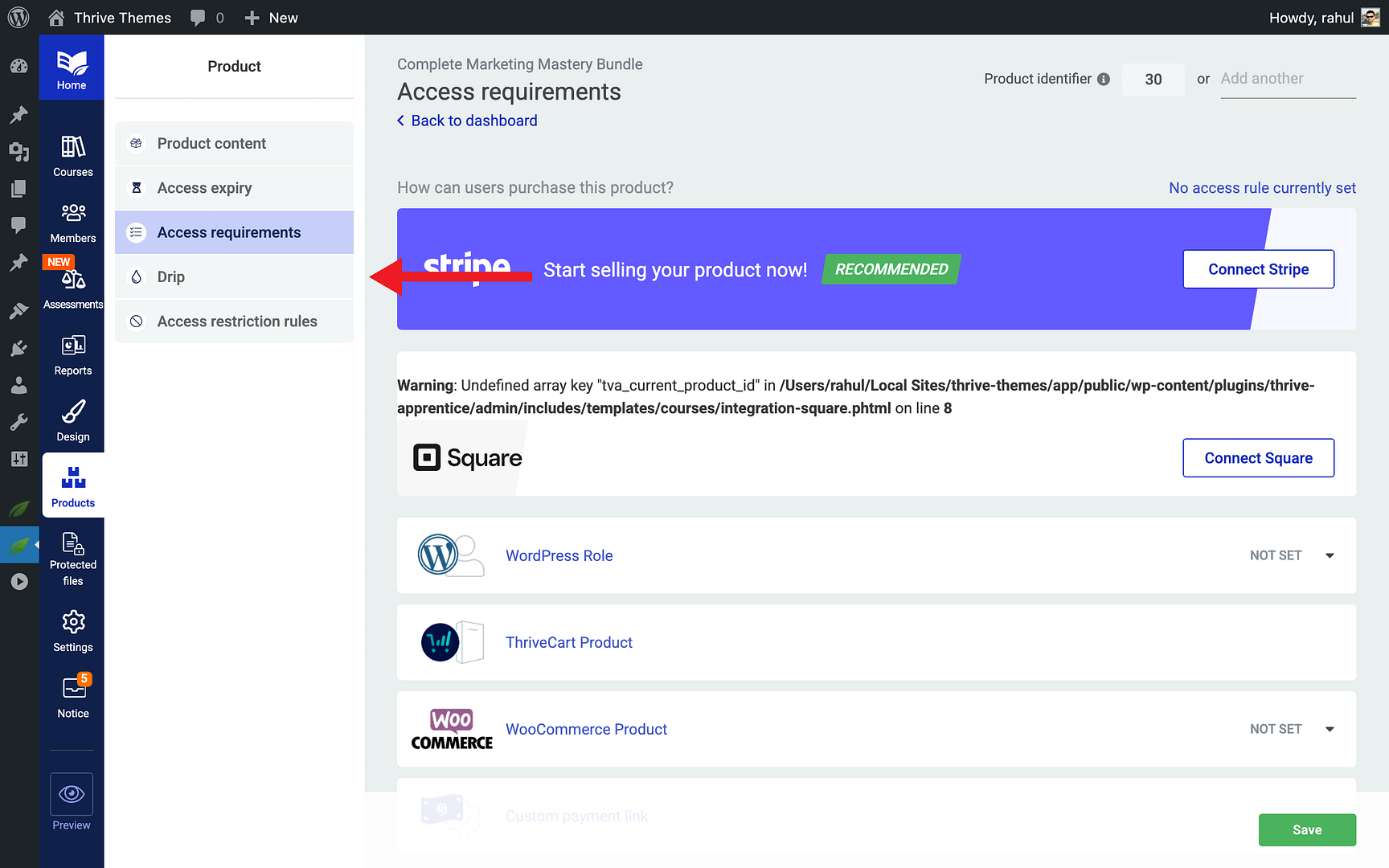
- Use Drip to schedule when content becomes available after purchase.
Important: When multiple access rules apply to the same piece of content, Thrive Apprentice uses a content protection priority system. The most restrictive rule takes precedence, so review your rules carefully to ensure students get the access they expect.
That’s it! You’ve successfully created a course bundle in Thrive Apprentice, added courses to it, and configured the access rules that control who can unlock the bundled content.
Related Resources
- Creating Your First Course: Learn how to create your first Thrive Apprentice course from scratch.
- Content Types & Navigation: Learn how to structure your course content with modules, chapters, and lessons.
- Thrive Apprentice Knowledge Base: Browse the full Thrive Apprentice Knowledge Base for more tutorials.