In this article, you’ll learn how to create buttons that link to WooCommerce pages (Cart, Checkout, My Account, Shop) and how to create “Add to Cart” buttons—all using the dynamic link feature.
What Are Dynamic Links?
Dynamic links automatically point to the correct WooCommerce page, even if you change your site’s domain or restructure your URLs. Instead of entering a static URL (e.g., https://yoursite.com/cart/), you select the page type from a dropdown, and the link always resolves to the correct destination.
This is the recommended way to create WooCommerce navigation buttons in your templates and pages.
Creating a Cart Button
- Open the page, post, or template in Thrive Architect or the Thrive Theme Builder editor.
- Add a Button element where you want the cart button.
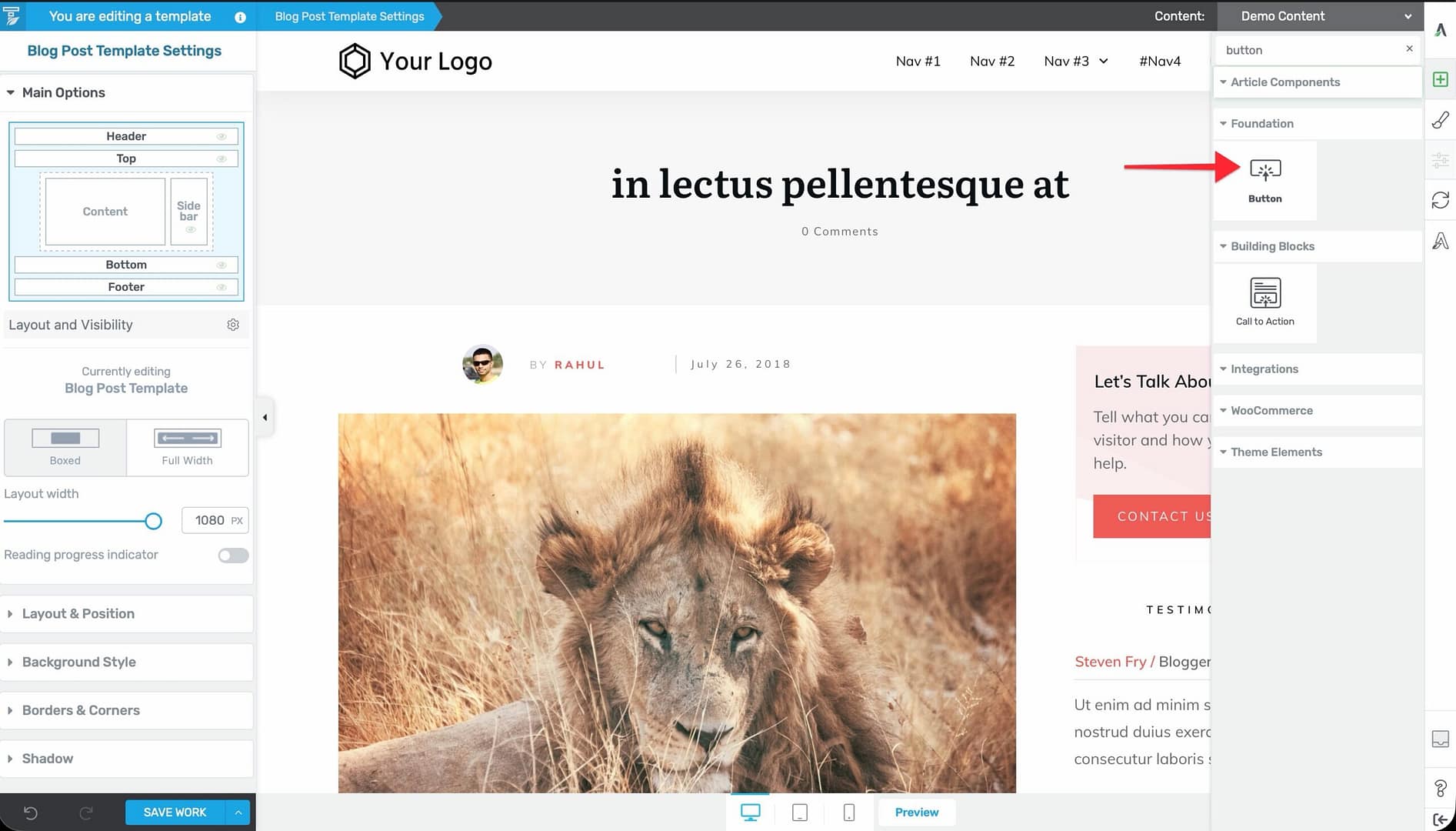
- Click the button to select it.
- In the left sidebar, click the link settings.
- Instead of entering a URL, click the Dynamic link tab.
- Under the WooCommerce group, select Cart page.
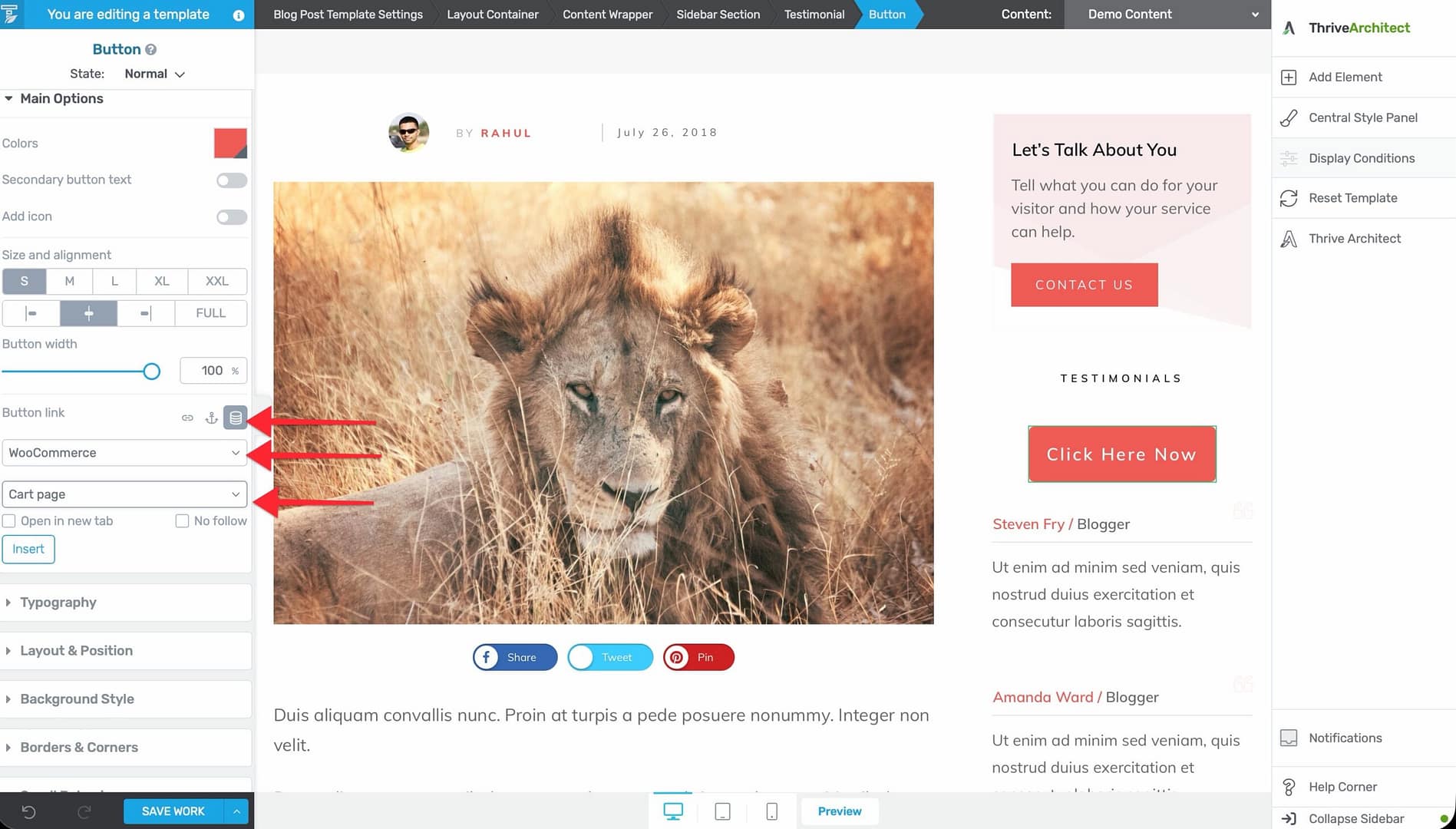
- Style the button and set the text (e.g., “View Cart” or “My Cart”).
The button now links to your WooCommerce cart page automatically.
Creating a Checkout Button
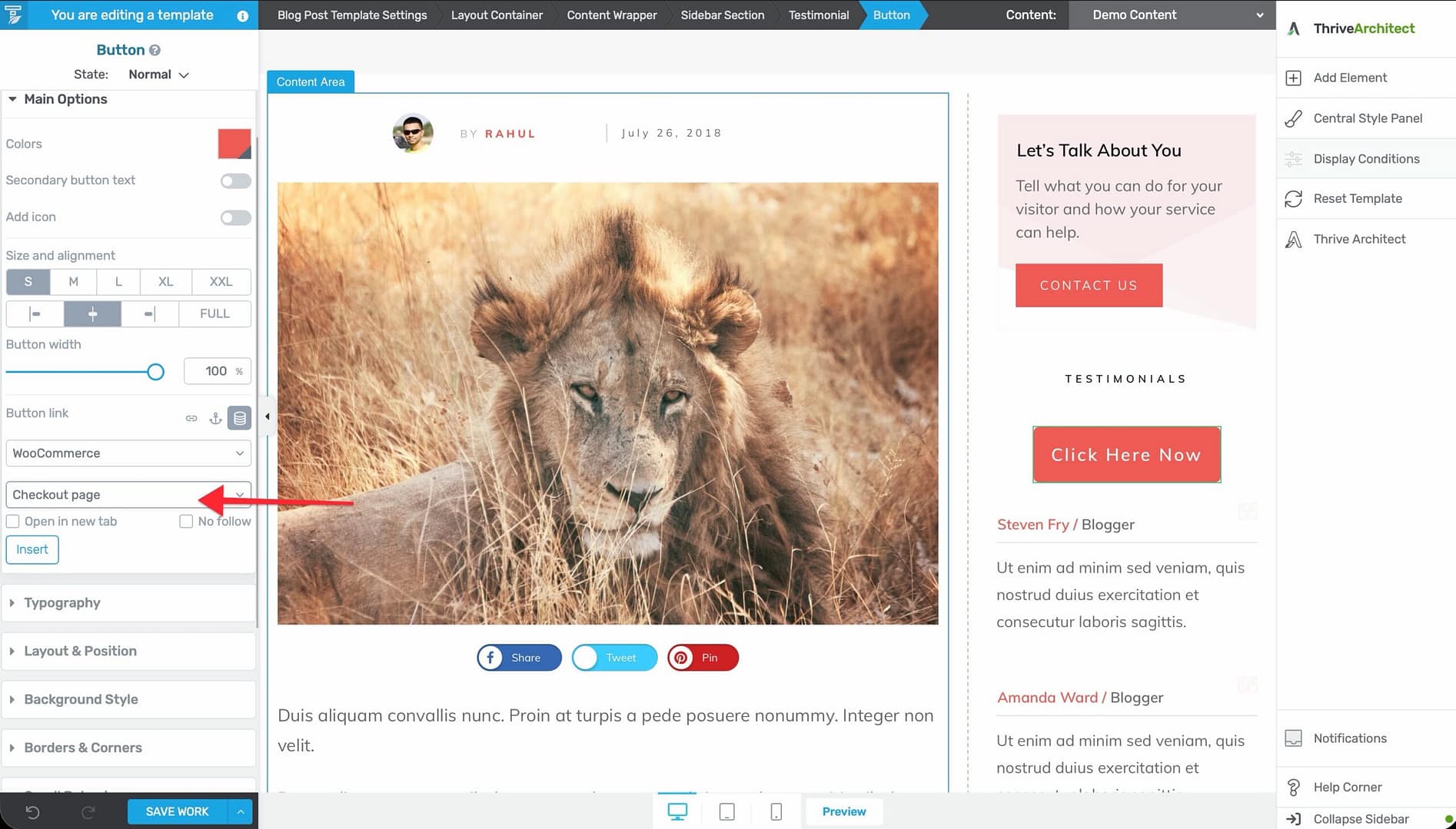
- Add a Button element to your page or template.
- Select the button and open its link settings.
- Click the Dynamic link tab.
- Under the WooCommerce group, select Checkout page.
- Set the button text (e.g., “Go to Checkout” or “Proceed to Checkout”).
Creating a My Account Button
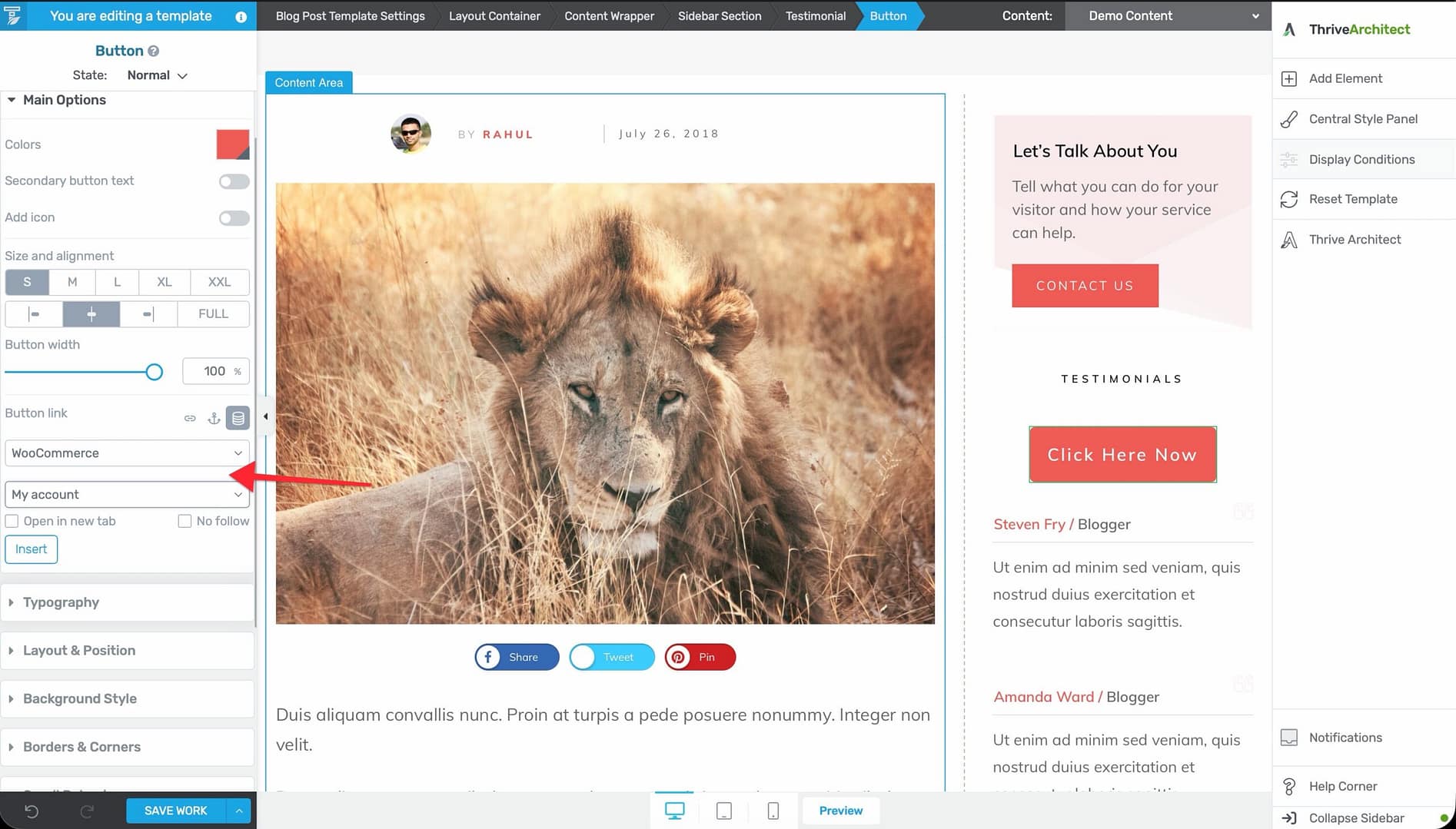
- Add a Button element to your page or template.
- Select the button and open its link settings.
- Click the Dynamic link tab.
- Under the WooCommerce group, select My account.
- Set the button text (e.g., “My Account” or “Account Dashboard”).
This button redirects visitors to their personal WooCommerce account dashboard.
Creating a Shop Page Button
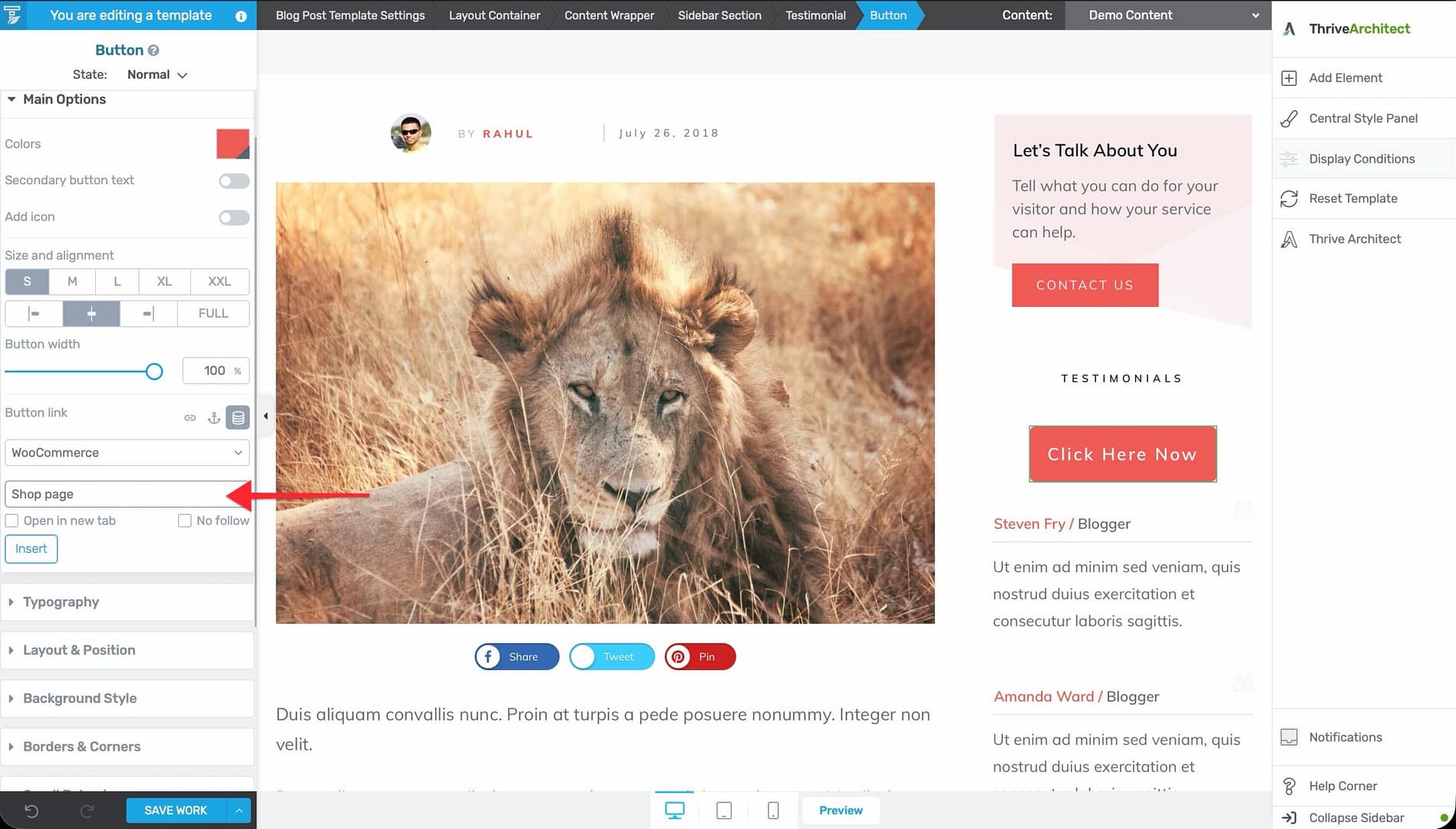
- Add a Button element to your page or template.
- Select the button and open its link settings.
- Click the Dynamic link tab.
- Under the WooCommerce group, select Shop page.
- Set the button text (e.g., “Browse Products” or “Visit Shop”).
Creating an Add to Cart Button
The Add to Cart dynamic link is different from the navigation buttons above—it triggers the WooCommerce “add to cart” action for a specific product.
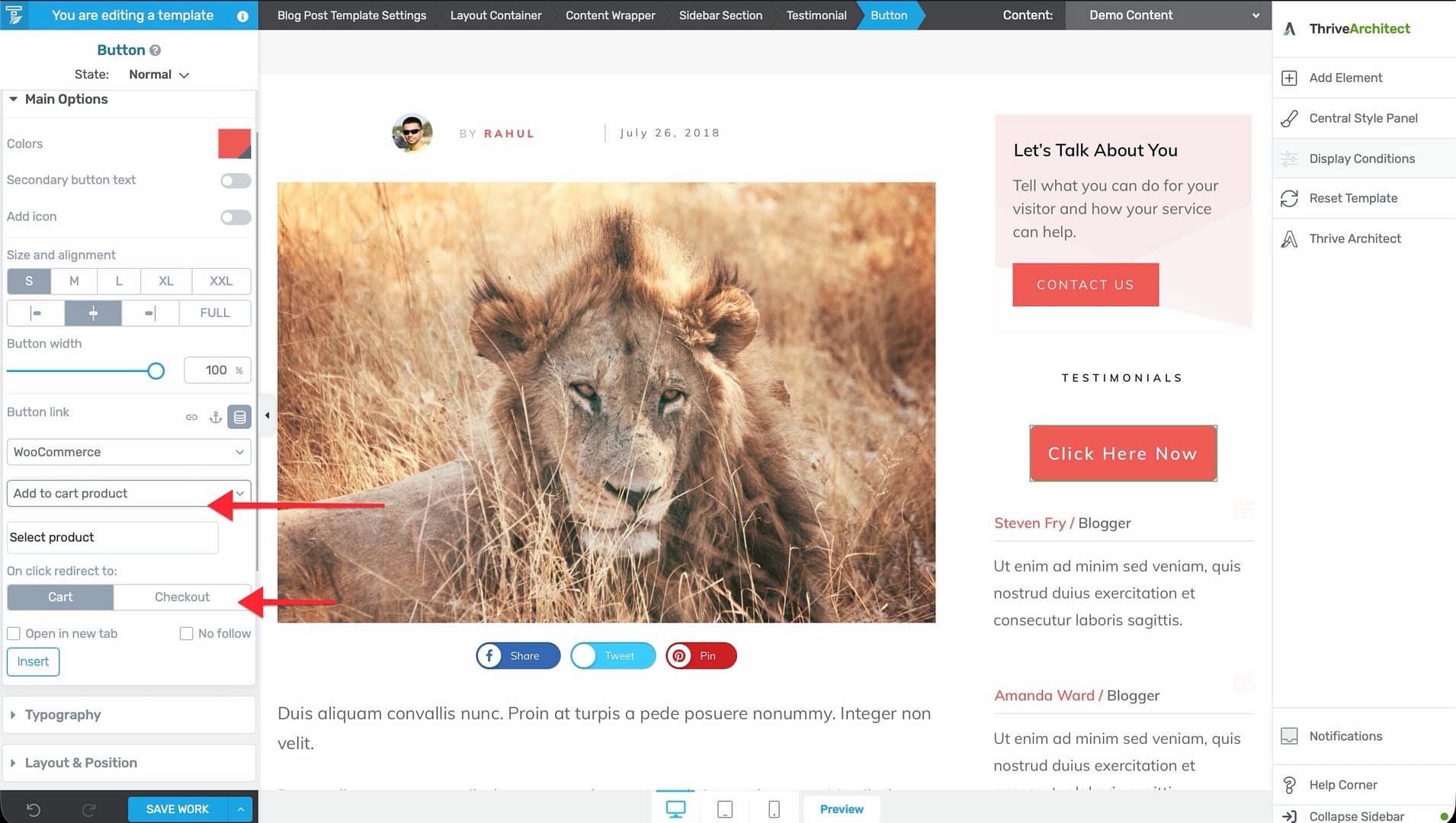
- Open the page or template in Thrive Architect or the Thrive Theme Builder editor.
- Add a Button element (or select any linkable element—text, image, etc.).
- Open the link settings and click the Dynamic link tab.
- Under the WooCommerce group, select Add to cart product.
- Search for and select the specific product to add to the cart.
- If the product has variations, select the desired variation from the dropdown that appears.
- Choose the redirect destination — Cart or Checkout — to determine where visitors go after the product is added.
Key Features
- Works on any linkable element — You can apply the Add to Cart dynamic link to buttons, text links, images, or any element that supports links.
- No product page required — Visitors can add products to their cart directly from landing pages, blog posts, or custom pages without visiting the standard product page.
- Automatic URL handling — The link always points to the correct add-to-cart action for the selected product.
- Variation support — For variable products, you can specify which variation to add.
- Redirect control — Choose whether visitors land on the Cart page or the Checkout page after the product is added.
Where to Use WooCommerce Dynamic Link Buttons
In Templates
Add WooCommerce buttons to your theme templates for site-wide navigation:
- Header — Cart button, My Account button, Shop button.
- Footer — Shop button, My Account link.
- Product template — Add to Cart button (already included by default).
In Pages and Posts
Add WooCommerce buttons to specific pages for promotional purposes:
- Landing pages — Add to Cart buttons for featured products.
- Blog posts — Shop page buttons in product review posts.
- Sales pages — Direct checkout buttons.
Best Practices
- Always use dynamic links — Never hardcode WooCommerce page URLs in buttons. Dynamic links automatically update if you change your site’s domain or URL structure.
- Label buttons clearly — Use descriptive text that tells visitors exactly where the button leads (e.g., “View Cart” not just “Click Here”).
- Include a cart button in the header — Most e-commerce sites include a cart button or icon in the header for easy access.
- Test all buttons — After setting up dynamic link buttons, test them on the live site to make sure they navigate to the correct WooCommerce pages.
Related Resources
- Getting Started with WooCommerce: Learn how to set up WooCommerce with Thrive Theme Builder.
- Customizing WooCommerce Shop & Product Templates: Learn how to customize shop and product templates.
- Using the Header Section: Learn how to add buttons to the header.