In this article, you’ll learn how to customize the WooCommerce Shop template and Product template in Thrive Theme Builder, including product categories and the Product Categories element.
Customizing the Shop Template
The Shop template controls how your main product catalog looks—the page that lists all your products.
Opening the Shop Template
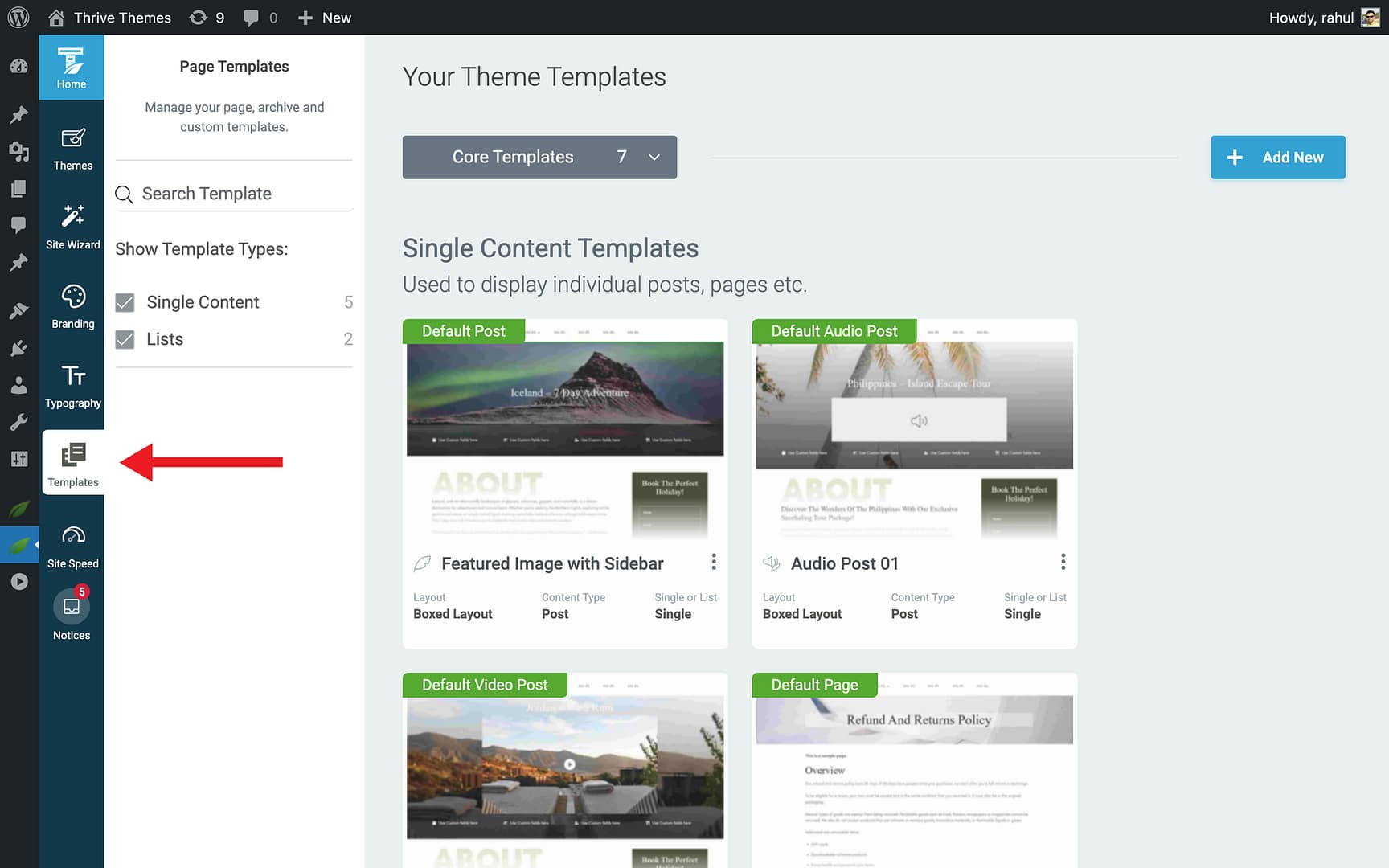
- In the Thrive Theme Builder dashboard, click Templates in the left sidebar.
- Locate the WooCommerce Shop template.
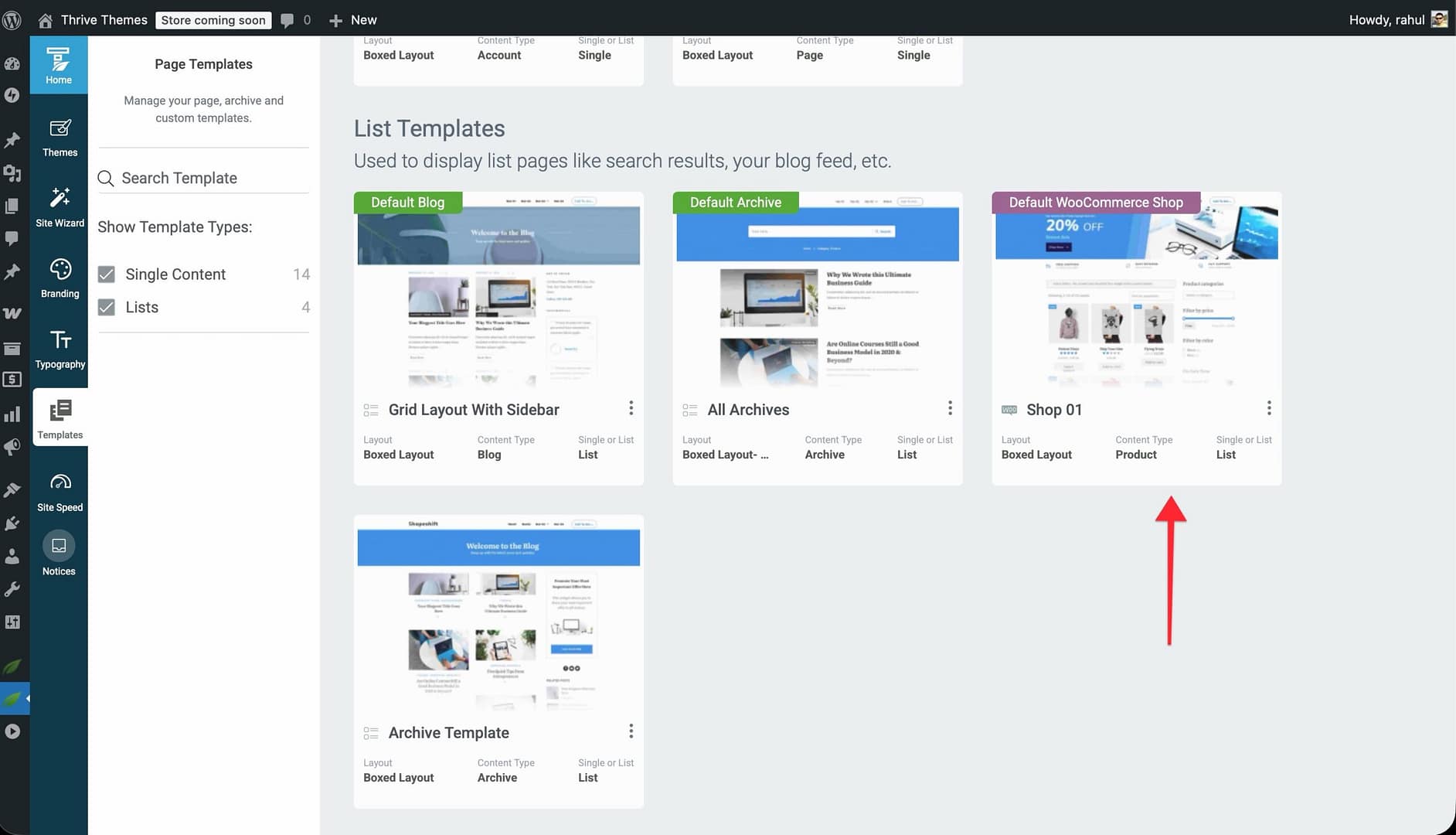
- Hover over it and click Edit.
- The template opens in the Thrive Theme Builder editor.
Product List Options
These options are not visible when you first open the Shop template. To access them, click on the product grid area (Shop Area) inside the template’s content section (the area displaying your products). A Product List Options panel appears in the left sidebar with the following controls:
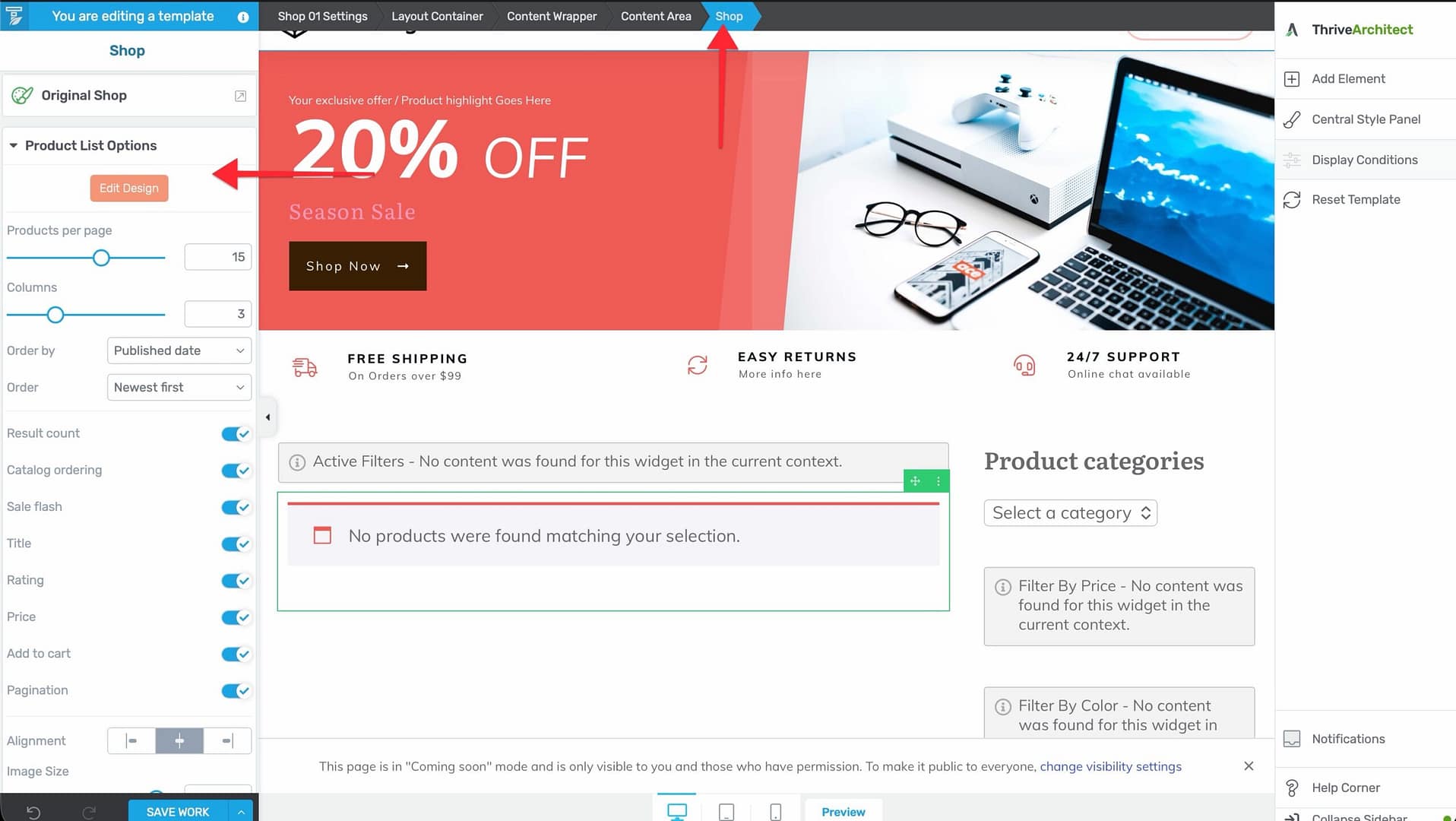
- Products per page — Set how many products display per page (1–24).
- Columns — Set the grid layout (1–8 columns).
- Order By — Choose the default product sorting: title, popularity, product ID, published date, modified date, menu order, price, or random.
- Order — Ascending or descending.
- Image Size — Control the product image width (0–100%).
- Alignment — Set product card alignment (left, center, right).
Visibility Toggles
The Product List Options panel also includes toggles to show or hide specific elements on the shop page:
- Result count — “Showing 1–12 of 50 results” text.
- Catalog ordering — The sorting dropdown visitors use to reorder products.
- Sale flash — “Sale!” badges on discounted products.
- Title — Product names below each image.
- Rating — Product review ratings.
- Price — Product prices.
- Add to cart — Quick-add buttons on each product card.
- Pagination — Page navigation for browsing more products.
Troubleshooting: Shop Page Showing Categories Instead of Products
If your shop page displays product categories instead of products, this is a WooCommerce setting issue:
- Go to WooCommerce > Settings > Products in the WordPress admin.
- Under Shop page display, select Products (instead of “Categories” or “Both”).
- Save changes.
Customizing the Product Template
The Product template controls how individual product pages look.
Opening the Product Template
- In the Templates section, locate the WooCommerce Product template.
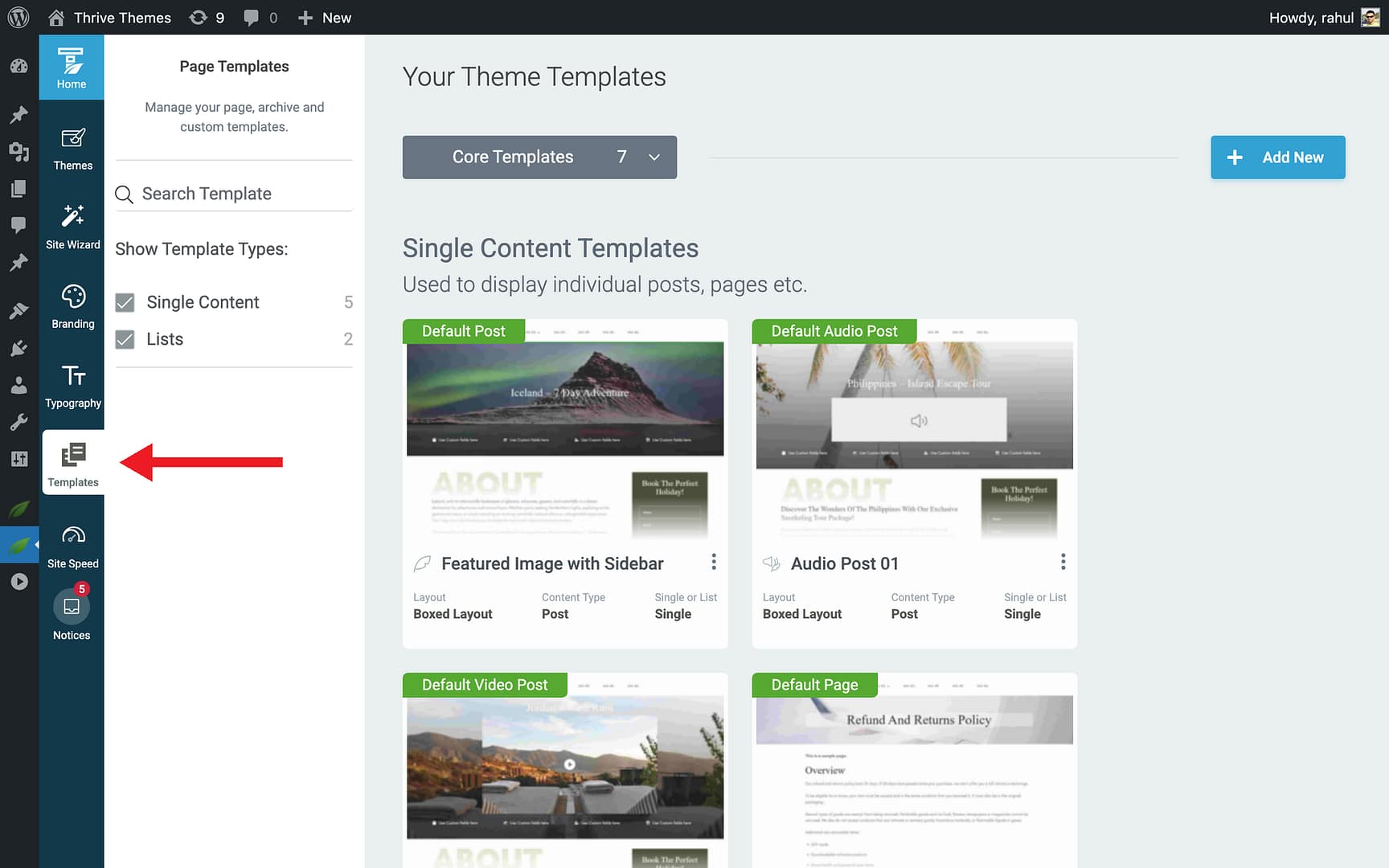
- Hover over it and click Edit.
- The template opens in the editor with product-specific options.
Product Display Options
To access the product-specific options, click on the product display area inside the template’s content section. A Product Display Options panel appears in the left sidebar with controls for the main product sections:
Product Information
- Title — Show or hide the product title.
- Price — Show or hide the price.
- Short Description — Show or hide the product excerpt.
- Add to Cart Button — Show or hide the add-to-cart button and quantity selector.
- Product Meta — Show or hide SKU, categories, and tags.
Product Tabs
Product pages include tabs at the bottom:
- Description — The full product description.
- Additional Information — Product attributes and specifications.
- Reviews — Customer reviews and the review submission form.
You can control the visibility of the Reviews tab.
Related Products Section
Configure the “Related Products” section at the bottom of the product page:
- Display — Show or hide related products.
- Columns — Number of columns (1–6).
- Products to Display — Number of products shown (1–24).
- Order By — Product title, product ID, published date, last modified date, menu order, price, or random.
- Order Direction — Ascending or descending.
- Image Size — Product image width.
- Alignment — Product card alignment.
Upsells Section
Similar controls as Related Products, but for upsell products you’ve configured in WooCommerce.
Product Sub-Elements
When editing the Product template, you can click on individual elements to customize their styling:
- Product image and gallery
- Product title and price
- Star rating and review count
- Quantity selector
- Add to Cart button
- Sale badge
- Out of stock notice
- Product category and tag links
Using the Product Categories Element
The Product Categories element displays WooCommerce product categories on your templates or pages.
Adding the Element
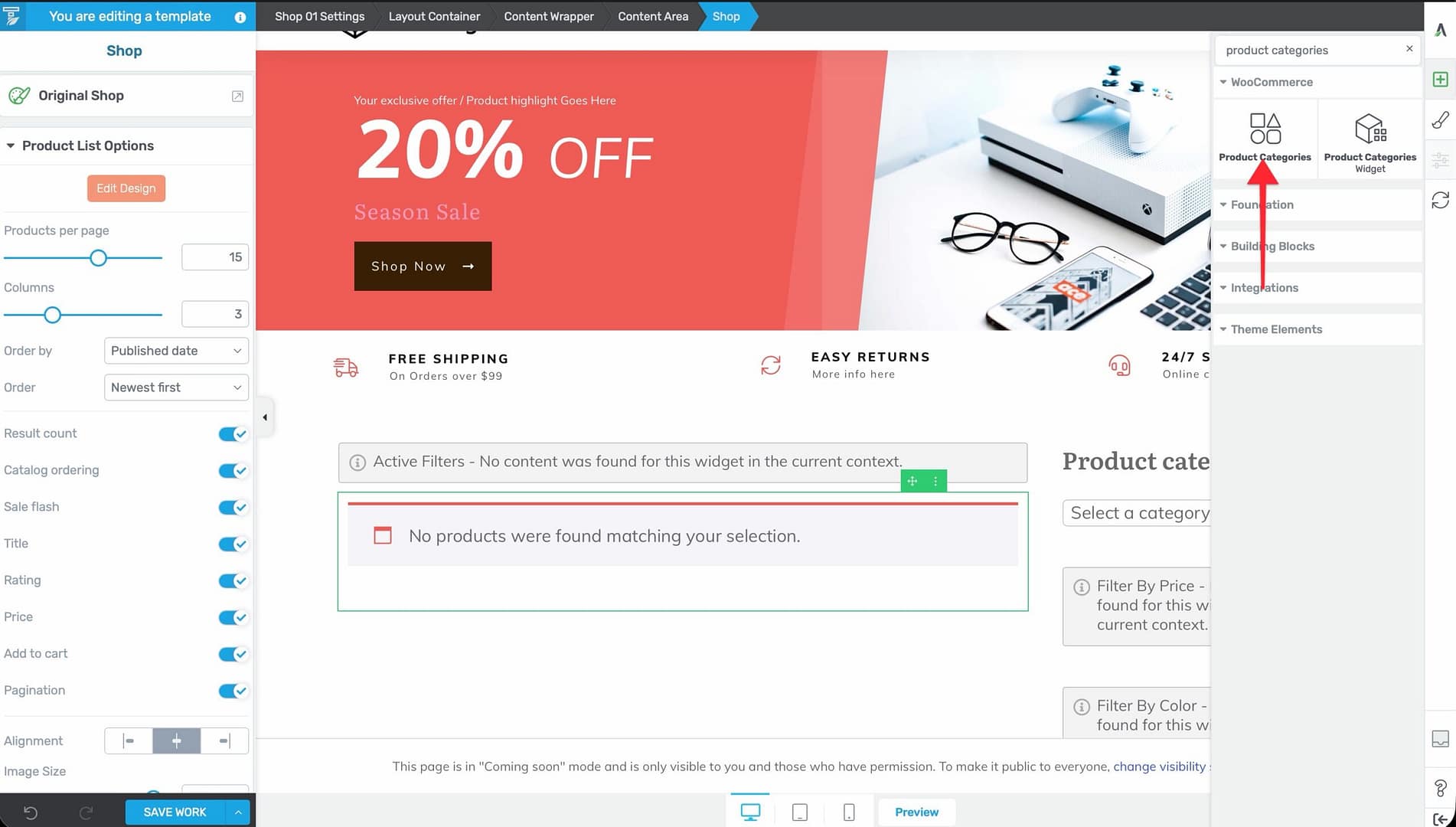
- In the Thrive Theme Builder editor (or Thrive Architect), click the plus (+) icon in the right sidebar.
- Search for Product Categories.
- Drag the element into position.
Where to Use It
- Shop template — Display category navigation above or alongside the product grid.
- Homepage template — Showcase product categories for easy browsing.
- Landing pages — Feature specific product categories.
This element is available in both the Thrive Theme Builder editor (for templates) and Thrive Architect (for individual pages).
Customizing Product Category Templates
You can create separate templates for different product categories, giving each category its own visual style:
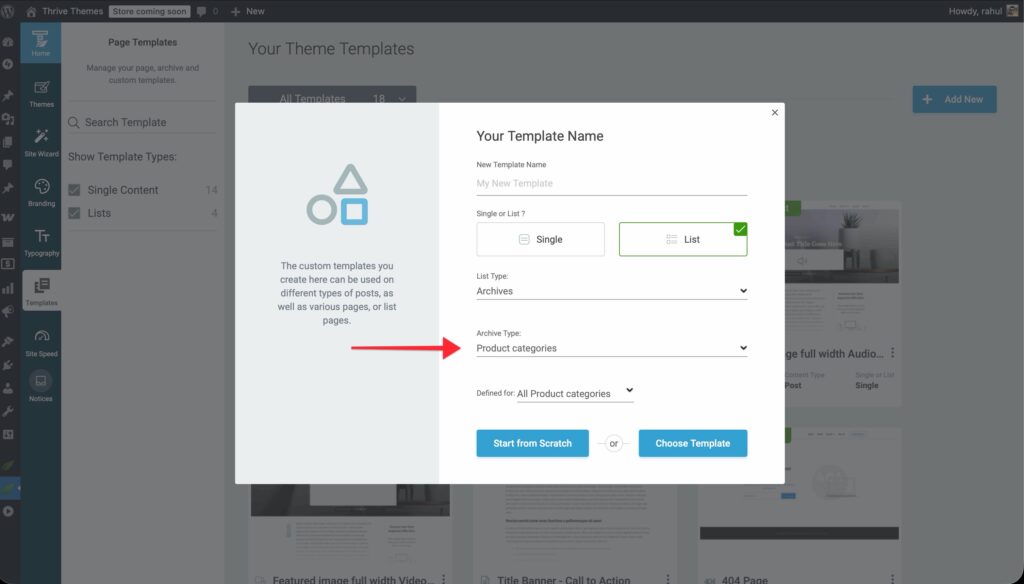
- In the Templates section, click Add New.
- Configure the template for the product category archive.
- Customize the design to match the specific category’s branding or content type.
Related Resources
- Getting Started with WooCommerce: Learn how to set up WooCommerce with Thrive Theme Builder.
- Customizing WooCommerce Cart, Checkout & Account Templates: Learn how to customize cart, checkout, and account templates.
- Creating WooCommerce Buttons: Learn how to create dynamic WooCommerce buttons.