In this article, you’ll learn how to conditionally show or hide lesson resources—such as downloads, links, and supplementary materials—based on each student’s progress status. This feature allows you to control when students gain access to specific resources, ensuring they engage with the lesson content first.
Why Use Conditional Resource Display
By default, all resources on a lesson page are visible to every student who has access to the lesson. However, there are situations where you may want to reveal certain resources only after a student completes the lesson. For example:
- Certificate downloads — Show a certificate download link only after the student finishes the course.
- Bonus materials — Reveal bonus PDFs or worksheets after lesson completion as a reward for finishing.
- Next-step links — Display links to advanced resources or follow-up content only when the student is ready.
- Progressive disclosure — Guide students through a structured learning path by revealing content in stages.
This approach encourages students to complete lessons before accessing supplementary materials, which helps maintain a logical learning sequence.
Setting Up Conditional Display
To configure resources that appear based on progress status, you will use a combination of the Thrive Apprentice template editor and Thrive Architect’s conditional display feature.
- Go to Thrive Dashboard > Thrive Apprentice.
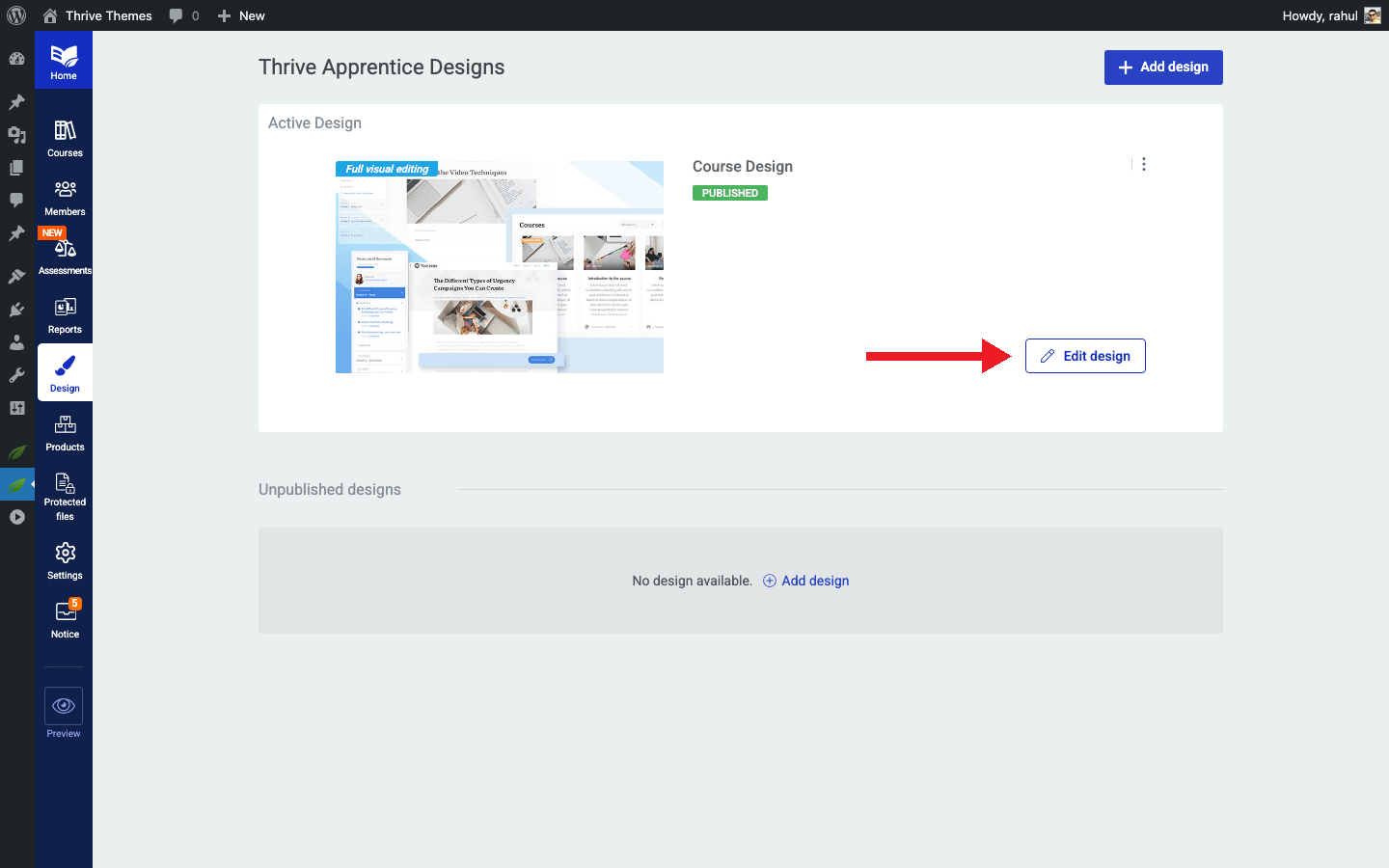
- Click on the Design tab and open your active design by clicking Edit Design.
- Navigate to the Lesson template you want to modify.
- Open the template in the visual editor.
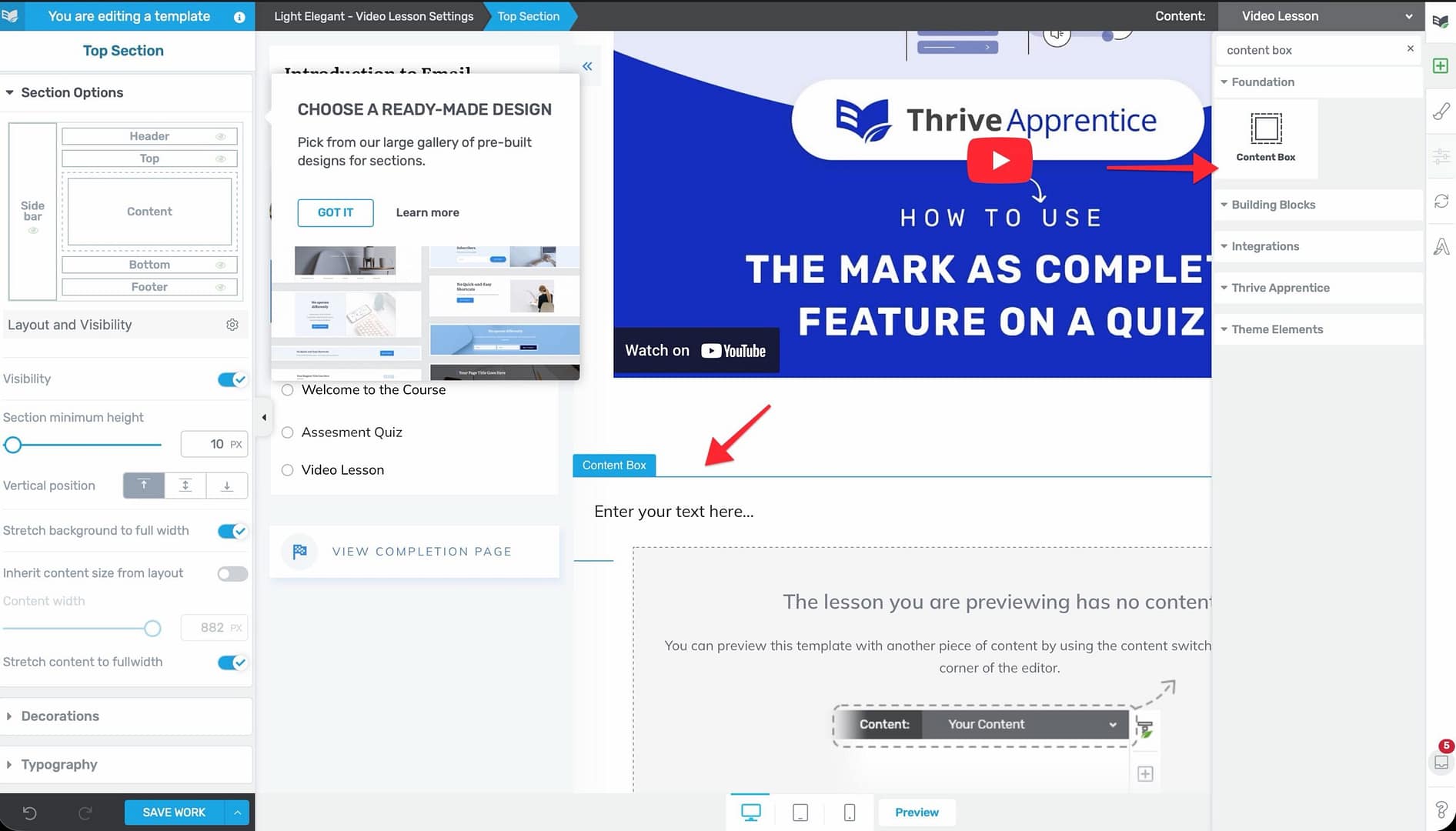
- Add a Content Box element to the area of the template where you want the conditional resources to appear.
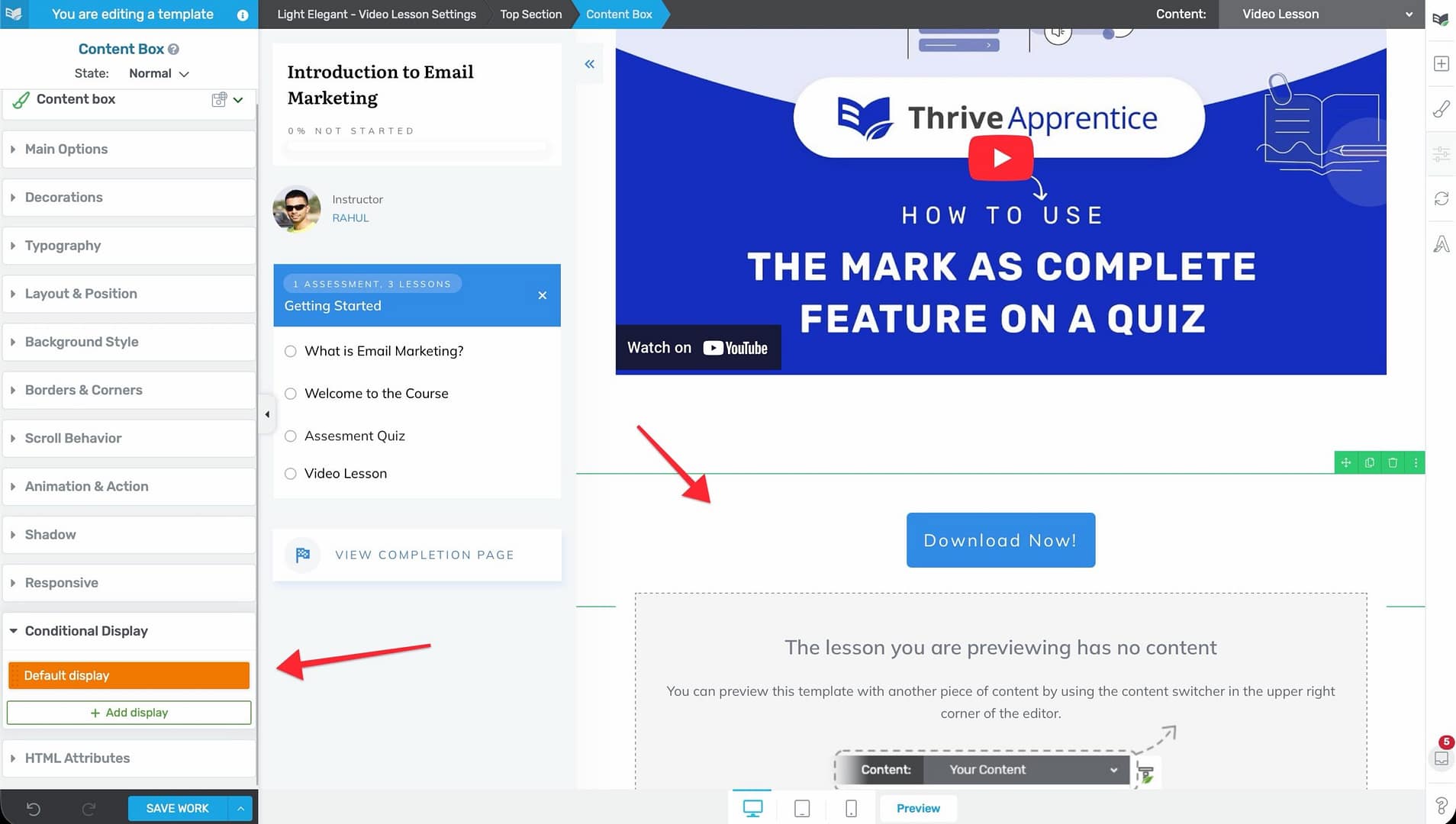
- Place your resource elements inside the Content Box—such as download buttons, links, or text blocks.
- Select the Content Box and open its settings.
- Look for the Conditional Display option in the settings panel.
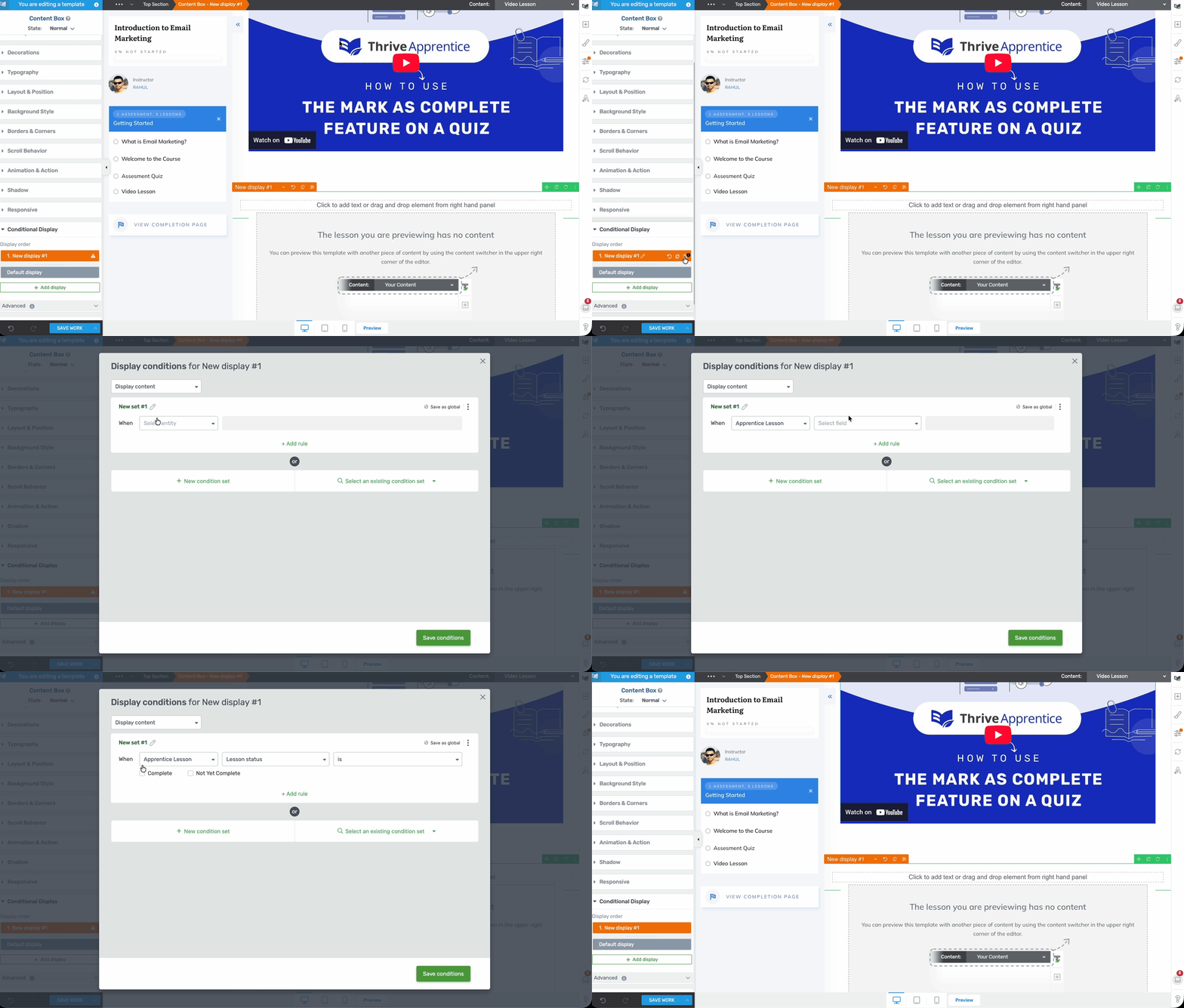
- Set the visibility rule to show the Content Box only when the lesson status is Complete.
- Save your changes.
Note: The conditional display rule is tied to the individual student’s progress. Each student will see the resources only after they personally complete the lesson—not when other students complete it.
Configuring the Visibility Rules
The conditional display feature gives you several options for controlling when resources appear:
- Complete — Show resources only to students who have finished the lesson.
- Not Yet Complete — Show resources only to students who have not yet completed the lesson (whether they have started it or not).
You can combine these conditions with other Thrive Architect display rules to create more advanced configurations—for example, showing different resources to logged-in users versus visitors, or displaying content based on course-level progress rather than lesson-level progress.
Best Practices
- Keep it simple — Use conditional display sparingly and only when it adds value to the student experience. Overusing it can make your lesson pages feel empty or confusing.
- Provide context — Consider adding a brief message above the conditional area (visible to all students) that says something like “Complete this lesson to unlock bonus resources.” This sets expectations.
- Test your setup — Preview the lesson as both a new student and a student who has completed the lesson to make sure the conditional display works as expected.
Conclusion
That’s it! You’ve successfully learned how to display lesson resources based on student progress status. By using the Content Box element and conditional display rules in Thrive Architect, you can create a structured, progressive learning experience that rewards students for completing their lessons.
Related Resources
- Working with Video — Require students to watch a video before marking a lesson complete, which pairs well with conditional resource display.
- Template Types Reference — Learn about all seven template types, including Lesson templates where you configure conditional display.
- Creating and Managing Templates — Build and manage the templates that hold your lesson resources.