In this article, you’ll learn how WooCommerce product templates work, how to edit product content using Thrive Architect, and how the template system connects Thrive Theme Builder with Thrive Architect.
How WooCommerce Product Templates Work
WooCommerce product pages use a single global template defined in Thrive Theme Builder. This template controls the overall layout — header, footer, sidebar, and the product content area — for all products on your site.
You cannot assign different templates to individual products from within Thrive Architect. Template creation and management is handled entirely in the Thrive Theme Builder dashboard.
To change the product template:
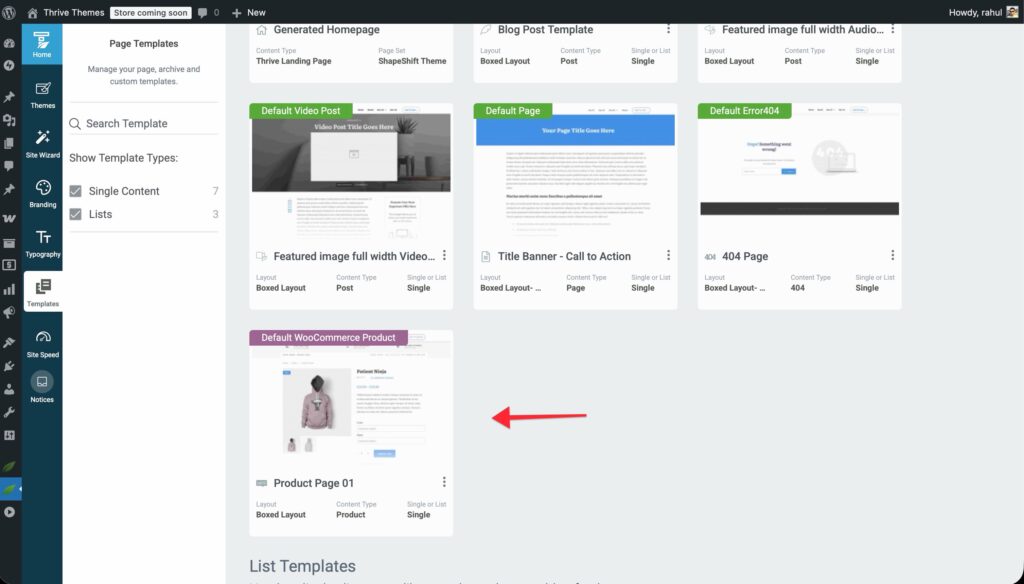
- Open Thrive Theme Builder from the WordPress admin sidebar.
- Go to Templates.
- Find your Singular Product template (or create a new one).
- Click Edit to customize the template layout in the visual editor.
- Save your changes — the updated template applies to all product pages automatically.
Editing Product Content in Thrive Architect
While the template is managed in Theme Builder, you can edit the content of individual products using Thrive Architect.
How to Edit a Product
- In the WordPress admin, go to Products > All Products.
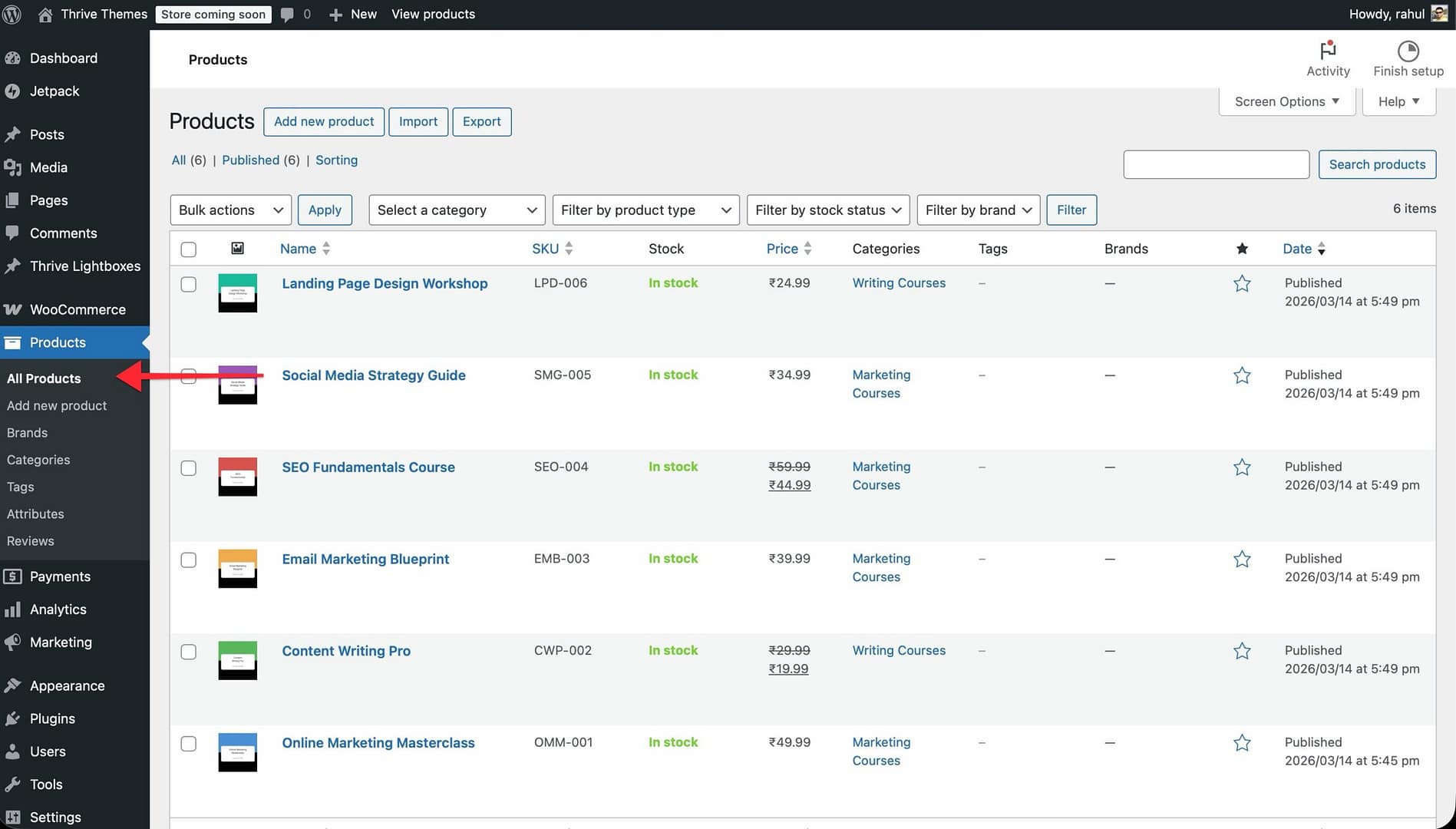
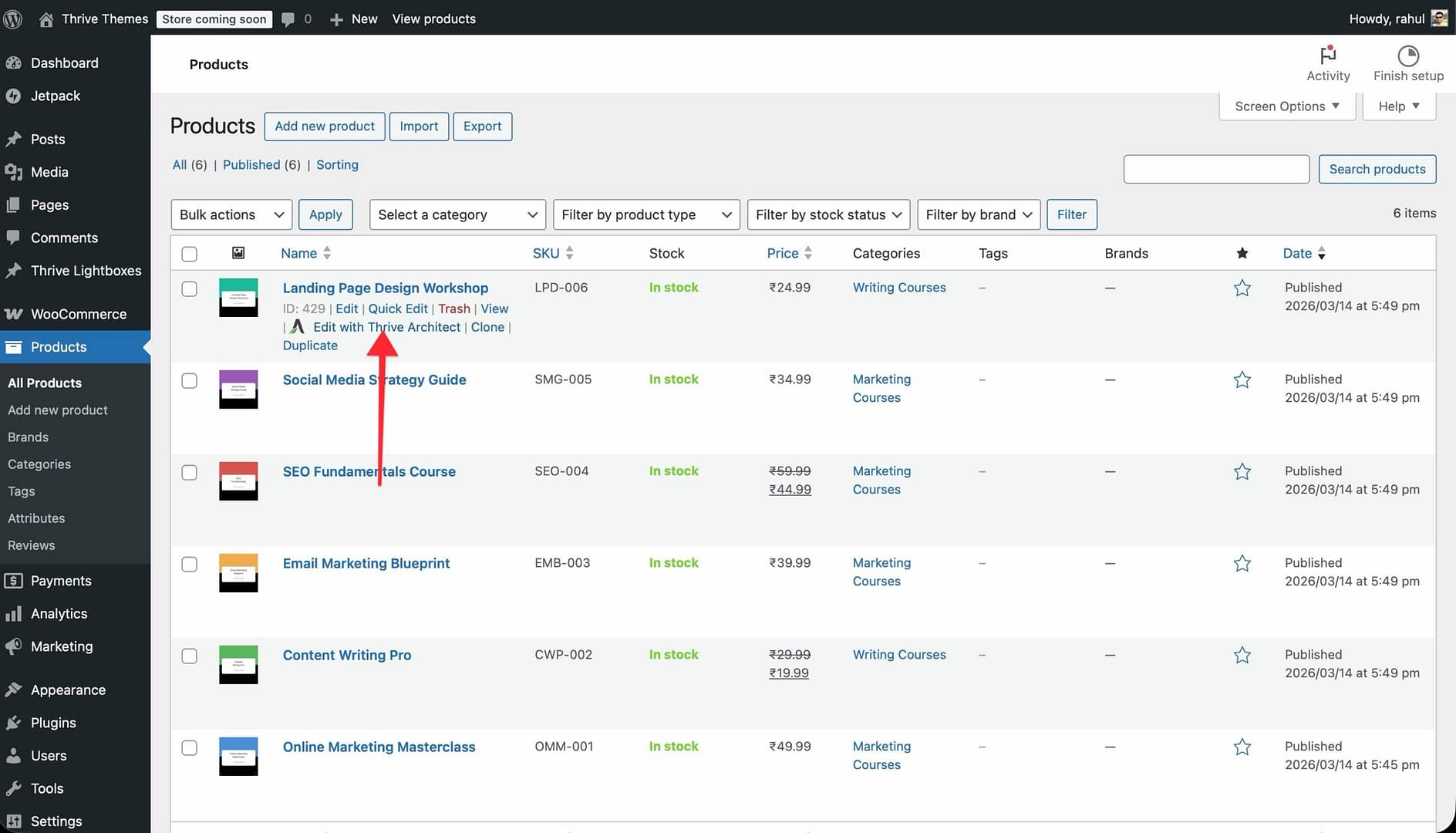
- Hover over the product you want to edit.
- Click Edit with Thrive Architect (or open the product in the WordPress editor and launch Thrive Architect from there).
- Edit the product content within the content area — add text, images, videos, buttons, or any other Thrive Architect elements.
- Click Save Work when you’re done.
What You Can Edit
When editing a product in Thrive Architect, you’re working inside the template’s content area. You can add and arrange Thrive Architect elements, but the surrounding template structure (header, footer, sidebar) remains controlled by Theme Builder.
Important Limitation
Thrive Architect can only edit the content of product pages. The WooCommerce Cart, Checkout, and Account pages cannot be content-edited in Thrive Architect because their content is generated by WooCommerce shortcodes. To customize these pages, use the corresponding WooCommerce templates in the Thrive Theme Builder dashboard instead.
Previewing Different Products with Content Switch
When editing a Singular Product template in Thrive Theme Builder’s visual editor, you can preview how the template looks with different products using the Content Switch feature:
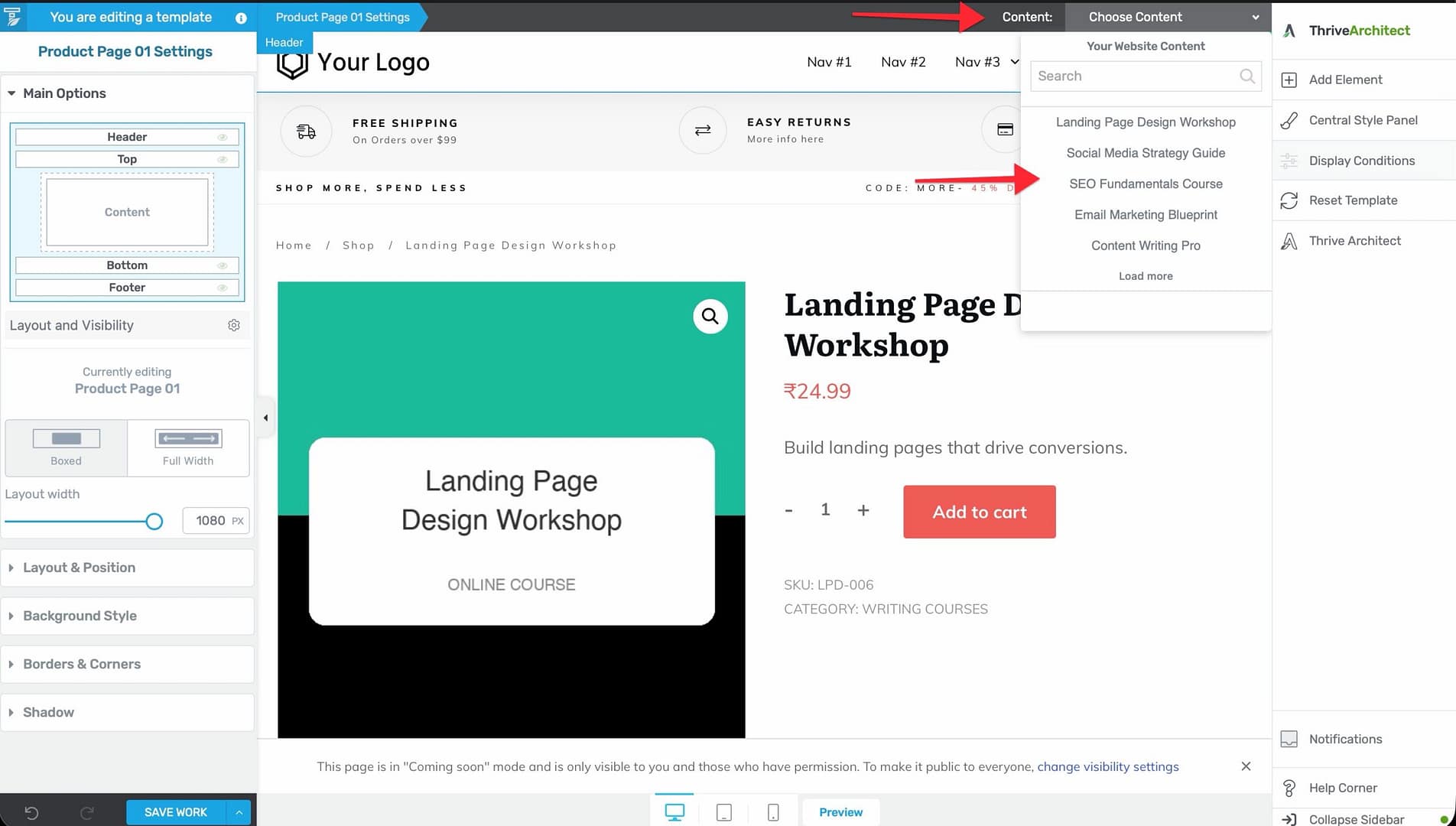
- Open the Singular Product template for editing.
- In the top bar, look for the Content section.
- Search for or select a different product from the list.
- The editor reloads to display that product’s content within the template.
This lets you verify that your template works well across all your products without leaving the editor.
How Thrive Architect and Theme Builder Work Together
Understanding the relationship between these two tools helps you work efficiently:
- Thrive Theme Builder — Designs the template (header, footer, sidebar, layout, content area structure). The Singular Product template applies to all WooCommerce products.
- Thrive Architect — Edits the actual content within the template’s content area (text, images, videos, buttons, etc.). Content is unique to each product.
When a visitor views a product page:
- Thrive Theme Builder loads the Singular Product template (determining the overall layout).
- The product’s content (created in Thrive Architect or the WordPress editor) is rendered inside the template’s content area.
- WooCommerce product data (price, gallery, add-to-cart button, reviews, related products) is rendered by the Product Template element within the template.
Related Resources
- Getting Started with WooCommerce: Learn how to set up WooCommerce with Thrive Theme Builder.
- Creating Post Templates: Learn how to create and customize post templates including video and audio formats.
- Customizing WooCommerce Shop & Product Templates: Learn how to customize shop and product templates.