In this article, you’ll learn how to add and configure assessments in Thrive Apprentice. Assessments let you evaluate student work beyond multiple-choice quizzes—students can upload files, submit video links, share external URLs, or complete traditional quiz-based evaluations.
What Are Assessments?
Assessments are a content type in Thrive Apprentice that gives you flexible ways to evaluate student progress. Unlike quizzes that are automatically graded, most assessment types support manual review by the instructor—making them ideal for essays, projects, presentations, and other hands-on assignments.
Thrive Apprentice supports four assessment types:
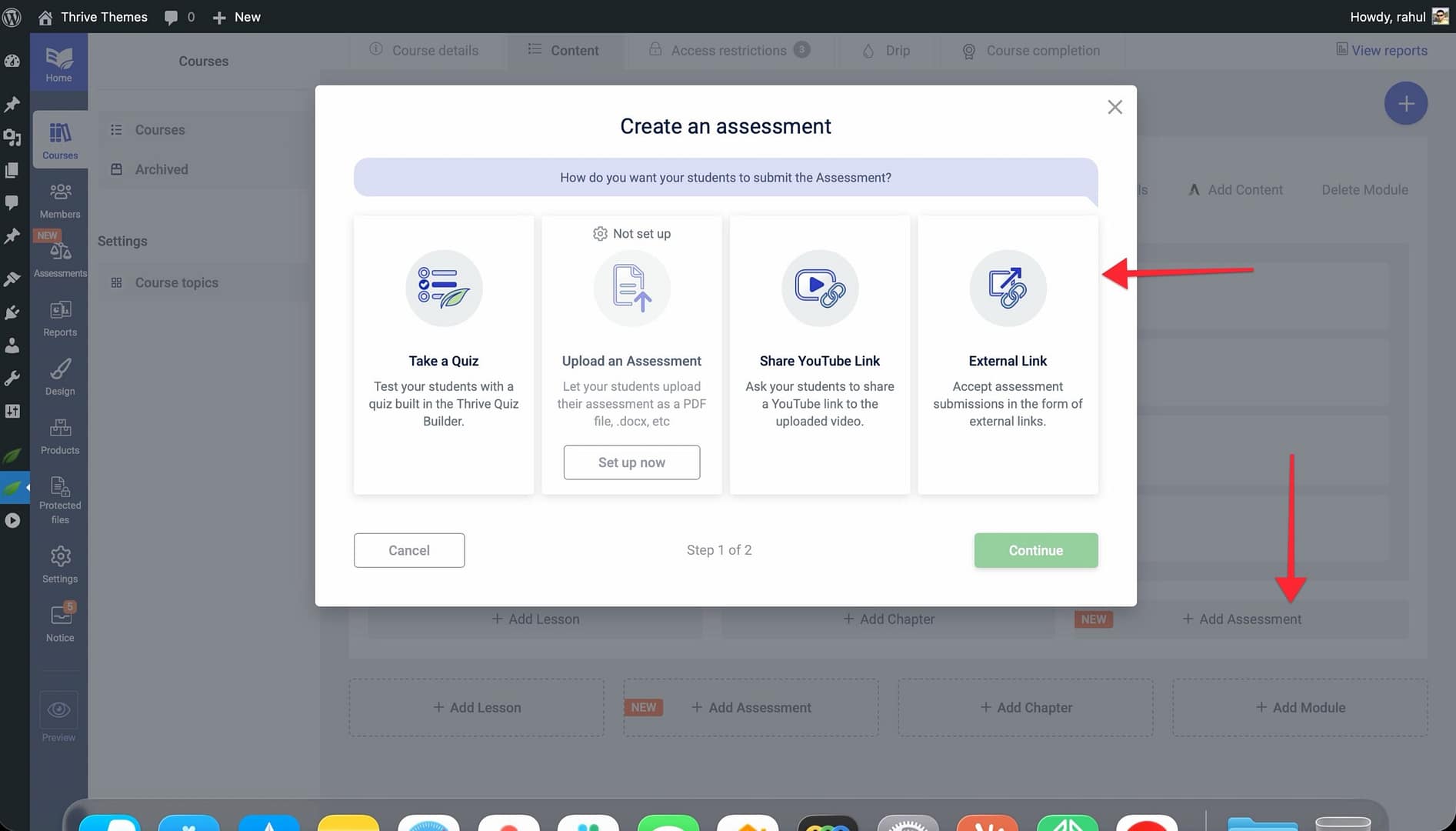
- Take a Quiz: Test your students with a quiz built in the Thrive Quiz Builder.
- Upload an Assessment: Let your students upload their assessment as a PDF file, .docx, etc. (requires cloud storage setup—see the assessment upload settings guide).
- Share YouTube Link: Ask your students to share a YouTube link to the uploaded video.
- External Link: Accept assessment submissions in the form of external links.
How to Add an Assessment to a Course
Assessments are added directly from the course Content tab, just like lessons and modules. Here’s how:
- Navigate to Thrive Dashboard > Thrive Apprentice.
- Click Courses in the left sidebar and select the course you want to add an assessment to.
- Click the Content tab to view your course structure.
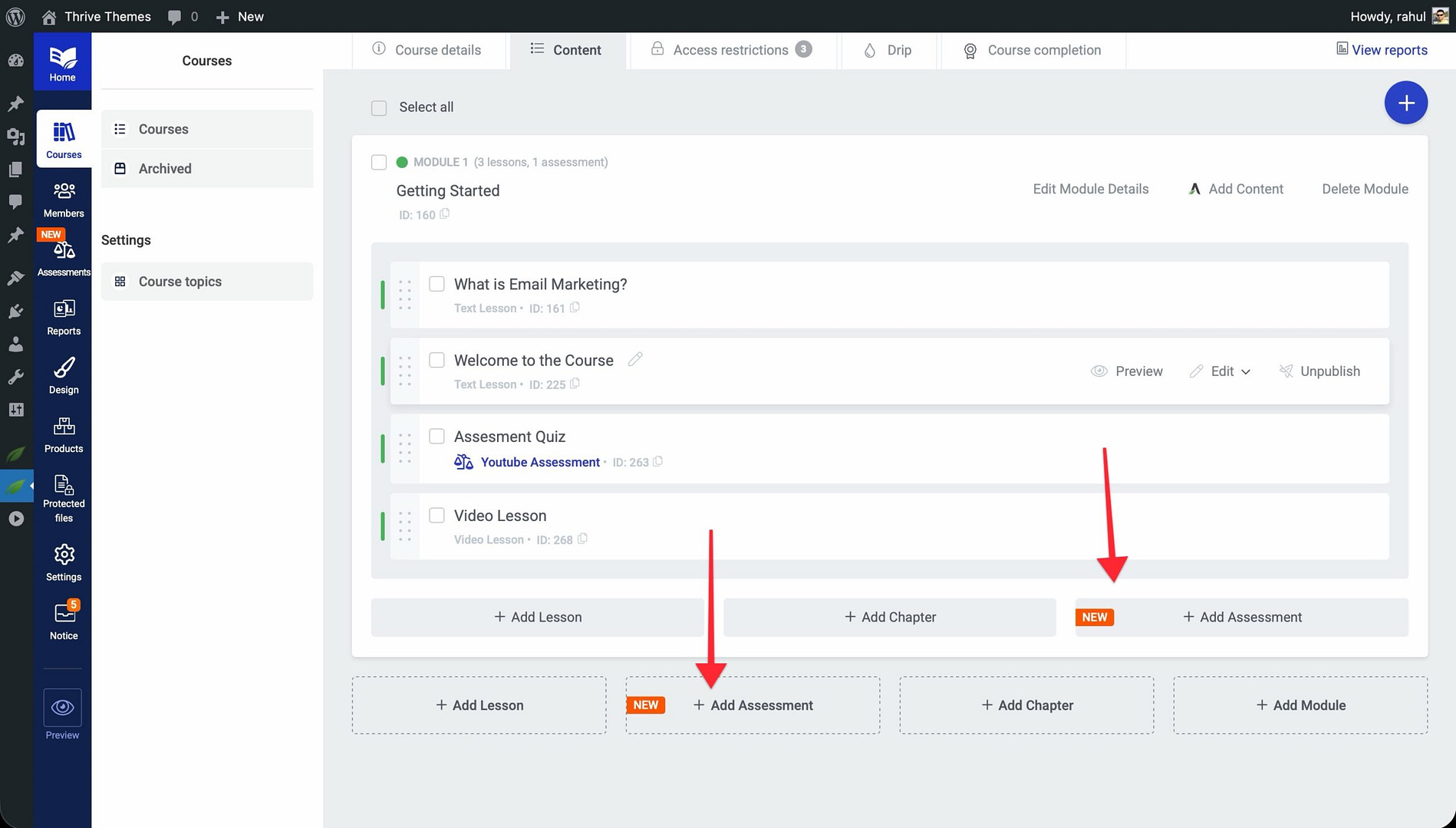
- Click the + Add Assessment button. You’ll find this button within a module section or at the course level—wherever you want the assessment to appear in your content list.
- In the “Create an assessment” modal (Step 1 of 2), choose your assessment type: Take a Quiz, Upload an Assessment, Share YouTube Link, or External Link.
- Click Continue to proceed to Step 2 of the wizard.
- Enter a name for the assessment and configure any type-specific settings (e.g., select which quiz to use, set allowed file types, etc.).
- Click Save to add the assessment to your course content.
Once saved, the assessment appears in your course content list alongside lessons and other items. You can drag it to reorder its position within the course structure.
Assessment Types in Detail
Take a Quiz
This type links a Thrive Quiz Builder quiz to the assessment. Students take the quiz directly within the course, and results are graded automatically based on your quiz configuration.
Upload an Assessment
Students upload files such as PDFs, Word documents, presentations, or images. Before using this type, you need to connect a cloud storage service (Google Drive or Dropbox) in your assessment upload settings. If cloud storage isn’t configured, you’ll see a “Not set up” notice with a “Set up now” link on the type card.
Share YouTube Link
Students submit a YouTube video URL—perfect for video presentations, demonstrations, recorded walkthroughs, or any assignment where you want to see the student on camera.
External Link
Students share a URL to work hosted on another platform. This works well for Google Docs, portfolio sites, code repositories, design mockups, or any web-based deliverable.
How Students Submit Assessments
Once an assessment is published in your course, students will see the submission area when they reach that content item. The submission process depends on the assessment type:
- The student navigates to the assessment within the course.
- They see the assessment instructions and submission interface.
- Depending on the type, they either complete the embedded quiz, upload a file using the Upload button, paste a YouTube video URL, or enter an external link.
- They click Submit Assessment to send their work for review.
After submission, the student sees a confirmation message. They can view their submission status—Pending, Passed, or Failed—from their course dashboard.
Instructor Review Workflow
As the instructor, you review and grade non-quiz assessments manually. Here’s how:
- Navigate to Thrive Dashboard > Thrive Apprentice.
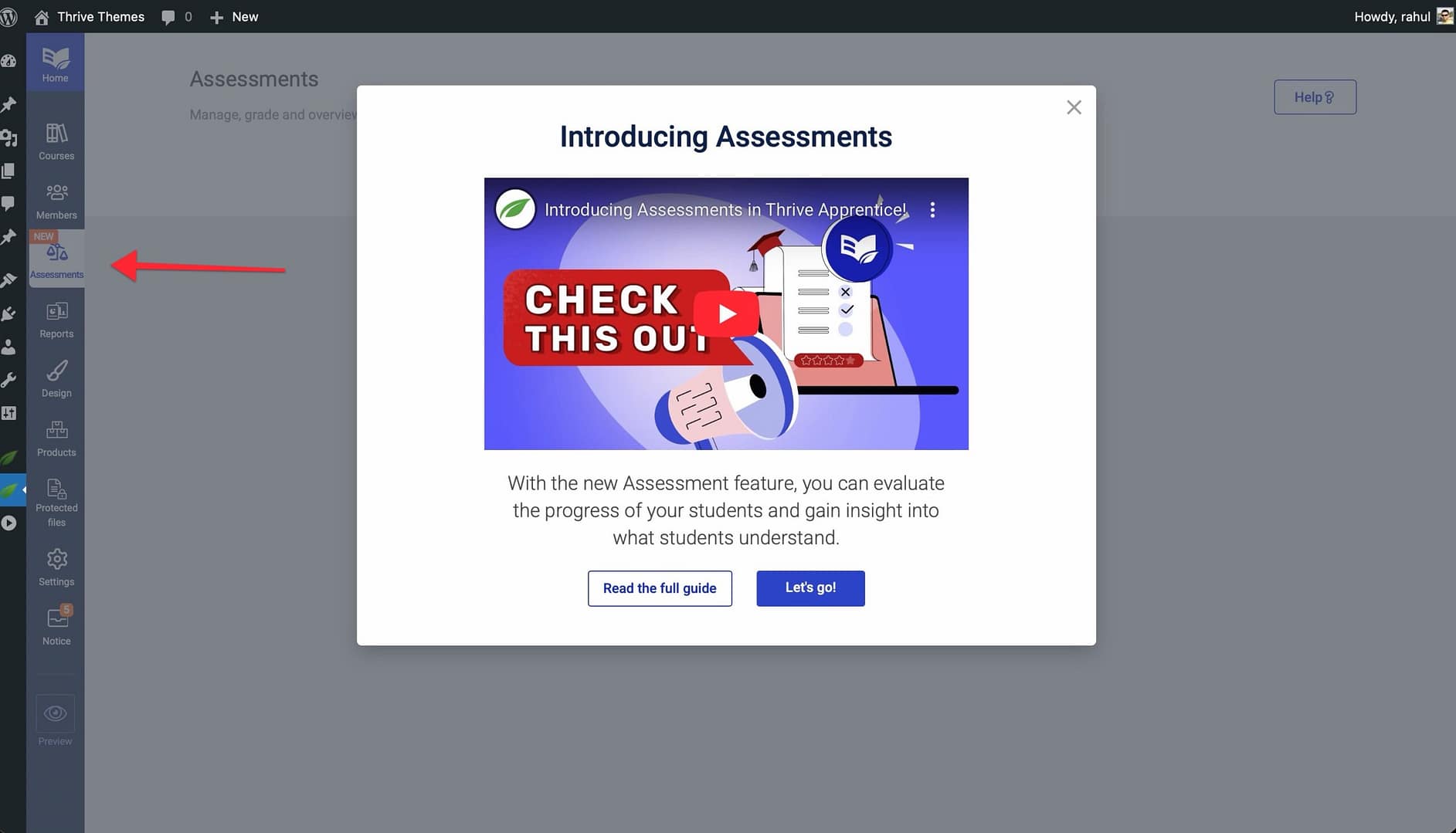
- Click Assessments in the left sidebar to see all pending submissions.
- Select a submission to review the student’s work.
- Review the uploaded file, video, or linked content.
- Choose a result: Pass or Fail.
- Optionally, add feedback comments for the student.
- Click Save to finalize the grade.
The student will be notified of the result, and their course progress will update accordingly. If the assessment is required for course completion, the student won’t be able to proceed until they receive a passing grade.
Related Resources
- Upload configuration: How to Manage Assessment Upload Settings
- Template updates: How to Refresh Templates After Adding Assessments
- Using quizzes: How to Use Quizzes in Thrive Apprentice