In this article, you’ll learn how to enable and configure course-level grading in Thrive Apprentice—so you can assign overall grades to students based on their performance across multiple assessments within a course.
What Is Course-Level Grading?
Course-level grading calculates a single final grade for each student by combining their scores from all assessments in a course. Instead of viewing each quiz or assessment result in isolation, students receive an overall course grade that reflects their total performance. This is especially useful for courses that include multiple graded activities like quizzes, assignments, or final exams.
Enabling Course-Level Grading
- Go to Thrive Dashboard > Thrive Apprentice.
- Click Courses in the left sidebar and open the course you want to grade.
- Click the Completion tab at the top of the course editor.

- Find the Award an overall grade for this course toggle and switch it on.

Configuring Grading Options
Once grading is enabled, you can fine-tune how the overall grade is calculated.
Assessment Weighting
You can choose how assessments contribute to the final grade using the Assessment weighting dropdown on the Completion tab. Three modes are available:
- Weight all assessments evenly — Every assessment counts equally toward the final grade.
- Manually weight assessments — Assign a custom weight percentage to each assessment (e.g., midterm quiz at 30%, final exam at 70%).
- Hardcode grade for all students — Set a fixed grade that applies to all students regardless of assessment scores.
If you choose Manually weight assessments:
- Select Manually weight assessments from the Assessment weighting dropdown.
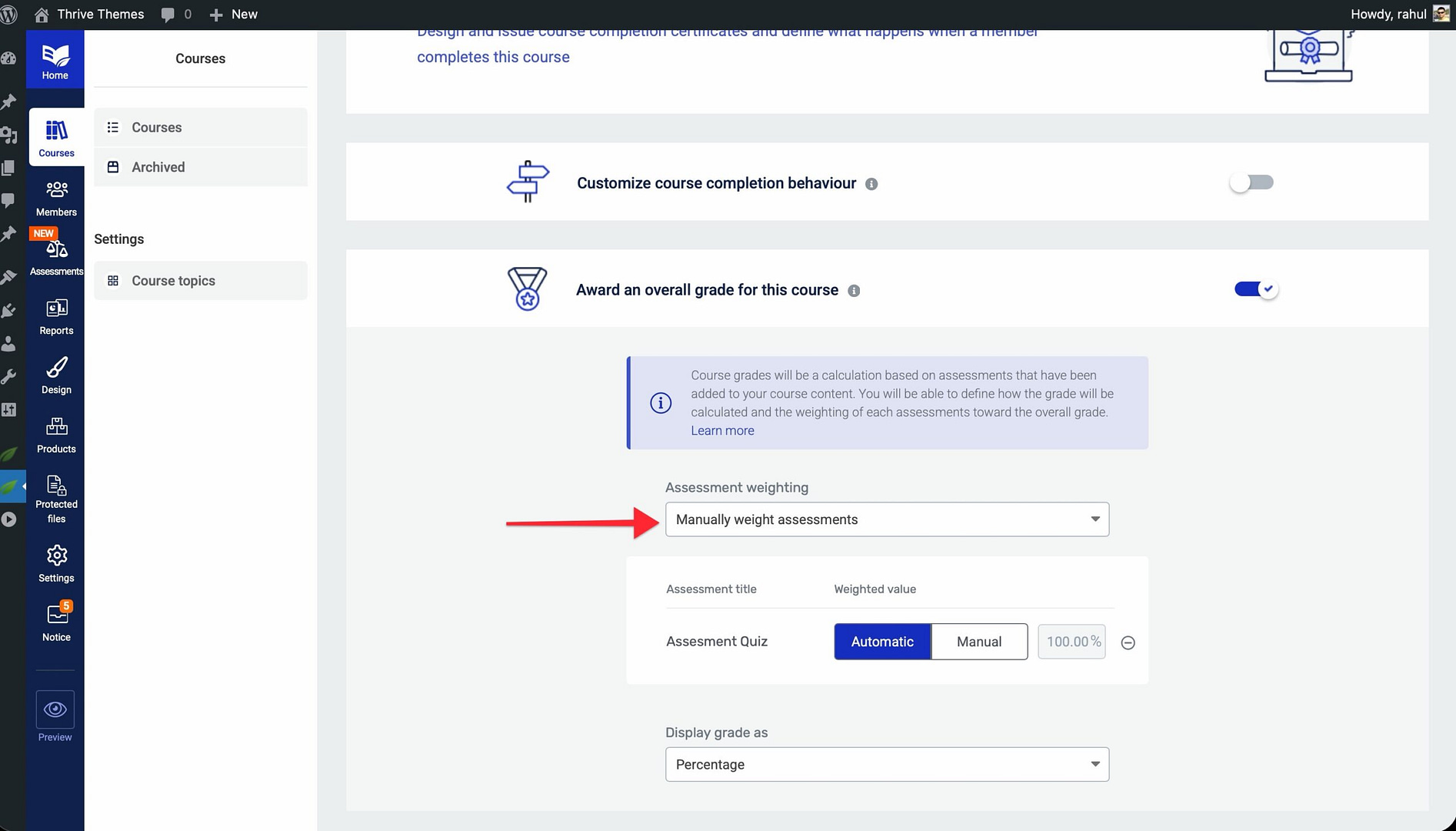
- A table of all assessments in the course appears.
- Assign a weight to each assessment.
- Click Save to confirm your settings.
Grade Display Settings
You can control how grades are presented to students using the Display grade as dropdown:
- Percentage — Display the grade as a percentage (e.g., 85%).
- Score — Display the grade as a numerical score.
- Category — Display the grade as a custom category label (e.g., “Distinction”, “Merit”, “Pass”). When selected, you can define your own category labels.
How Grades Are Calculated
Thrive Apprentice considers all completed assessments within the course and calculates the overall grade automatically. If you’ve configured assessment weighting, each score is multiplied by its assigned weight before being combined. If no custom weights are set, all assessments are averaged equally.
Important: Only completed assessments are factored into the grade. If a student has not yet attempted an assessment, it will not count toward their overall grade until they submit it.
Where Students See Their Grades
Students can view their overall course grade in the following locations:
- Course Grade Page — Thrive Apprentice creates a dedicated grade page for each course. You can customize its design using Thrive Architect.
- Certificates — If you enable course completion certificates (also configured on the Completion tab), the student’s grade can be included on the certificate automatically.
Tip: Combine grading with certificates to reward students who meet a minimum grade threshold—for example, issuing a certificate only to students who score 80% or higher.
That’s it! You’ve successfully enabled course-level grading in Thrive Apprentice, giving your students clear feedback on their overall performance and adding a professional layer to your online courses.
Related Resources
- Content Types: Learn about course content types, navigation, and progress tracking.
- Course Management: Learn how to manage course status and bulk actions.
- Settings: Review how to navigate and configure Thrive Apprentice settings.
- Thrive Apprentice Knowledge Base: Browse the full Thrive Apprentice Knowledge Base for more tutorials.