In this article, you’ll learn how to enable and configure the Stripe Customer Portal so your Thrive Apprentice students can manage their own subscriptions, update payment methods, and view invoices—all without needing to contact you for support.
What Is the Stripe Customer Portal?
The Stripe Customer Portal is a self-service interface that gives your students direct control over their billing and subscription details. Instead of sending you an email every time they need to update a credit card or cancel a subscription, they can handle it themselves through a secure, Stripe-hosted page.
When enabled, your students can:
- View active subscriptions and their renewal dates
- Update payment methods (swap credit cards, add new payment sources)
- Cancel subscriptions directly
- View and download invoices for their payment history
- Reactivate cancelled subscriptions (if you allow it)
This reduces your support workload and gives students a professional, self-service experience.
Prerequisites
- Stripe connected to Thrive Apprentice (see How to Set Up Stripe in Thrive Apprentice)
- At least one product with Stripe subscription pricing configured
- Students with active Stripe-powered subscriptions
Step 1: Enable the Customer Portal in Thrive Apprentice
- Go to Thrive Dashboard > Thrive Apprentice.
- Click Settings in the left sidebar.
- Select Payment processors from the settings menu.
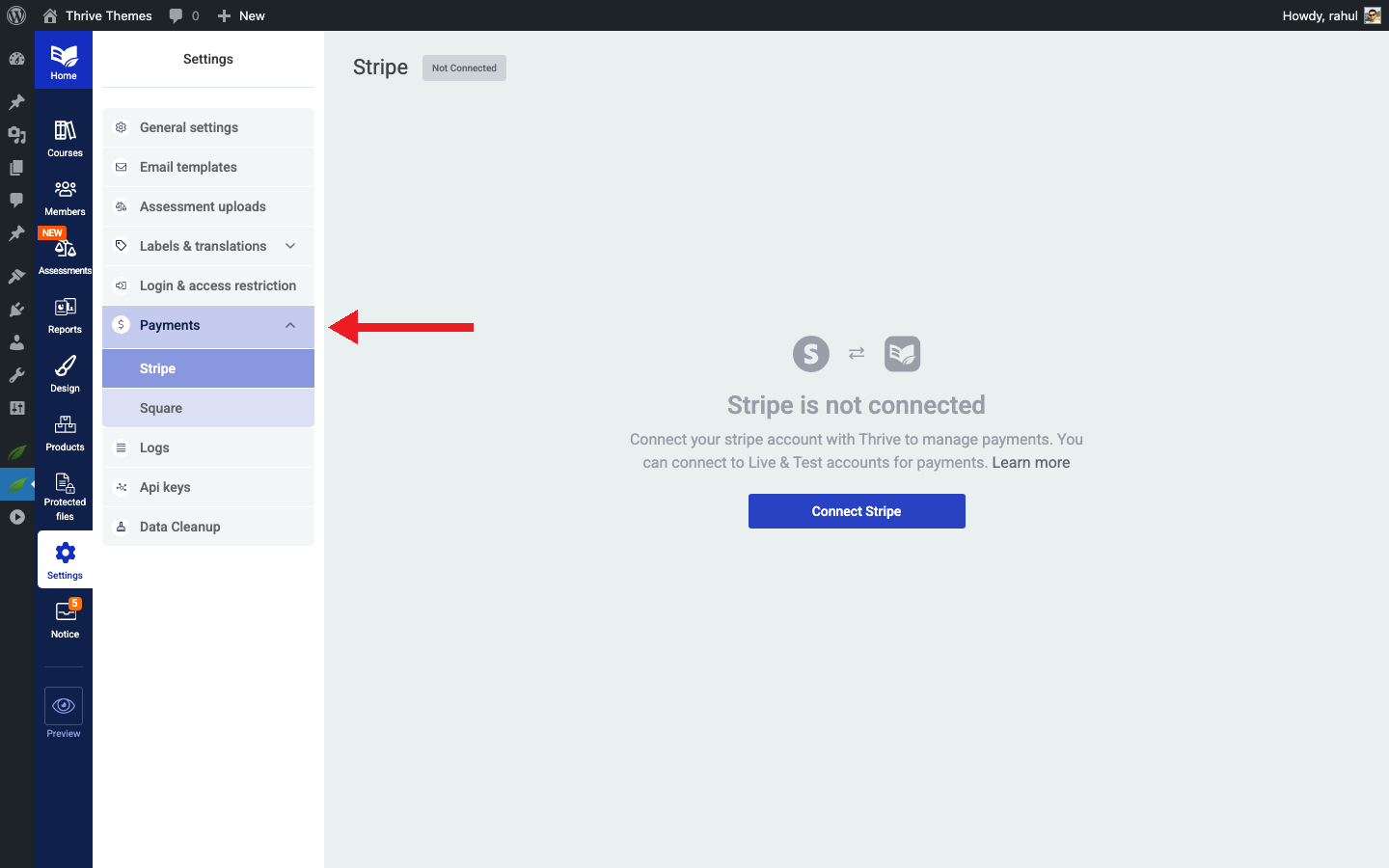
- Find the Stripe section and locate the Customer Portal toggle.
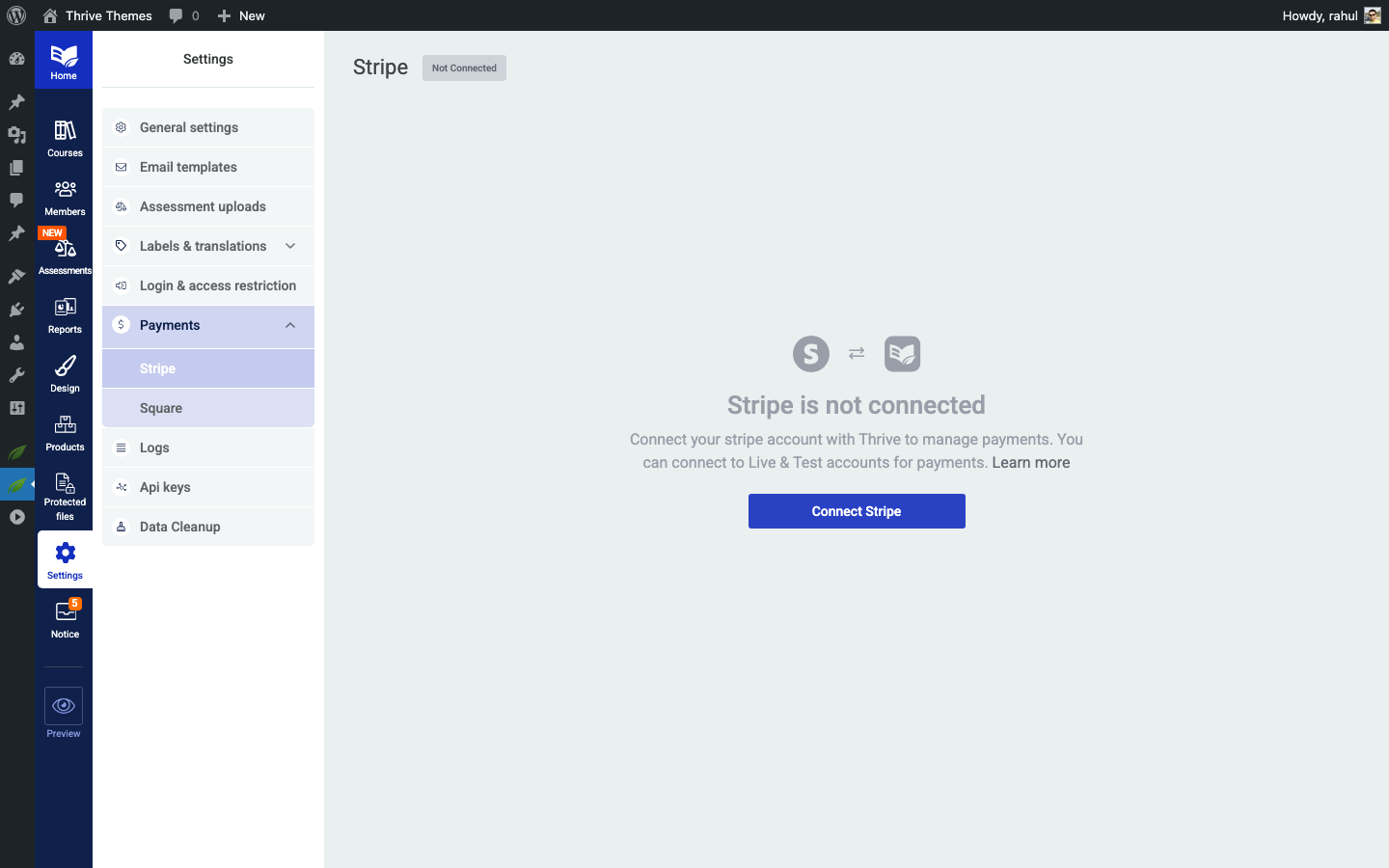
- Turn the toggle On to enable the Customer Portal.
- Save your settings.
Once enabled, a link to the Customer Portal will become available to your logged-in students.
Step 2: Configure the Customer Portal in Stripe
You can customize what your students are allowed to do in the Customer Portal directly from your Stripe dashboard.
- Log in to your Stripe dashboard at dashboard.stripe.com.
- Go to Settings > Billing > Customer portal.
- Configure the following options: – Payment methods: Allow customers to update their payment information. – Cancel subscriptions: Decide whether students can cancel immediately, at end of period, or not at all. – Subscription switching: Allow or disallow plan changes (e.g., monthly to annual). – Invoice history: Let customers view and download past invoices. – Promo codes: Allow customers to apply promotional codes.
- Save your Customer Portal settings in Stripe.
Tip: If you want to reduce cancellations, consider enabling the “cancel at end of period” option instead of immediate cancellation. This gives students access until their current billing cycle ends, and they may change their mind before then.
Step 3: Test the Customer Portal
Before your students use it, verify everything works as expected.
- Create a test subscription using Stripe’s Test mode and a test card.
- Log in to your site as the test student.
- Navigate to the Customer Portal link within Thrive Apprentice.
- Verify that the portal loads and displays the correct subscription details.
- Test updating a payment method and cancelling the subscription.
- Confirm that Thrive Apprentice updates the student’s course access based on the portal actions.
Where Students Access the Portal
Once the Customer Portal is enabled, students can access it from their account area within Thrive Apprentice. The exact location depends on your site’s design, but typically it appears as a Manage Subscription or Billing link in the student’s profile or account page.
Note: The Customer Portal is hosted by Stripe, so when students click the link, they are taken to a secure Stripe page. After they make any changes, they are redirected back to your website.
How Portal Actions Affect Course Access
Actions taken in the Customer Portal automatically sync with Thrive Apprentice:
- Payment method updated: No impact on access—the student retains their course access.
- Subscription cancelled (immediately): Course access is revoked right away.
- Subscription cancelled (at end of period): Course access continues until the end of the current billing cycle, then is revoked.
- Subscription reactivated: Course access is restored immediately.
That’s it! You’ve successfully enabled the Stripe Customer Portal for your Thrive Apprentice members. Your students can now manage their subscriptions and billing on their own.
Related Resources
- Stripe setup: How to Set Up Stripe in Thrive Apprentice
- Choosing an integration: How to Choose the Right Integration for Thrive Apprentice
- Square connection: How to Connect Square to Thrive Apprentice