If your Thrive Ultimatum campaigns are not displaying correctly, or if your Lockdown pages are not redirecting users when the timer expires, caching is the most common culprit.
Why Caching Causes Issues
Caching plugins store a static “snapshot” of your page to load it faster. However, Thrive Ultimatum needs to check the time dynamically for every visitor.
- If a page is cached, the countdown might show the wrong time (or no time).
- If a Lockdown page is cached, a user might see the “Offer Available” page even after the timer has expired.
How to Fix It: Exclude Pages from Cache
You must exclude your Promotion Pages and Lockdown Pages from your caching plugin.
General Rule
Look for an “Exclude URL” or “Never Cache” setting in your caching plugin and add the URLs of your specific campaign pages.
You can also exclude the specific query string tu_em if your plugin supports query string exclusions.
Specific Plugin Instructions
WP Super Cache
- Go to Settings -> WP Super Cache -> Advanced.
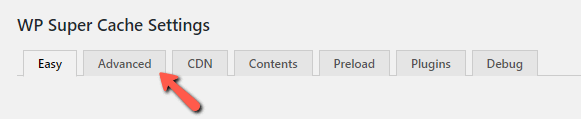
- Find “Accepted Filenames & Rejected URIs”.
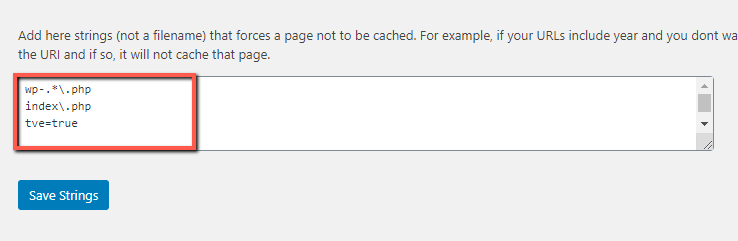
- Add the string
tu_emto the exclusion list.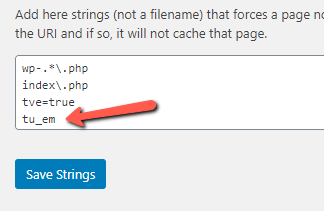
- Click Save Strings.
W3 Total Cache
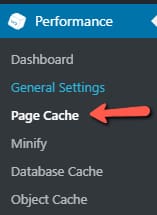
- Go to Performance -> Page Cache.
- Scroll to “Never cache the following pages”.
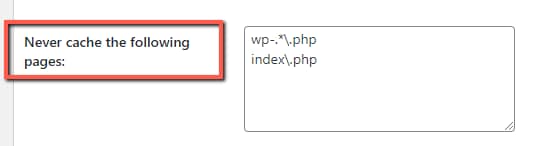
- Enter the URL path of your promotion pages (e.g.,
/my-special-offer/).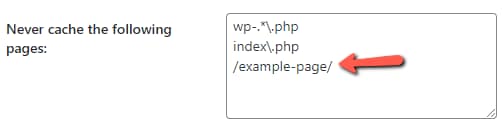
- Click Save Settings.
WP Fastest Cache
- Go to WP Fastest Cache -> Exclude.
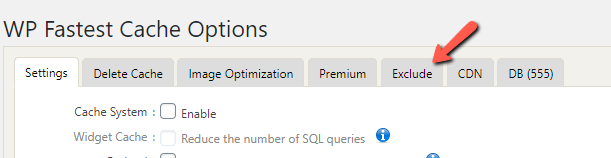
- Click Add New Rule.

- Select “Is Equal To” -> Enter your page formatting (e.g.,
/my-offer).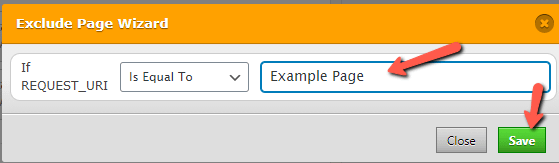
- Click Save.
WP Optimize
- Go to WP Optimize -> Cache -> Advanced Settings.

- Add your page URLs to “URLs to exclude from caching”.

- Click Save Changes.
Related Resources
- Testing: How to Test Your Thrive Ultimatum Campaigns
- Thrive Ultimatum Documentation: Explore the full Thrive Ultimatum knowledge base.