In this article, you’ll learn how to create landing pages in Thrive Architect, understand how they differ from normal pages, configure landing page settings, and use full-width page templates.
Landing pages are standalone pages designed for a single purpose—capturing leads, selling a product, or promoting a webinar. Unlike normal pages, landing pages bypass your theme’s layout entirely and give you full control over every design element.
Normal Page vs. Landing Page
When you click Launch Thrive Architect on a new page, you’ll choose a page type. Understanding the difference between normal pages and landing pages is essential for picking the right starting point.
Normal Page
A normal page uses your active WordPress theme’s layout. This means the page inherits the theme’s header, footer, sidebar, and overall styling. Thrive Architect content appears inside the theme’s content area.
- Best for blog posts, about pages, and standard content that should match your site’s design
- Your theme controls the outer layout (header, footer, and sidebar)
- No separate style panel—fonts and colors come from your theme
- Uses the WordPress post content stored in the standard editor
Landing Page
A landing page is a completely standalone page with its own design. Thrive Architect replaces the entire theme layout and renders the page using its own template. Under the hood, this is controlled by the tve_landing_page meta key, which tells WordPress to use the landing page layout instead of the theme.
- Best for sales pages, opt-in pages, webinar registration pages, and other conversion-focused pages
- Full control over the page design—no theme header, footer, or sidebar
- Has its own Central Style Panel for managing global fonts and colors
- Supports custom headers and footers added directly in the editor
- Supports custom scripts, analytics tracking, and typography settings
Creating a Landing Page
Follow these steps to create your first landing page:
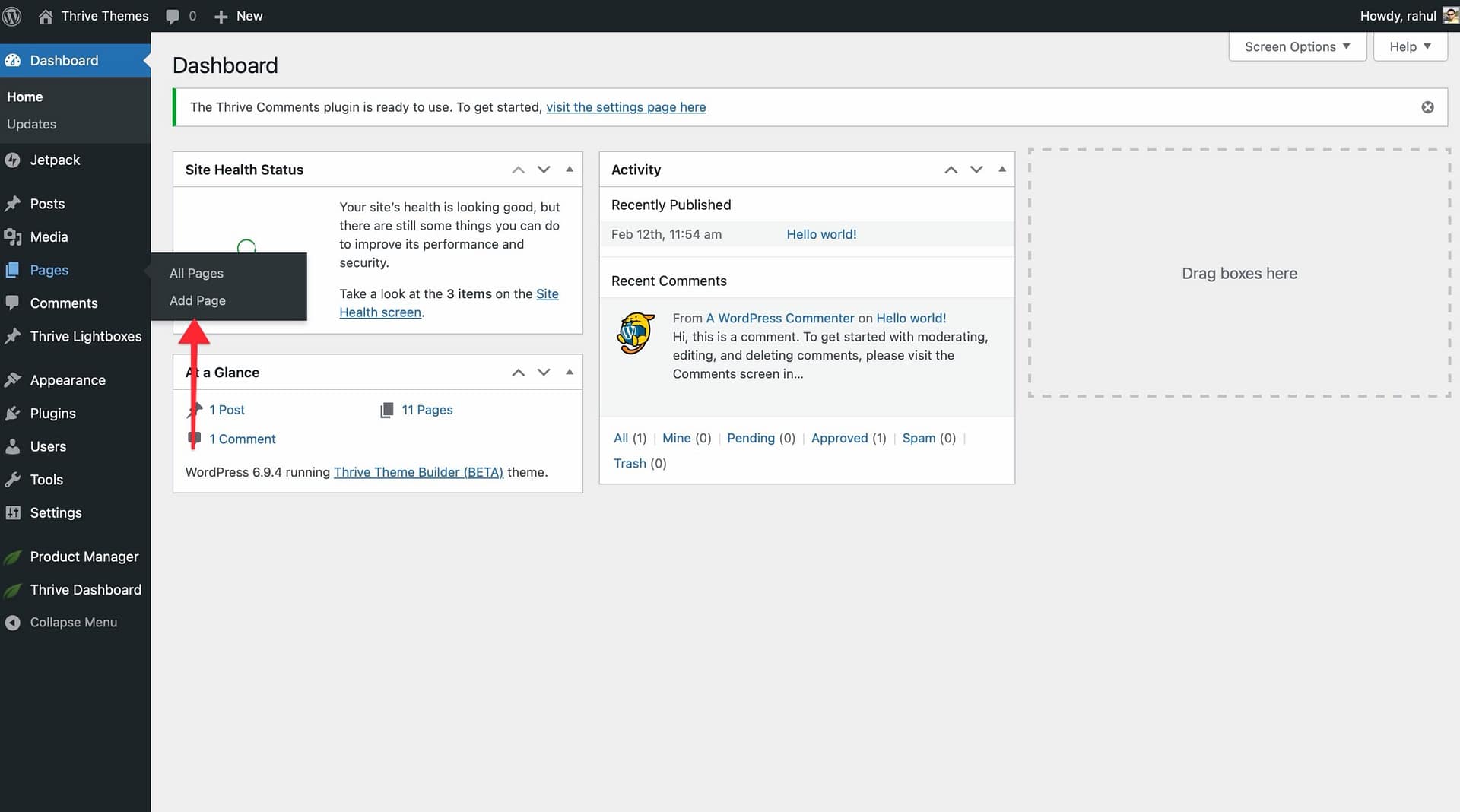
- In your WordPress admin dashboard, go to Pages > Add New.
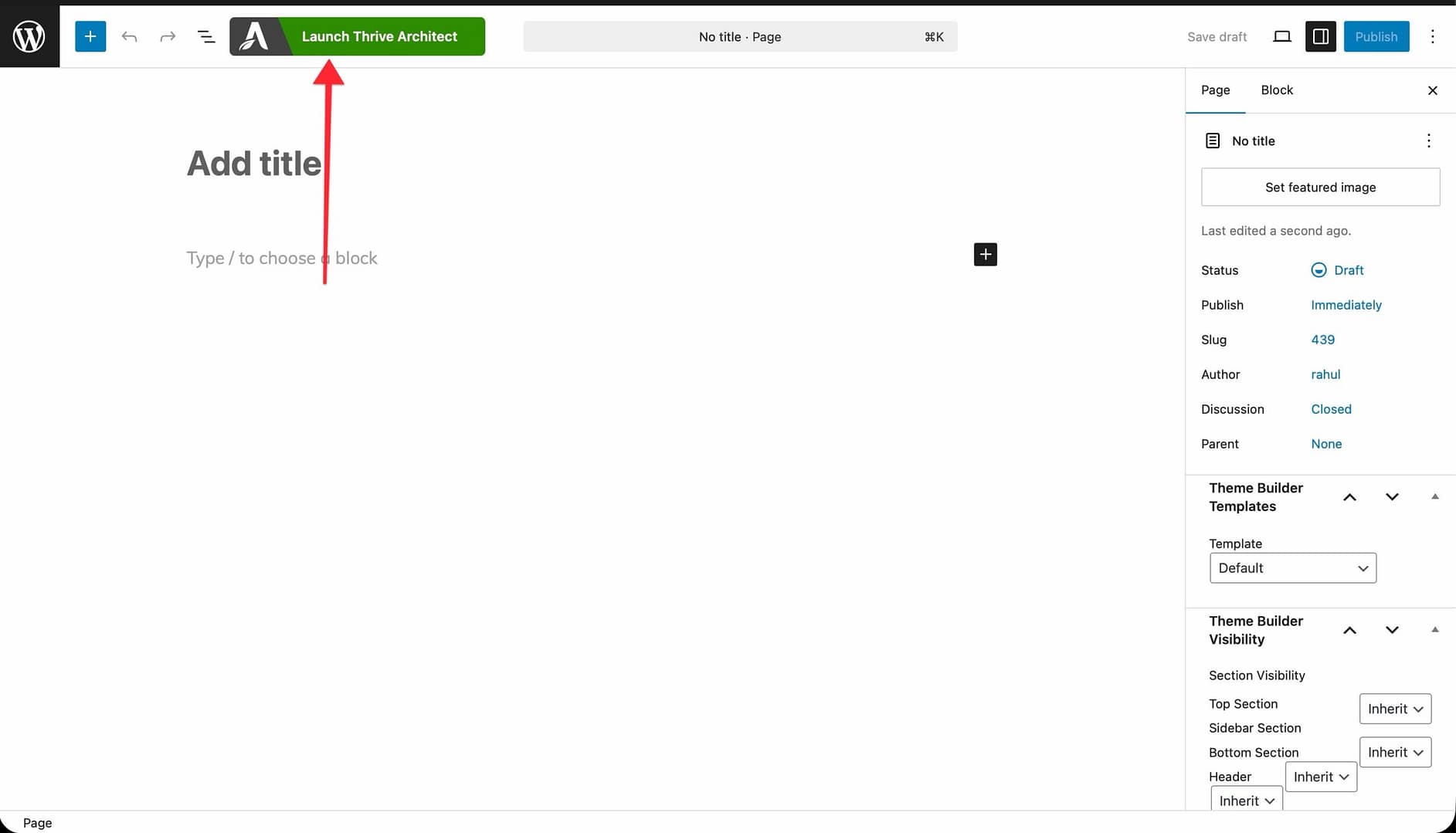
- Enter a title for your page.
- Click the Launch Thrive Architect button.
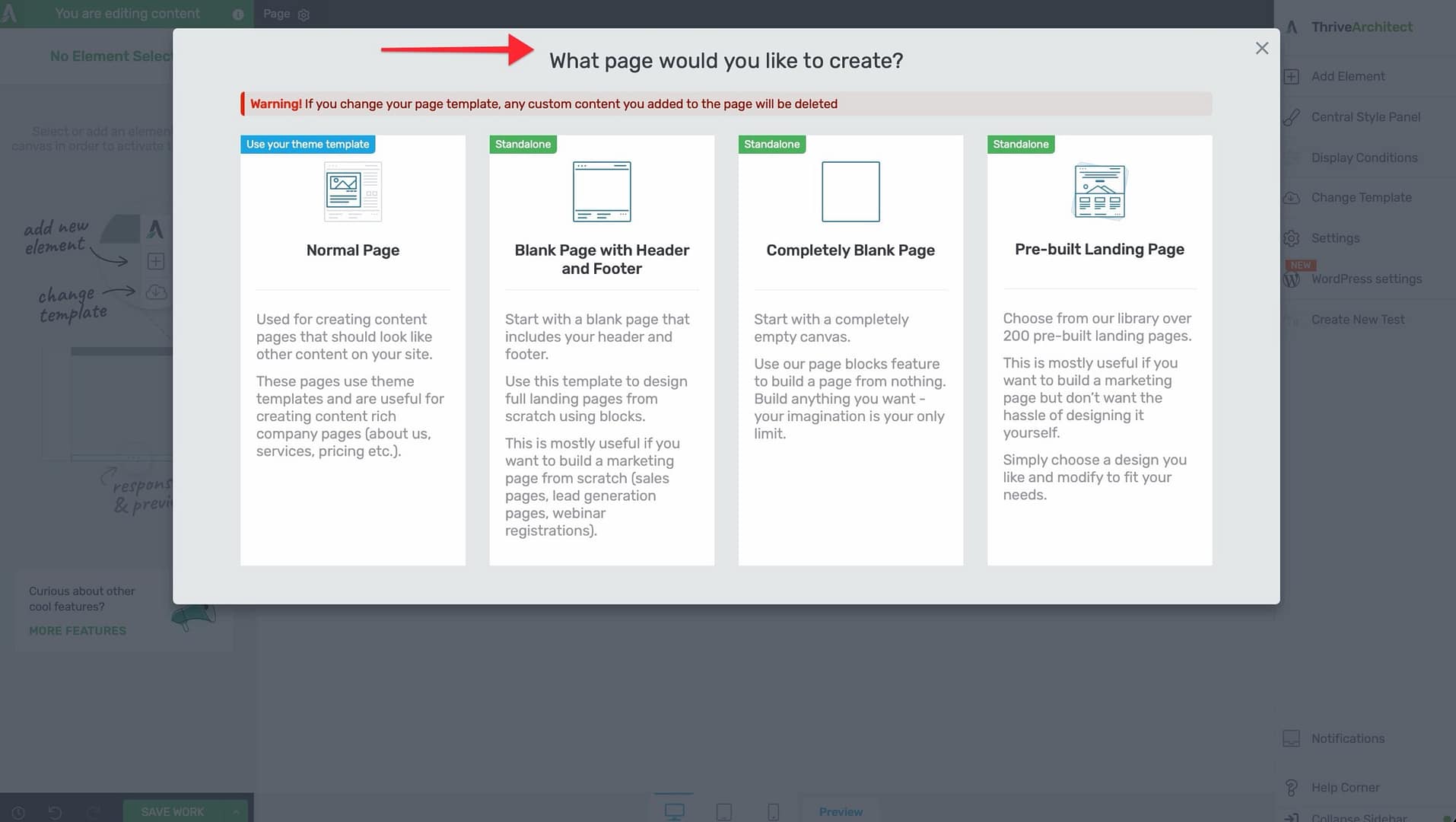
- Choose one of the following page types:
- Pre-built Landing Page — Start from a professionally designed template. You’ll see a template browser where you can pick from over 130 templates organized by category (lead generation, sales, webinar, etc.).
- Blank Page with Header and Footer — An empty landing page that includes your site’s header and footer. Available when using Thrive Theme Builder.
- Completely Blank Page — A fully empty landing page with no header, footer, or theme elements. Available when using Thrive Theme Builder.
- If you selected Pre-built Landing Page, browse or search the template library, then click on a template to apply it.
- The Thrive Architect editor opens with your landing page ready to customize.
Tip: You can also convert an existing normal page to a landing page. Open the page in Thrive Architect, click the Settings icon (gear) in the right sidebar, and select a landing page template from the available options.
Landing Page Settings Overview
Landing pages have dedicated settings that give you control over layout, sizing, and page-level options.
Content Width Settings
To access the content width controls, click anywhere on the page background (so no element is selected) — the landing page layout options will appear in the right sidebar. These controls determine how content fills the screen:
- Layout Covers Entire Screen Width — A toggle that makes the layout span the full browser width. This is enabled by default.
- Layout Maximum Width — Visible when the full-width toggle is off. Sets a maximum pixel width for the overall page layout (range: 100–2400px). Content won’t stretch beyond this value.
- Content Maximum Width — Visible when the full-width toggle is on. Sets the maximum width for the inner content area within each section. The default is 1080px.
Note: Background sections on landing pages can inherit the Content Maximum Width value from the landing page itself when Inherit from Landing Page is enabled on a section.
Save, Export, and Revert Options
To access these options, click the Settings icon (gear) in the right sidebar, then expand Landing Page Settings. From the dropdown, you can:
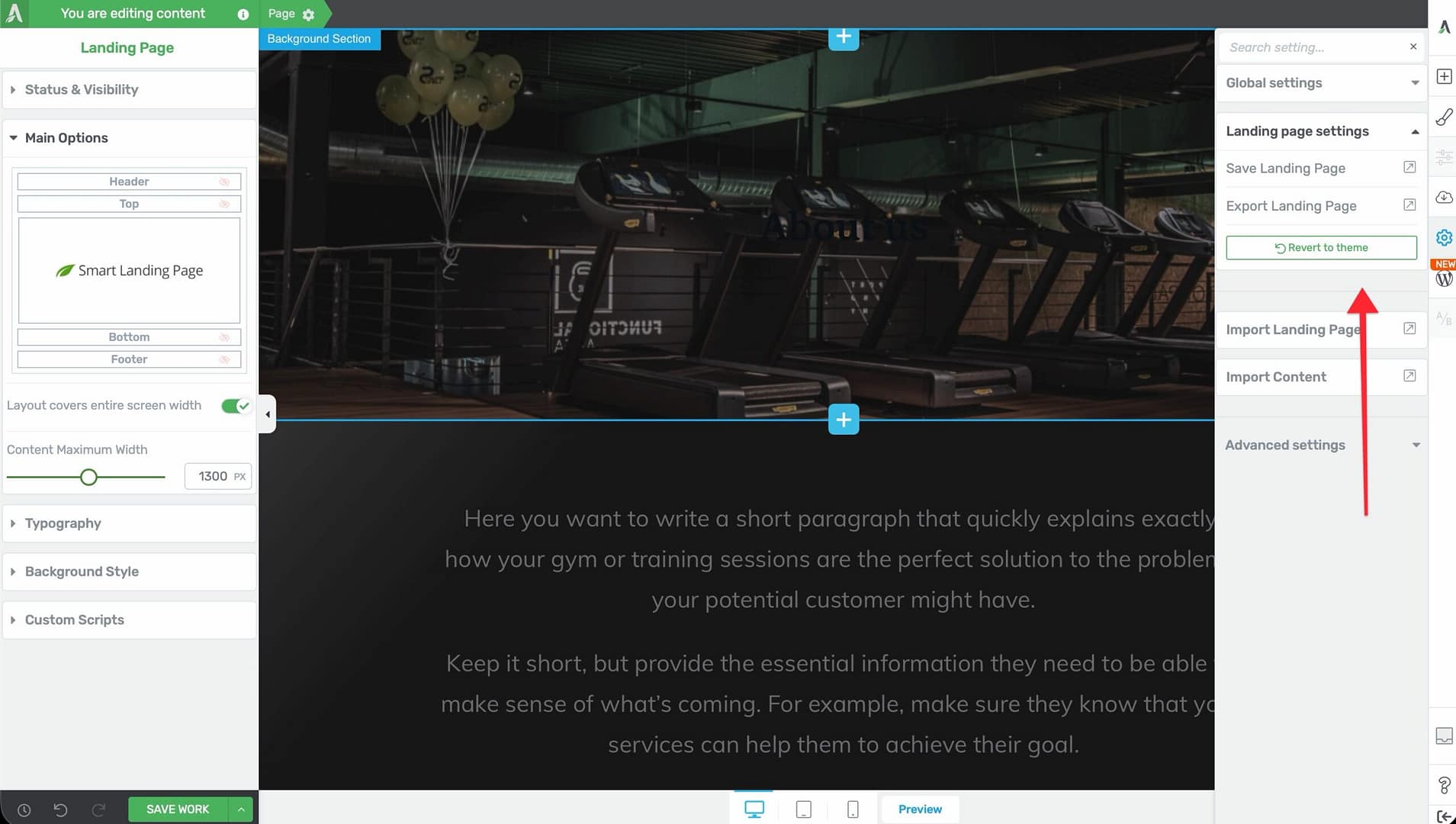
- Save Landing Page — Save the current design as a reusable template in My Templates
- Export Landing Page — Download the landing page as a ZIP file that you can import on another site
- Revert to Theme — Remove the landing page template and switch back to a normal theme-based page
Warning: Reverting to your theme will remove the landing page design. Make sure to save or export your landing page first if you want to keep it.
Full-Width Page Templates
If you use Thrive Theme Builder, you have access to two additional page type options that provide a middle ground between normal pages and full landing pages:
- Blank Page with Header and Footer — Creates a landing page that preserves your Thrive Theme Builder header and footer. This is useful when you want full design control over the content area while keeping your site’s navigation consistent.
- Completely Blank Page — Creates a landing page with no header, footer, or any theme element. This gives you a completely clean canvas.
These options are only available when Thrive Theme Builder is your active theme. If you’re using a third-party theme, you’ll see only Normal Page and Pre-built Landing Page as your options.
Frequently Asked Questions
Can I Switch a Normal Page to a Landing Page?
Yes. Open the page in Thrive Architect, click the Settings icon in the right sidebar, and choose a landing page template. Your existing content will be replaced by the template.
Can I Switch a Landing Page Back to a Normal Page?
Yes. In the landing page settings dropdown, click Revert to Theme. The page will return to using your theme’s layout.
What Happens to My Content When I Change Page Types?
When switching from a normal page to a landing page, the template replaces the visible content. Your original content is preserved in the WordPress editor and will reappear if you revert to the theme.
Related Resources
- Landing Page Templates: How to Use Landing Page Templates in Thrive Architect
- Headers and Footers: How to Use Headers and Footers on Landing Pages
- Scripts and Analytics: How to Add Scripts, Analytics, and Typography to Landing Pages
- Getting Started: Getting Started with Thrive Architect
That’s it! You now understand the differences between normal pages and landing pages, know how to create a landing page, and can configure landing page settings to control your page layout.