In this article, you’ll learn how to set up WooCommerce with Thrive Theme Builder, including prerequisites, template types, and the WooCommerce sections available in the editor.
Prerequisites
Before customizing WooCommerce templates in Thrive Theme Builder:
- WooCommerce must be installed and activated on your website.
- Thrive Theme Builder must be installed with an active theme.
- You must have WooCommerce products already created (or be ready to create them).
Setting Up WooCommerce Templates
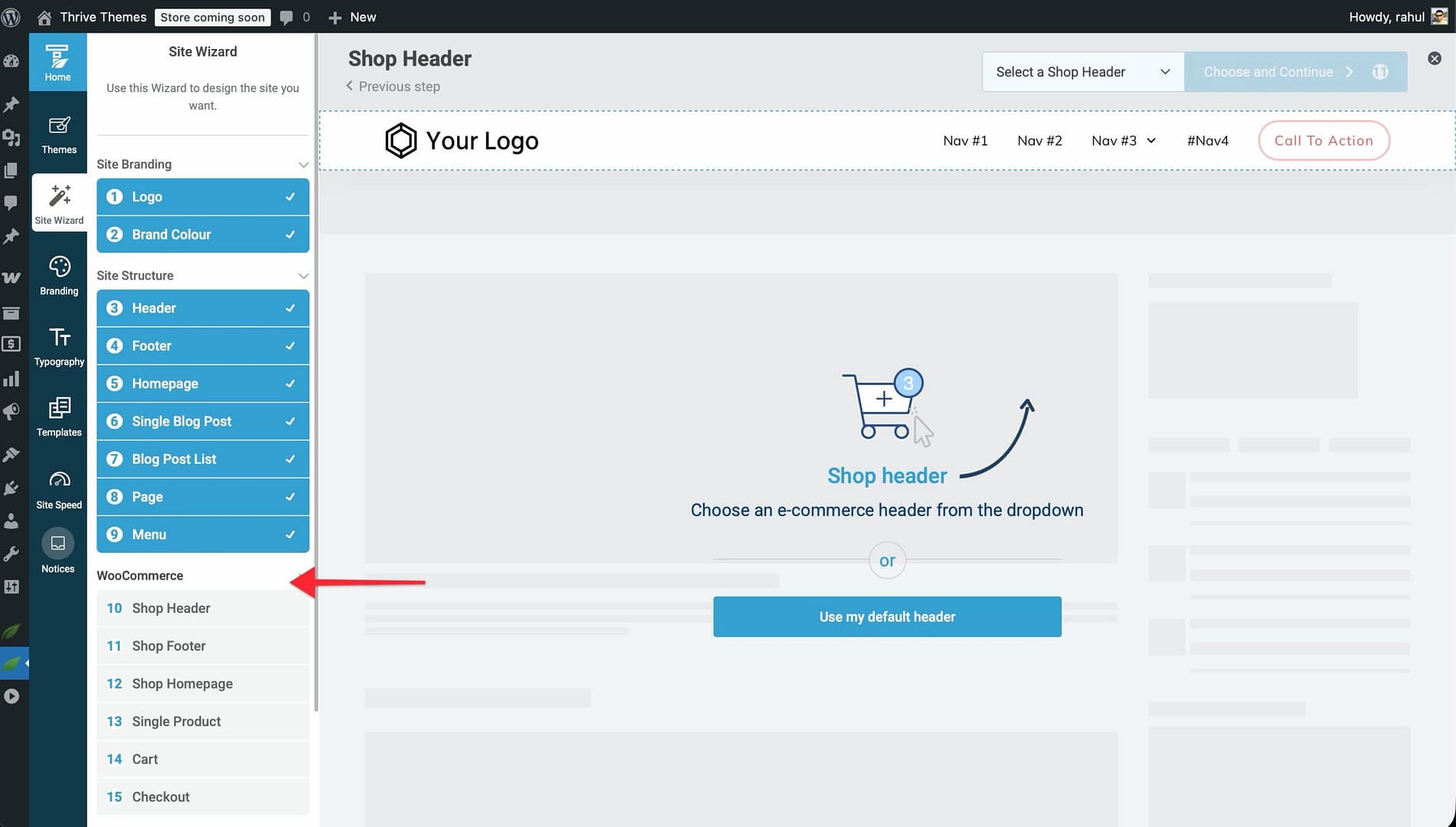
When you run the Site Wizard with WooCommerce active, a WooCommerce-specific setup step appears at the end. During this step, WooCommerce templates are automatically downloaded and configured.
How It Works
- Install and activate the WooCommerce plugin.
- Open the Thrive Theme Builder dashboard and run (or re-run) the Site Wizard.
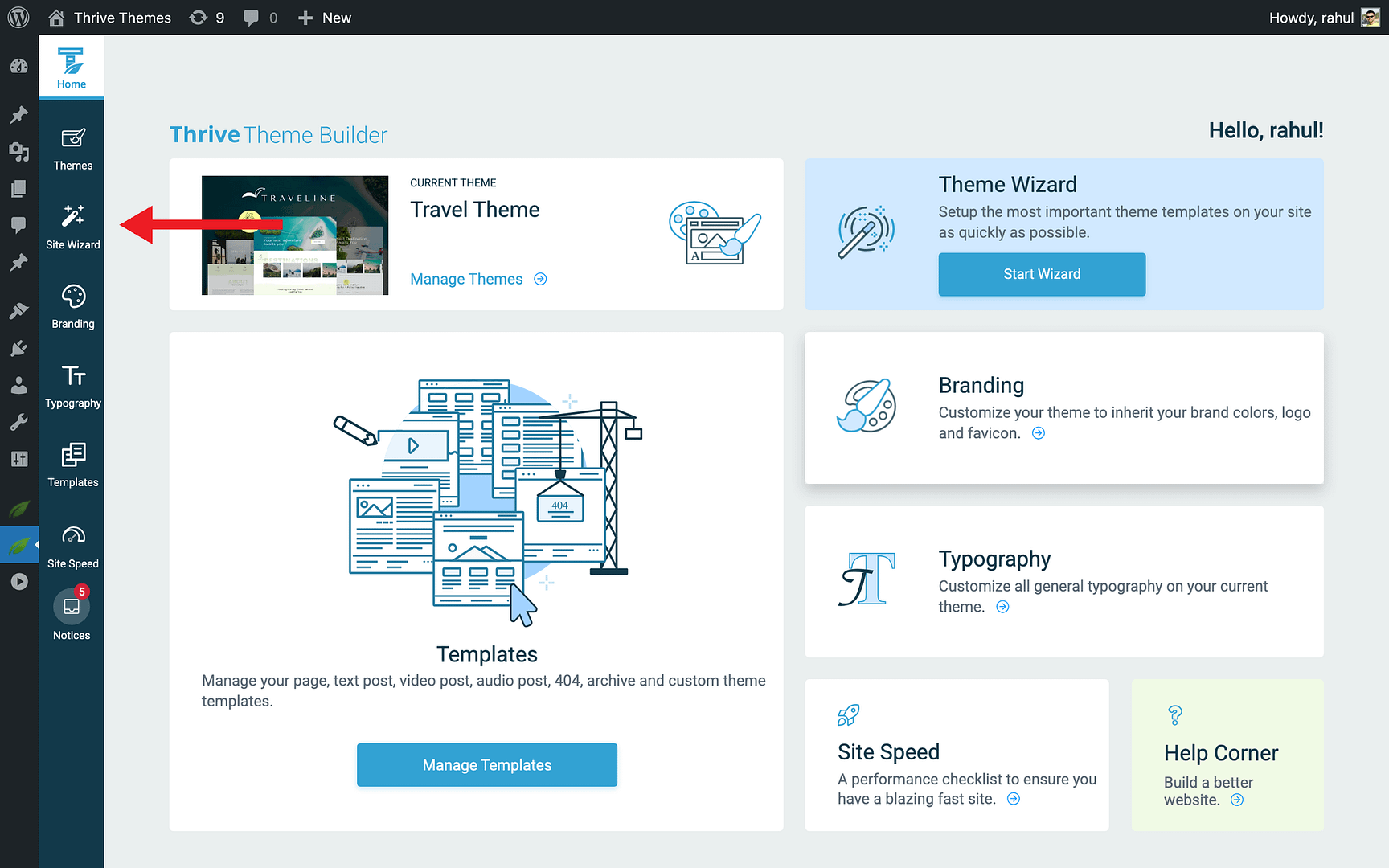
- In the final step, the wizard detects WooCommerce and downloads WooCommerce-specific templates.
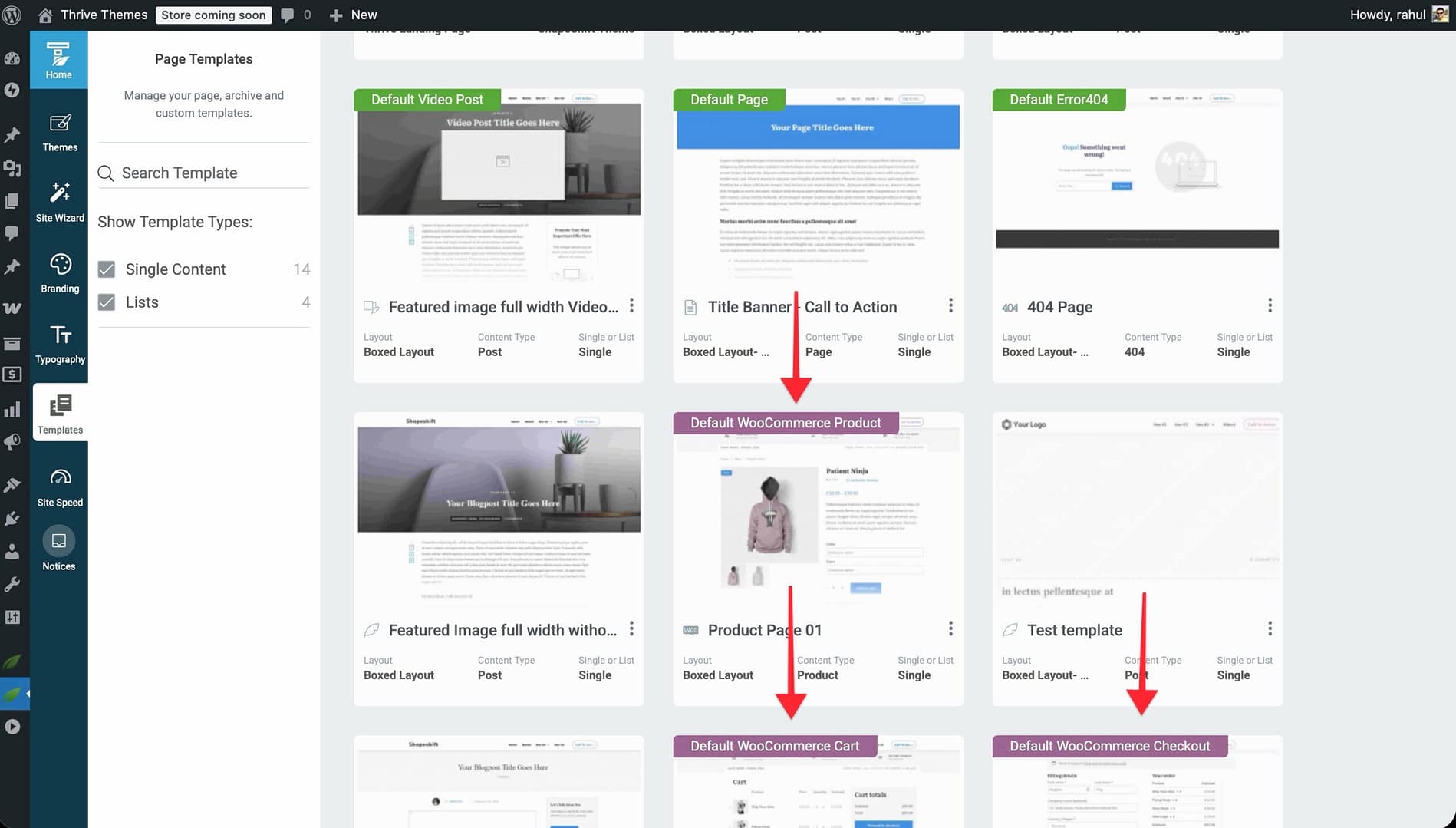
- Once the wizard completes, the WooCommerce templates appear in your Templates section.
WooCommerce Template Types
Thrive Theme Builder provides five specialized WooCommerce templates:
Shop Template
Controls the appearance of your WooCommerce shop page—the main product catalog that lists all your products. This template determines how products are displayed, including the grid layout, product cards, sorting options, and pagination.
Product Template
Controls how individual product pages look. This includes the product image, title, price, description, add-to-cart button, product tabs (Description, Additional Information, Reviews), related products, and upsells.
Cart Template
Controls the appearance of the shopping cart page. This includes the cart items table, product quantities, prices, coupon field, shipping calculator, cart totals, and the “Proceed to Checkout” button.
Checkout Template
Controls the checkout page where customers complete their purchase. This includes billing and shipping address forms, order summary, payment method selection, and the “Place Order” button.
Account Template
Controls the “My Account” page where customers manage their account, view order history, update their address, and manage their profile.
WooCommerce Sections in the Editor
When you open a WooCommerce template in the Thrive Theme Builder editor, the left sidebar provides access to WooCommerce-specific panels and elements.
Each template type has its own panel and customizable components:
- Shop Template — The Product List Options panel controls the product grid, sorting, result count, pagination, and product card elements.
- Product Template — The Product Display Options panel controls the product image, gallery, price, description, add-to-cart, tabs, reviews, related products, and upsells.
- Cart Template — Cart items table, quantity controls, pricing, coupon, shipping, totals, checkout button.
- Checkout Template — Form fields, shipping methods, payment methods, order summary, place order button.
- Account Template — Account dashboard sections, navigation.
These sections are pre-designed specifically for WooCommerce and integrate seamlessly with the WooCommerce plugin.
Accessing WooCommerce Templates
- In the Thrive Theme Builder dashboard, click Templates in the left sidebar.
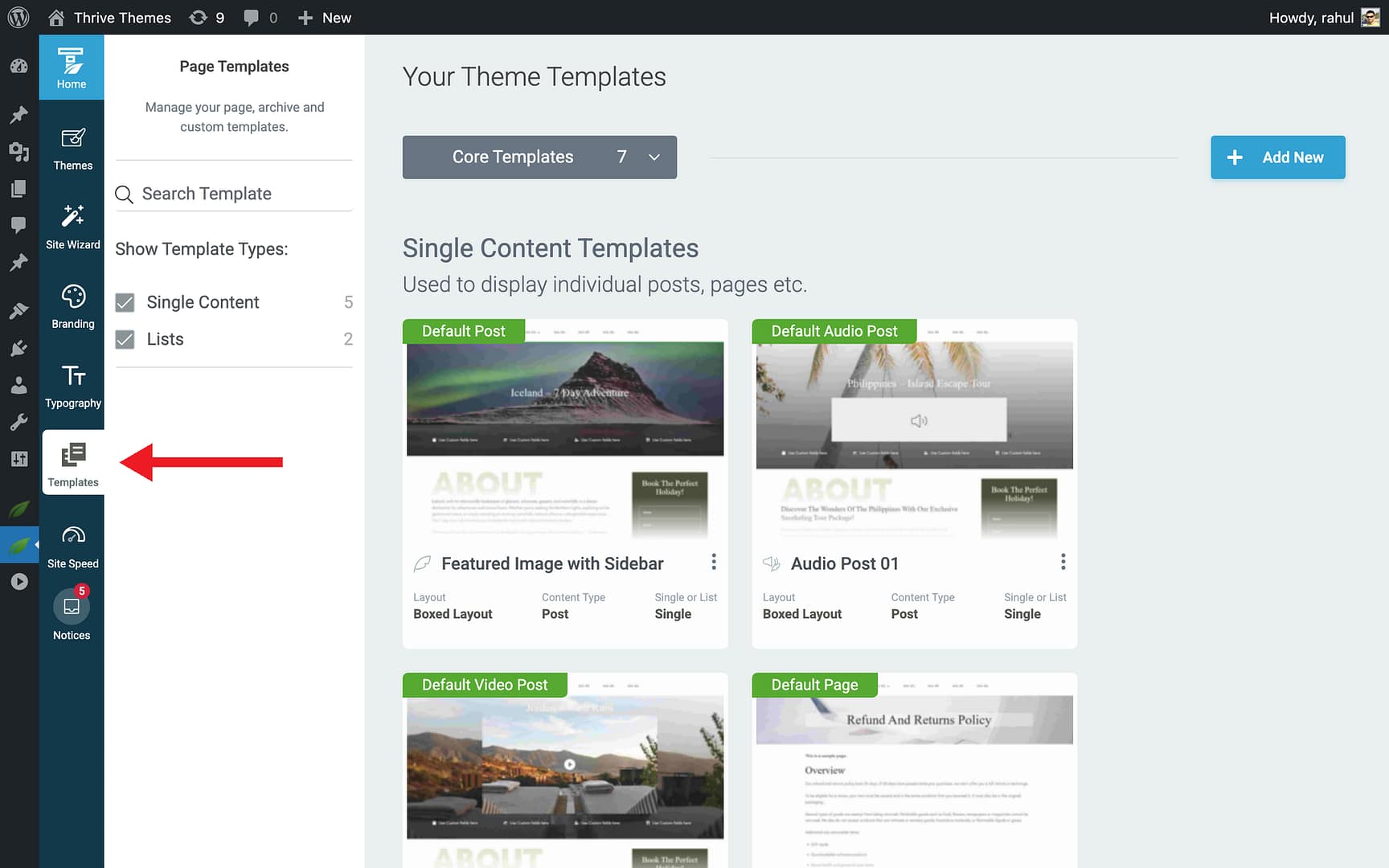
- Click the dropdown and select All Templates or look for WooCommerce-specific templates.
- Hover over the template you want to customize and click Edit.
- The template opens in the Thrive Theme Builder editor with WooCommerce-specific option.
Related Resources
- Creating WooCommerce Buttons Using Dynamic Links: Learn how to create dynamic WooCommerce buttons.
- Customizing WooCommerce Shop & Product Templates: Learn how to customize shop and product templates.
- Customizing WooCommerce Cart, Checkout & Account Templates: Learn how to customize cart, checkout, and account templates.