In this article, you’ll learn how to install a Thrive Theme Builder theme (also called a “companion theme” or “skin”) on your website. Thrive Theme Builder comes with the Shapeshift theme by default, and additional themes like Ommi, Kwik, and Bookwise are available for download from the cloud.
Prerequisites
Before installing a theme, you need:
- An active Thrive Suite subscription.
- Thrive Theme Builder installed and activated on your website.
Installing a Theme from the Cloud
All companion themes are downloaded from the Thrive cloud directly within the Thrive Theme Builder dashboard.
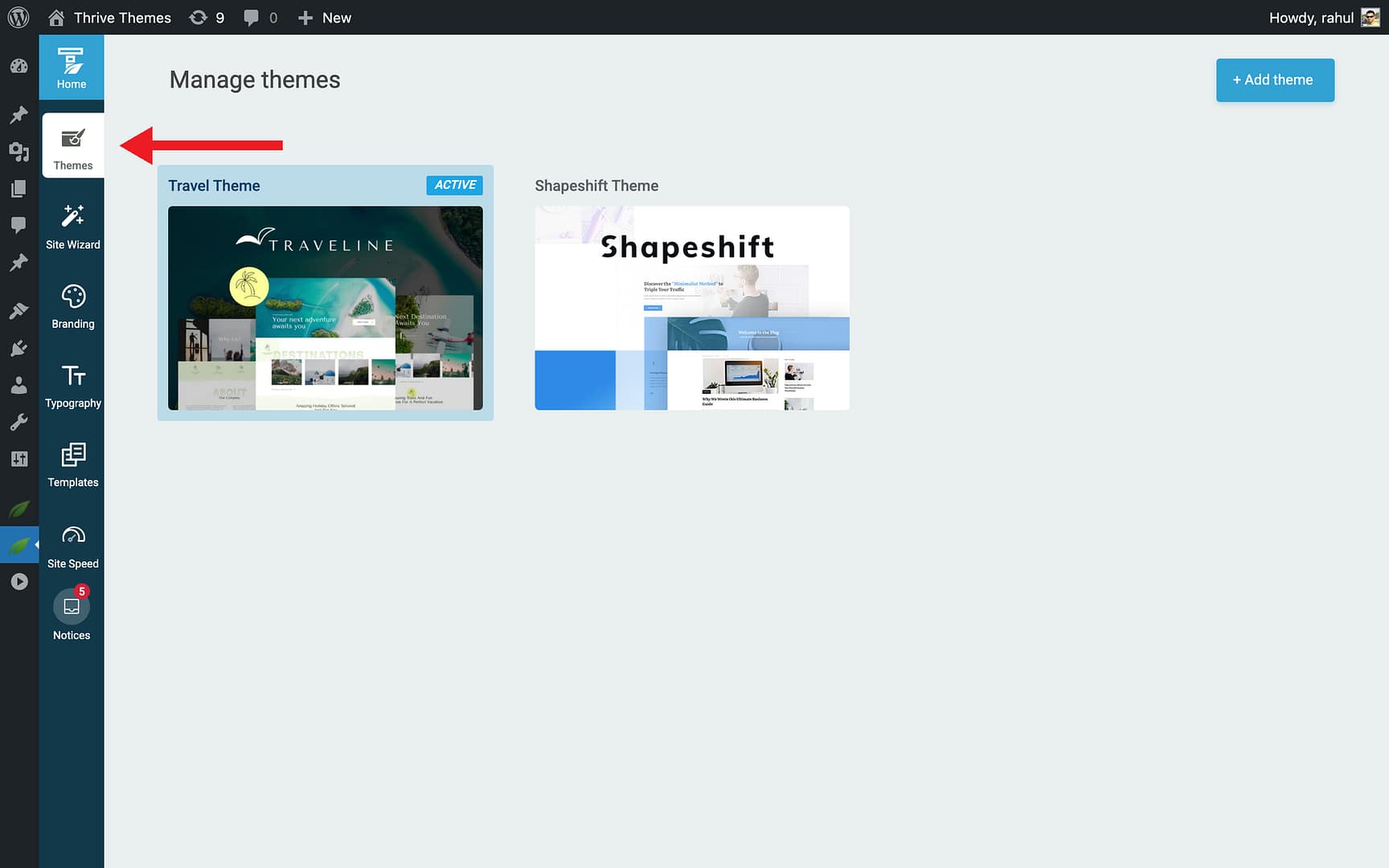
- In the Thrive Theme Builder dashboard, click Themes in the left sidebar.
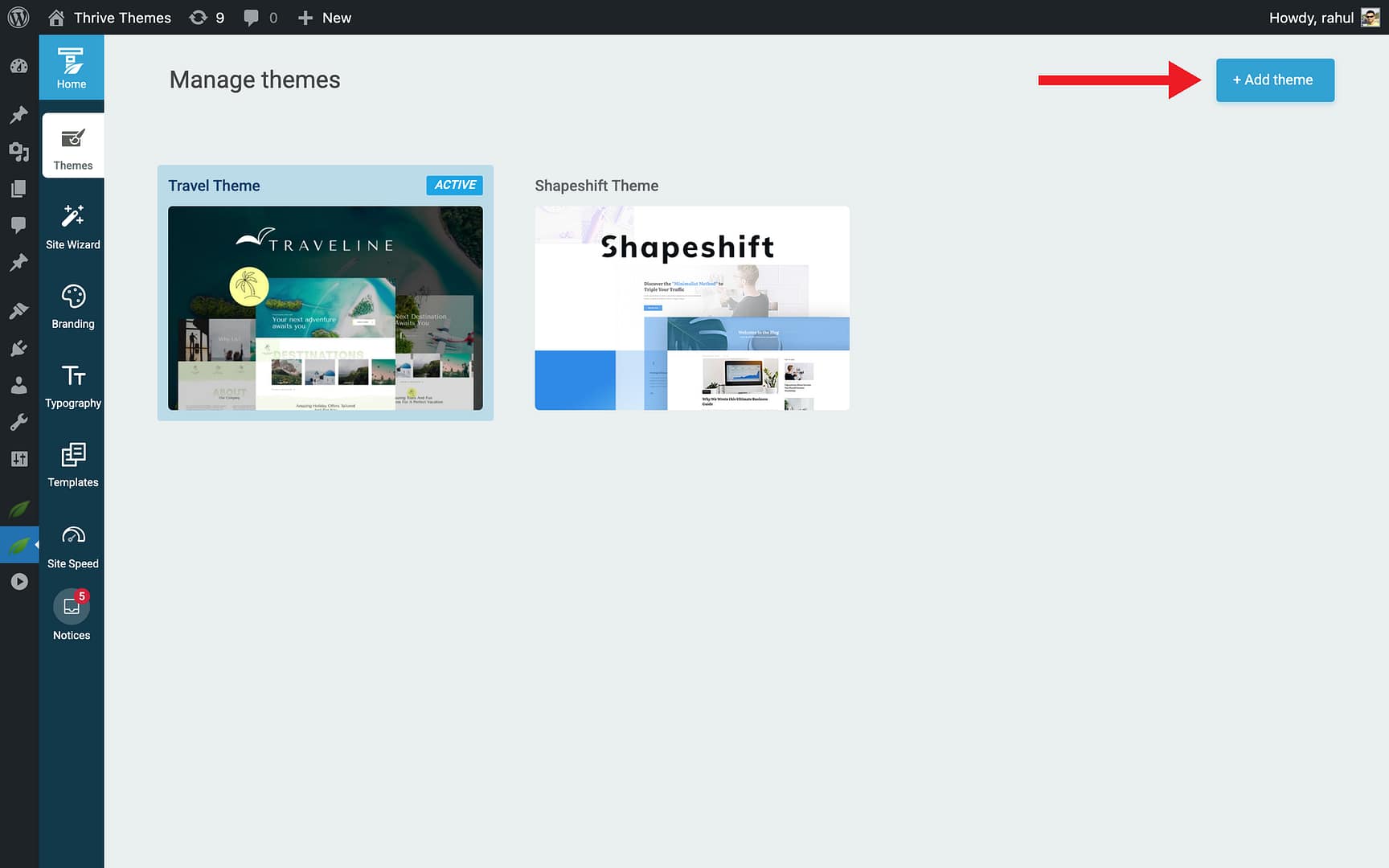
- Click the + Add theme button in the top-right corner.
- A panel appears showing all available cloud themes (e.g., Shapeshift, Ommi, Kwik, Bookwise).

- Hover over the theme you want and click Download.
- The theme downloads and appears in your themes list.
Note: Downloading a theme does not activate it or change your live website. It simply adds the theme to your library. See Adding and Switching Themes to learn how to activate it.
Available Companion Themes
| Theme | Description |
|---|---|
| Shapeshift | The default companion theme, installed automatically with Thrive Theme Builder. A versatile, modern theme suitable for most website types. |
| Ommi | A clean, minimalist theme with smooth animations and elegant design. |
| Kwik | A bold, dynamic theme with scroll animations and striking typography. |
| Bookwise | A content-focused theme ideal for blogs, authors, and publishers. |
Each theme comes with its own set of pre-designed templates, typography settings, color palettes, and header/footer layouts.
What’s Included with Each Theme
Every theme (skin) is a self-contained design package that includes:
- Templates — Pre-designed layouts for homepage, blog posts, pages, blog lists, archives, search, and 404 error pages.
- Header and Footer sections — Ready-made header and footer designs.
- Typography set — A complete font and text styling configuration.
- Color palette — A harmonized set of theme colors for buttons, banners, links, and backgrounds.
- Layouts — Page layout structures (full-width, sidebar, boxed, etc.).
After Installation
Once a theme is downloaded, you can:
- Activate it to make it your live theme (this opens the Site Wizard for initial setup).
- Keep it inactive in your library for later use.
- Customize it before activating by editing its templates and settings.
For next steps, see Adding and Switching Themes.
Related Resources
- Adding and Switching Themes: Learn how to activate and switch between themes.
- Managing Your Themes: Learn how to organize, duplicate, and delete themes.
- Importing and Exporting Themes: Transfer themes between websites.