In this article, you’ll learn how to use the Members section in Thrive Apprentice to view member details, track enrollment and progress, remove members, and import existing members from a CSV file.
Accessing the Members Section
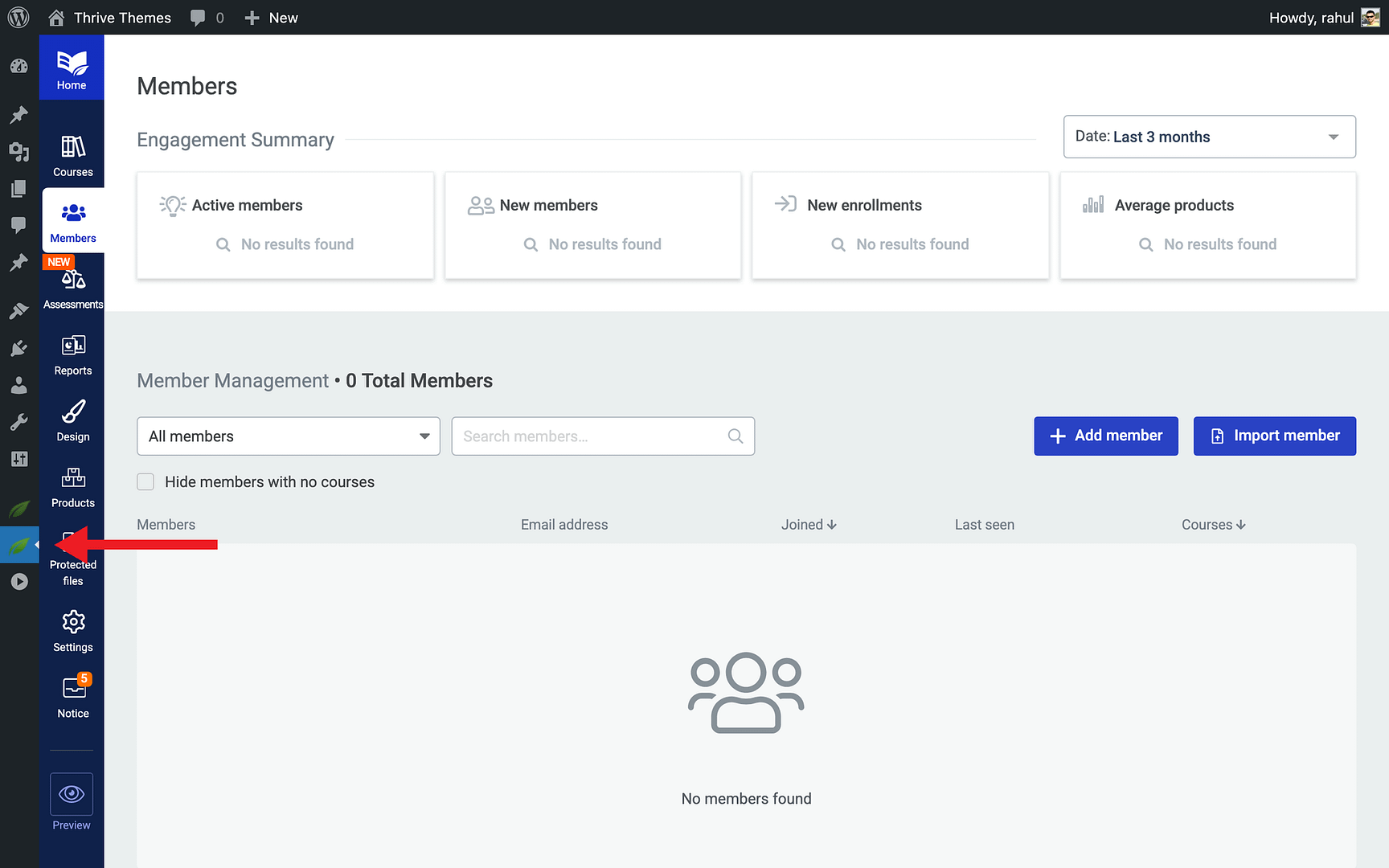
The Members section provides a centralized view of everyone who has signed up for or purchased your courses. To access it:
- Navigate to Thrive Dashboard > Thrive Apprentice.
- Click Members in the left sidebar.
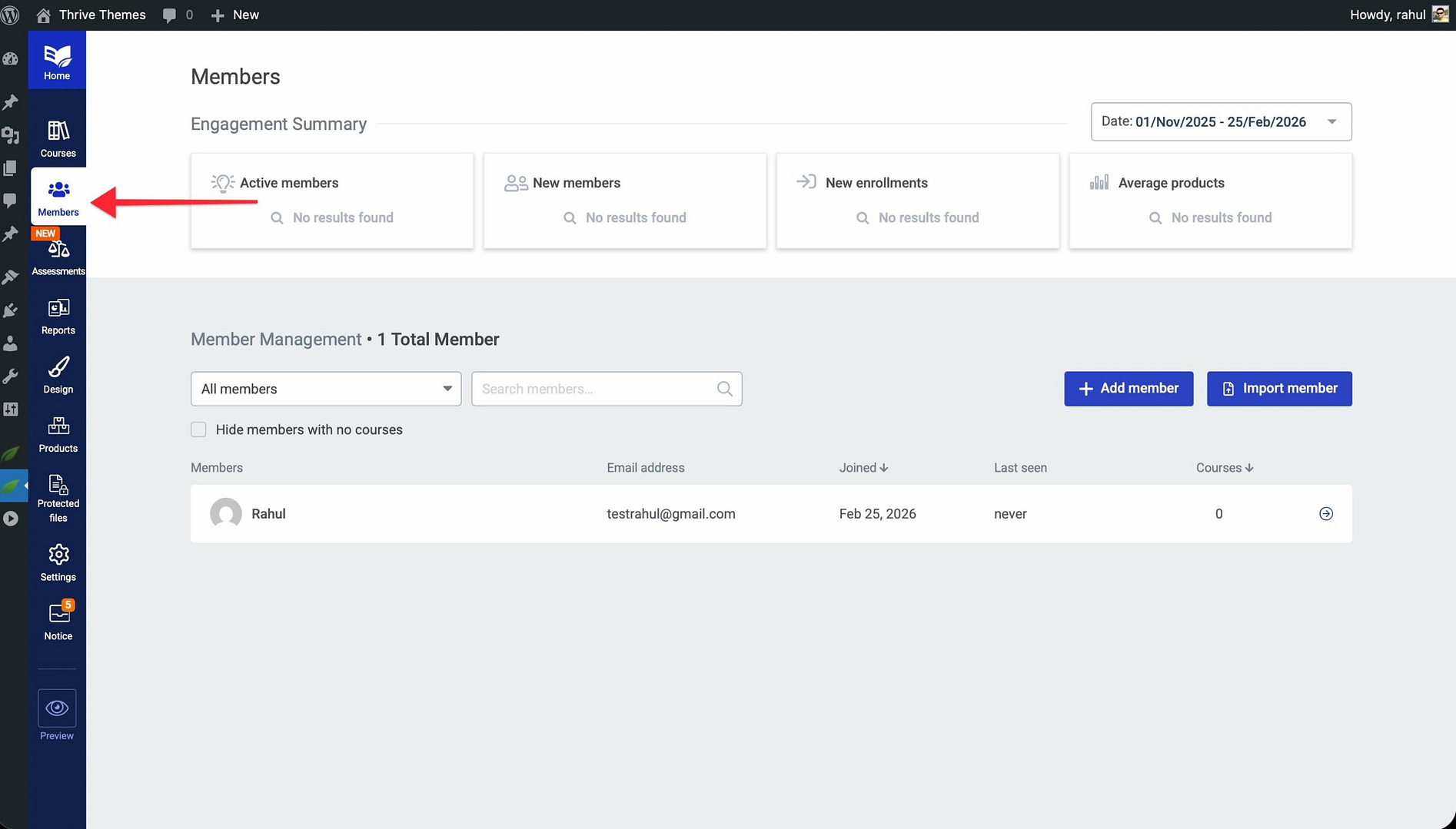
You’ll see a dashboard listing all your Thrive Apprentice members. This is your command center for managing student access, tracking progress, and maintaining your membership base.
Understanding the Members Dashboard
The Members dashboard gives you a clear overview of your student base. Here’s what you can find:
Engagement Summary
At the top of the page, the Engagement Summary displays key metrics through a set of cards. Use the filtering options to narrow down the data by date range or specific courses. These cards help you quickly assess overall member activity and engagement.
Member List
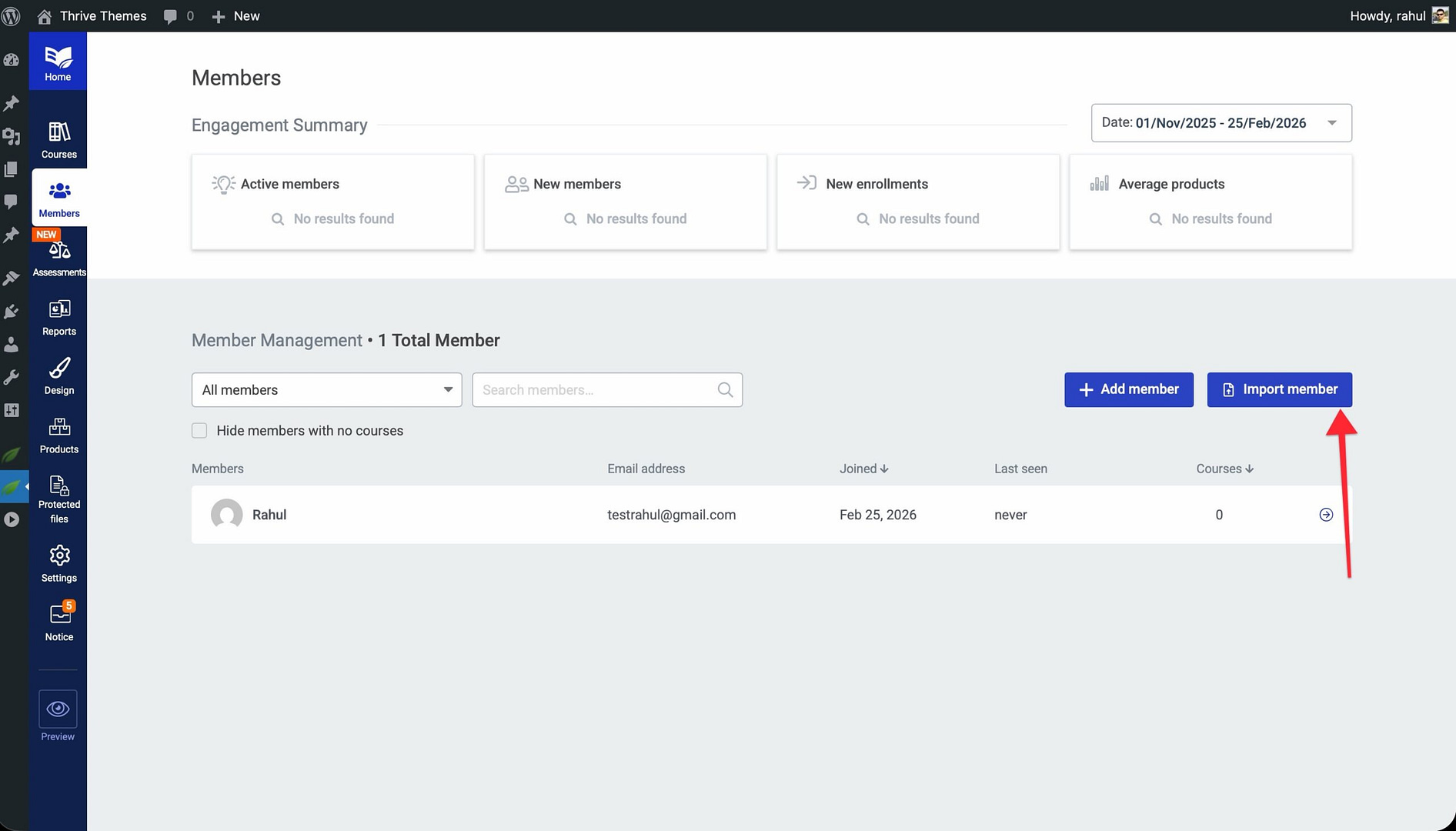
Below the summary, the member list shows each individual member with the following columns:
- Members — The member’s name and avatar.
- Email address — The member’s contact email.
- Joined — The date the member registered their WordPress account.
- Last seen — When the member last accessed your site.
- Courses — The number of published courses the member is enrolled in.
Tip: Use the search bar and filters at the top of the member list to quickly locate specific members by name, email, or product enrollment.
Managing Member Access
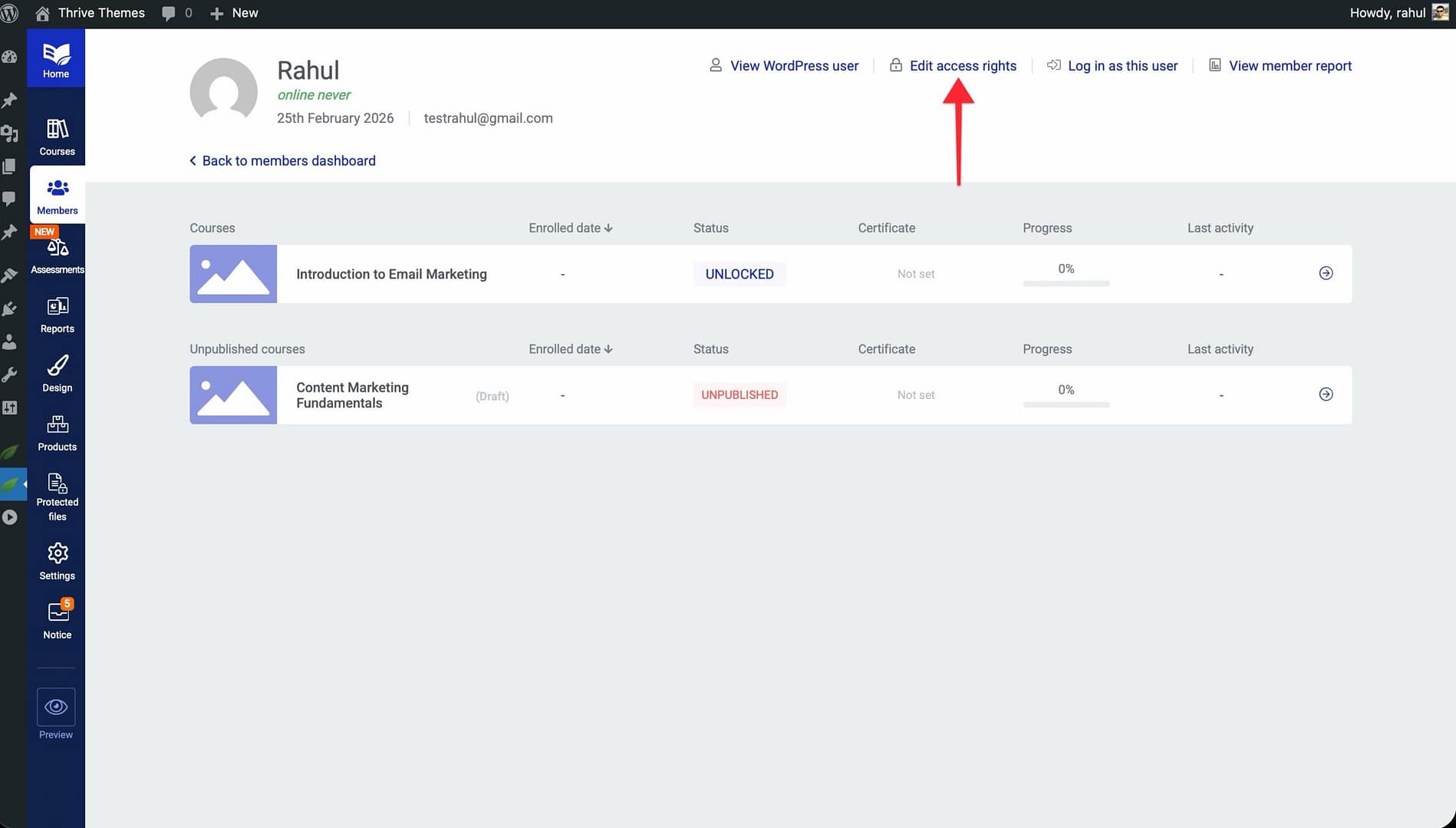
From the Members section, you can perform several key management actions for any individual member. Click on a member’s name to view their detail page, which shows their enrolled courses, progress per course, and activity history.
The available actions for each member include:
- Edit access rights — Open a modal to grant or revoke product access for the member.
- View member report — See detailed progress and activity data for the member.
- Log in as this user — Access the site as this member for troubleshooting purposes.
- View WordPress user — Jump to the member’s WordPress user profile.
To manage a specific member’s access:
- Click on the member’s name in the member list.
- Click Edit access rights to open the access management modal.
- Grant access to new products or revoke existing product access.
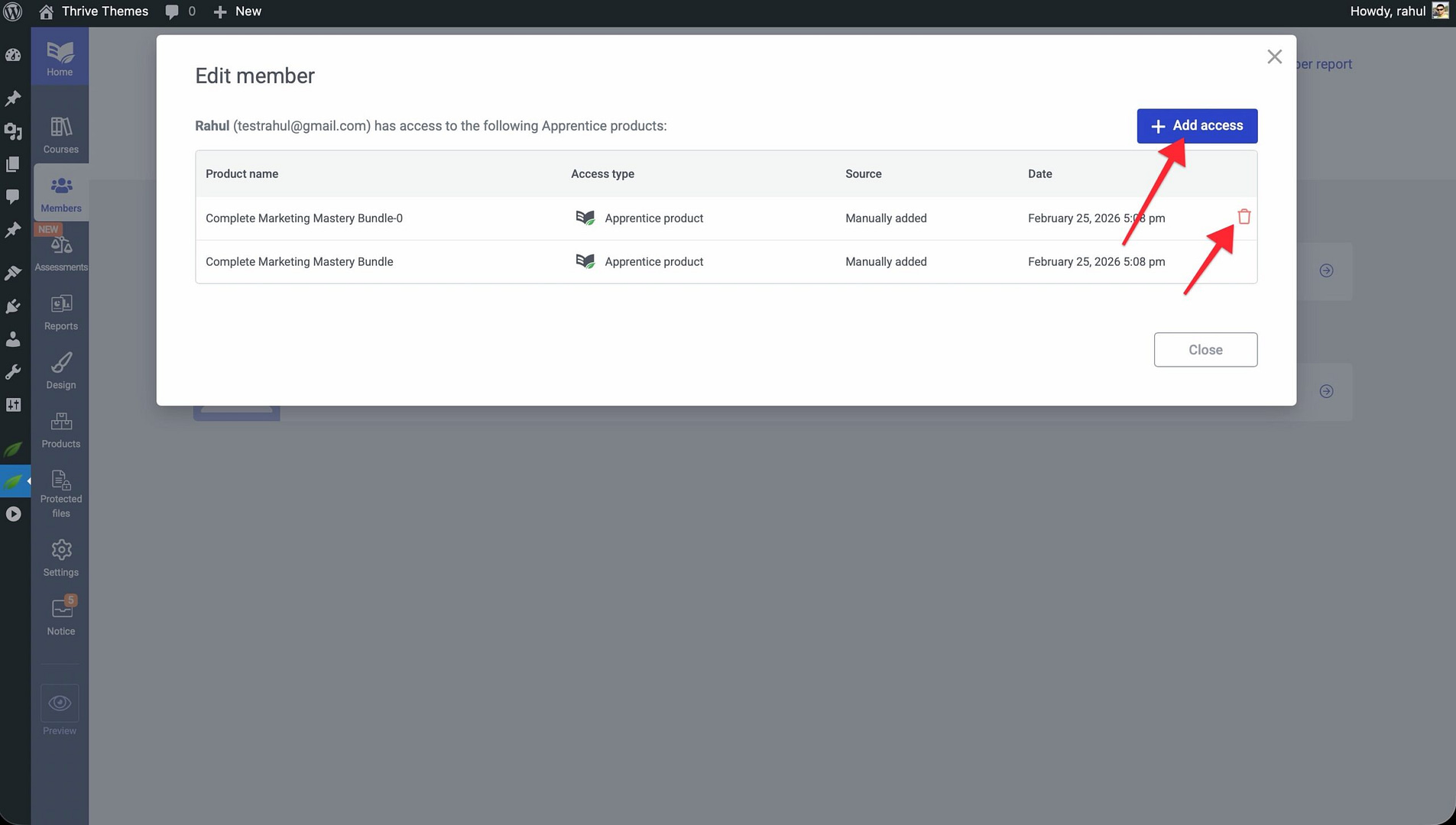
Revoking Product Access
If you need to remove a member’s access to specific courses—without deleting their WordPress account—you can revoke their product access:
- Go to Members in the left sidebar.
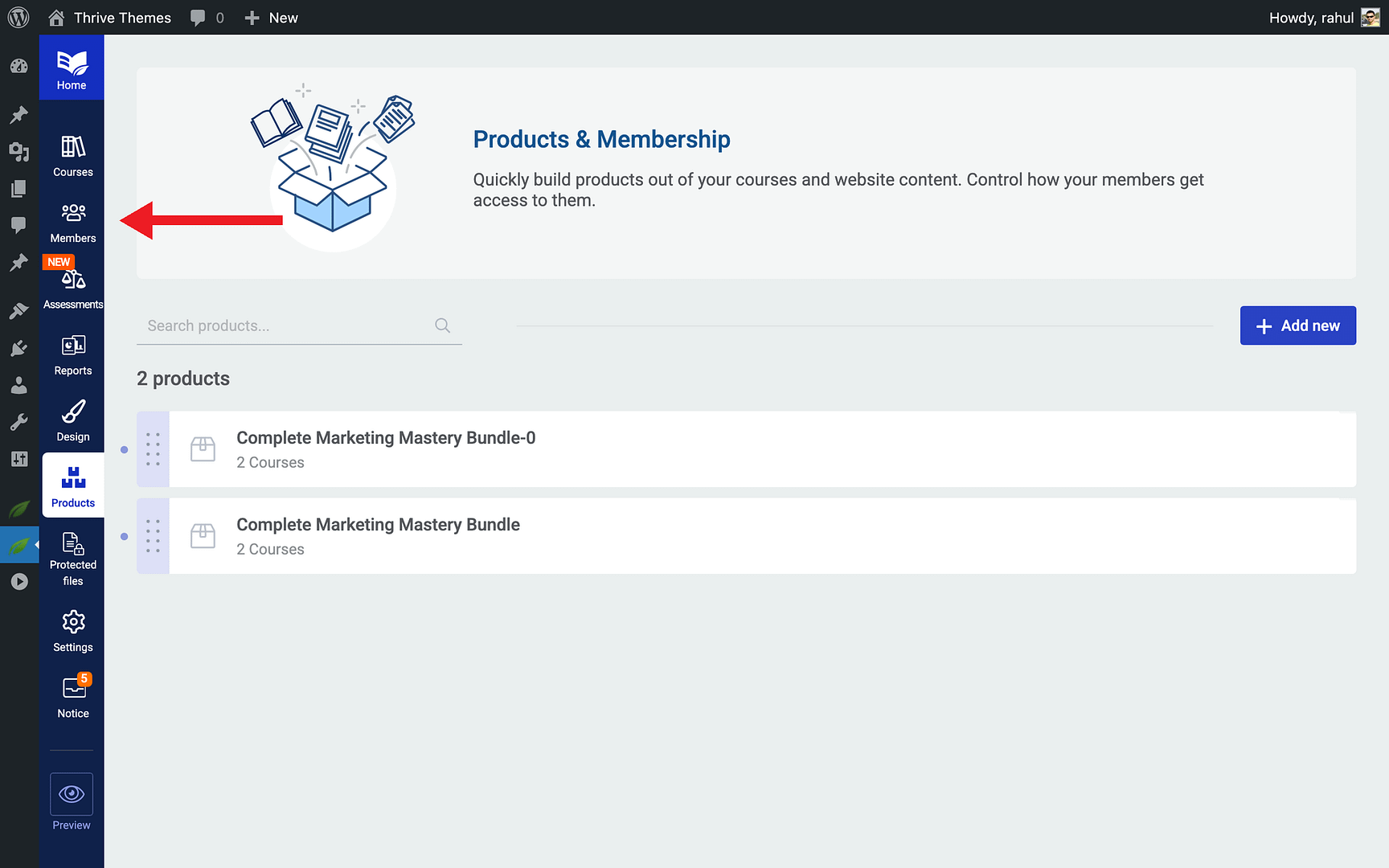
- Find the member in the list and click their name.
- Click Edit access rights to open the access management modal.
- Remove the product access you want to revoke.
The member’s WordPress account remains intact, but they will no longer be able to access the courses in that product.
Importing Existing Members
If you’re migrating from another membership platform, you can import your existing members into Thrive Apprentice using a CSV file. This ensures a smooth transition without requiring each member to re-register.
Step 1: Export Your Member List
Most membership plugins allow you to export your member database as a .CSV file. Export your list from your previous platform. Your CSV file must use the following exact column headers:
- buyer_email (required) — The member’s email address.
- buyer_name (required) — The member’s full name.
Step 2: Import the CSV into Thrive Apprentice
- Navigate to Thrive Dashboard > Thrive Apprentice > Members.
- Click the Import button at the top of the members list.
- Upload your .CSV file (must have
buyer_nameandbuyer_emailcolumn headers). - Select which products the imported members should have access to.
- Choose whether to send a notification email to new members.
- Click Import to begin the process.
Thrive Apprentice will create WordPress user accounts for any members who don’t already have one and grant them access to the selected products.
Conclusion
That’s it! You’ve successfully learned how to access the Members dashboard, manage member access, remove members, and import existing members from a CSV file. With these tools, you can efficiently maintain your student base as your online school grows.
Related Resources
- Access restrictions — How to Set Up Login, Registration, and Access Restrictions
- Course management — How to Manage Course Status and Bulk Actions
- Settings overview — How to Navigate and Configure Thrive Apprentice Settings