In this article, you’ll learn how to safely bulk-delete old reporting data and activity logs in Thrive Apprentice. This process helps reduce your database size and improve overall site performance without losing critical information like certificates or core student progress.
Before You Begin
Make sure you have updated to Thrive Apprentice version 10.8.6 or higher to access this feature. We also recommend creating a full backup of your site before performing any bulk data operations.
2. Why Prune Your Data?
As your site grows, Thrive Apprentice accumulates logs for every course interaction, lesson view, and user event. While helpful for reporting, excessive historical data can slow down your database. Pruning allows you to:
- Improve Performance: Faster database queries and site loading.
- Optimize Storage: Reduce the disk space used by your WordPress database.
- Focus on Relevant Data: Keep only the reporting information you actively need.
3. How to Prune Reporting Data
This guide will walk you through the steps to manually clear old logs.
Note: This action is permanent. Once the data is deleted, it cannot be recovered unless you restore a previous site backup.
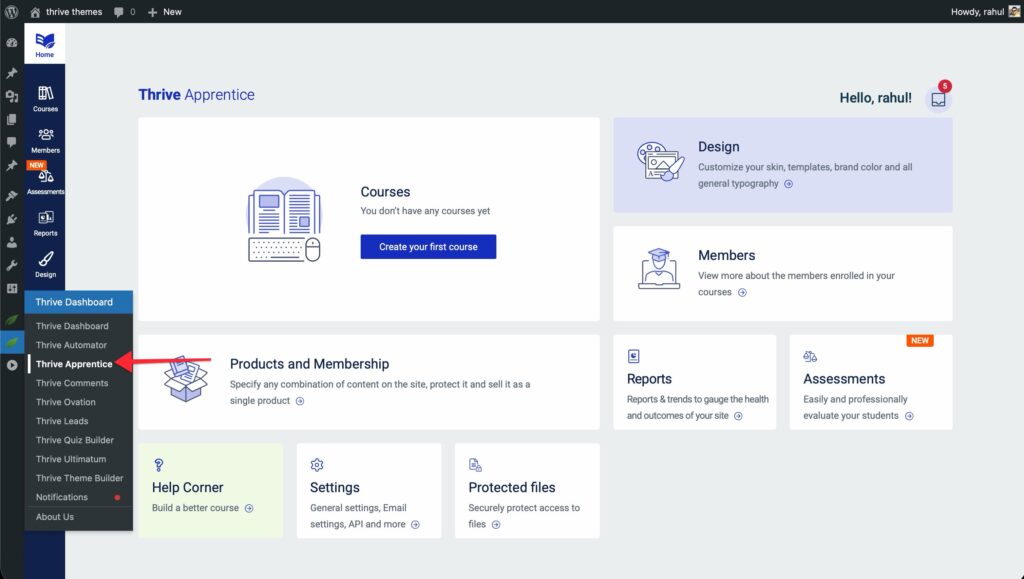
- Navigate to Thrive Apprentice from your WordPress dashboard.
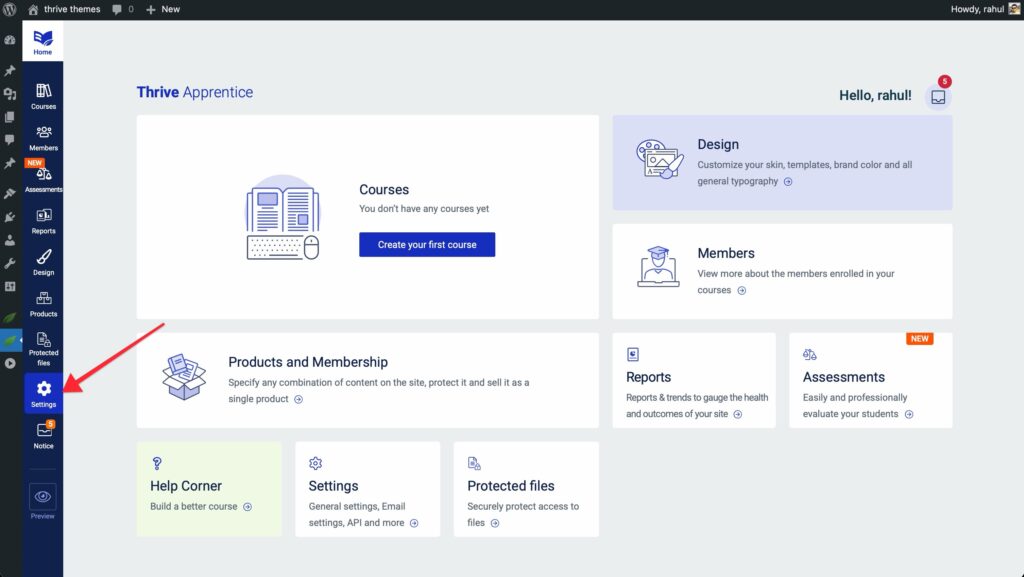
- Click on Settings in the sidebar menu.
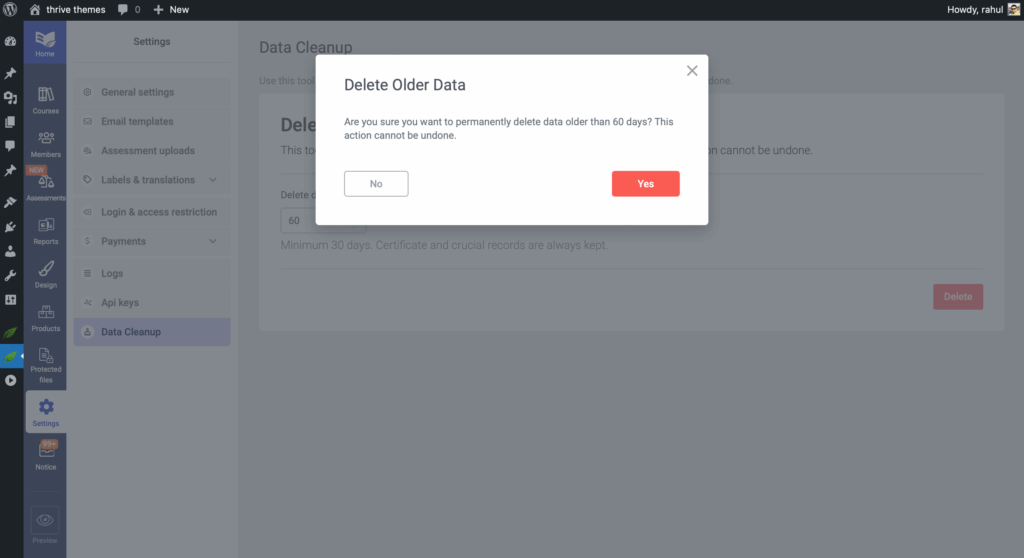
- Go to the Data Cleanup tab.
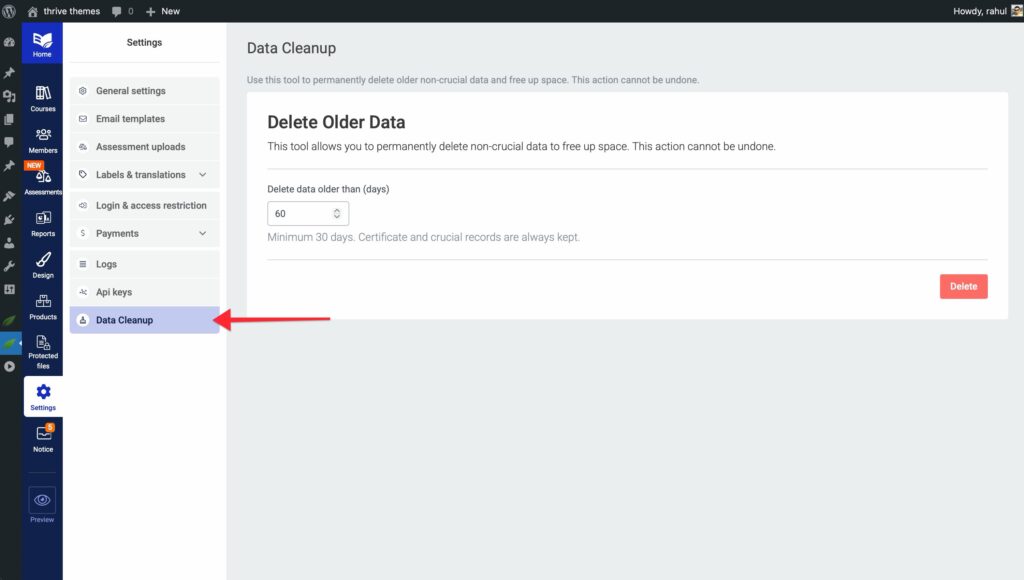
- Select the date criteria for the data you wish to remove.
- Click the Delete button.
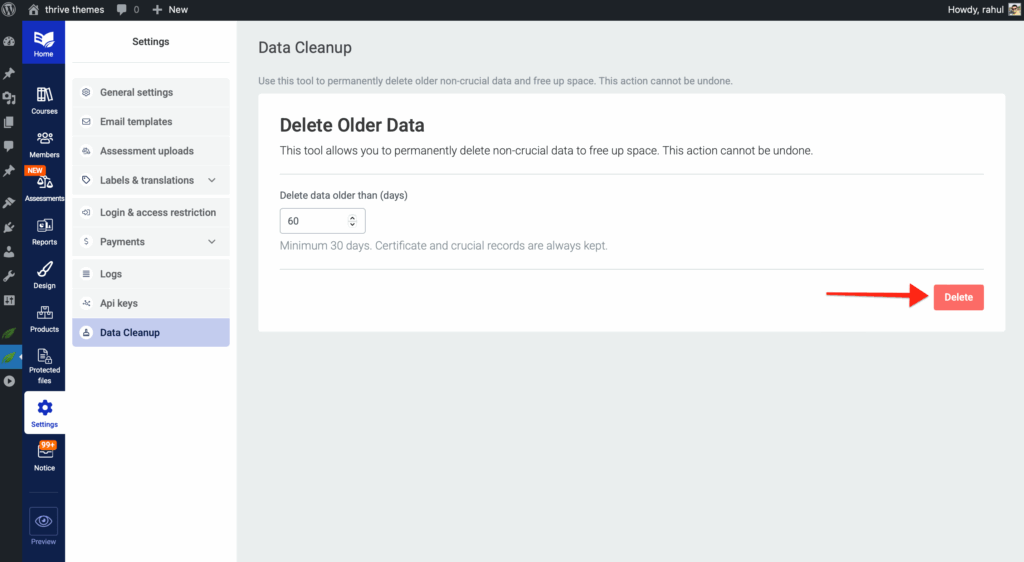
- A confirmation window will appear. Select “Yes” to confirm the action.
4. What Data Is Safe to Delete?
The pruning tool is designed to be safe for your students.
What Will Be Deleted:
- Older activity and event logs for courses and lessons.
- Log-style entries that appear in reporting screens.
- Historical user action logs used for analytics.
What Will NOT Be Deleted:
- Student Certificates: All earned certificates remain intact.
- Core Learning Data: Progress tracking, course access, and student enrollment info are preserved.
5. Affected Areas
When you delete old data, it impacts the historical view of your site’s activity. The following areas will reflect this change:
- Reports Dashboard: Charts and graphs will no longer show data older than your retention period.
- Member Timeline: Individual user history will not show specific activity events (like lesson starts or video completion) prior to the cutoff date.
- Course Analytics: Engagement metrics for courses will be based only on the remaining data.
6. Frequently Asked Questions
- Q: Will this log out my students?
- No, pruning only affects historical reporting logs and does not impact active user sessions or course access.
- Q: How often should I prune?
- This depends on your site traffic. For high-traffic sites, we recommend reviewing your database size every 3–6 months.
That’s it! You now know how to use the Data Cleanup tool in Thrive Apprentice to keep your database optimized.
If you’re still having trouble, check out the Thrive Apprentice Knowledge Base for more information.