In this article, you’ll learn how to reset Thrive Theme Builder. There are three methods available, depending on how thorough a reset you need—from restarting the Site Wizard to performing a full factory reset.
Method 1: Restart the Site Wizard
Use this method to reconfigure your basic setup (logo, brand color, header, footer, homepage, templates, and menu) while keeping your existing templates and customizations intact.
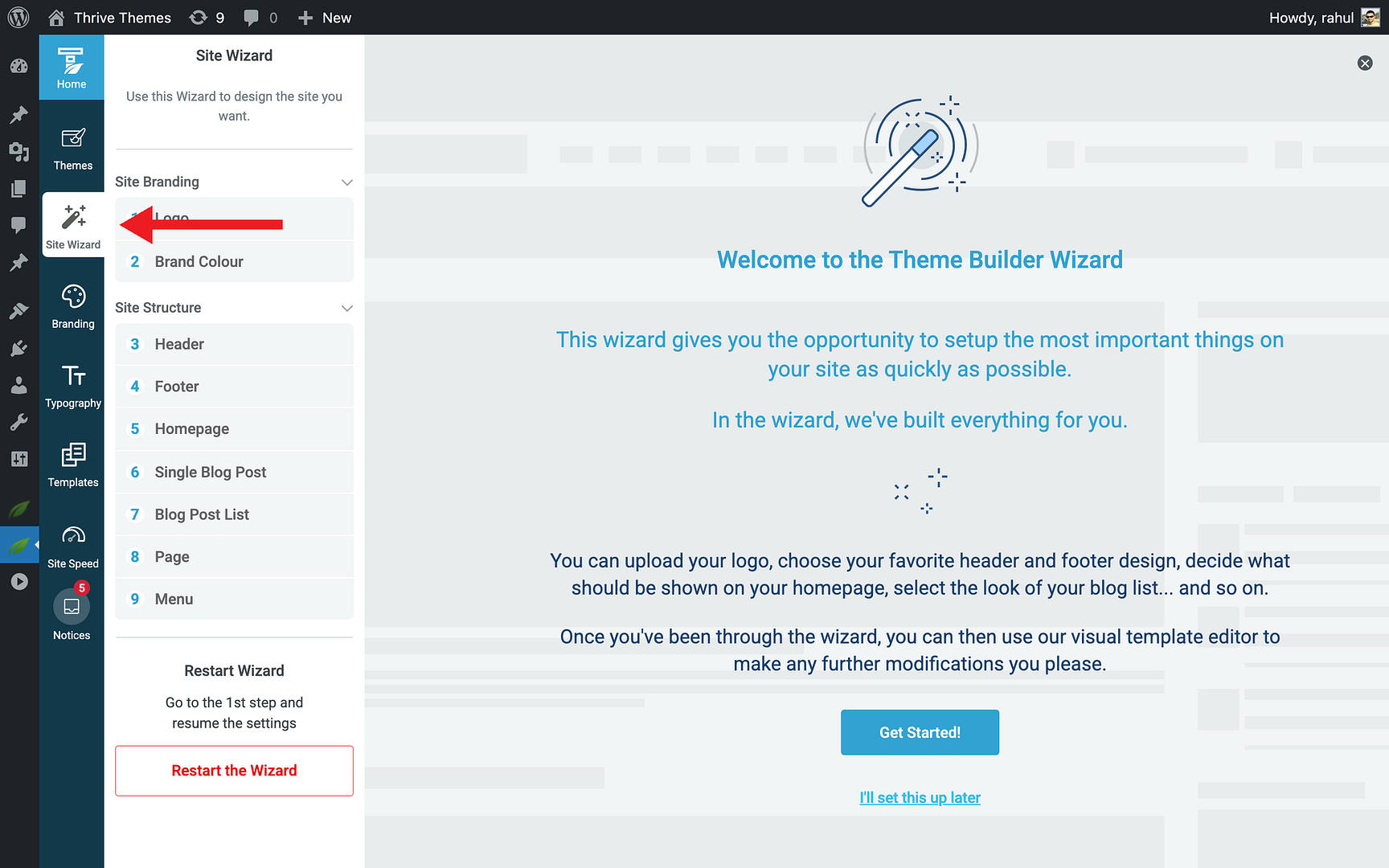
- In the Thrive Theme Builder dashboard, click Site Wizard in the left sidebar.
- Scroll to the bottom of the wizard page.
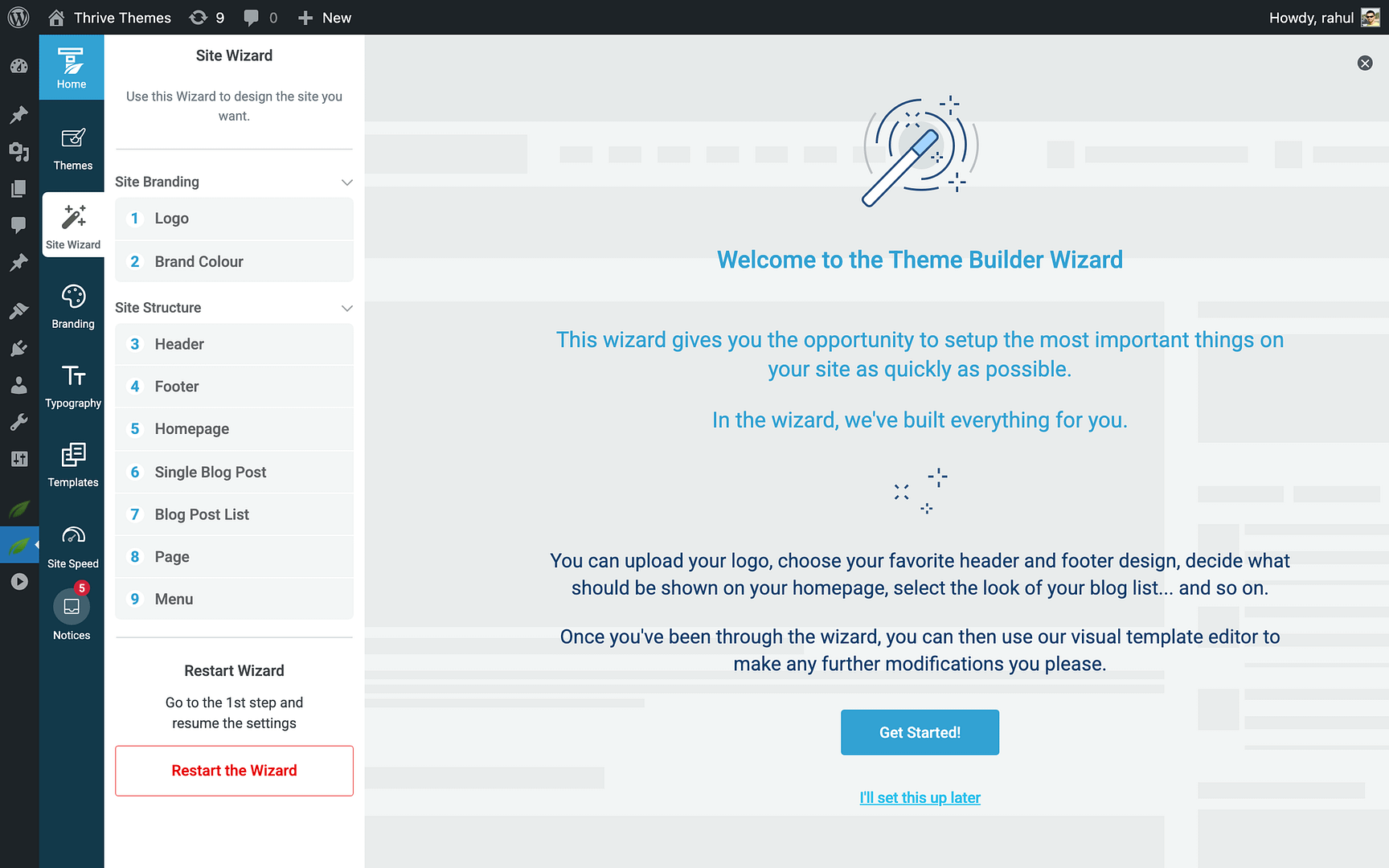
- Click Restart the Wizard.
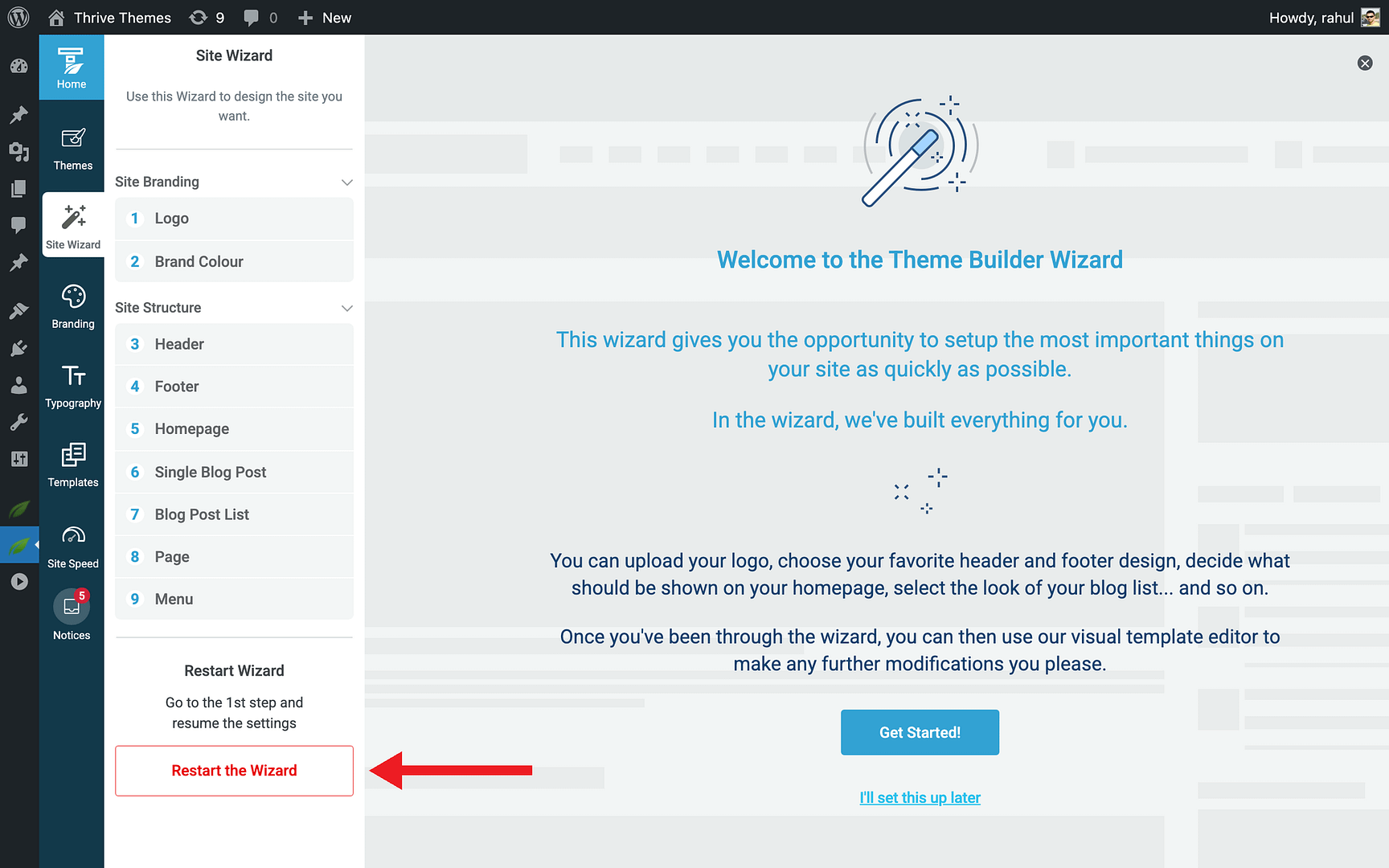
- Walk through each wizard step again to reconfigure your site structure.
Method 2: Replace the Active Theme
Use this method for a complete fresh start—replacing the current theme with a new one and deleting the old theme entirely.
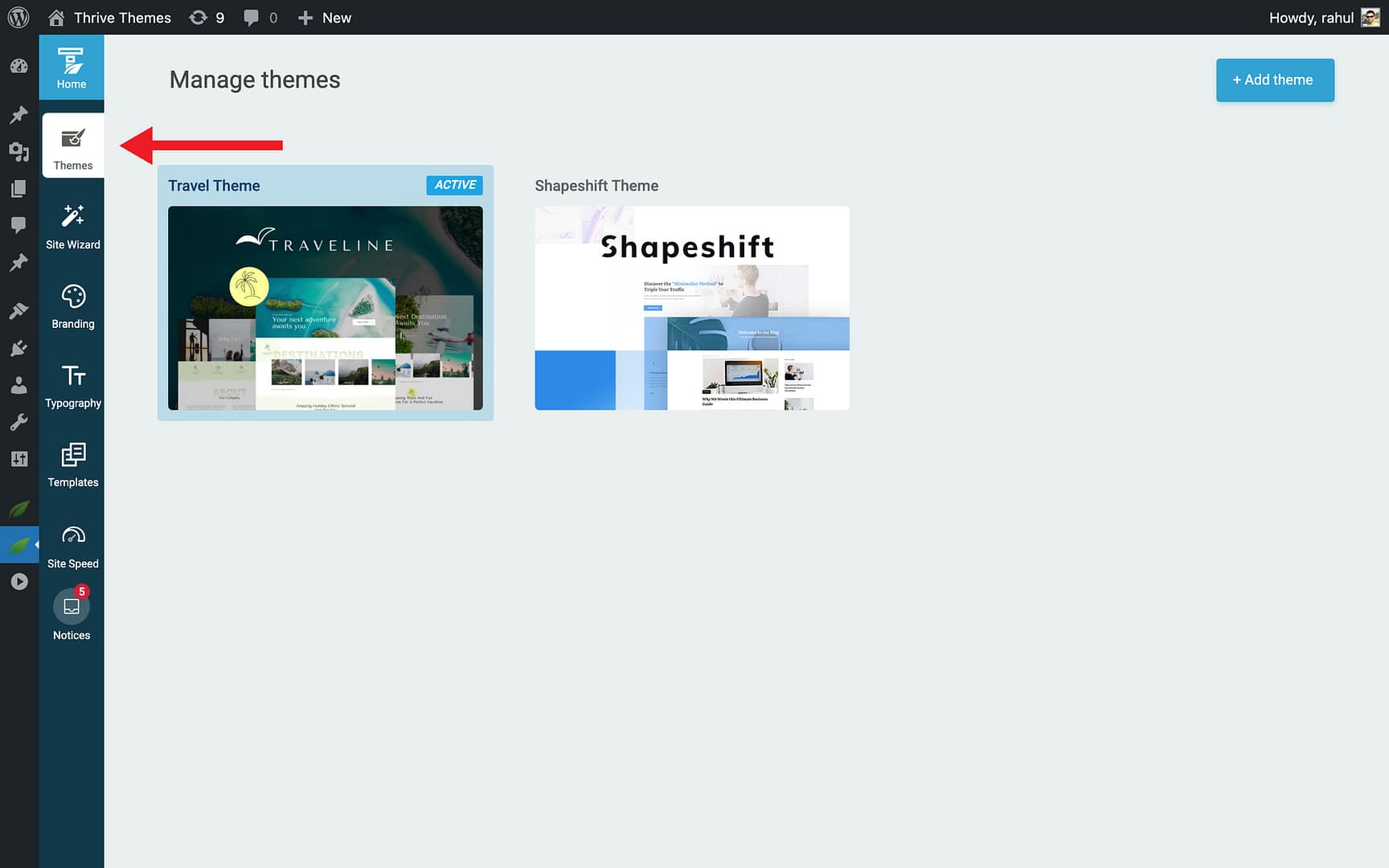
- In the Thrive Theme Builder dashboard, click Themes in the left sidebar.
- Remove any inactive themes first — Hover over an inactive theme, click the three-dots icon, select Delete, and confirm by clicking Delete theme in the pop-up.
- Add a new theme — Click the + Add theme button in the top-right corner. A new theme appears next to your active theme. Adding a theme does not affect your live website until you activate it.
- Activate the new theme — Hover over the new theme and click Activate. This immediately changes your live site’s appearance and opens the Site Wizard for initial configuration.
- Delete the old theme — Go back to Themes and delete the now-inactive old theme.
Method 3: Contact Support
If neither of the above methods resolves your issue—for example, if you need a factory-level reset that clears all skins, templates, sections, layouts, typography, and branding data—contact the Thrive Themes support team to request a full reset.
A factory reset removes:
- All skins and themes
- All templates, sections, headers, and footers
- Branding settings (logo, favicon, colors)
- Typography configurations
- Demo content
After a factory reset, a default skin is recreated and Thrive Theme Builder returns to its initial state.
Related Resources
- Getting Started: Learn how to run the Site Wizard and set up your site.
- Managing Themes: Learn how to add, switch, and manage themes.
- Setting Up Branding: Reconfigure your logo, colors, and typography after a reset.