In this article, you’ll learn how to configure what happens when a student completes a course in Thrive Apprentice—including choosing a redirect option, customizing the completion page, and editing it with Thrive Architect.
Accessing the Course Completion Tab
Course completion behavior is configured on a per-course basis from the Course completion tab. To get there:
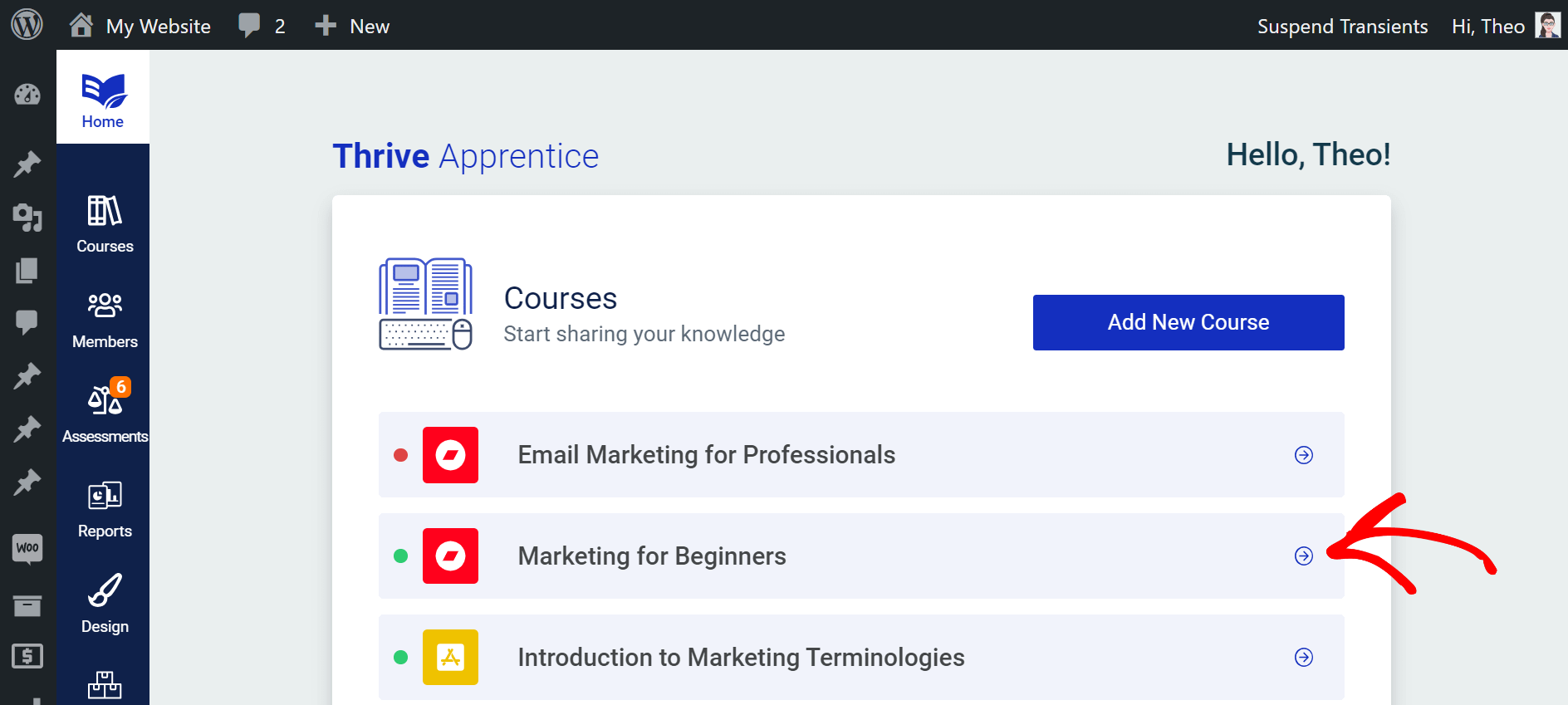
- In your WordPress dashboard, navigate to Thrive Dashboard > Thrive Apprentice.
- Click Courses in the left sidebar and select the course you want to configure.
- Click the Course completion tab.
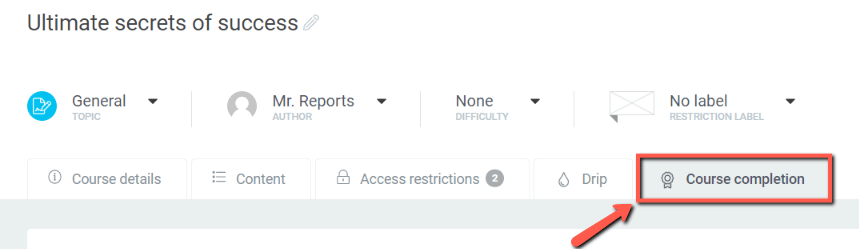
On this tab, you’ll find two main options: Issue course completion certificate (covered in the certificates article) and Customize course completion behaviour.
Enabling and Configuring Completion Behavior
To customize what happens when a student finishes the course:
- On the Course completion tab, locate the Customize course completion behaviour toggle and activate it.
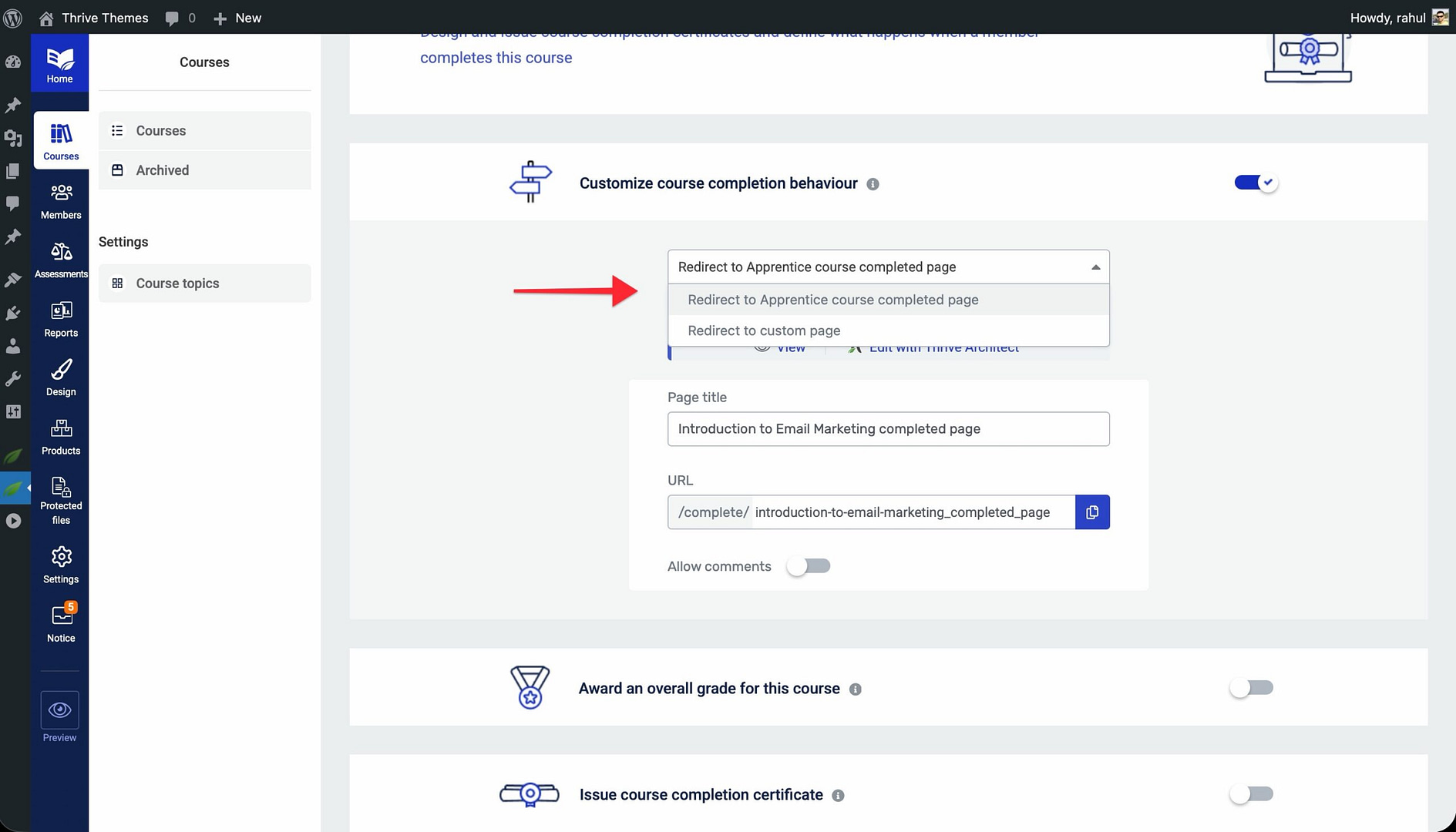
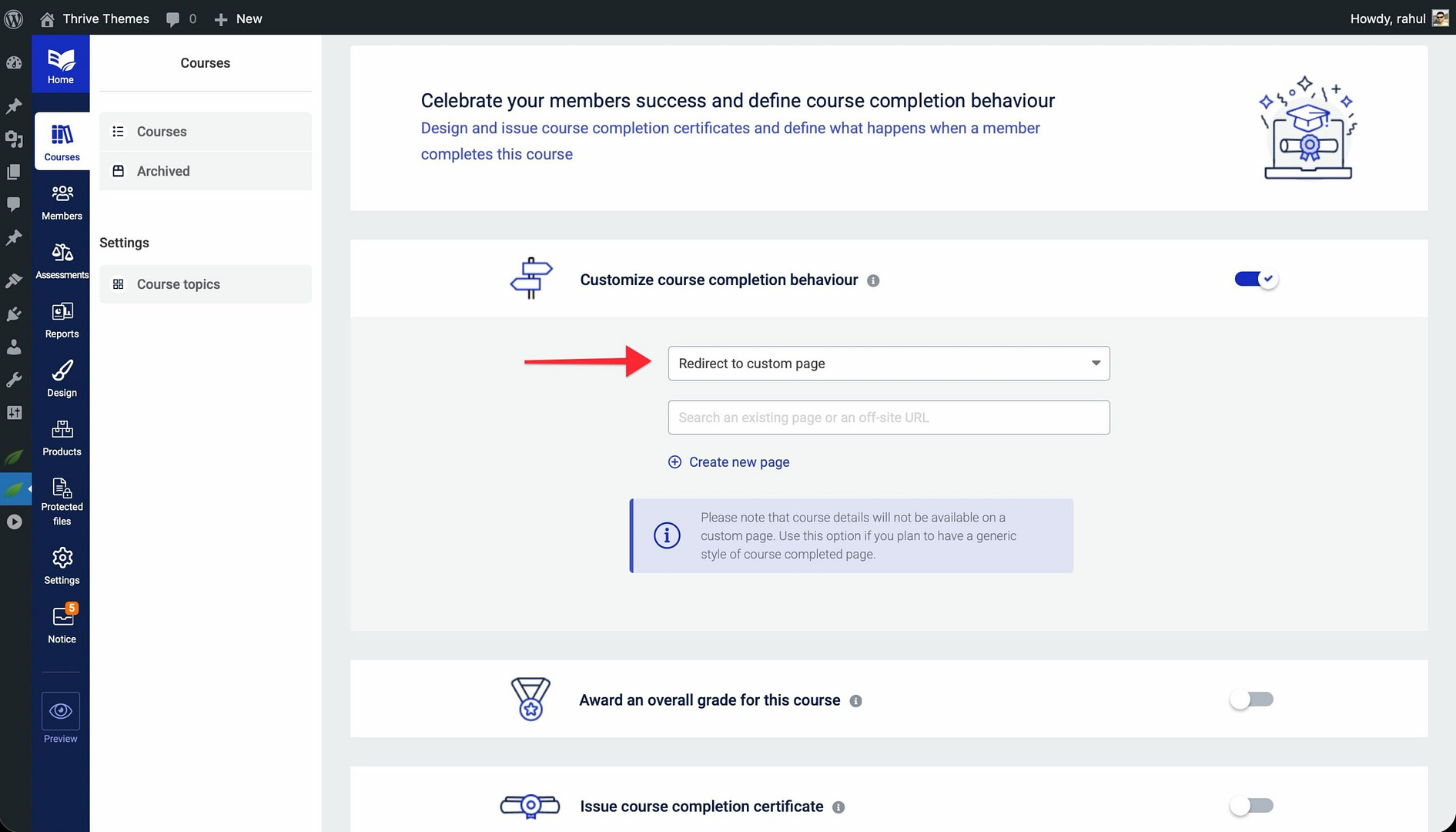
- Once the toggle is active, a dropdown appears with two redirect options:
Redirect to Apprentice course completed page — sends the student to a dedicated completion page that Thrive Apprentice creates automatically for the course. This is the default option.
Redirect to custom page — sends the student to any URL you specify. - Select your preferred redirect option from the dropdown.
Using the Apprentice Course Completed Page
When you select Redirect to Apprentice course completed page, Thrive Apprentice automatically generates a completion page for the course. Below the dropdown, you’ll see:
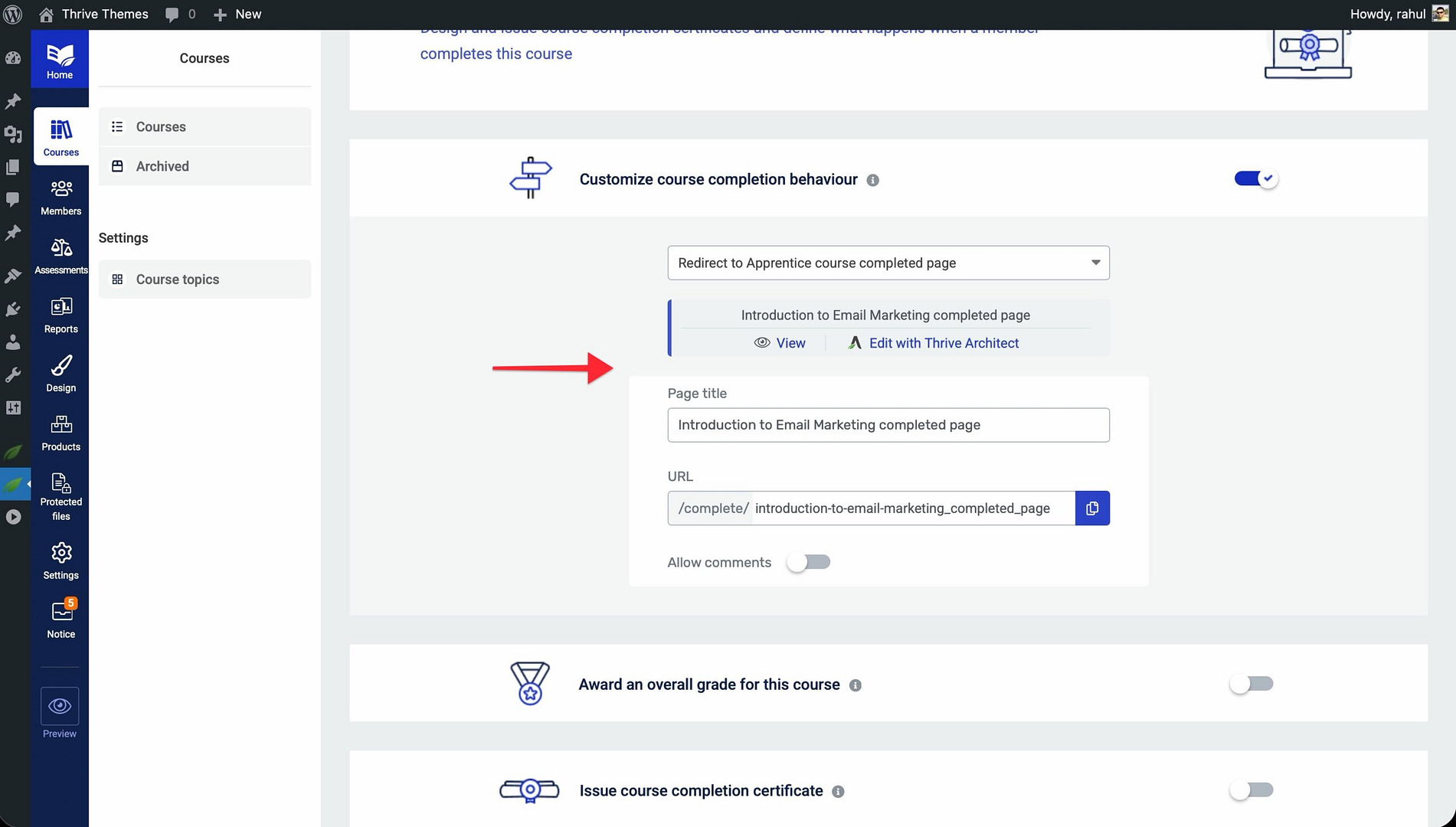
- View — click this to preview how the completion page currently looks on the front end.
- Edit with Thrive Architect — click this to open the completion page in Thrive Architect, where you can customize the layout, add elements (such as a certificate download button, congratulations message, or next course suggestion), and design the page to match your brand.
- Page title — the title of the completion page (e.g., “Introduction to Email Marketing completed page”). You can edit this to change the page title.
- URL — the URL slug for the completion page (e.g.,
/complete/introduction-to-email-marketing_completed_page). Use the copy button next to the field to copy the full URL. - Allow comments — toggle this on if you want to enable comments on the completion page.
Using a Custom Redirect Page
If you select Redirect to custom page from the dropdown, a URL field appears where you can enter the address of any page on your site (or an external URL). This is useful when you want to send students to:
- A custom thank-you page you’ve already built.
- An upsell or enrollment page for your next course.
- A community forum or membership area.
That’s it! You’ve configured course completion behavior in Thrive Apprentice. Students will now be redirected to your chosen destination when they finish the course.
Related Resources
- Certificates: Learn how to issue course completion certificates to reward your students.
- Conditional Lesson Unlocking: Set up conditional lesson unlocking to control the order students progress through content.
- Course Bundles: Create course bundles to package related courses into a learning path.
- Managing Courses: Review how to manage your courses and configure course-level settings.