In this article, you’ll learn how to configure the email delivery service and customize the email templates that Thrive Apprentice sends to your students—so every automated message matches your brand and delivers the right information.
What Are Email Templates?
Thrive Apprentice automatically sends emails to students at key moments—such as when a new account is created, when a certificate is issued, or when an assessment is graded. Email templates let you control the content and personalization of these automated messages.
Accessing Email Templates
- Go to Thrive Dashboard > Thrive Apprentice.
- Click Settings in the left sidebar.
- Select Email Templates from the settings menu.
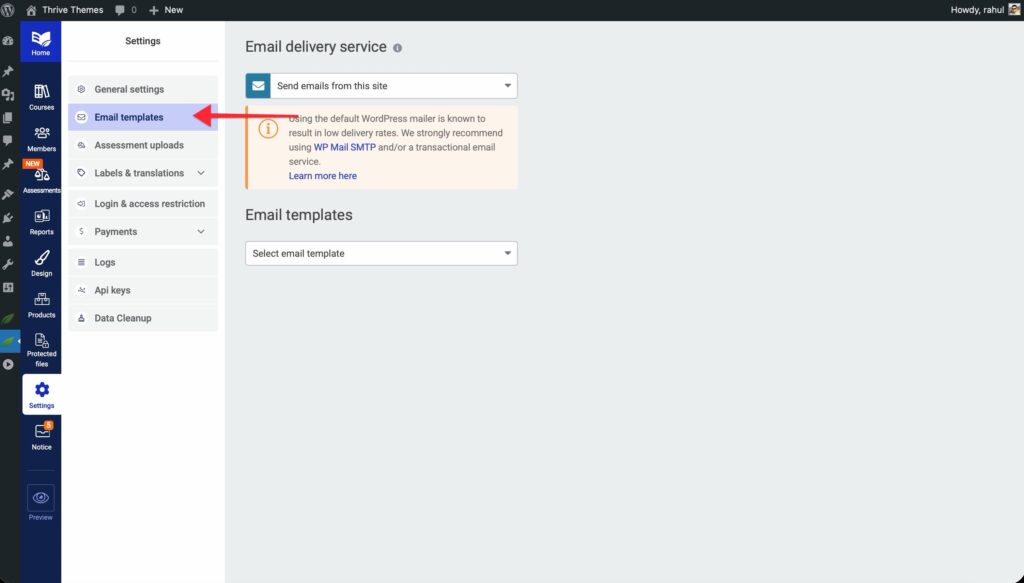
Configuring the Email Delivery Service
Before customizing templates, you should configure an email delivery service. At the top of the Email Templates settings page, you’ll see an Email delivery service dropdown.
- Click the Email delivery service dropdown.
- Select your preferred service (e.g., SendGrid, Brevo, PostMark) or leave it as the default WordPress mailer.
- If you don’t have a transactional email service set up, consider installing WP Mail SMTP for better deliverability.
Available Email Templates
Thrive Apprentice includes five email templates, each triggered by a different event. To edit a template, select it from the Select email template dropdown on the Email Templates settings page.
- New Account Created — Sent when a new WordPress account is created for a student (via Stripe, Square, ThriveCart, SendOwl, or standard WordPress registration).
- New Course Welcome — Sent when a user gains access to a course for the first time.
- Certificate Manually Issued — Sent when you manually issue a certificate to a student.
- Assessment Marked — Sent when a student’s assessment is graded (passed or failed).
- Product Access Is Expiring — Sent when a student’s access to a product is about to expire.
Customizing an Email Template
- On the Email Templates screen, select a template from the Select email template dropdown.
- Modify the From name to control who the email appears to come from.
- Edit the Subject line to match your branding or messaging.
- Edit the Email body to customize the content. You can use shortcodes (described below) to personalize each email.
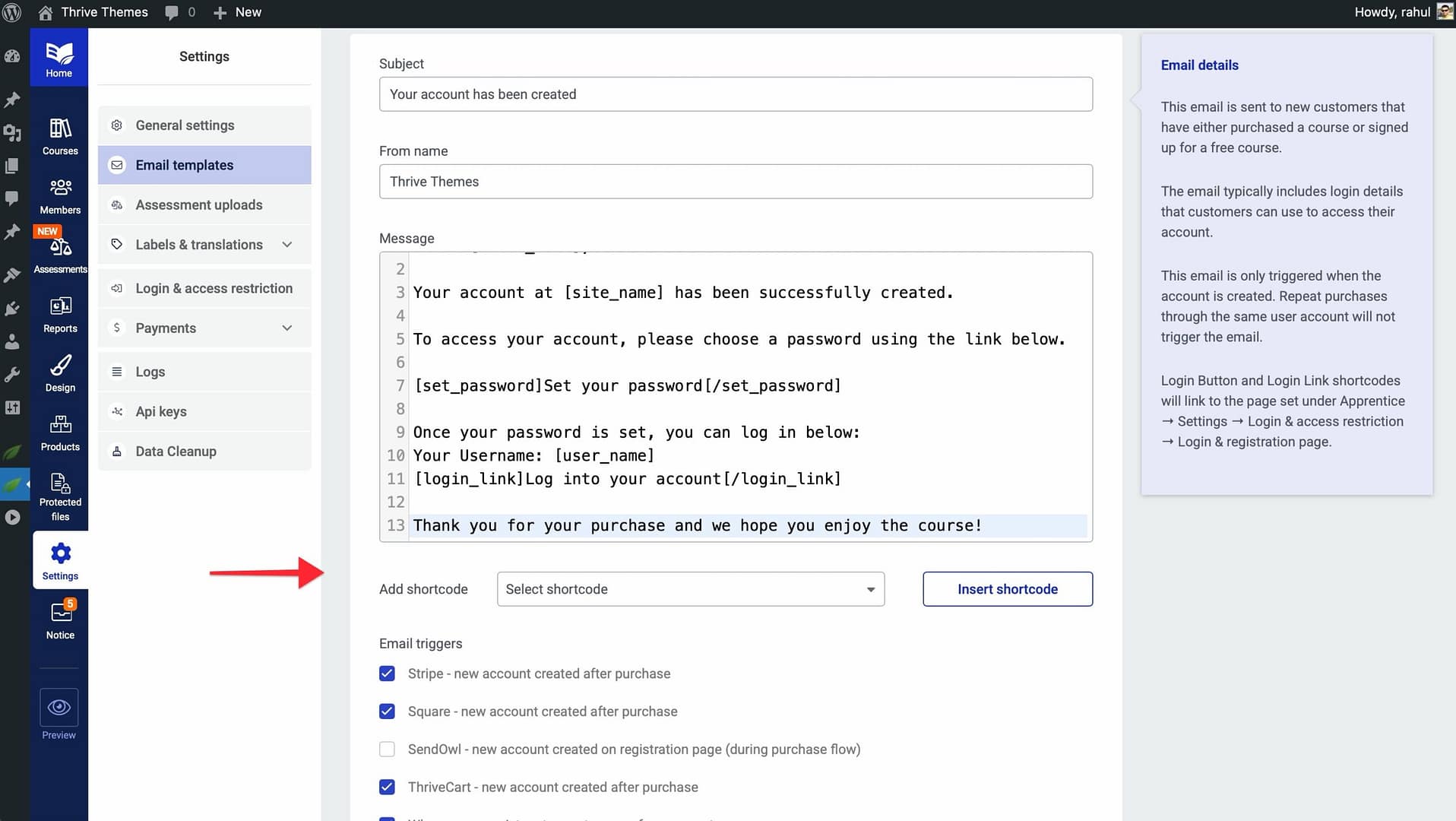
- Configure the Triggers section to control which events send this email.
- Click Save when you’re finished.
Using Shortcodes for Personalization
Shortcodes let you insert dynamic, student-specific or course-specific information into your emails. Here are the available shortcodes:
— The student’s first name.— The student’s username.The password you chose during registration— The student’s password (only included if automatically generated).Thrive Themes— Your website’s name.— The name of the relevant course.[course_url]— A direct link to the course....— A styled login button with customizable text.[set_password]...[/set_password]— A link for the student to set their password....— A text link to the login page....— A button linking to the assessment.— The type of assessment (e.g., quiz, file upload).— Whether the assessment was passed or failed.— The name of the product whose access is expiring.
Note: Not all shortcodes are available in every template. Thrive Apprentice shows only the relevant shortcodes for the template you’re editing.
Email Triggers
Each template can be triggered by one or more events. Here are the trigger types available for the New Account Created template:
- Stripe — New account created after a Stripe purchase.
- Square — New account created after a Square purchase.
- ThriveCart — New account created after a ThriveCart purchase.
- SendOwl — New account created on a SendOwl registration page.
- WordPress — When a user registers a new free account.
Other templates have fixed triggers (e.g., “Certificate Manually Issued” always fires when a certificate is issued, “Assessment Marked” fires when an assessment is passed or failed).
That’s it! You’ve configured your email delivery service and customized your Thrive Apprentice email templates, ensuring your students receive polished, personalized communications at every stage of their learning journey.
Related Resources
- Course Welcome Email: Learn how to set up the Course Welcome Email for new student enrollments.
- Access Restrictions: Learn how to configure access restrictions and rules for your courses.
- Settings Overview: Review how to navigate and configure Thrive Apprentice settings including email delivery.
- Managing Members: Learn about managing members and student enrollments.