In this article, you’ll learn how to sort and view your students by enrollment date in Thrive Apprentice—using the Course Enrollments report in the Reports section, as well as a shortcut from the Members page.
Method 1: Through the Reports Section
The most direct way to sort students by enrollment date is through the Course Enrollments report in the Reports section.
Step 1: Open the Reports Section
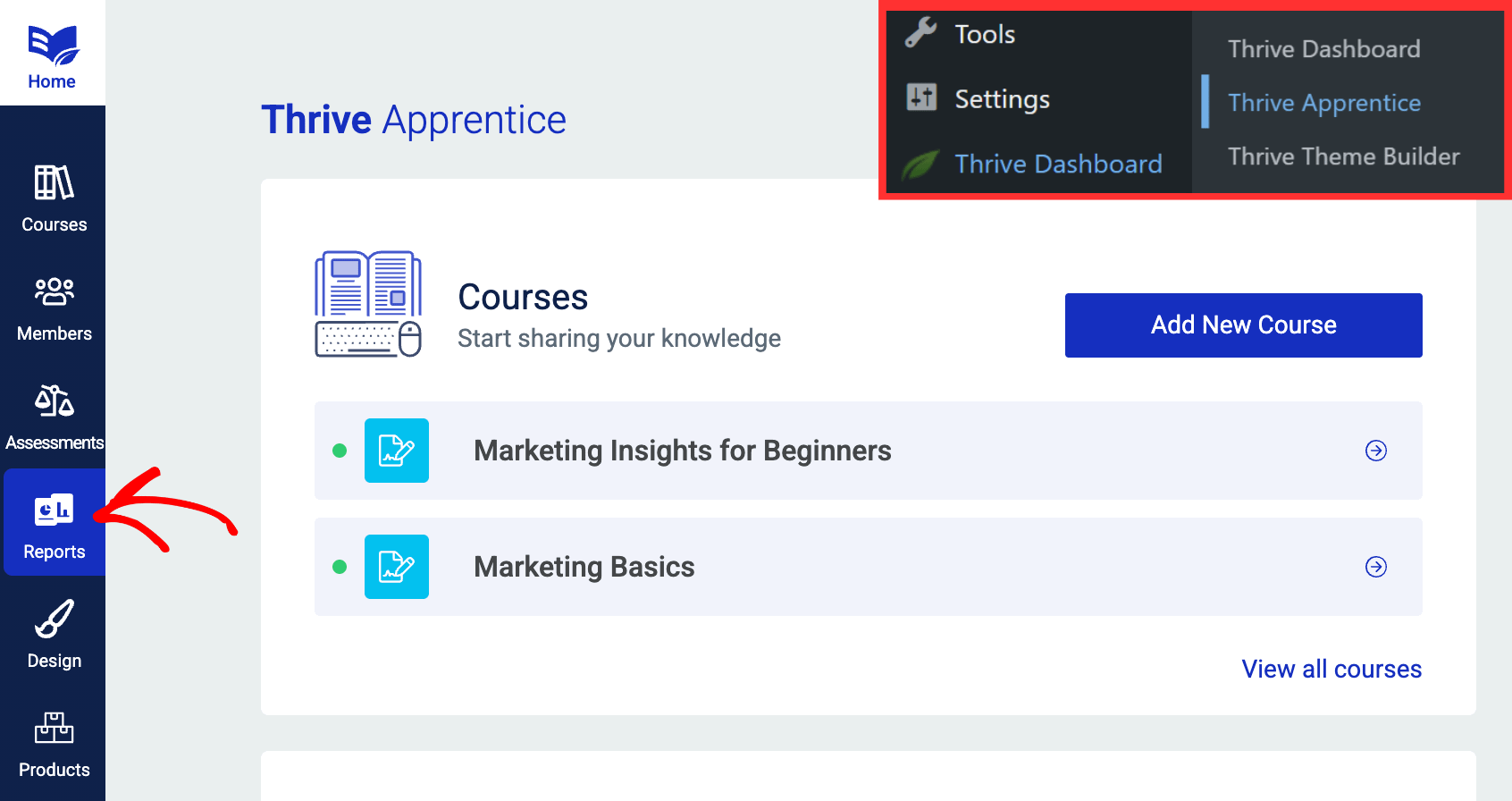
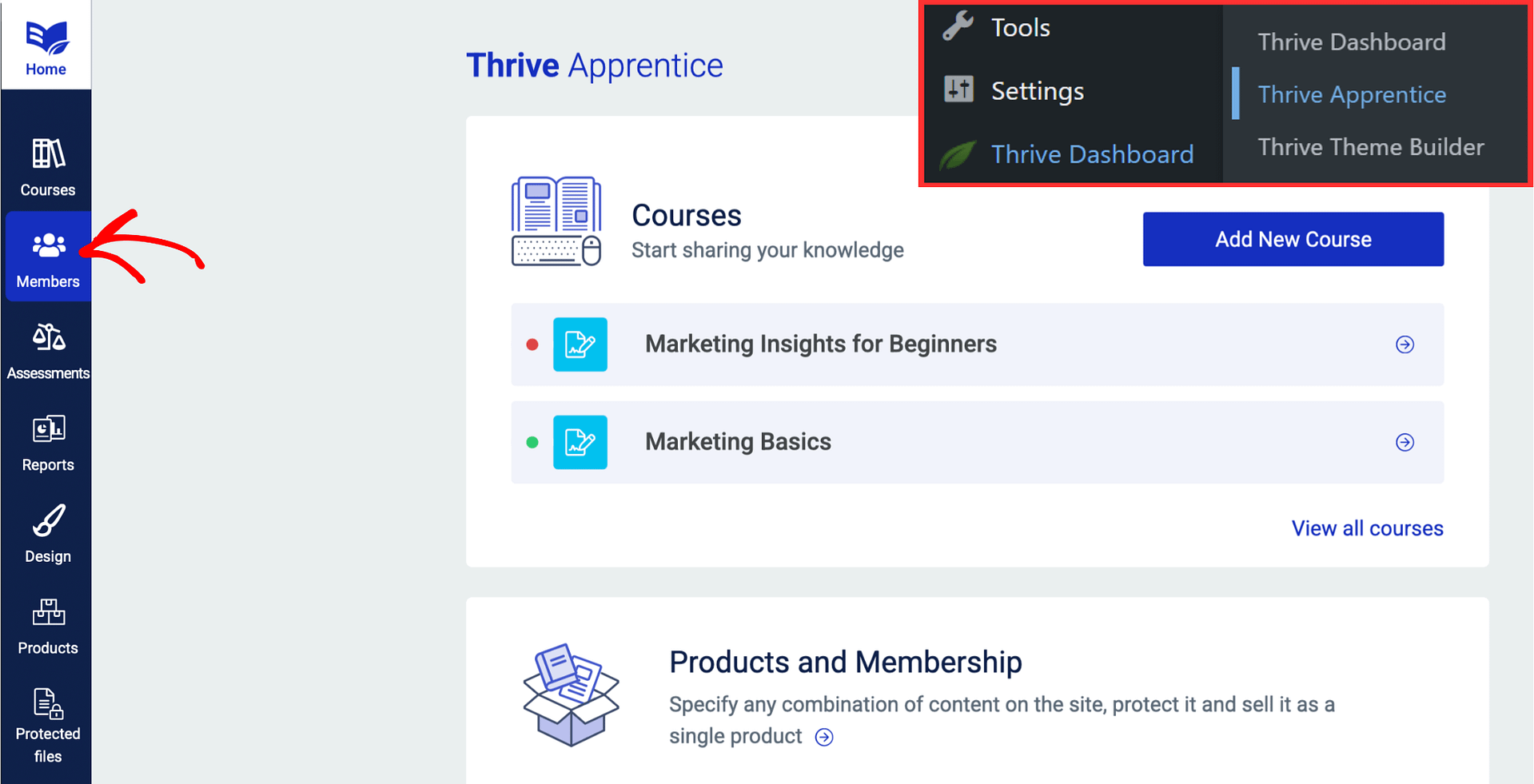
- In your WordPress dashboard, navigate to Thrive Dashboard > Thrive Apprentice.
- Click Reports in the left sidebar.
Step 2: Open Course Enrollments
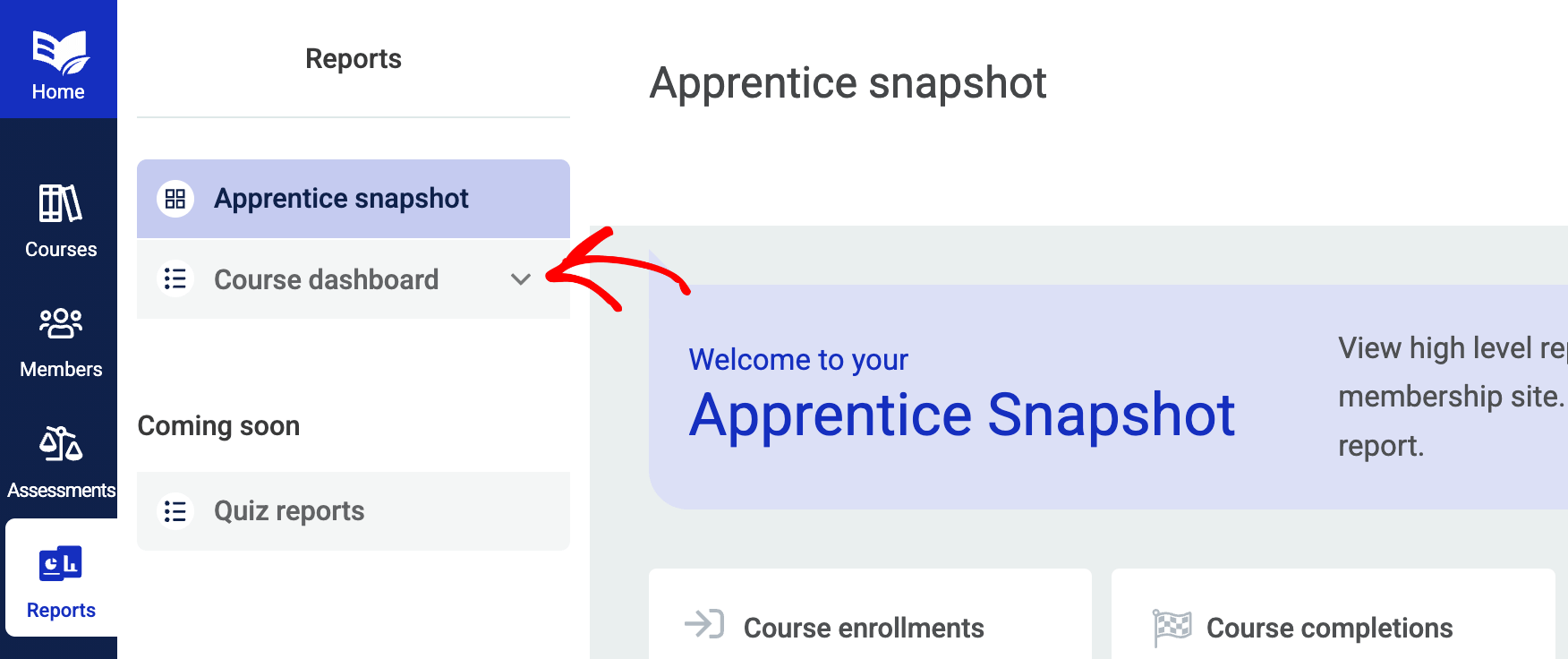
- On the Reports page, click to expand the Course Dashboard dropdown in the left navigation panel.
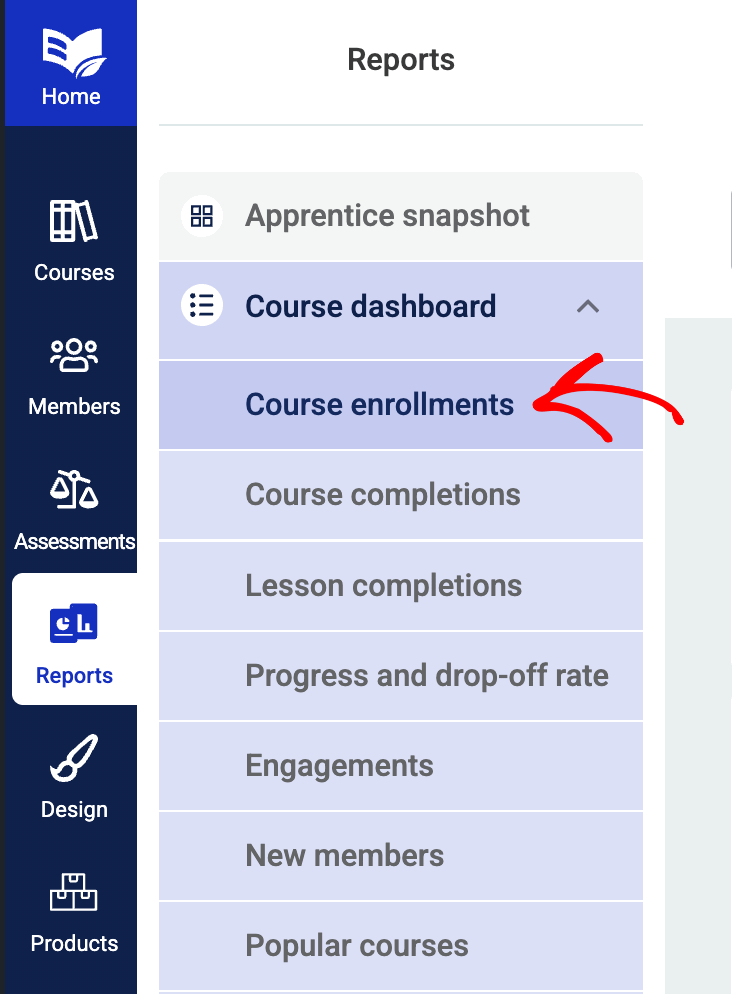
- Click Course Enrollments from the list of sub-reports.
Step 3: Filter by Course
- On the Course Enrollments page, use the Course dropdown at the top to select the course you want to view.

- You can also apply additional filters such as Member, Product, or a specific time period to narrow down the results.

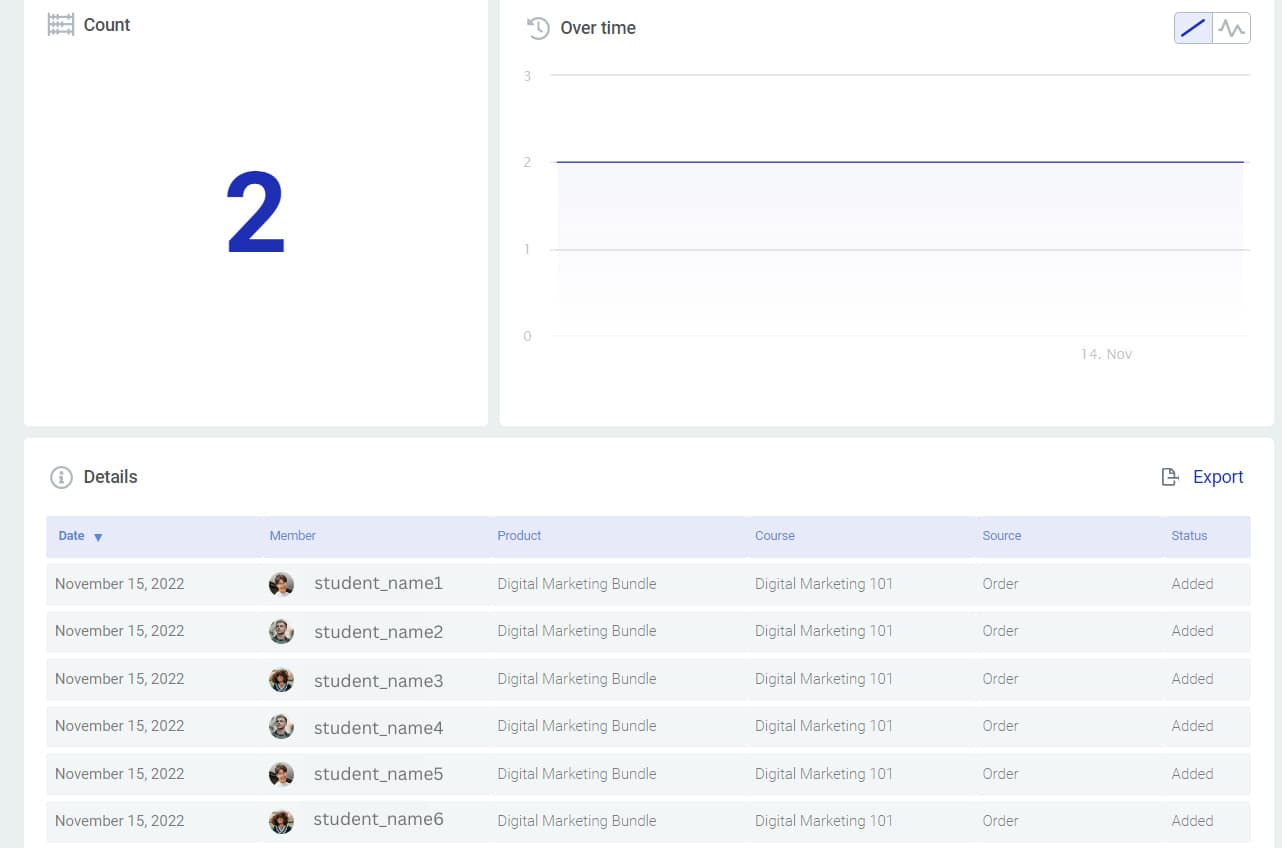
After applying the filters, you’ll see an enrollment graph showing trends over time, with a detailed student list below it.
Step 4: Sort by Enrollment Date
- In the student list below the graph, click the arrow next to the Date column header to sort the list by enrollment date.

- Click again to toggle between ascending (oldest first) and descending (newest first) order.
Step 5: Export the Sorted List
- If you want to save or further analyze the sorted data, click the Export button at the top right of the table.
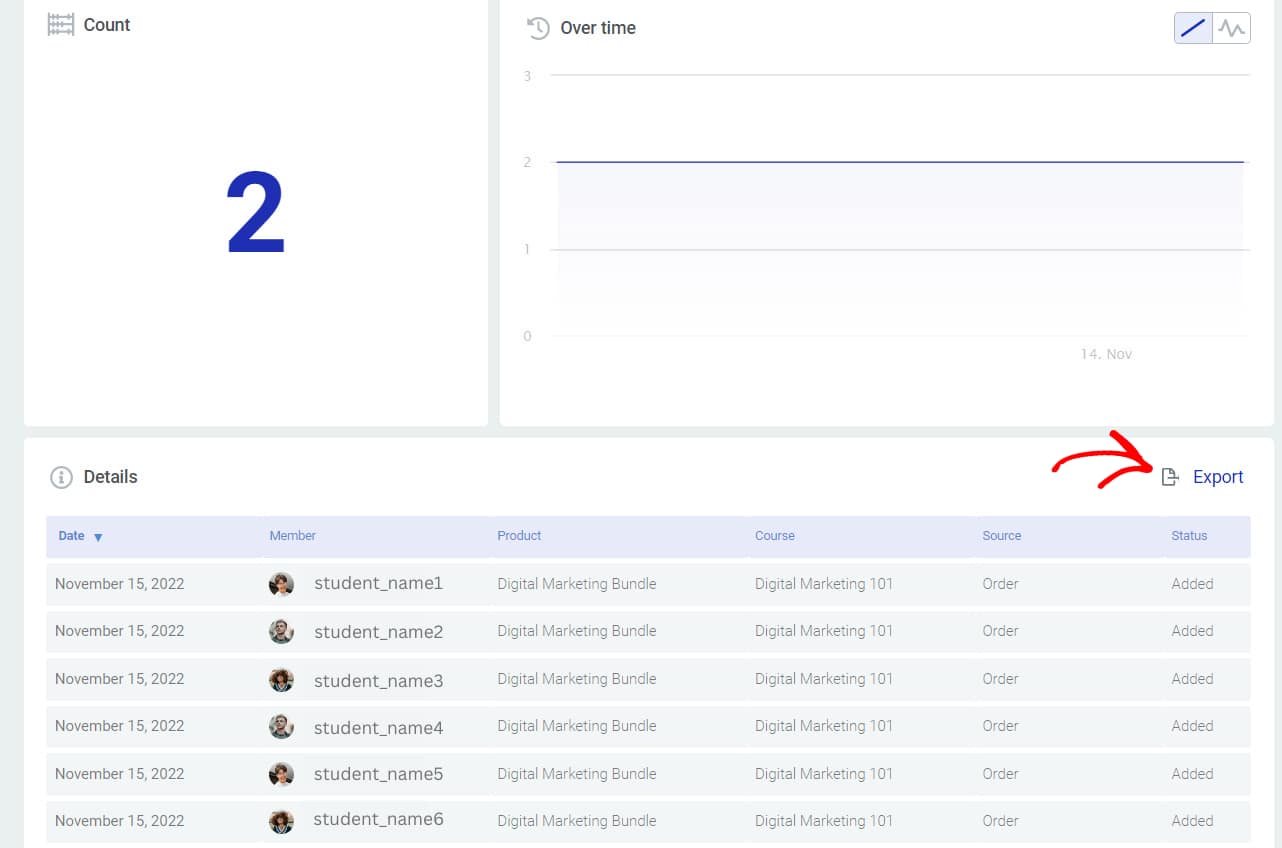
- Choose whether to download the current view or all results.
- The CSV file will be downloaded to your computer.
Tip: Exported CSV files can be opened in spreadsheet applications like Google Sheets or Microsoft Excel for further analysis.
Method 2: Through the Members Section
You can also reach the Course Enrollments report quickly from the Members page.
- In your WordPress dashboard, navigate to Thrive Dashboard > Thrive Apprentice.
- Click Members in the left sidebar.
- On the Members page, click the New enrollments stat in the Engagement Summary area at the top.
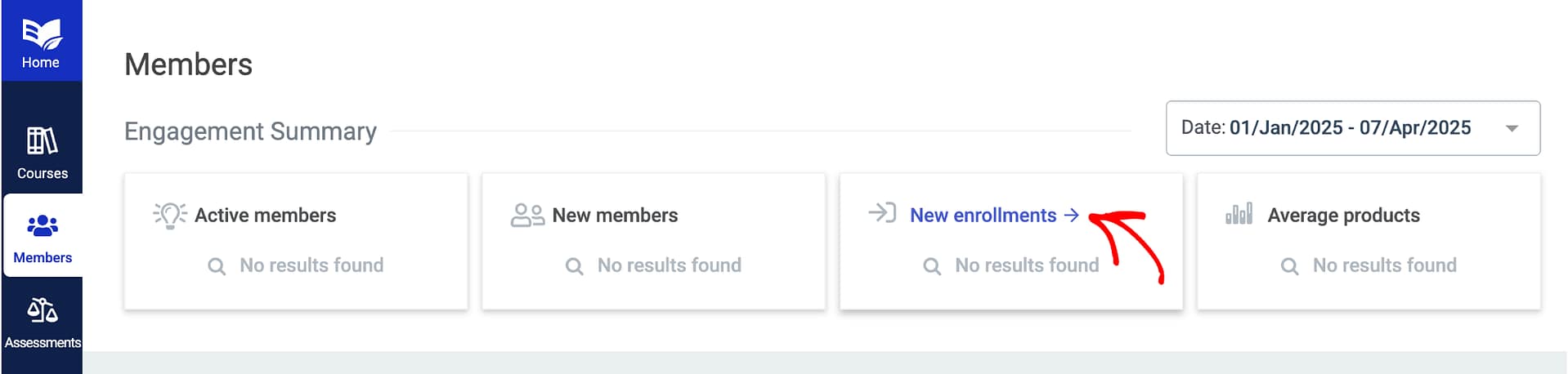
Clicking New enrollments takes you directly to the Course Enrollments page in the Reports section, where you can sort and filter the student list as described in Method 1.
That’s it! You now know two ways to access and sort students by enrollment date in Thrive Apprentice.
Related Resources
- Reports Section: Learn more about using the Reports section for detailed analytics across all courses and students.
- Viewing Member Data: See how to view individual member data including course progress and completion history.
- Managing Members: Review how to manage members and adjust course access.
- Manual Lesson Unlocking: Learn how to manually unlock lessons for specific students when needed.