Thrive Comments lets you control how the comment section looks on your site—accent color, avatars, date format, and more—without coding. In this guide, you’ll learn how to use the Customize Style options, preview changes in real time, and apply advanced tweaks so comments match your brand and work well on all devices.
What You’ll Learn
In this article, you’ll discover how to:
- Access Customize Style and use the live Comments Preview
- Set the accent color for names, links, and buttons
- Enable avatars and choose a default avatar for users without Gravatar
- Configure how comment dates are displayed (absolute, relative, or hidden)
- Show or hide the “Powered by Thrive Comments” label
- Use CSS to fine-tune the comment design (advanced)
- Keep the comment section mobile-friendly and aligned with your theme
Introduction to Customize Style
The Customize Style section in the Thrive Comments dashboard controls the main visual options for your comment area: color, avatars, dates, and branding. Changes apply sitewide to every place Thrive Comments appears. A Comments Preview panel on the right updates as you change settings, so you can see the result before saving.
If you haven’t set up Thrive Comments yet, see How to Get Started with Thrive Comments first.
Accessing Customize Style and the Comments Preview
- In your WordPress admin, go to Thrive Dashboard > Thrive Comments.
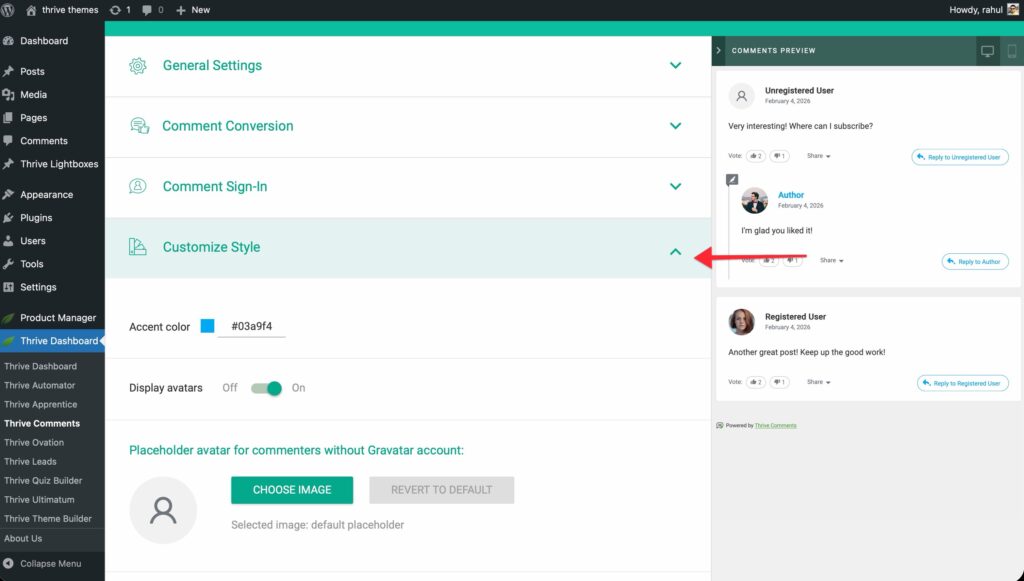
- Find Customize Style and expand the section.
- On the left you’ll see all styling options; on the right, Comments Preview shows a live preview of how your comments will look on the front end.
Tip: Keep the preview visible while you change options. After you’re done, click Save at the bottom so changes take effect. If you use a caching plugin, clear the cache to see updates on the live site.
Accent Color
The Accent color is the main color used for commenter names, hyperlinks, reply buttons, and other interactive elements. It’s one of the fastest ways to make the comment section match your brand.
How to Set the Accent Color
- In Customize Style, locate the Accent color option.
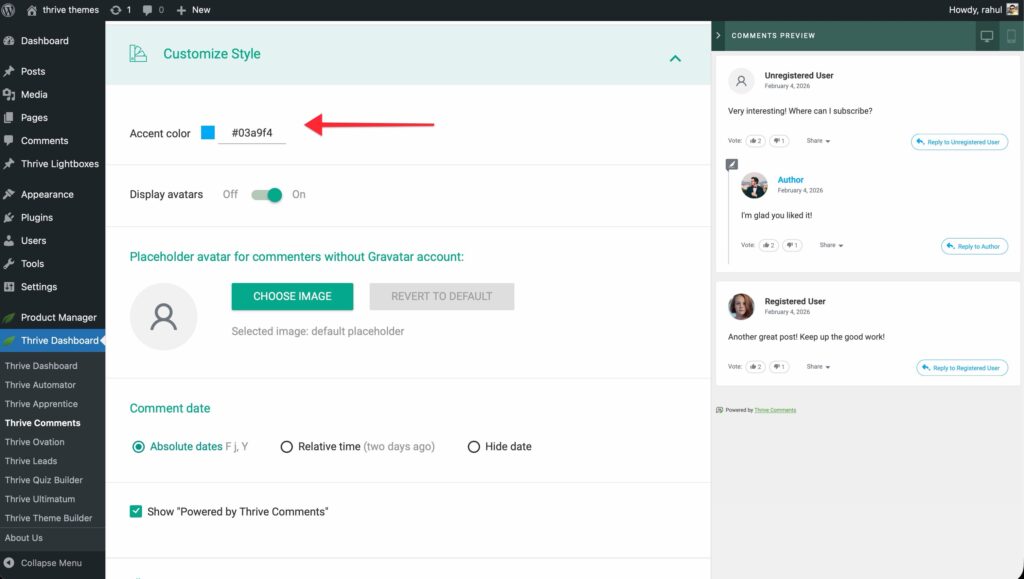
- Click the color field to open the color picker.
- Choose a color by:
- Clicking or dragging in the color picker
- Entering a HEX or RGB value if you have a specific brand color
- Selecting from My Colors (saved colors) or Template Colors if you use Thrive themes
Click Apply to confirm, then Save at the bottom of the Customize Style section.
The accent color will appear on the front end on usernames, links inside comments, reply buttons, and similar elements. The Comments Preview updates immediately so you can confirm the look.
Avatars
You can show profile pictures (avatars) next to each commenter’s name. Avatars can come from Gravatar or from a default image you set for users who don’t have a Gravatar.
Enabling or Disabling Avatars
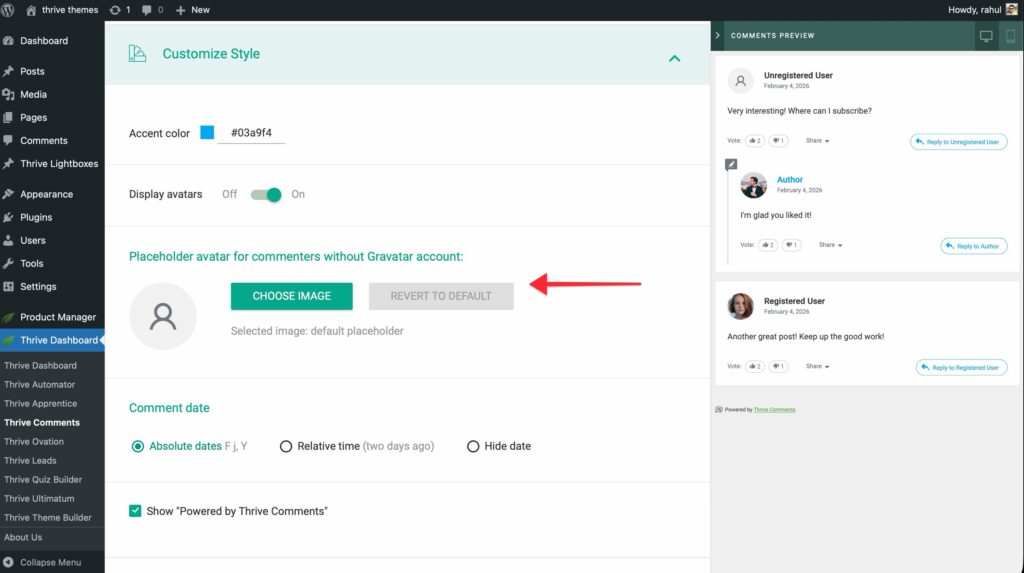
- In Customize Style, find the option to display avatars (or similar wording).
- Turn the option on to show avatars or off to hide them.
When avatars are off, no image appears next to the commenter’s name—only the name and the rest of the comment metadata. When on, commenters with a Gravatar account will see their Gravatar; others can use a default image (see below).
Default Avatar for Users Without Gravatar
If avatars are enabled, you can set a default avatar for visitors who don’t have a Gravatar linked to their email address.
- In Customize Style, find the default avatar option (it appears when avatars are enabled).
- Click to choose an image. You can select one already in your WordPress Media Library or upload a new one.
- Save your changes.
This image is used whenever a commenter has no Gravatar. Common choices are a generic silhouette, your logo, or a neutral placeholder so the layout stays consistent.
Comment Date Format
You can control how the comment date and time are displayed: as an absolute date, as relative time (e.g. “2 days ago”), or hidden entirely.
Available Date Options
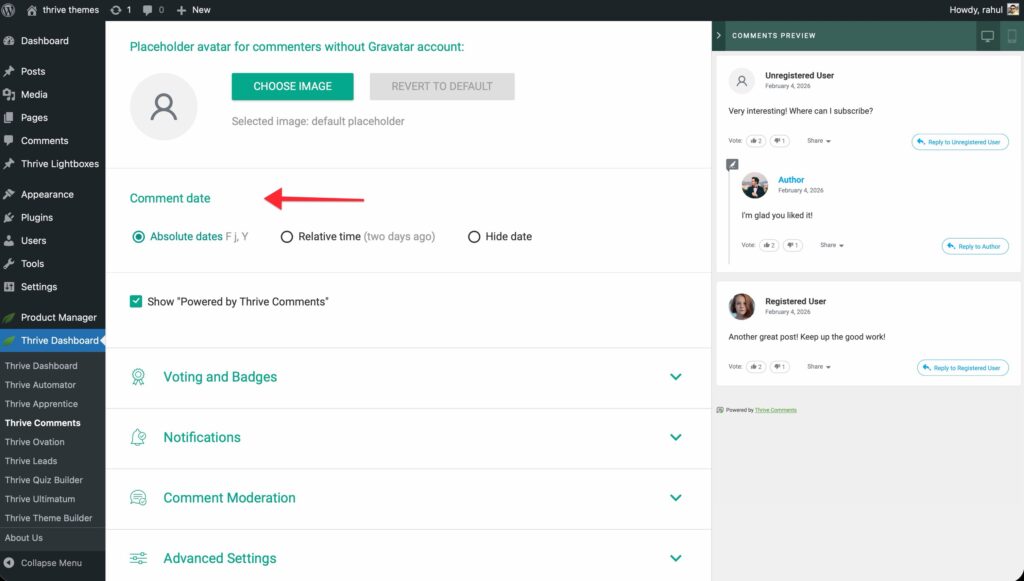
- In Customize Style, find the comment date (or date format) option.
- Choose one of the following:
- Absolute Dates — Shows a full date (e.g. April 22, 2014). The format follows your WordPress Settings > General > Date Format. So if WordPress is set to “F j, Y”, Thrive Comments will use that same format.
- Relative Time — Shows time ago (e.g. “2 days ago”, “6 months ago”, “1 year ago”). Good for a more conversational feel.
- Hide Date — Hides the date so it doesn’t appear next to comments.
- Click Save after making your choice.
The Comments Preview reflects the selected format so you can confirm before saving.
“Powered by Thrive Comments” Label
Thrive Comments can display a small “Powered by Thrive Comments” label at the bottom of the comment section. You can turn this on or off in Customize Style.
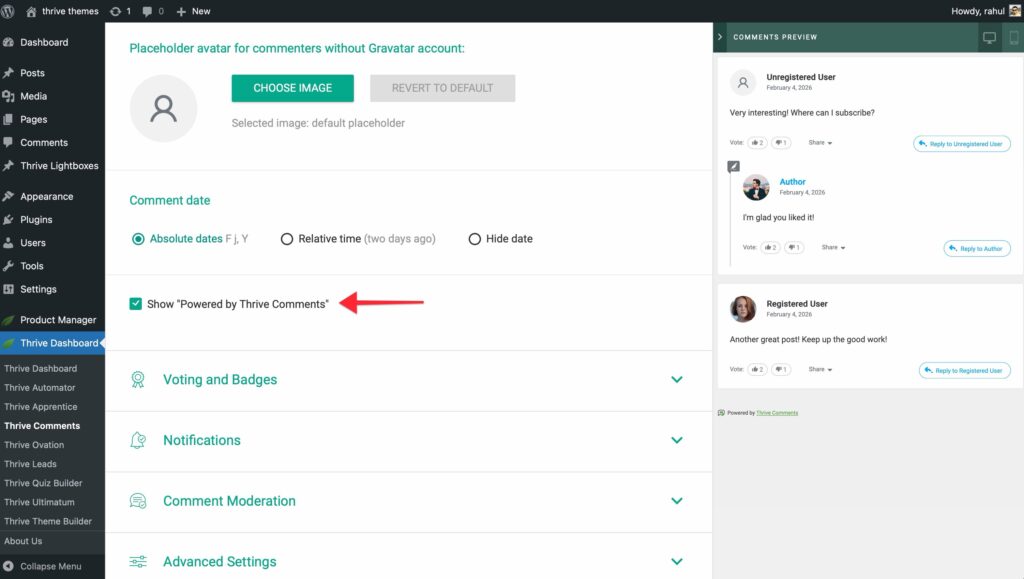
- In Customize Style, find the option for the Powered by Thrive Comments (or similar) label.
- Enable it to show the label or disable it to hide it.
- Save your changes.
When enabled, the label appears below the comment list on the front end. Turning it off gives a cleaner look if you prefer no branding in the comment area.
CSS Customization (Advanced)
If you need changes beyond the dashboard options—for example, different font sizes, spacing, or border styles—you can add custom CSS that targets Thrive Comments.
Where to Add CSS
- WordPress: Appearance > Customize > Additional CSS, or use a plugin that adds custom CSS.
- Thrive Theme Builder: Use the theme’s custom CSS / script options if available.
Targeting Thrive Comments
Thrive Comments output uses specific CSS classes and structure. To avoid affecting the rest of your site, scope your rules to the comment container. For example, wrap your CSS in a selector that targets the Thrive Comments wrapper (e.g. the class or ID your theme/plugin uses for the comment section—inspect the front-end comment block in your browser to find the exact class names).
Tip: Use your browser’s developer tools (right-click the comment area > Inspect) to find the relevant classes. Keep selectors as specific as possible so future Thrive Comments updates are less likely to break your styles.
Example (adjust selectors to match your site): Changing the font size of comment text only within the Thrive Comments block. Use the appropriate wrapper class and then target the comment body class so only comment content is affected.
After adding CSS, clear your cache if you use a caching plugin and check both desktop and mobile views.
Mobile Responsiveness
Thrive Comments is built to work on mobile, but a few things help keep the experience good on small screens:
- Accent color and contrast — Ensure your accent color is readable on your background (and that your theme’s comment area background works on mobile).
- Touch targets — Reply and other buttons are sized for tap. If you add custom CSS, avoid making buttons or links too small.
- Preview on mobile — If your preview or theme supports it, check the comment section on a real device or using your browser’s responsive mode so spacing and text don’t overflow or feel cramped.
If you use Thrive Architect for landing pages, the Thrive Comments element there has its own layout and width options—adjust those so the comment block fits well on narrow viewports.
Integration with Theme Styling
Your theme’s fonts, colors, and spacing can affect how the comment area looks. To align Thrive Comments with your theme:
- Use the same accent color as your theme’s primary or link color so the comment section feels part of the page.
- Fonts — If the theme applies a global font, the comment text will usually inherit it. Custom CSS can override if you want comments to match a specific font from your theme.
- Landing pages — On Thrive Architect landing pages, the Thrive Comments element often has an Accent Color option in the sidebar; set it there to match the page or your brand. That overrides or complements the global Customize Style accent for that element.
Checking one post and one landing page after changing styles helps ensure everything looks consistent across your site.
Summary
You’ve learned how to:
- Open Customize Style and use the Comments Preview to see changes before saving
- Set the Accent color for names, links, and buttons
- Enable avatars and set a default avatar for users without Gravatar
- Choose the comment date format (absolute, relative, or hidden)
- Show or hide the Powered by Thrive Comments label
- Add custom CSS for advanced styling
- Keep comments mobile-friendly and aligned with your theme
Your comment section can now match your brand and work well on all devices. For controlling who can comment and how they sign in, see Sign-in Options & Comment Conversion. For moderation and notifications, see How to Moderate Comments and Manage Notifications.
Frequently Asked Questions
Q: Do Customize Style changes apply to landing pages built with Thrive Architect?
A: Yes. The global Customize Style settings apply to Thrive Comments wherever it appears. On landing pages, the Thrive Comments element can also have its own accent color in the element options, which can override the global one for that page.
Q: Can I use a different accent color per post or page?
A: Not from Customize Style alone—that sets one global accent. On Thrive Architect landing pages, you can set the accent per page via the Thrive Comments element’s sidebar options.
Q: What if I don’t set a default avatar?
A: If avatars are enabled and a commenter has no Gravatar, the theme or Thrive Comments may show a generic placeholder. Setting a default avatar in Customize Style ensures a consistent look.
Q: Does “Hide Date” affect the moderation dashboard or only the front end?
A: It only affects how the date is displayed on the front end. The Comments Moderation dashboard still shows date and time for each comment.
Q: Will my custom CSS break when Thrive Comments updates?
A: Thrive aims to keep markup stable, but class names can change. Use the least specific selectors that still target the right elements and test after updating the plugin.
Thrive Comments Documentation: Explore the full Thrive Comments knowledge base.