In this article, you’ll learn how to translate your Thrive Leads forms into any language and customize system messages to match your brand’s voice.
Translating Form Content
Thrive Leads is designed to be fully translatable. Since you build forms using the visual editor (Thrive Architect), there is no central “language file” to edit. Instead, you simply type your content in your desired language directly on the form.
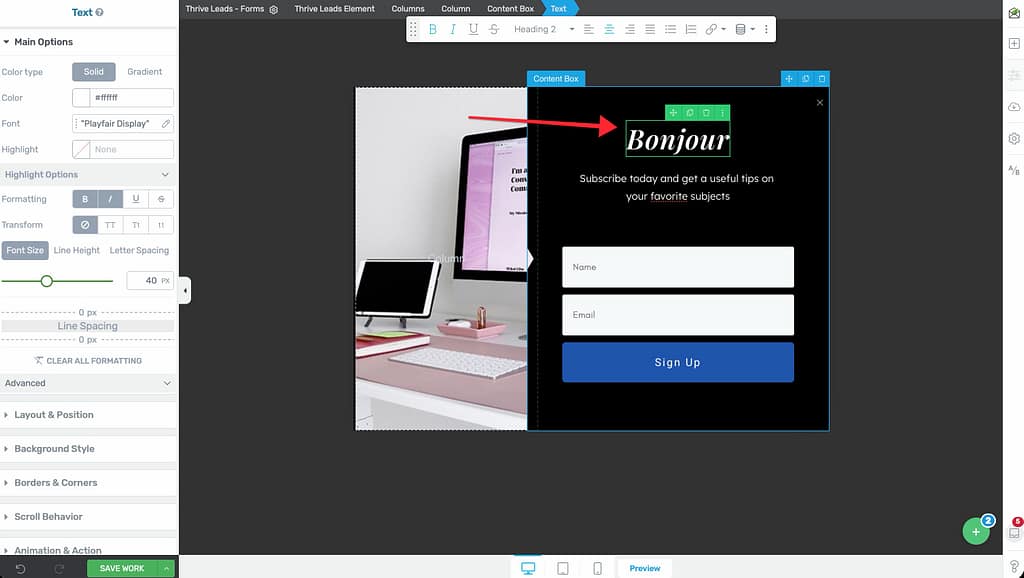
- Open your form in Thrive Architect.
- Click on any text element.
- Type your translation.
Customizing Error Messages
When a user tries to submit a form with invalid information (e.g., a missing email), Thrive Leads displays an error message. You can customize these messages.
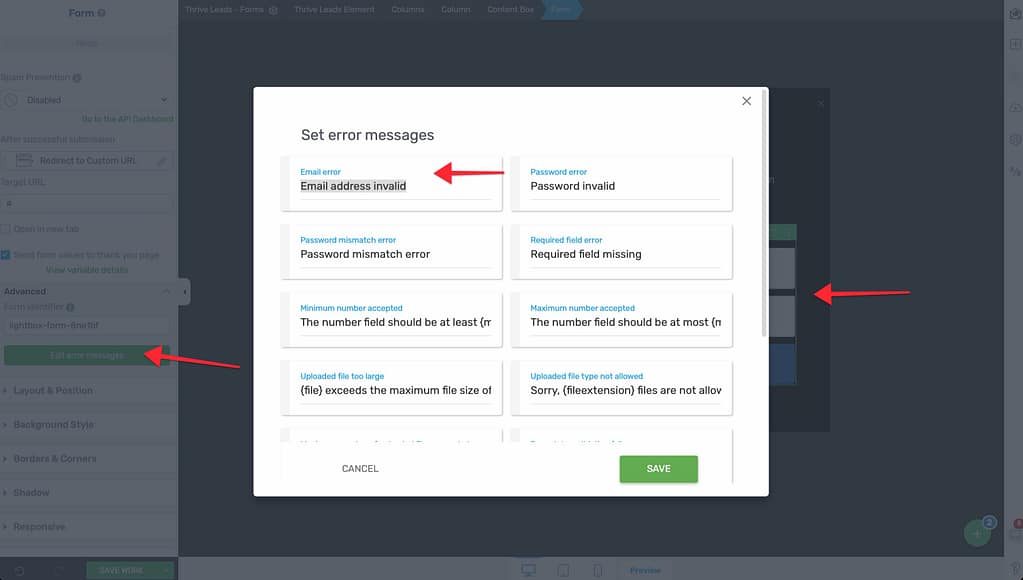
- Select the Lead Generation element on your form.
- In the left sidebar, go to Advanced > Edit Error Messages.
- A popup will appear with a list of all default system messages (e.g., “Email address is invalid”).
- Translate them or rewrite them to be friendlier (e.g., “Whoops! That email doesn’t look right.”).
- Click Save.
RTL (Right-to-Left) Support
Thrive Leads supports RTL languages like Arabic and Hebrew. Read more here: Are Thrive Themes Products RTL Compatible?
- Text Alignment: Select your text or form fields and set the alignment to Right in the typography settings.
- Typography: Ensure your WordPress theme or Thrive Theme Builder settings are set to RTL. Thrive Leads typically inherits the directionality of the page.
- Columns & Layouts: You can manually arrange columns to suit an RTL flow (e.g., placing the image on the right and text on the left).
That’s it! Your forms are now localized for your audience.