In this article, you’ll learn how to manually unlock lessons for individual students in Thrive Apprentice—whether it’s a single lesson or multiple lessons at once—and how to reset lesson status when needed.
When to Manually Unlock a Lesson
If you’ve set up a Drip schedule to release course content over time, some lessons will appear as locked for students who haven’t met the unlock conditions yet. In certain situations, you may want to manually override this and give a specific student immediate access. Common scenarios include:
- A student needs to skip ahead due to prior knowledge or special circumstances.
- A student reports a locked lesson that should be available, and you need to resolve the issue quickly.
- You want to give a specific student early access to upcoming content.
Navigating to the Student’s Course View
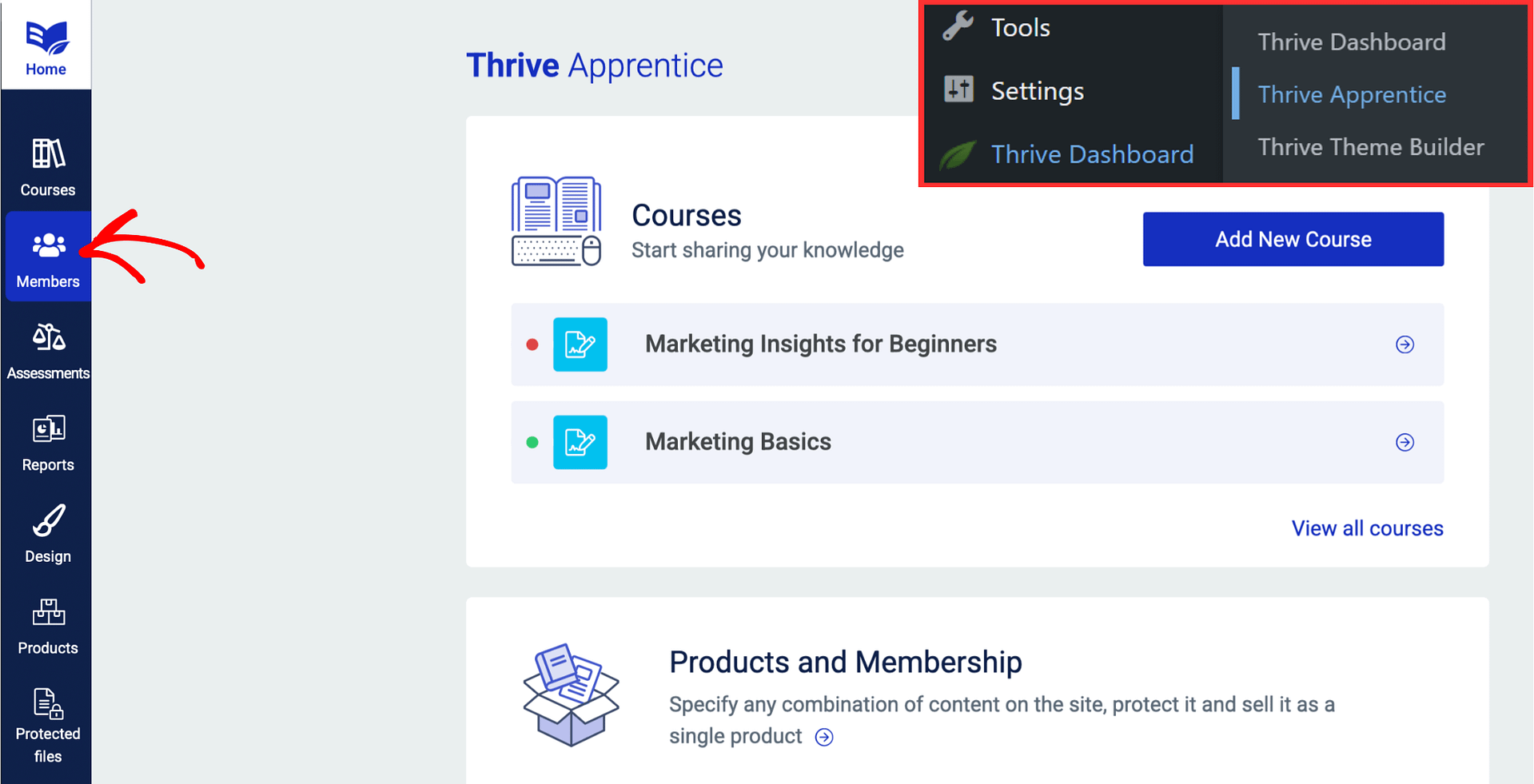
- In your WordPress dashboard, navigate to Thrive Dashboard > Thrive Apprentice.
- Click Members in the left sidebar.
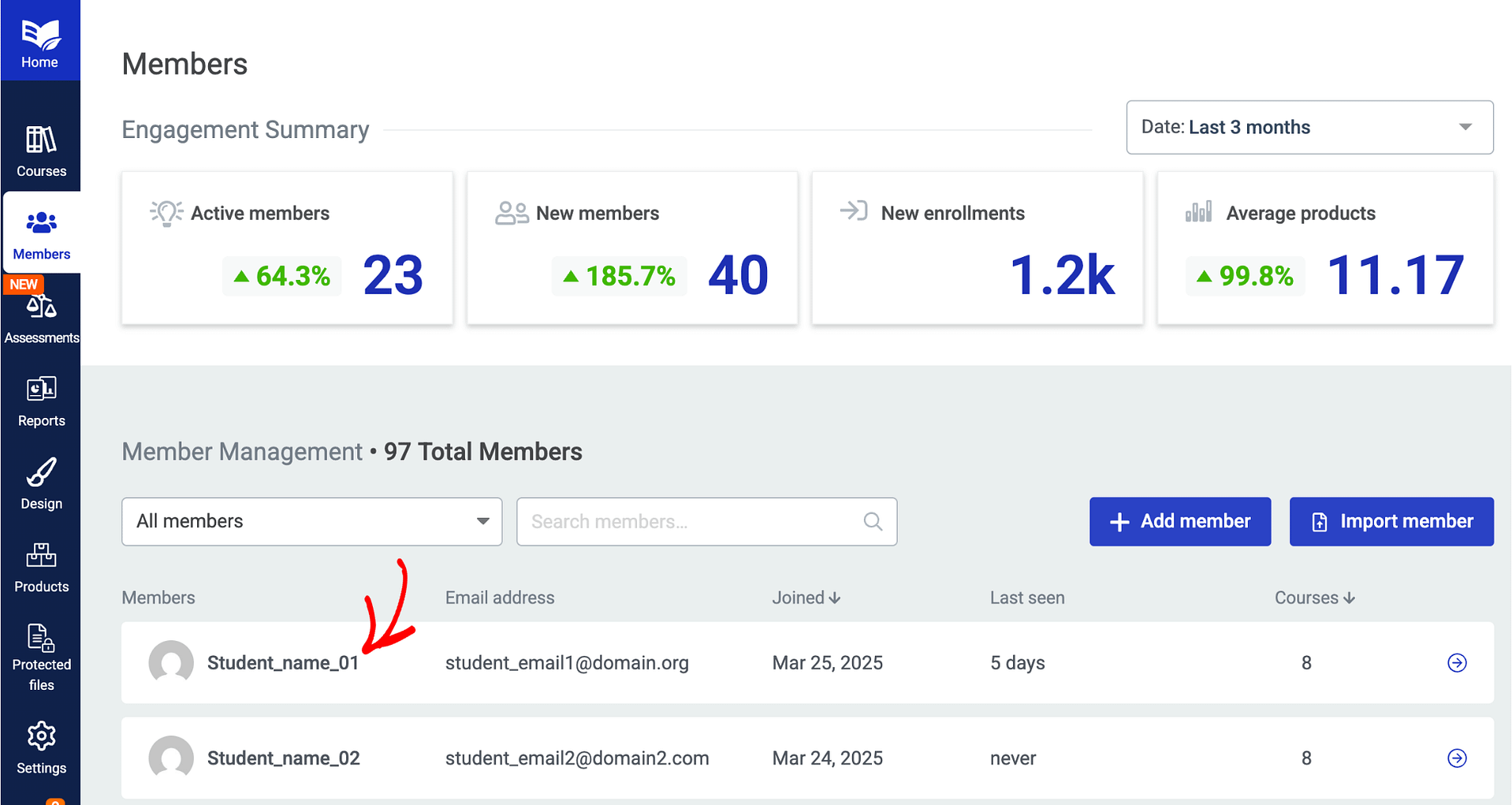
- On the Members page, find and click on the student whose lesson you want to unlock.
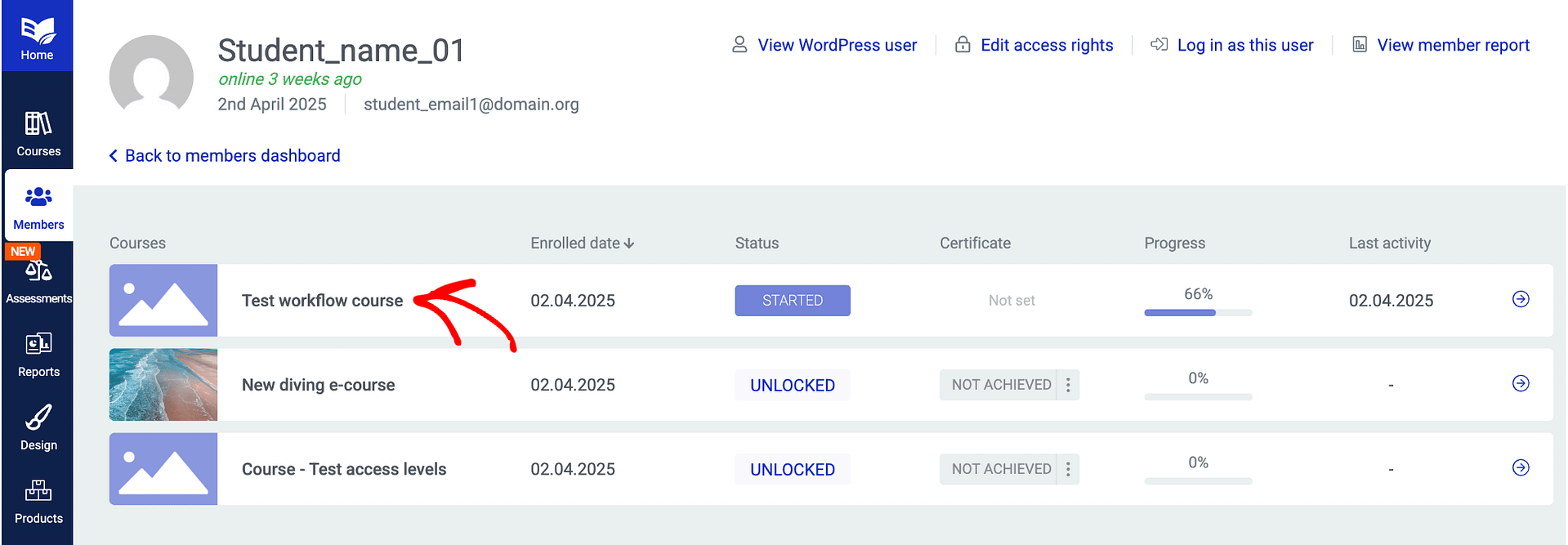
- On the student’s dashboard, click the course that contains the lesson you want to unlock. This expands the course to show all modules and lessons along with their current status.
Unlocking a Single Lesson
To unlock a single lesson that is currently locked by a Drip schedule:
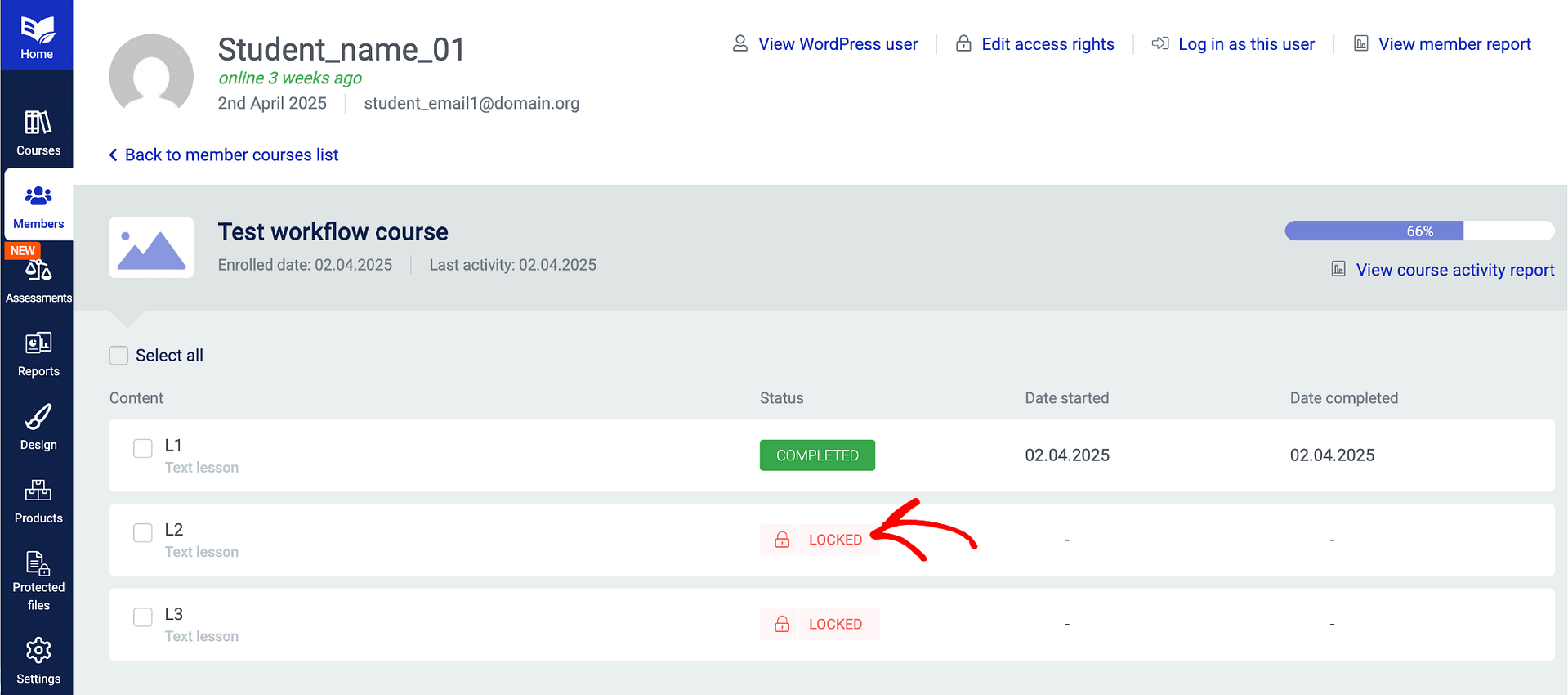
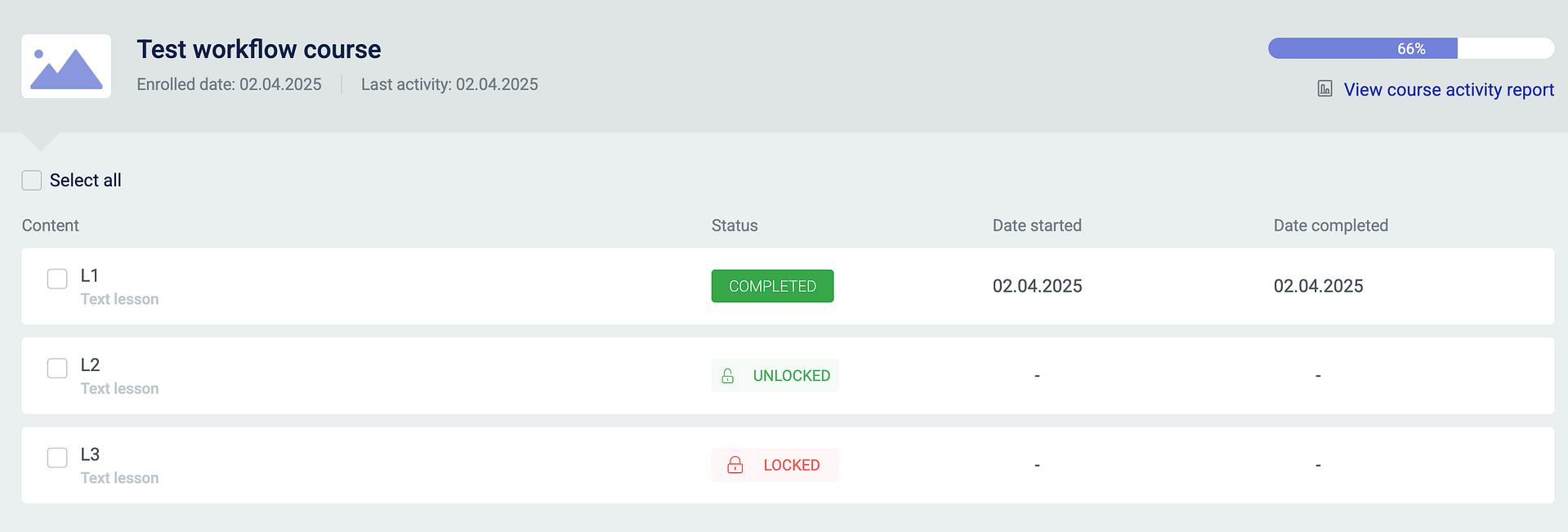
- In the expanded course view, find the lesson you want to unlock. Its status will show as Locked.
- Click on the Locked text in the status column next to the lesson.
- A popup will appear asking you to confirm the action. Click Yes, unlock this content to proceed.
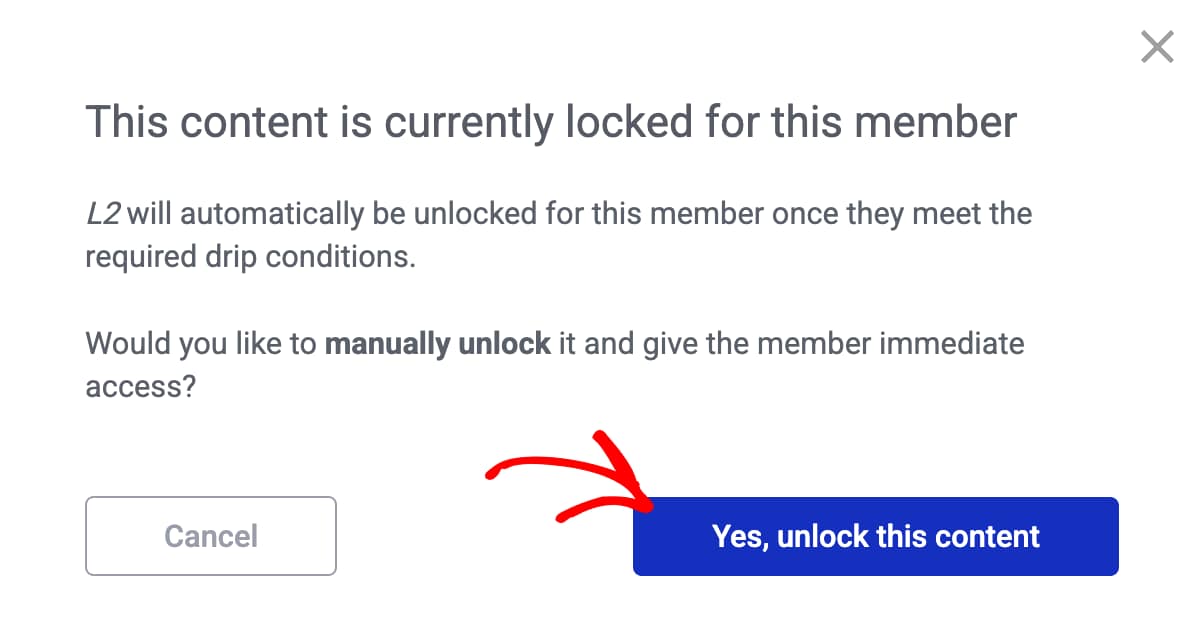
The lesson is now unlocked and immediately accessible to this student. The status will update to reflect the change.
Unlocking Multiple Lessons at Once
If you need to unlock several lessons for a student at the same time, you can use the bulk unlock feature:
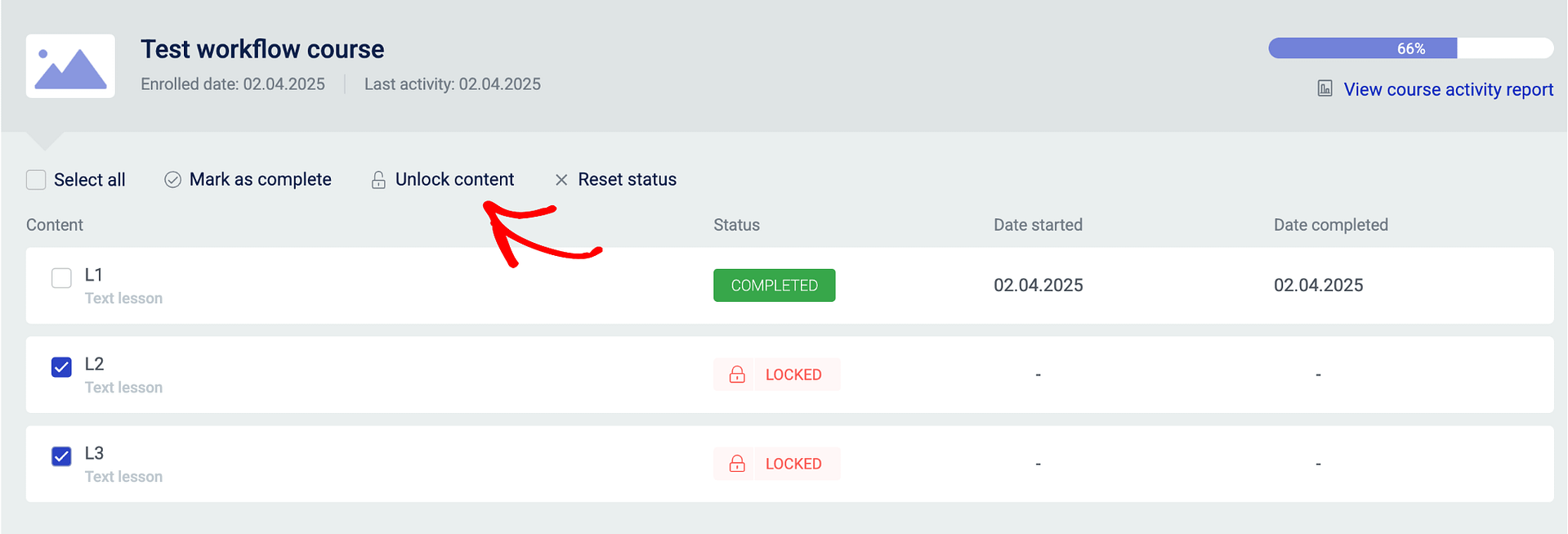
- In the expanded course view, select the lessons you want to unlock by clicking the checkboxes next to each lesson. You can also use the Select all checkbox to select all lessons at once.
- Once lessons are selected, click the Unlock content button that appears in the action bar above the lesson list.
- A popup will appear asking you to confirm. Click Yes, unlock this content to proceed.
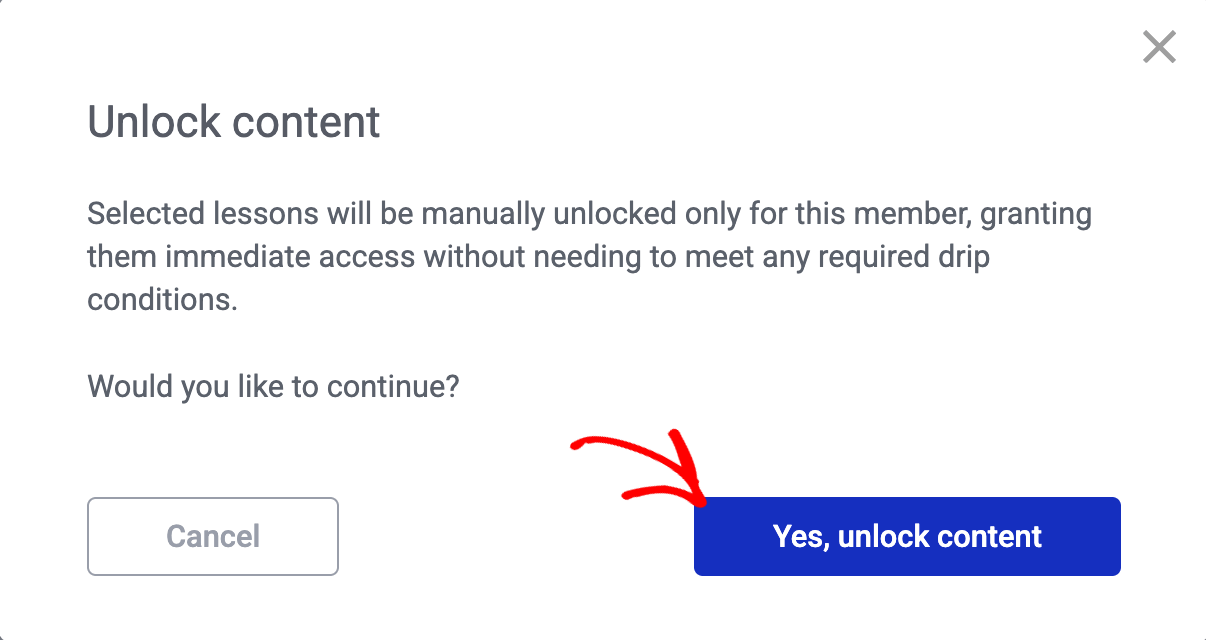
All selected lessons will be unlocked for this student, bypassing any Drip schedule restrictions.
Resetting Lesson Status
If you need to reset the completion status of a lesson so the student can redo it, you can use the Reset status feature:
- In the expanded course view, select the lesson(s) whose status you want to reset by clicking the checkboxes next to them.
- Click the Reset status button in the action bar.
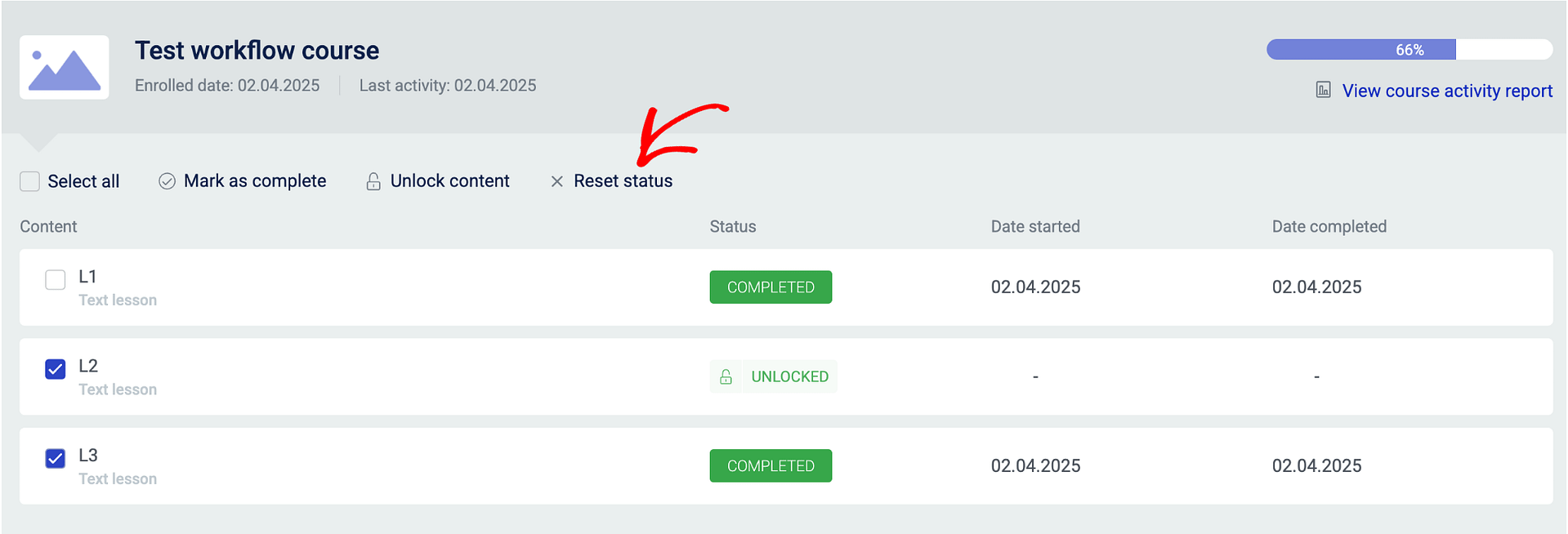
- Confirm the action when prompted.
The selected lessons will have their completion status reset, allowing the student to go through them again.
Note: Manually unlocking or resetting lessons for one student does not affect other students. All other students will continue to follow the standard Drip schedule and access rules you’ve configured for the course.
That’s it! You now know how to manually unlock single or multiple lessons for a student, and how to reset lesson status in Thrive Apprentice.
Related Resources
- Viewing Member Data: Learn how to view member data to find and manage individual student profiles.
- Conditional Lesson Unlocking: Set up conditional lesson unlocking rules for automated, rule-based access control.
- Drip Scheduling: Review drip schedule settings to understand how timed content release works.
- Access Restrictions and Rules: Explore the full access restrictions guide for product-level and course-level access management.