In this article, you’ll learn how to use Thrive Apprentice’s AI Course Generation features to build and launch courses in minutes.
The AI Course Generation tool helps you overcome “content creation paralysis” by transforming you from a writer into an Editor-in-Chief. whether you’re starting from scratch or remixing existing content, this tool leverages AI to speed up your workflow significantly.
Prerequisites
Before you begin, make sure you have:
- Thrive Apprentice installed and activated on your website.
- An active internet connection to access the AI generation services. If you’re working on a local setup without internet, it may not work.
How to Generate a Course from a Prompt (“Prompt-to-Course”)
The Prompt-to-Course engine allows you to generate a full course structure—including titles, modules, lesson headers, and content—from a simple text description.
- Navigate to Thrive Apprentice in your WordPress dashboard.
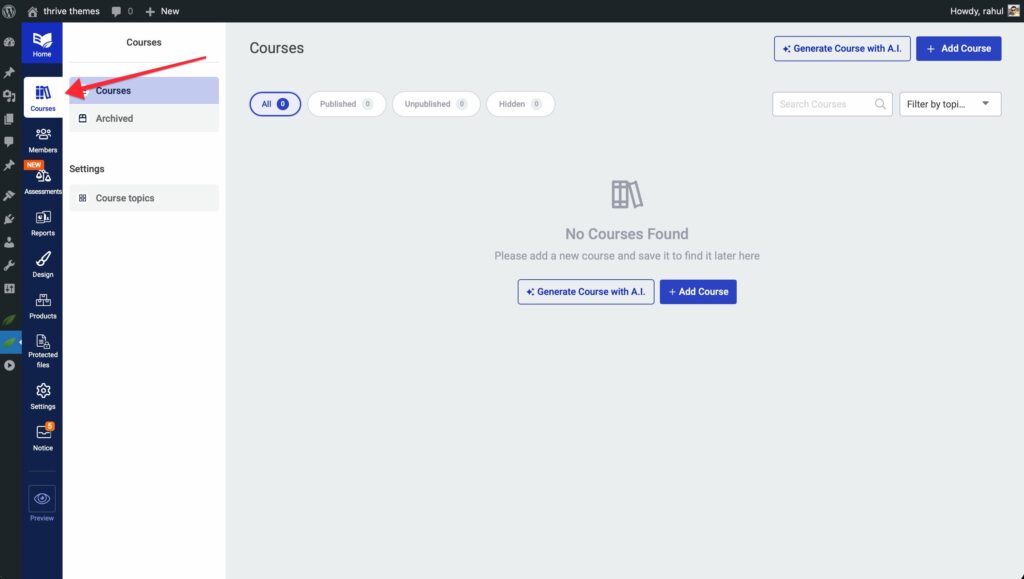
- Click the Courses tab.
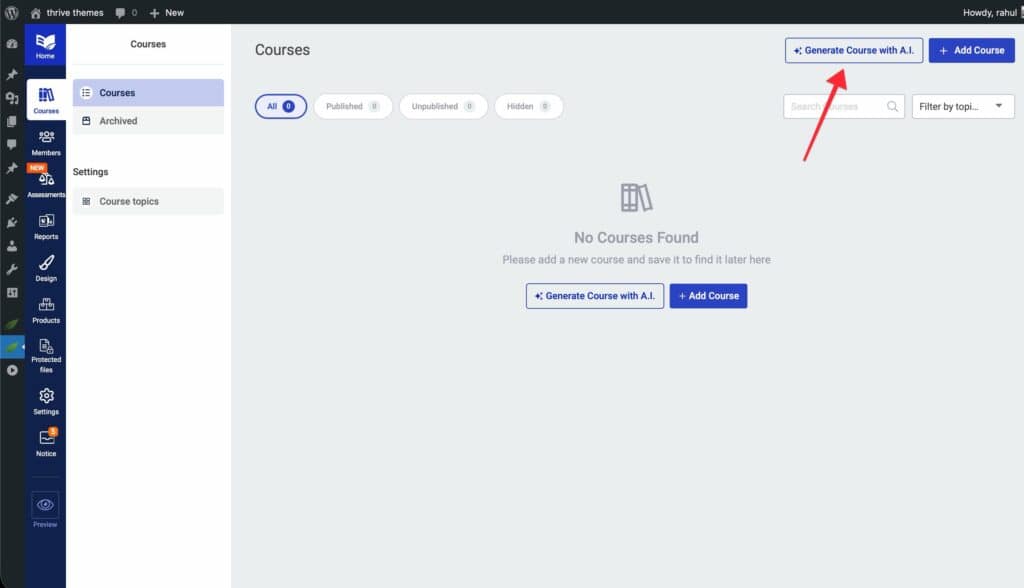
- Click Generate course with AI.
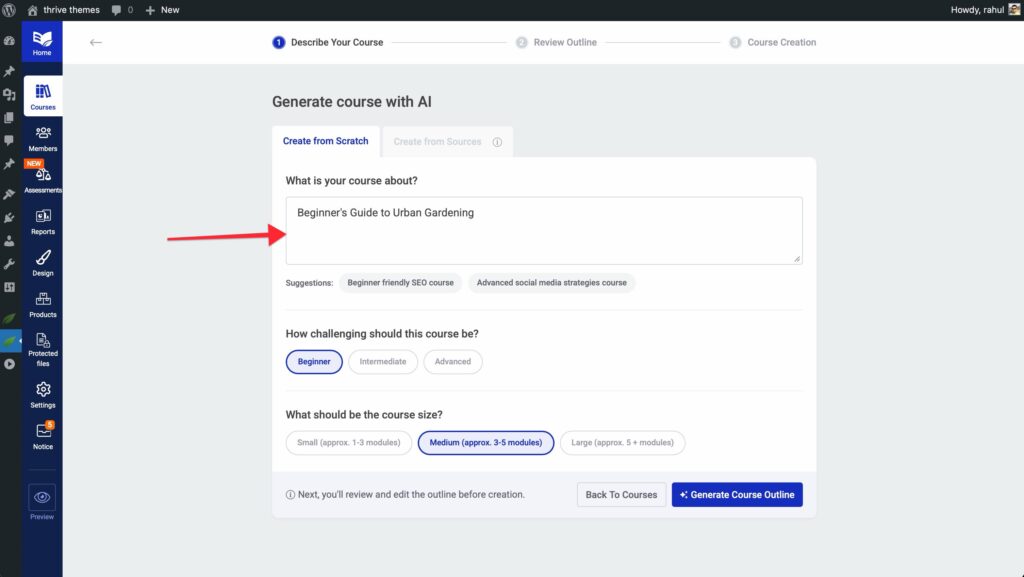
- In the Topic field, enter a brief description of what you want to teach (e.g., “Beginner’s Guide to Urban Gardening”).
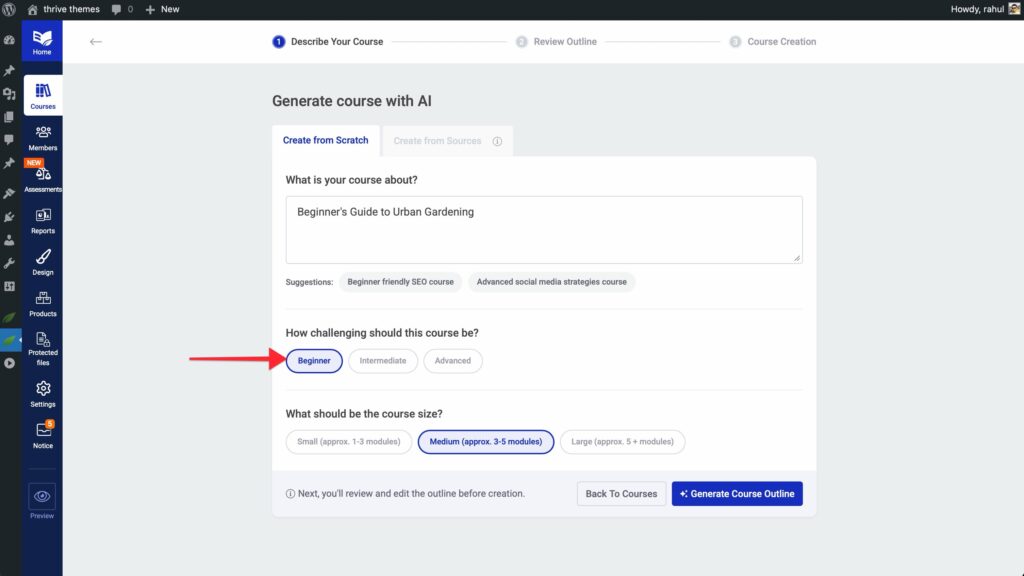
- Adjust the Difficulty and Course Length settings to match your target audience.
- Click Generate Course Structure.
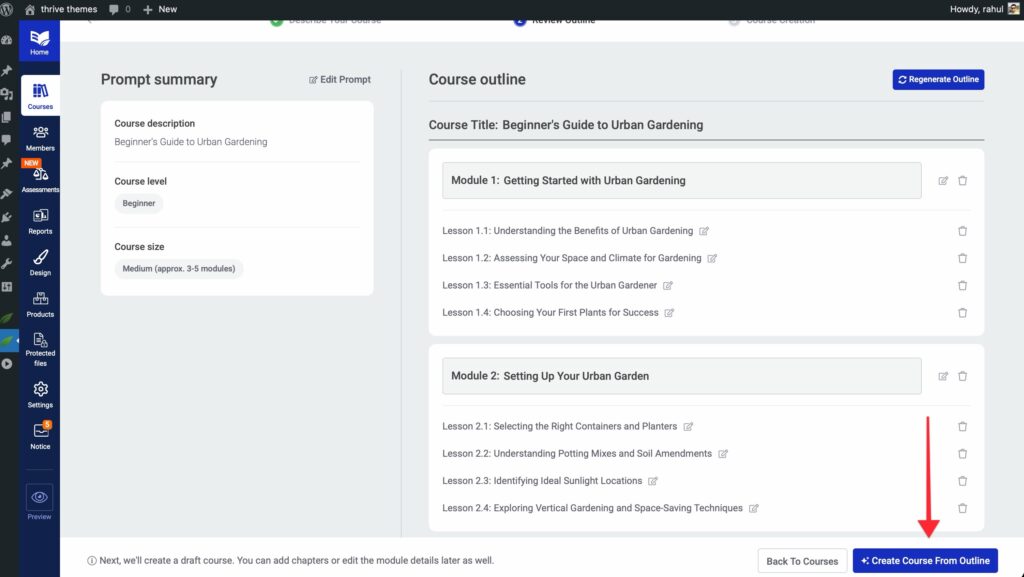
The AI will now create a proposed outline for your course.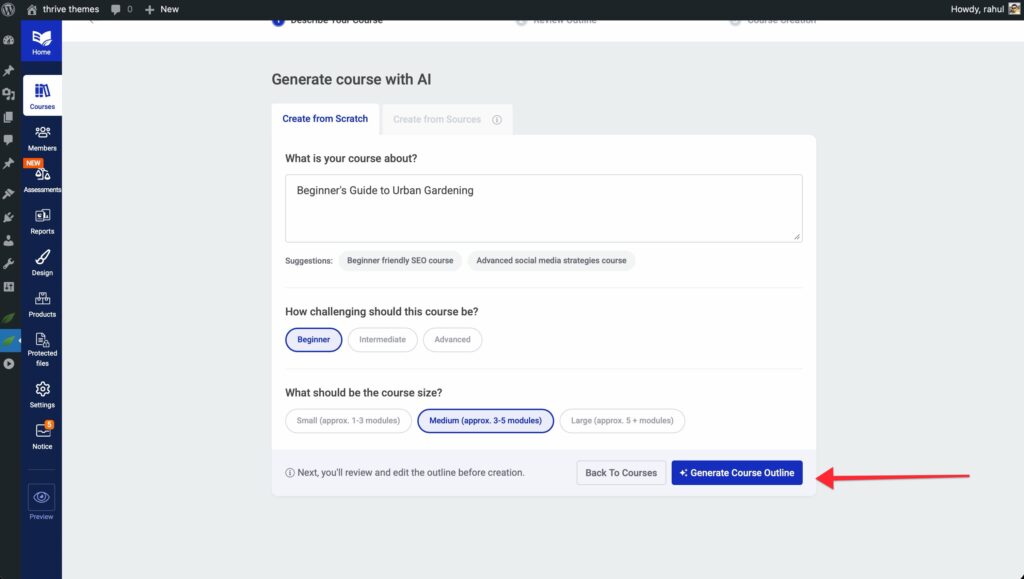
- Review the outline. You can regenerate specific sections or edit titles if needed.

- Once you are satisfied with the structure, click Generate Content to have the AI write the lesson summaries and text.
How to Remix an Existing Course
The Course Remixer allows you to take a course you’ve already built and use it as a “seed” to create a new, fully written course for a different niche.
- Go to your Thrive Apprentice dashboard.

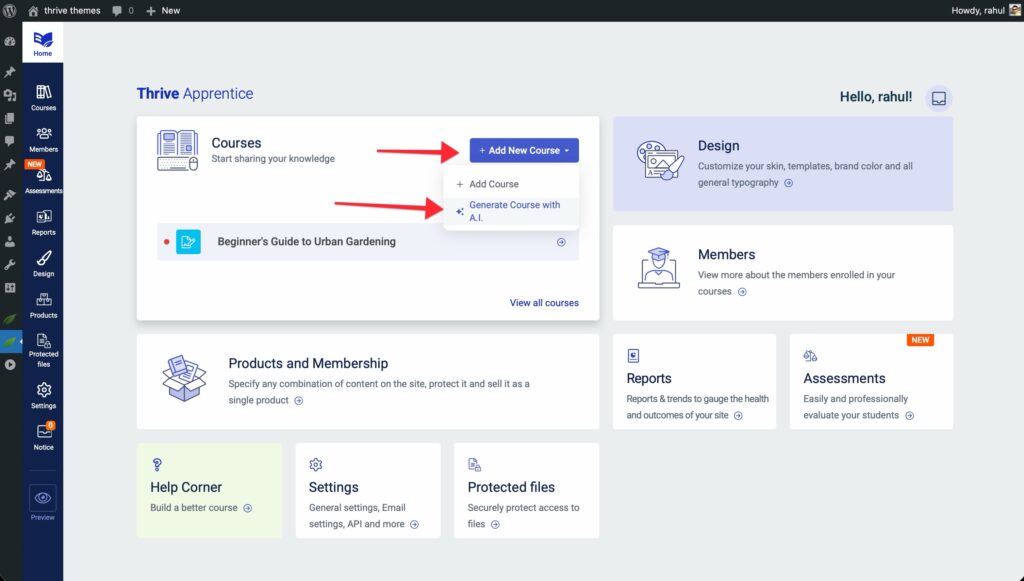
- Click on Add new Course and then Generate Course with AI
- Click on Create from Source tab.
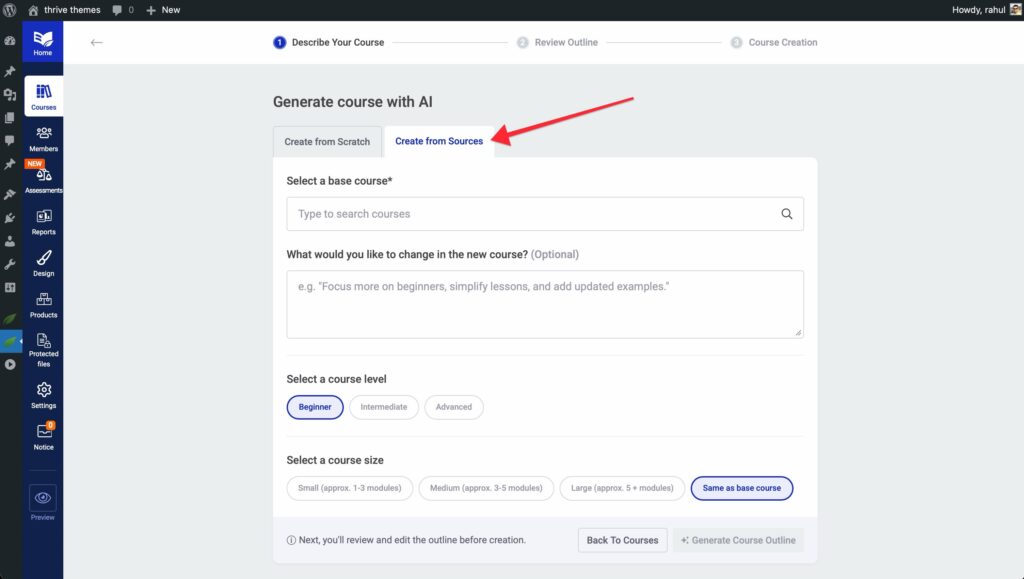
- Select the Base course (Existing course) and then describe what you’d like to change or Topic you want to adapt the content for (e.g., changing “Beginner’s Guide to Urban Gardening” to “Social Media for Gardners”).
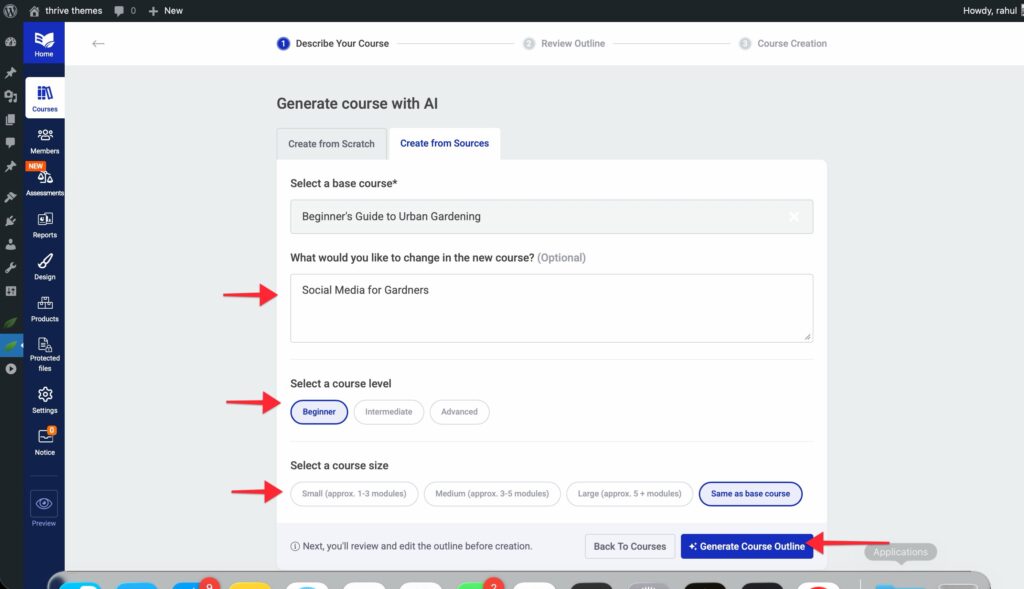
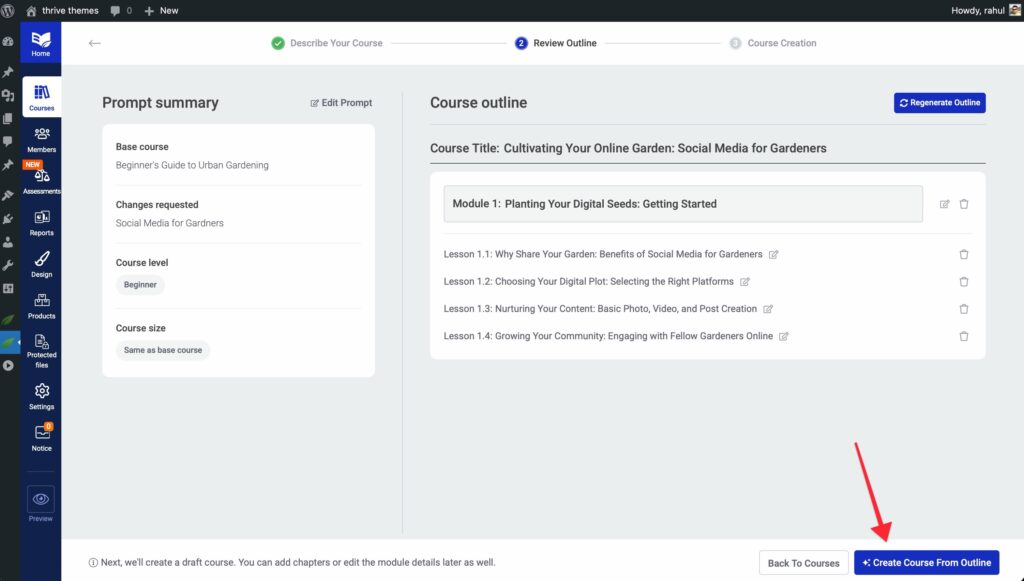
- The AI will rewrite the content, keeping the proven structure of your original course but adapting the terminology and examples for the new audience.

- Review the changes and click Create Course From Outline to create your new asset.
How to Refine Your Course (Editor’s Control)
You always maintain full control over the AI-generated content. You are the Editor-in-Chief; the AI is your ghostwriter.
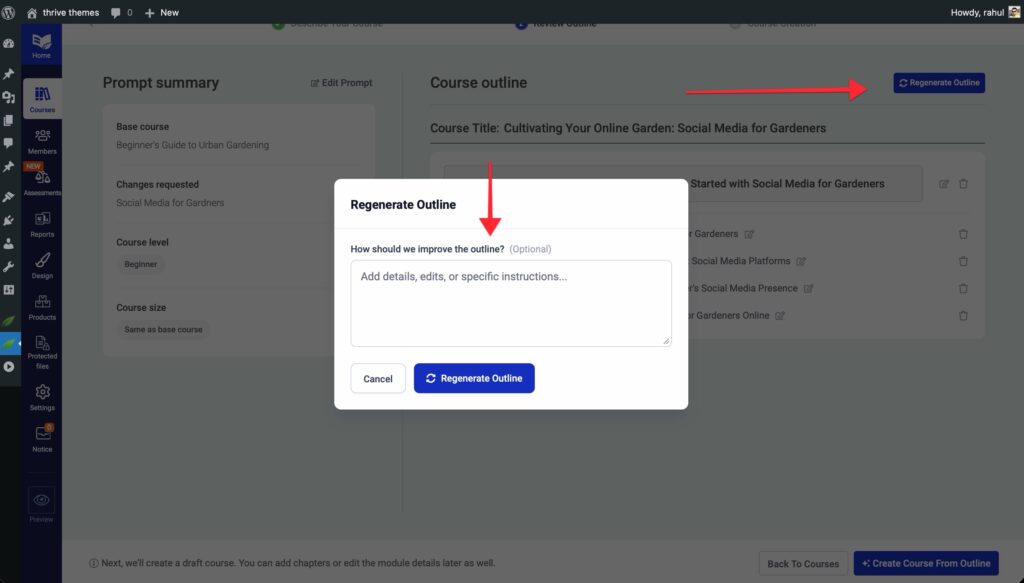
- Regenerate Sections: If a specific lesson doesn’t sound right, use the Regenerate button to get a fresh version.
- Tweak Tone: Adjust the detailed settings to make the content sound more formal, casual, or enthusiastic.
- Manual Edits: You can edit any text field directly, just like you would in a regular WordPress post. This allows you to add your unique voice, stories, and expertise to the “80% done” draft provided by the AI.
Frequently Asked Questions
Will the content sound robotic?
Think of the AI capability as a V1 draft. It handles the structure and core writing (about 80% of the work). You should always step in for the final 20% to add your unique voice, anecdotes, and expertise. It is much faster to edit a good draft than to write from a blank page.
Is using AI “cheating”?
No, it is efficiency. Just like using a calculator for math, using AI for drafting handles the repetitive work so you can focus on delivering high-value expertise.
Related Resources
- Thrive Apprentice Knowledge Base: Explore the full Thrive Apprentice Knowledge Base for more tutorials.
- Course Organization: Learn how to organize your courses effectively.