In this article, you’ll learn how to use the author-related elements in Thrive Theme Builder—including the About the Author box and the Business Social Links element.
Prerequisites
Before using author elements, make sure each author’s WordPress profile is complete:
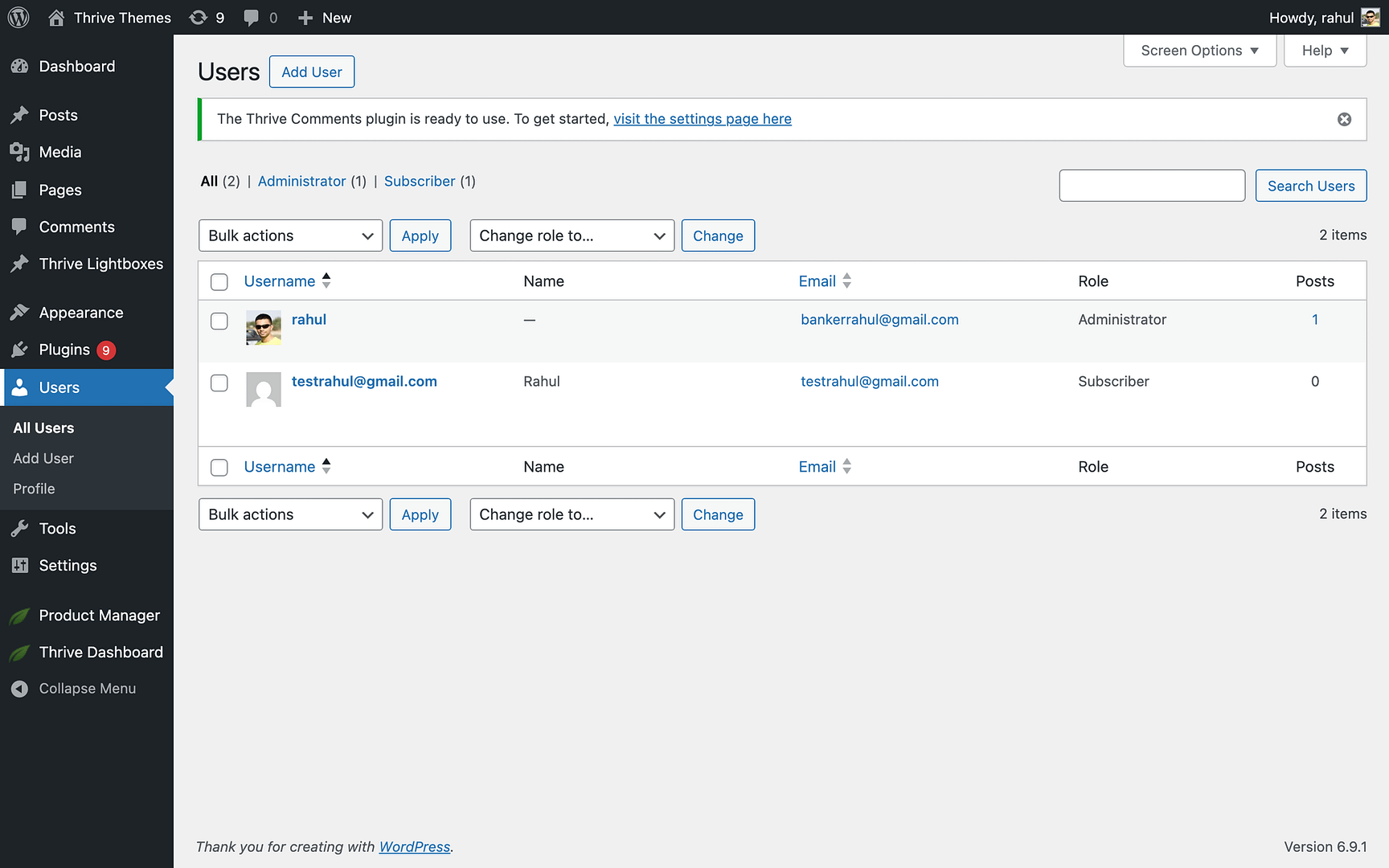
- Go to Users > All Users in the WordPress admin.
- Click on the author’s name to edit their profile.
- Fill in:
- Biographical Info — The author’s bio text.
- Profile Picture — Set via Gravatar or a profile picture plugin.
- Social Media URLs — Add links to the author’s social profiles (if using the Business Social Links element).
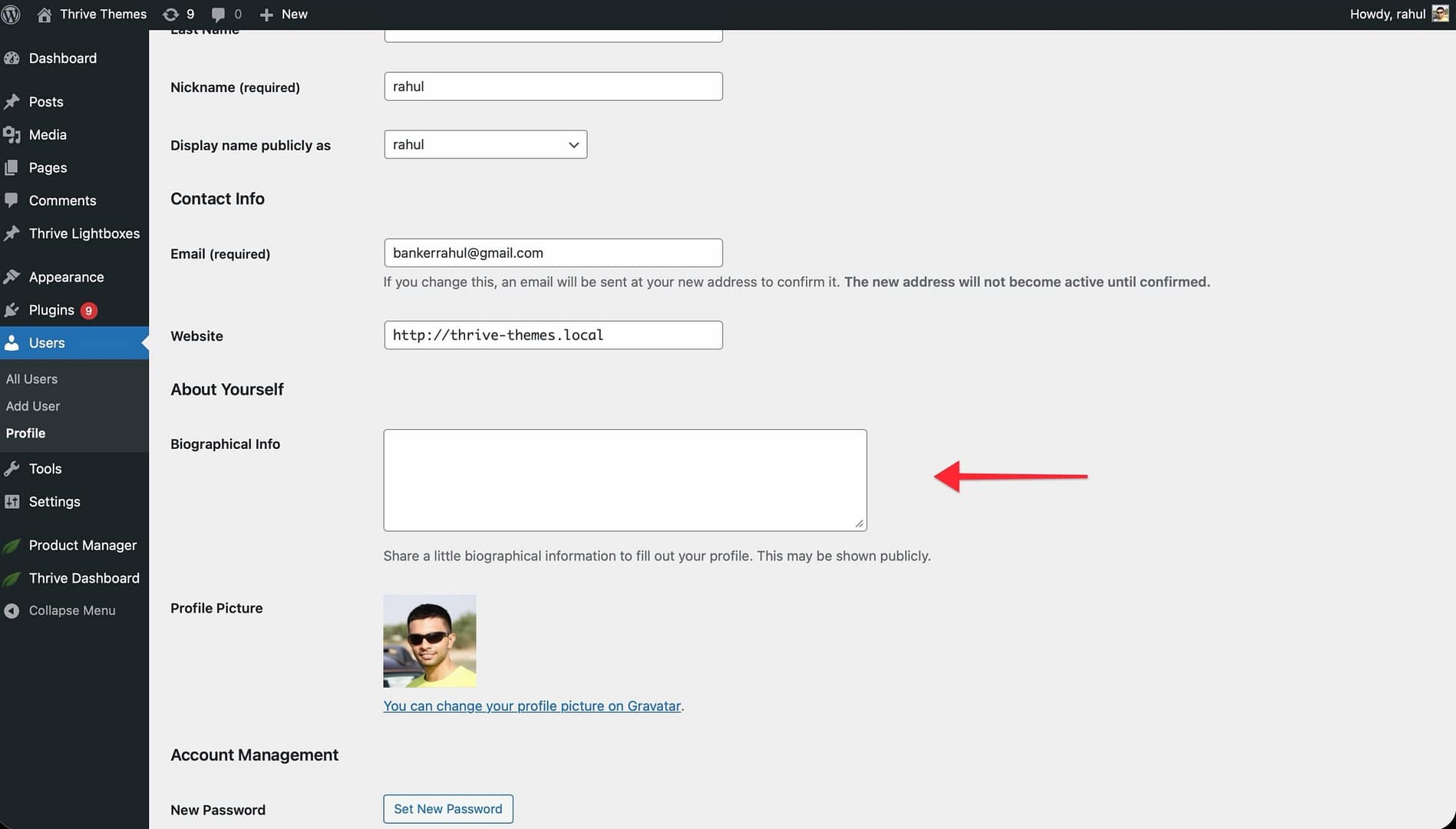
Without this information, author elements will display placeholder content or a “No information about the author” message.
About the Author Element
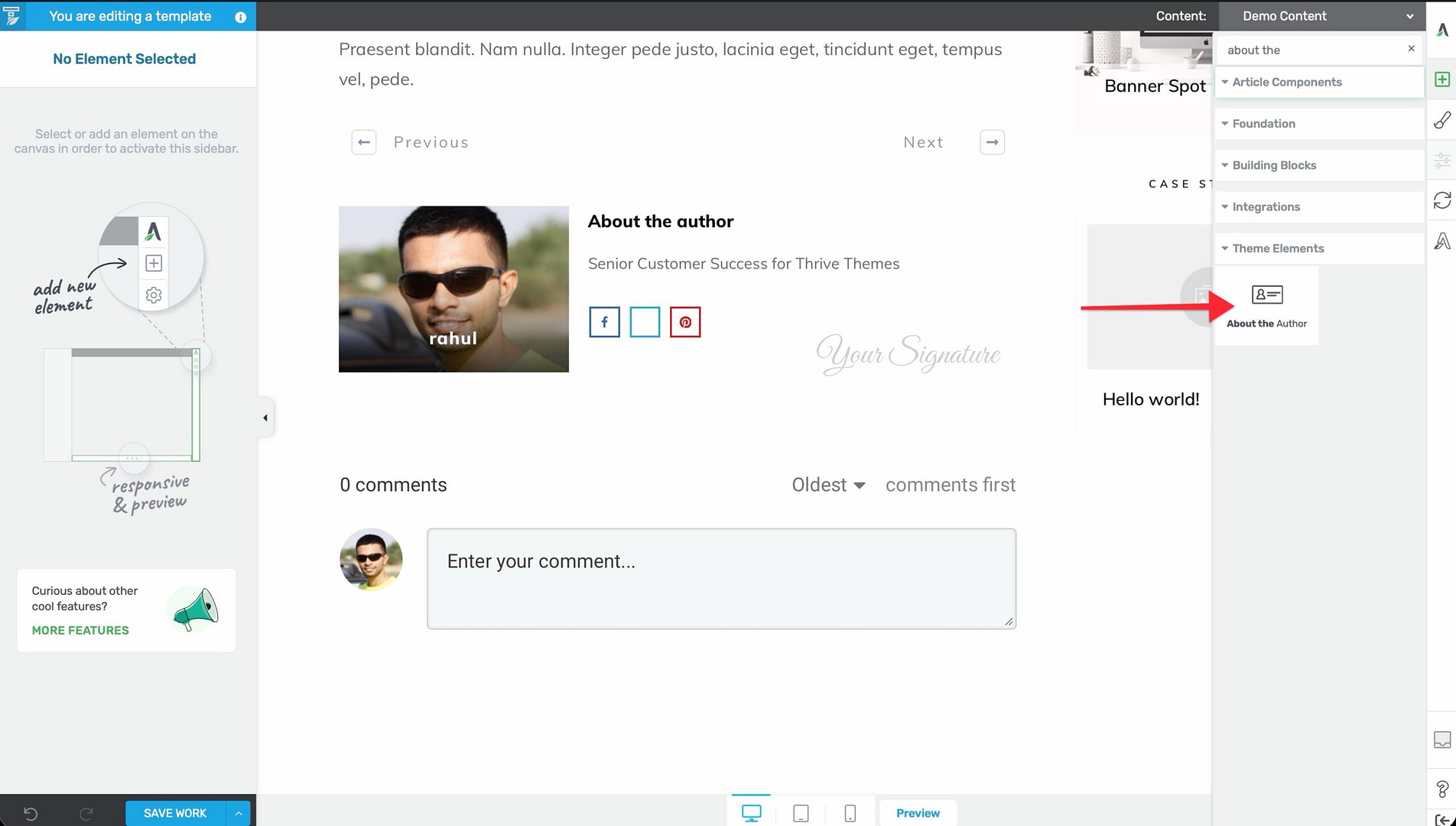
The About the Author element displays a structured author information box on your post templates. It typically includes the author’s profile image, name, and biographical information.
Adding the Element
- Open a post template in the Thrive Theme Builder editor.
- Click the plus (+) icon in the right sidebar.
- Search for About the Author (or Author Box).
- Drag the element into position on the template (typically below the post content).
- Select the template of your choice.
Customization Options
- Background — Set a background color or style for the author box.
- Border — Add borders around the author box.
- Layout — Control the arrangement of the image, name, and bio.
- Shadows — Add shadow effects.
- Typography — Override the font and text styling.
Controlling Visibility
You can control when the About the Author element appears at two levels:
- Template level — Add or remove the element from the template. This affects all posts using that template.
- Post level — Use the Visibility Settings on individual posts to show or hide the author box, overriding the template default.
Note: This element is only available on singular templates (posts and pages). It does not appear on archive or list templates.
Author Image
The author’s profile picture is included as part of the About the Author element. It is not a separate standalone element.
How It Works
- The About the Author element automatically pulls the correct author’s profile image for each post.
- No manual image updates are needed—when different authors publish posts, the template displays the correct image for each author.
- If an author doesn’t have a profile image set, a default placeholder image is displayed.
Customization
Within the About the Author element, you can style the author image with:
- Border radius (for rounded or circular images).
- Image size and dimensions.
- Border and shadow effects.
Business Social Links Element
The Business Social Links element displays clickable social media icons that link to social media profiles. When placed inside the About the Author element, it shows the post author’s social profiles.
Adding the Element
- In the Thrive Theme Builder editor, click the plus (+) icon in the right sidebar.
- Search for Business Social Links.
- Drag the element into position on the template (typically inside or near the About the Author box).
Prerequisites
Social media URLs must be configured for each author. The exact location depends on your setup—typically in the author’s WordPress profile or through Thrive Theme Builder’s social profile settings.
Customization Options
- Style — Choose from multiple pre-designed icon styles.
- Size and spacing — Adjust icon size and the spacing between icons.
- Colors — Customize icon colors to match your template design.
Business Social Links vs. Social Follow
These are two different elements:
- Business Social Links — When used in the context of an author box, displays the post author’s personal social profiles. Changes per author.
- Social Follow — Displays your site’s social profiles. Same for every page.
Use Business Social Links when you want to connect readers with the specific author of each post. Use Social Follow when you want to promote your site’s brand social accounts.
Best Practices
- Complete all author profiles — Empty profiles lead to missing images and placeholder text. Fill in bios, profile pictures, and social links for all authors before activating these elements.
- Place author elements consistently — The most common placement is below the post content, above the comments section. This creates a natural flow from reading the article to learning about the author.
- Keep bios concise — Author bios displayed on post templates should be short (2–3 sentences). Longer bios can overwhelm the page layout.
- Test with multiple authors — If your site has multiple authors, preview the template with posts from different authors to make sure the dynamic content displays correctly.
Related Resources
- Using Post Content & Meta Elements: Learn about post content and metadata elements.
- Using Navigation Elements: Learn about breadcrumbs and post navigation.
- Connecting Social Media Profiles: Learn how to set up social profiles.