In this article, you’ll learn how to use the Conditional Display feature in Thrive Architect. Conditional Display allows you to show or hide content based on specific rules and conditions — such as whether a visitor is logged in, their user role, the current date and time, URL parameters, referrer information, cookies, device type, and more. This gives you the power to create personalized, dynamic page experiences without writing any code.
For example, you can display a “Buy Now” call-to-action for visitors who have not yet purchased a product, while showing a “Download” button for customers who have already made a purchase. You can also show time-sensitive offers, hide content from specific user roles, or display different menus based on login status.
Understanding Conditional Display
Conditional Display works by creating multiple display variants of the same element. Each variant can have completely different content, styling, and layout. You then assign condition rules to each variant that determine when it should be shown to visitors.
When a visitor loads the page, Thrive Architect evaluates the condition rules in order and displays the matching variant. If no specific conditions are met, the Default Display is shown.
Supported Elements
The Conditional Display feature is available on the following Thrive Architect elements:
- Block element
- Text element
- Background Section element
- Content Box element
- Custom Menu element
Note: Conditional Display is not available on all elements. If you do not see the Conditional Display option in the left sidebar when an element is selected, that element does not support this feature. To use Conditional Display with other types of content, wrap the content inside a Block, Content Box, or Background Section element.
Finding the Conditional Display Option
To access the Conditional Display settings:
- Open your page in the Thrive Architect editor.
- Click on a supported element (Block, Text, Background Section, Content Box, or Custom Menu) to select it.
- In the left sidebar, scroll down and click on the Conditional Display section to expand it.
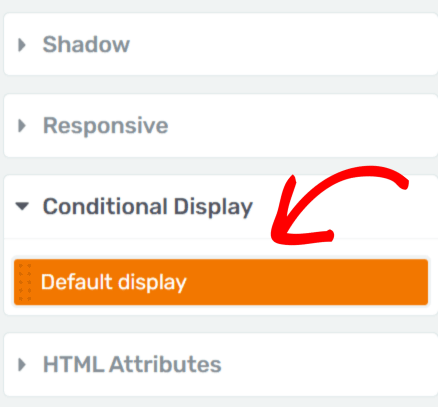
When you expand the Conditional Display section, you will see the Default Display tab highlighted in orange. This represents the current design of the element — the version that all visitors see by default when no conditional rules match.
Creating and Editing a Display Variant
To show different content based on conditions, you need to create one or more additional display variants.
Creating a New Display Variant
There are two ways to create a new display variant:

Method 1: Duplicate the Default Display
- Open the Conditional Display section in the left sidebar.
- Hover over the Default Display tab.
- Click the duplicate icon (copy icon) that appears on the right side of the tab.
- A new display variant will be created as a copy of the default display.
Method 2: Add a New Display
- Open the Conditional Display section in the left sidebar.
- Click the Add Display option at the bottom of the display list.
- A new, empty display variant will be added.
Naming the Display Variant
After creating a new display variant, give it a descriptive name to keep your displays organized:
- Hover over the new display tab and click the pen (edit) icon.
- Enter a descriptive name (e.g., “Logged In Users,” “Premium Members,” “Holiday Offer”).
- Click the Apply button to save the name.
Customizing the Display Variant Content
- Click on the new display tab to select it. The editor canvas will update to show that variant’s content.
- Edit the content, text, images, buttons, styling, and layout just as you would edit any normal element.
- Each display variant is independent — changes you make to one variant do not affect the others.
- When finished, click the Save Work button in the bottom-left corner of the screen.
Setting Up Display Conditions
After creating and customizing a display variant, you need to define the rules that determine when it is shown to visitors.
Adding Condition Rules
- In the Conditional Display section, hover over the display variant you want to configure.
- Click the filter icon that appears on the right side of the tab.
- A Conditional Display popup will open, where you can define your rules.
Understanding the Condition Rule Structure
Each condition rule consists of three parts:

- Action — Choose either Display content (show the variant when conditions are met) or Hide content (hide the variant when conditions are met).
- Entity — The category of data to evaluate, such as User, Time, Request, or Referral.
- Field and Value — The specific property and value to test, such as “User is logged in” or “User role is Subscriber.”
Adding a New Condition Set
- In the Conditional Display popup, choose Display content or Hide content from the first dropdown.
- Click + New condition set to add a new rule.
- Select the entity in the first dropdown (e.g., User).
- Select the field in the second dropdown (e.g., Is logged in, Role, Has WP Fusion tags).
- Configure the comparison operator and value as needed (e.g., “is,” “is not,” followed by a specific role or status).
- Click the Save conditions button in the bottom-right corner of the popup.
Available Condition Rule Types
Thrive Architect provides a comprehensive set of condition rules organized by entity type.

User Conditions
User conditions evaluate properties of the visitor viewing the page:
- Is logged in / Is not logged in — Shows or hides content based on whether the visitor has an active login session on your WordPress site.
- Role — Targets visitors based on their WordPress user role (e.g., Administrator, Editor, Author, Contributor, Subscriber, Customer, or any custom role). You can set the condition to match users who are or are not a specific role.
- Has purchased product — Available when using Thrive Apprentice or WooCommerce. Shows or hides content based on whether the user has purchased a specific product.
- Has WP Fusion tags — Available when the WP Fusion plugin is active. Targets visitors based on their CRM or email marketing tags, lists, or segments.
Time Conditions
Time conditions evaluate the current date, time, or day:
- Current date — Shows or hides content based on whether the current date is before, after, or on a specific date. Useful for time-limited promotions, seasonal content, or launch countdowns.
- Current time — Shows or hides content based on the time of day. Useful for displaying business hours information, happy hour offers, or time-of-day greetings.
- Day of week — Shows or hides content based on the current day of the week. Useful for displaying different schedules or offers on specific days.
- Day of month — Shows or hides content based on a specific day of the month.
Request Conditions
Request conditions evaluate properties of the visitor’s browser request:
- URL parameter — Shows or hides content based on whether a specific URL parameter is present and matches a value. For example, you can display special content when the URL contains
?offer=summerby setting a condition for the parameter “offer” with the value “summer.” - Cookie — Shows or hides content based on whether a specific browser cookie is set and matches a value. Useful for tracking returning visitors, A/B testing, or integration with external tools that set cookies.
- Device type — Shows or hides content based on whether the visitor is using a desktop, tablet, or mobile device.
- Referrer — Shows or hides content based on the referring URL (the page the visitor came from). You can target visitors arriving from specific websites, search engines, social media platforms, or campaign links.
AND/OR Logic for Combining Rules
When you need to combine multiple conditions, Thrive Architect supports both AND and OR logic:
AND Logic (Multiple Conditions Within a Set)
When you add multiple conditions within the same condition set, they are evaluated using AND logic. All conditions in the set must be true for the display variant to be shown.
Example: To show content only to logged-in administrators, create a single condition set with two conditions:
- User is logged in AND
- User role is Administrator
OR Logic (Multiple Condition Sets)
When you create multiple condition sets (by clicking + New condition set multiple times), they are evaluated using OR logic. If any one of the condition sets is fully satisfied, the display variant will be shown.
Example: To show content to either Subscribers or Customers, create two separate condition sets:
- Condition Set 1: User role is Subscriber
- OR Condition Set 2: User role is Customer
By combining AND and OR logic, you can build sophisticated targeting rules that match complex audience segments.
Targeting Prospective Leads vs. Customers
One of the most powerful applications of Conditional Display is showing different content to prospective leads versus existing customers. Here is a step-by-step walkthrough:
Step 1: Add the Container Element
Add a Content Box, Block, or Background Section element to your page. This element will contain the content you want to display conditionally.
Design the default version of the element with the content you want prospective (non-logged-in) visitors to see — for example, a “Buy Now” button and product description.
Step 2: Create a Customer Display Variant
- Open the Conditional Display section for the element.
- Click Add Display or duplicate the default display.
- Name the new variant (e.g., “Customers” or “Logged In”).
- Click the new variant to select it in the editor.
- Modify the content for customers — for example, replace the “Buy Now” button with a “Download” button and update the text to thank them for their purchase.
Step 3: Set the Condition Rule
- Hover over the customer display variant tab and click the filter icon.
- In the popup, select Display content.
- Click + New condition set.
- Set the condition to: User > Is logged in.
- Click Save conditions.
Now, visitors who are logged in will see the customer variant, while all other visitors see the default “Buy Now” variant.
Step 4: Refine with Product-Based Conditions
If you want to be more specific, you can target users who have actually purchased a particular product (rather than just being logged in):
- Edit the condition rule for the customer variant.
- Change the condition to: User > Has purchased product > select the specific product.
- Save the conditions.
This ensures that only users who have purchased that exact product see the customer-specific content.
Hiding Content from Specific User Roles
You can use Conditional Display to hide content from users with a particular WordPress role. For example, you may want to hide a lead generation form from Contributors on your site.
Step-by-Step
- Select the element containing the content you want to hide.
- Open the Conditional Display section.
- Duplicate the default display or add a new display.
- Name the new variant (e.g., “Non-Contributors”).
- Customize the content of the new variant as needed (e.g., remove the lead generation form, change the text).
- Hover over the new variant and click the filter icon.
- In the popup, select Display content.
- Add a condition set: User > Role > is not > Contributor.
- Save the conditions.
The result: all user roles except Contributors will see the new variant. Contributors will see the default display, which can contain alternative content or a simpler version of the section.
WP Fusion Tag-Based Conditions
If you use the WP Fusion plugin to connect your WordPress site with a CRM or email marketing platform, you can create conditional display rules based on your users’ CRM tags, lists, or segments.
Prerequisites
- Install, activate, and configure the WP Fusion plugin on your website.
- Connect WP Fusion to your CRM (e.g., ActiveCampaign, Brevo, Mailchimp, ConvertKit, HubSpot).
- In the WordPress admin area, navigate to Settings > WP Fusion > General Settings and configure the tags or lists you want to use.
- Click Save changes.
Note: Depending on your CRM, the terminology may differ. Some CRMs use “tags” while others use “lists,” “groups,” or “segments.” WP Fusion normalizes these differences so they all work the same way in the Conditional Display settings.
Setting Up a WP Fusion-Based Condition
- Open the page in the Thrive Architect editor.
- Select the element with Conditional Display support (e.g., a Background Section with a call-to-action).
- Open the Conditional Display section and create a duplicate display.
- Name the duplicate (e.g., “VIP List Members”).
- Customize the content of the duplicate variant.
- Click the filter icon on the duplicate display.
- Select Display content and add a new condition set.
- Set the entity to User, the field to Has WP Fusion tags.
- In the value field, start typing the tag name or list name and select it from the available options.
- Click Save conditions.
The duplicate display will now be shown only to visitors who have the specified WP Fusion tags applied to their user profile. All other visitors will see the default display.
Advanced Conditional Display Options
When you have created two or more display variants, an Advanced section becomes available at the bottom of the Conditional Display panel. These options help optimize performance and visual appearance when using conditional displays on cached websites.

Lazy Load
The lazy load option controls how conditional display elements load on the page:
- Expand the Advanced section in the Conditional Display panel.
- Click the down arrow to reveal the lazy load toggle.
- Enable Lazy Load by clicking the toggle.
When lazy load is enabled, the browser first loads a placeholder space for the element, then determines which display variant to show based on the conditions. This is recommended on websites that use caching, because cached pages serve the same HTML to all visitors initially. Lazy loading ensures that the correct conditional variant is loaded dynamically after the initial page load.
Uniform Display Heights
Since different display variants may have different content heights, lazy loading can cause layout shifts — visible jumps in the page layout as the correct variant loads and the element resizes.
The Uniform display heights option prevents this:
- When enabled — The placeholder space reserved for the element uses the height of the tallest display variant. This prevents layout shifts because the space does not resize when the actual variant loads, though shorter variants may have extra whitespace below them.
- When disabled — The placeholder space matches the height of the variant that is actually being loaded. This avoids extra whitespace but may cause a visible layout shift if the loaded variant is shorter or taller than expected.
Lazy Load Background Inherited From
This option controls which display variant’s background style is shown during the lazy loading phase (before the correct variant is determined and displayed).
- Use the dropdown to select the display variant whose background should be inherited during lazy load.
- For example, if you select the “not logged in” variant, the background from that variant will be displayed briefly while the page determines which variant to show.
This prevents a “flash” of no background or an incorrect background during the loading transition, creating a smoother visual experience for visitors.
Developing Custom Conditional Display Rules (For Developers)
For developers who need conditions beyond the built-in options, Thrive Architect provides a PHP API for creating custom conditional display rules. This requires familiarity with PHP and WordPress development.
Important: Custom rules require technical knowledge and should be implemented by developers or tech-savvy users.
Conceptual Overview
Custom conditional display rules consist of two components:
- Entities — The subject or data source being evaluated (e.g., User, Post, Page, or a custom entity you define)
- Fields — Specific properties of the entity to test (e.g., Username, Post Status, Number of Comments, or any custom property)
Implementation Workflow
- Define your entity class — Create a PHP class that extends TCBConditionalDisplayEntity. Define a unique key, a display label, and a create_object() method that returns the data needed for field evaluation.
- Register the entity — Use the tve_register_condition_entity() function to register your custom entity with Thrive Architect.
- Create field classes — Create PHP classes that extend TCBConditionalDisplayField. Each field defines a key, label, condition type (e.g., autocomplete, checkbox, dropdown, number comparison, string comparison, date), the entity it belongs to, and a get_value() method that fetches the actual data to test.
- Register each field — Use the tve_register_condition_field() function to register your custom fields.
- Test in Thrive Architect — After activation, your custom entities and fields will appear in the conditional display popup alongside the built-in options.
Available Condition Types
When defining custom fields, you can use any of the following built-in condition types:
- autocomplete — Text search with suggestions (e.g., User > Username)
- autocomplete_hidden — Hidden autocomplete field (e.g., User > Product Access)
- checkbox — Multiple selection (e.g., User > Role)
- date — Date only (e.g., Time > Current date)
- date_and_time — Date and time without intervals
- date_and_time_with_intervals — Date/time with relative periods (e.g., User > Last logged in)
- dropdown — Single selection (e.g., Post > Post status)
- number_comparison — Numeric comparisons (e.g., Post > Number of comments)
- number_equals — Exact number match (e.g., Time > Day of month)
- string_comparison — Text comparison (e.g., Request > Cookie)
- time — Time only
- url_comparison — URL matching (e.g., Referral > URL)
Creating Custom Condition Types (Advanced)
If the built-in condition types do not meet your needs, you can create a custom condition type and register it using the tve_register_condition() function. Your custom condition class should extend TCBConditionalDisplayCondition.
Resources for Developers
A complete demo example is available on GitHub at the Thrive Themes Conditional Display API Demo repository. This demo shows how to create custom entities, fields, and conditions with working code examples.
Common Use Cases
Here is a summary of popular conditional display scenarios:
- Show a purchase CTA to non-logged-in visitors and a download button to customers
- Display time-limited promotional banners that automatically appear and disappear based on a date range
- Show different navigation menus to logged-in vs. logged-out visitors using the Custom Menu element
- Display happy hour or business hours offers based on the current time of day
- Show personalized content to visitors arriving from specific referral sources (e.g., a special message for visitors from a Facebook ad campaign)
- Hide admin-level content from regular site visitors using role-based conditions
- Show content based on CRM tags for membership sites, course platforms, or email marketing segments using WP Fusion
- Display different pricing tables during a sales promotion vs. regular pricing
- Target returning visitors using cookie-based conditions to show welcome-back messages or upsell offers
Frequently Asked Questions
Can I Have More Than Two Display Variants?
Yes. You can create as many display variants as needed. Each variant can have its own set of condition rules. The variants are evaluated in order — the first variant whose conditions are met is displayed. If no conditions match, the Default Display is shown.
What Happens If Multiple Conditions Match?
The display variants are evaluated from top to bottom. The first variant whose conditions are fully satisfied is shown. Once a match is found, the remaining variants are not evaluated. The order of your display variants matters — you can drag and reorder them in the Conditional Display panel to control priority.
Does Conditional Display Work with Page Caching?
Yes, but you should enable the Lazy Load option in the Advanced settings when using conditional display on cached pages. Without lazy loading, a cached page may serve the default display to all visitors regardless of conditions. Lazy loading ensures the correct variant is determined and shown dynamically.
Can I Use Conditional Display in Thrive Theme Builder Templates?
Yes. Conditional Display works the same way in Thrive Theme Builder templates as it does on regular pages. This is especially powerful for site-wide headers, footers, and post templates where you want to display different content based on user status across your entire site.
Does Hiding Content with Conditional Display Improve Page Performance?
No. All display variants are included in the page’s HTML. Conditional Display uses CSS and JavaScript to show or hide the appropriate variant. If performance is a concern, keep your display variants lightweight and avoid placing large images or videos in variants that will be hidden for most visitors.
Related Resources
- Conditional Display Overview: Thrive Suite Conditional Display Feature — Learn about the broader conditional display capabilities across Thrive Suite
- WP Fusion Integration: Using WP Fusion Tags for Conditional Display — Detailed guide for CRM-based conditional content
- Custom Development: Developing Custom Conditional Display Rules — PHP API documentation for developers
- Content Box Element: How to Use the Content Box Element — The most common container for conditional display
- Background Section Element: How to Use the Background Section Element — Full-width sections with conditional display support
That’s it! You’ve successfully learned how to use Conditional Display in Thrive Architect. By creating display variants with targeted condition rules, you can personalize your pages for different audiences, show time-sensitive content, target specific user roles, and create dynamic experiences that increase engagement and conversions.