In this article, you’ll learn how to use dynamic text in Thrive Apprentice to display personalized, automatically updated content for each student—such as their name, course progress, lesson details, and module metrics.
What Is Dynamic Text?
Dynamic text is content that changes automatically based on the student viewing it. Instead of writing static text that looks the same for everyone, you insert dynamic text tags that pull in personalized information—like a student’s first name, their completion percentage, or the number of lessons in a module.
For example, a lesson template with the dynamic text “Welcome back, [Student First Name]! You’ve completed [Course Progress]% of this course” would display as “Welcome back, Sarah! You’ve completed 45% of this course” for one student and “Welcome back, James! You’ve completed 80% of this course” for another.
Prerequisites
Before you begin, make sure you have:
- Thrive Apprentice installed and activated on your WordPress site.
- Thrive Architect installed (used for editing templates).
- At least one course with lessons published.
How to Access Dynamic Text
Dynamic text is available through the Thrive Apprentice template editor. Here’s how to get there:
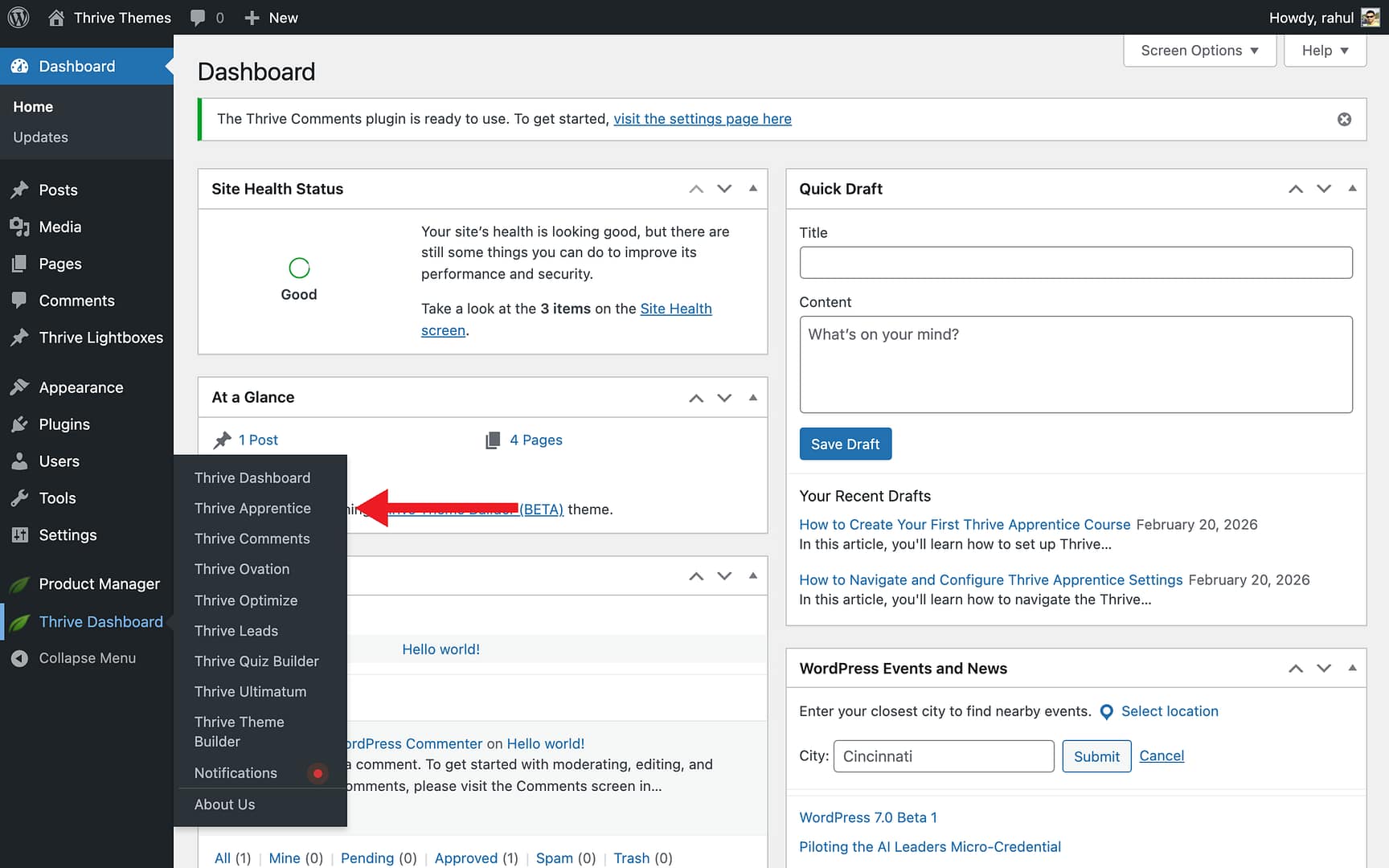
- Navigate to Thrive Dashboard > Thrive Apprentice.
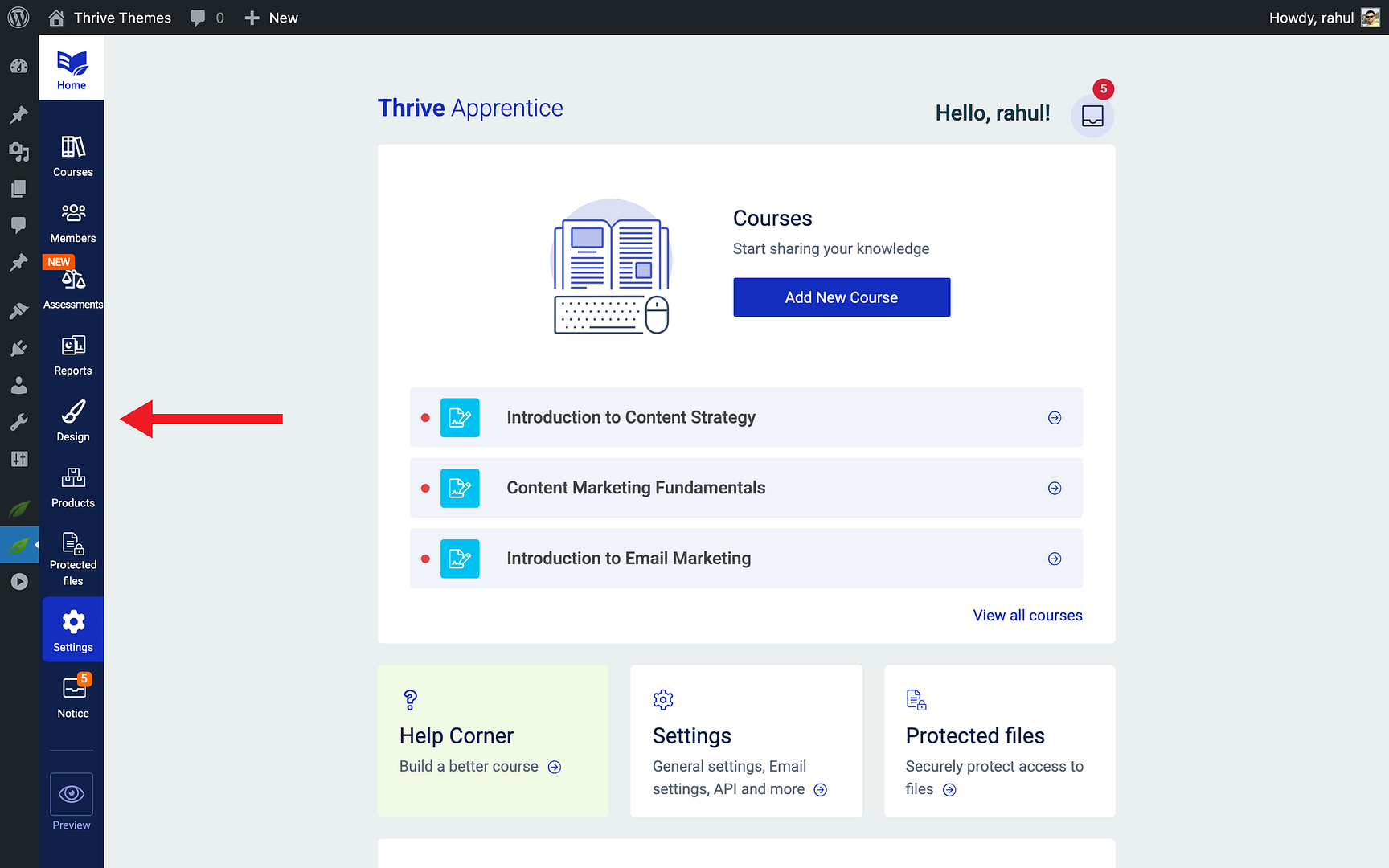
- Click the Design tab in the left sidebar.
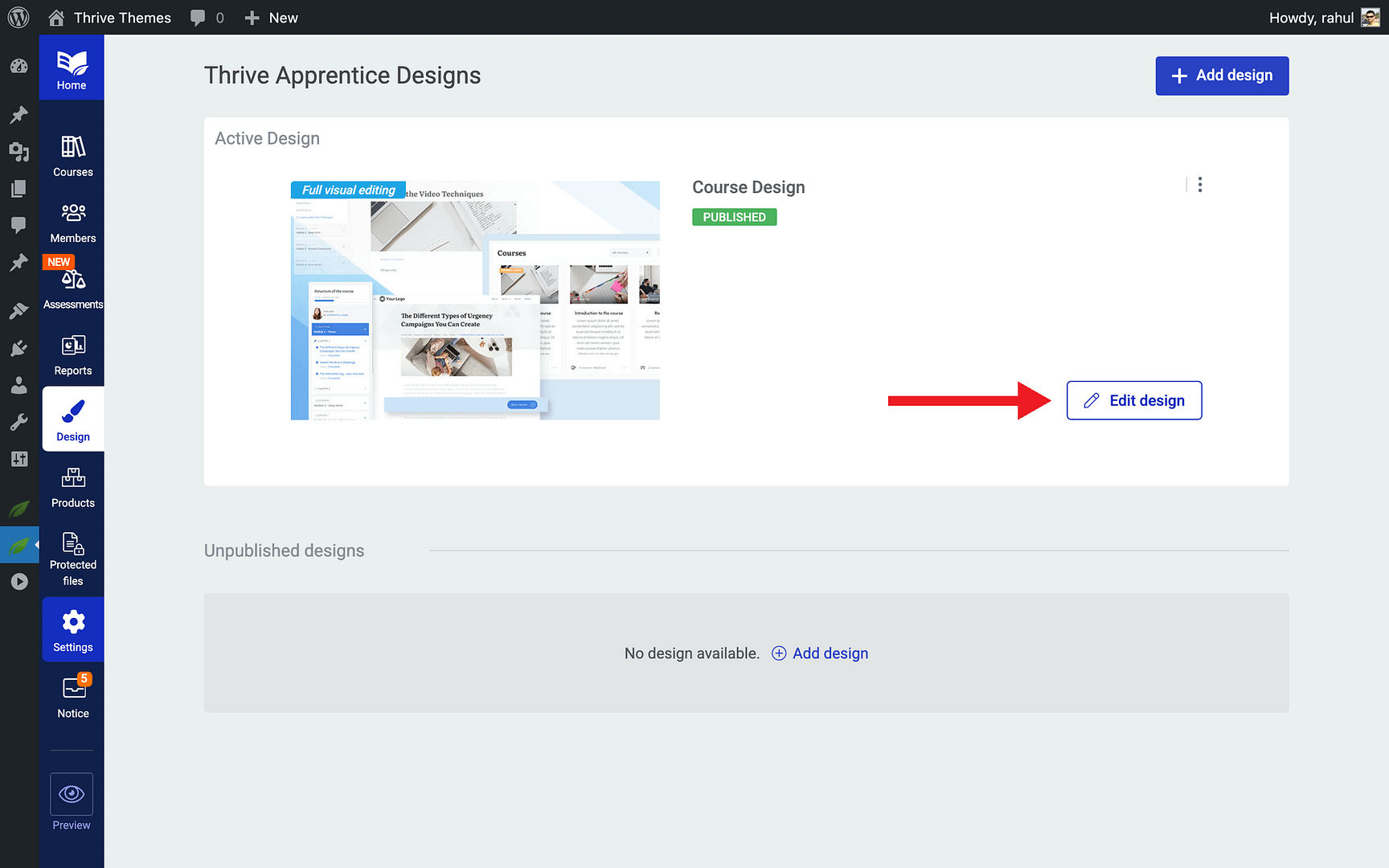
- Select the online school design you want to edit.
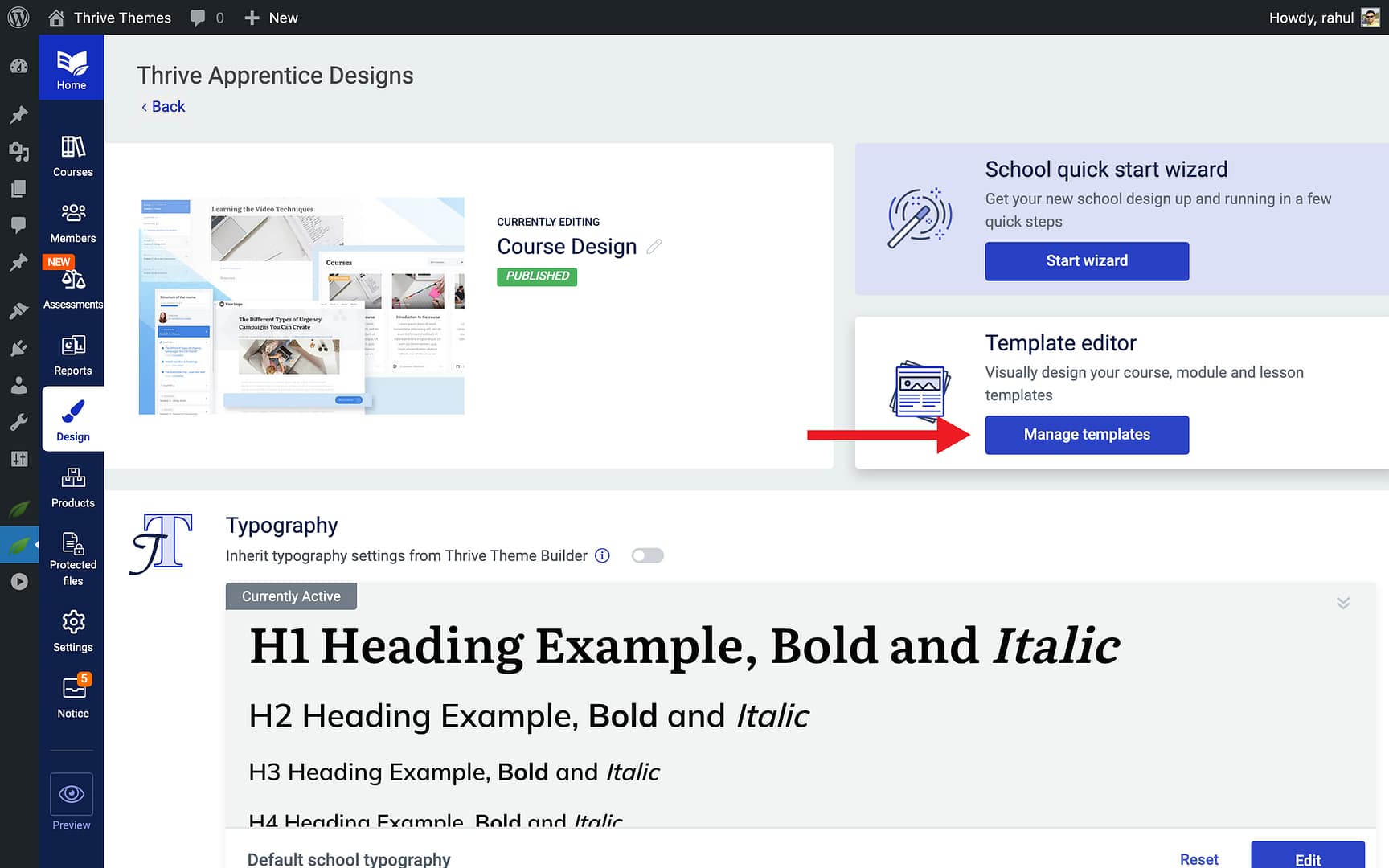
- Click the Manage Templates button in the Template Editor card.
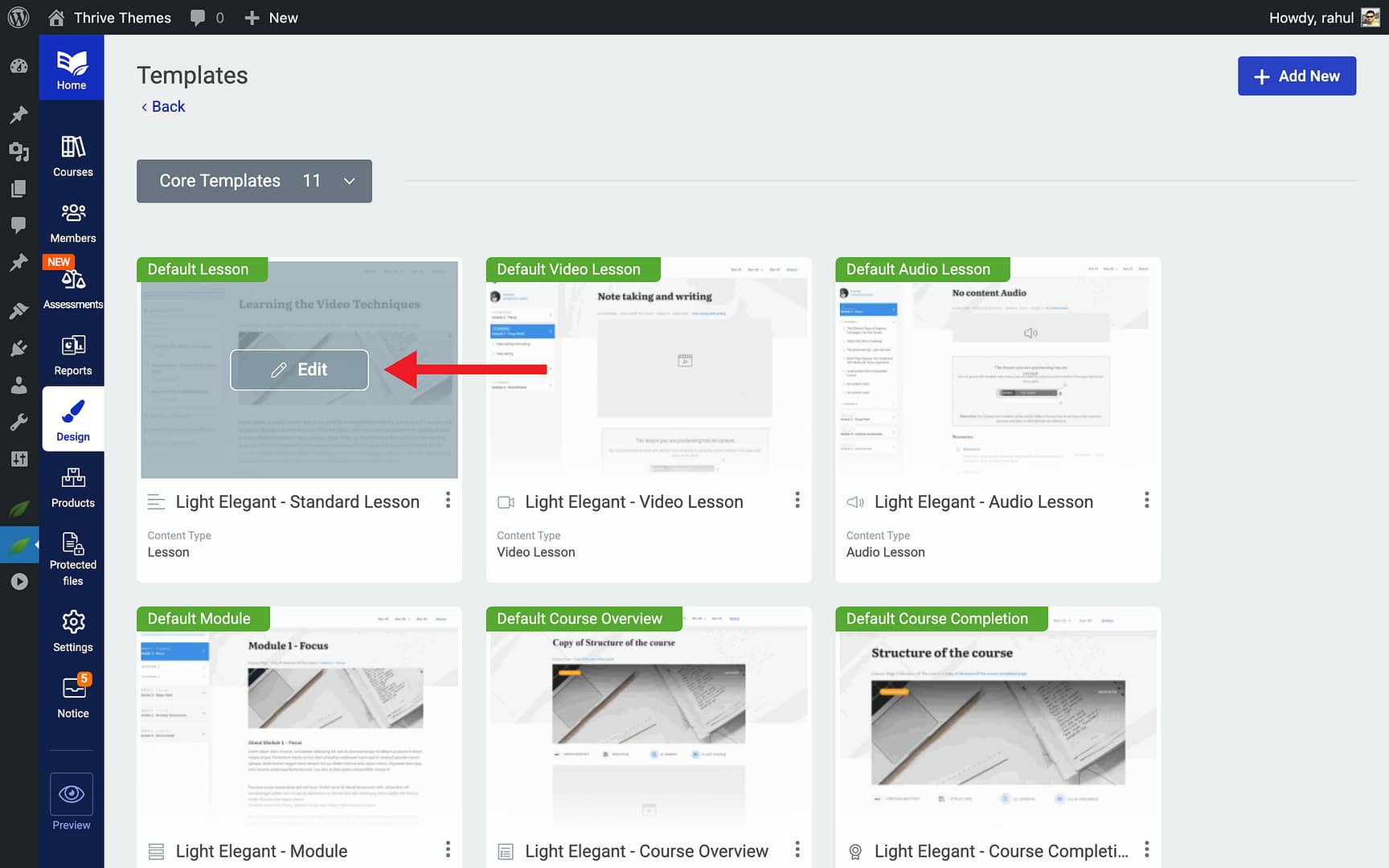
- Find the template you want to modify (e.g., Lesson Template, Course Overview Template, or Module Template).
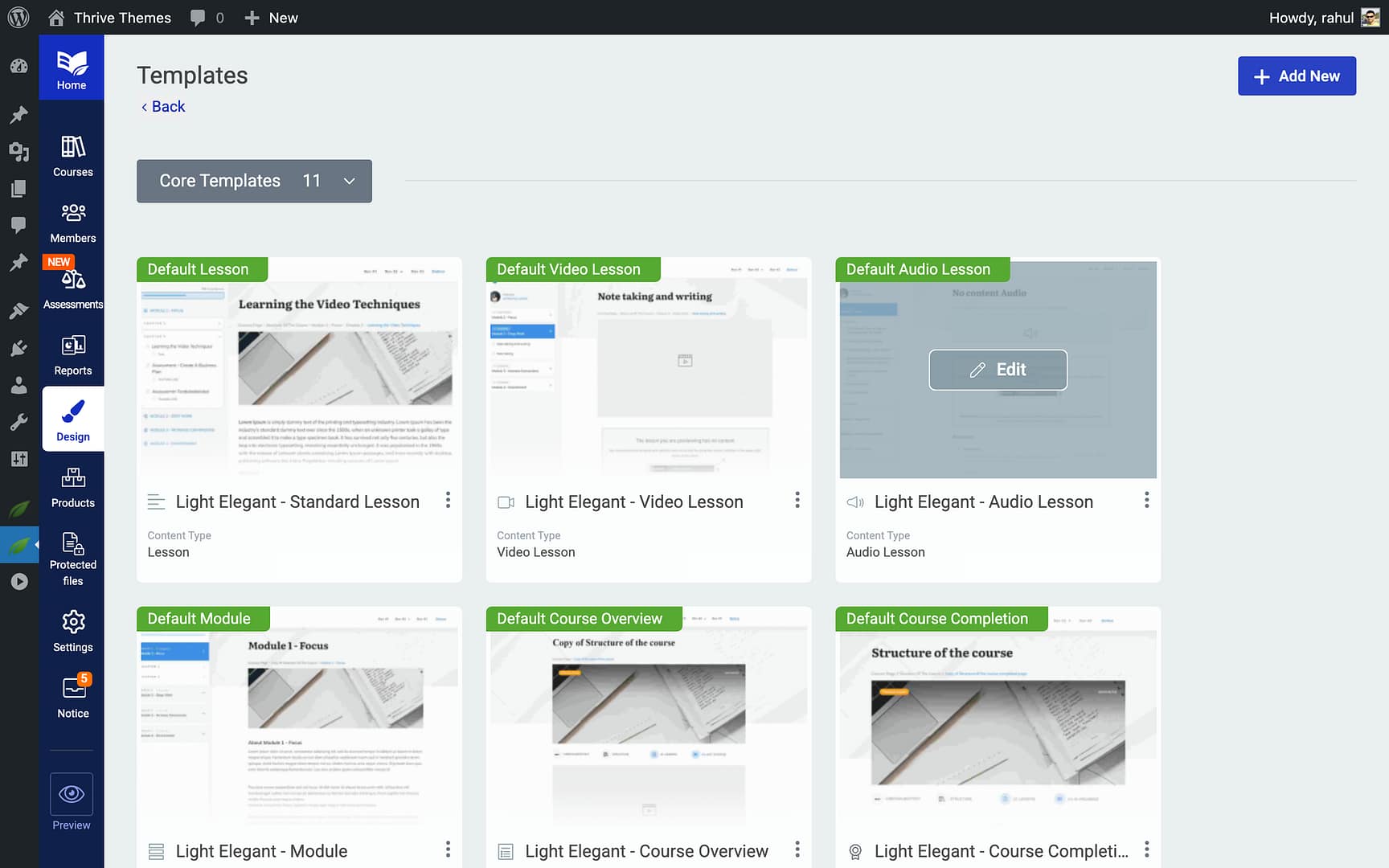
- Click Edit to open the template in Thrive Architect.
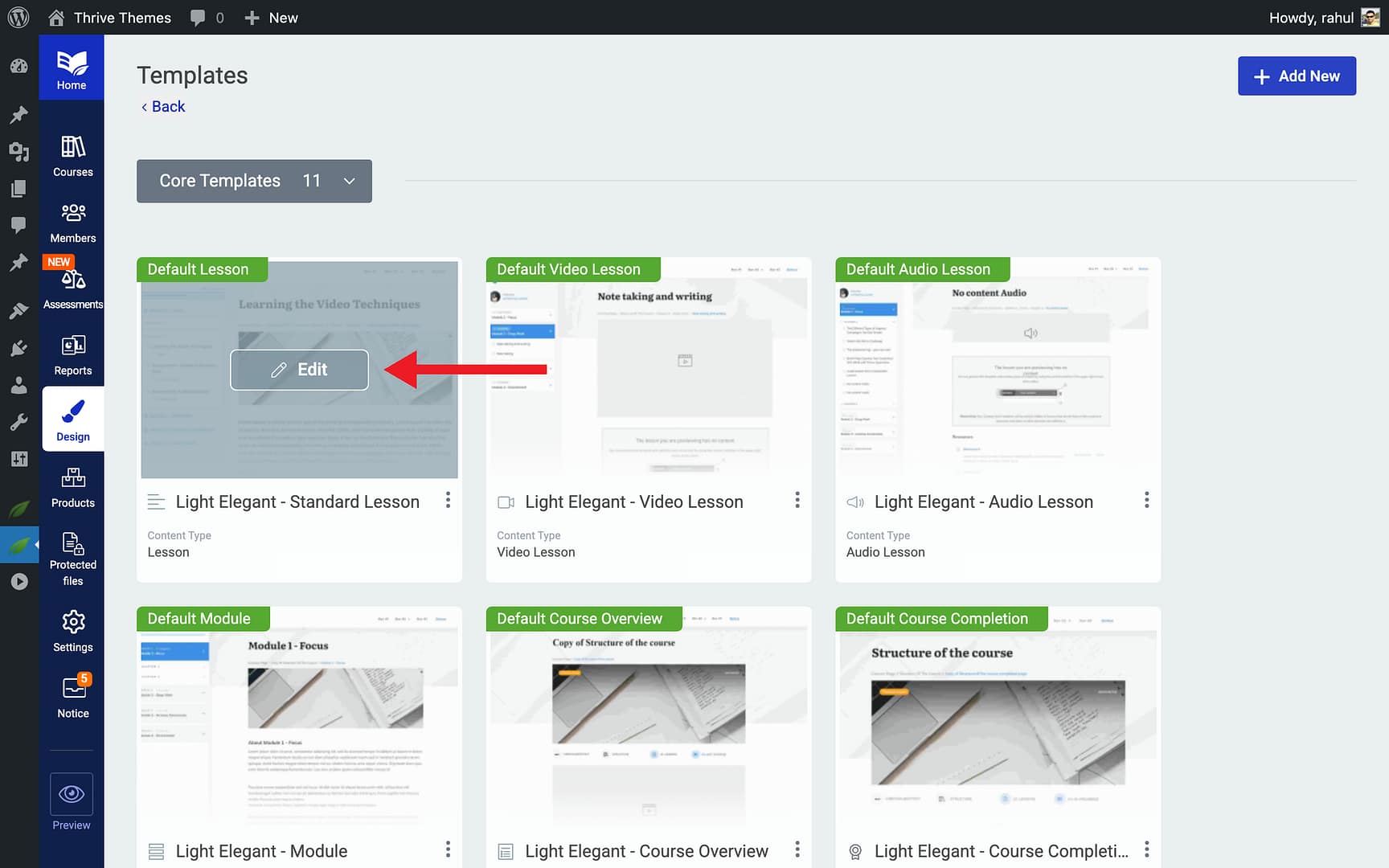
Inserting Dynamic Text Tags
Once inside the template editor, you can insert dynamic text into any text element:
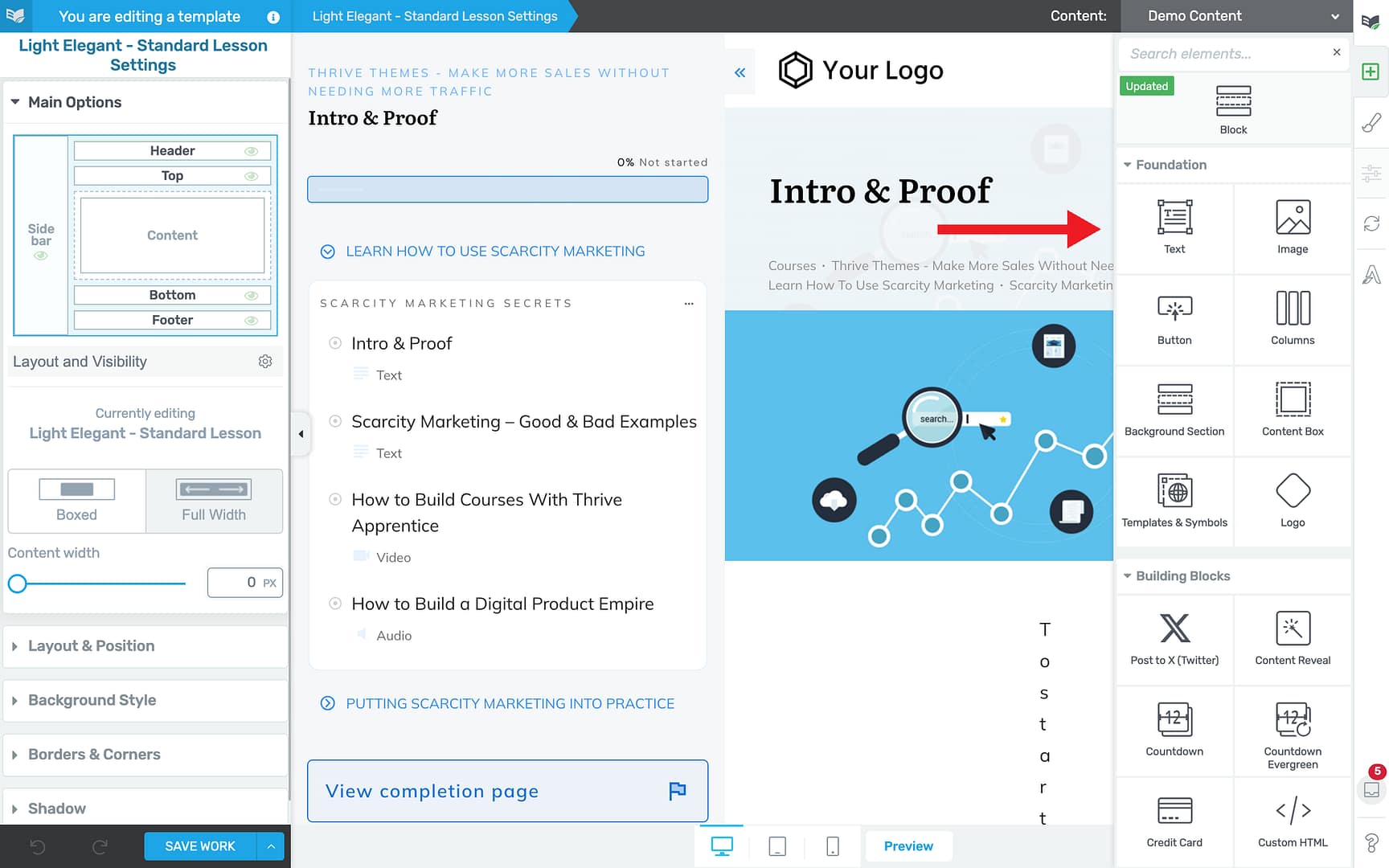
- Click on a Text element in your template (or add a new one).

- Place your cursor where you want the dynamic content to appear.

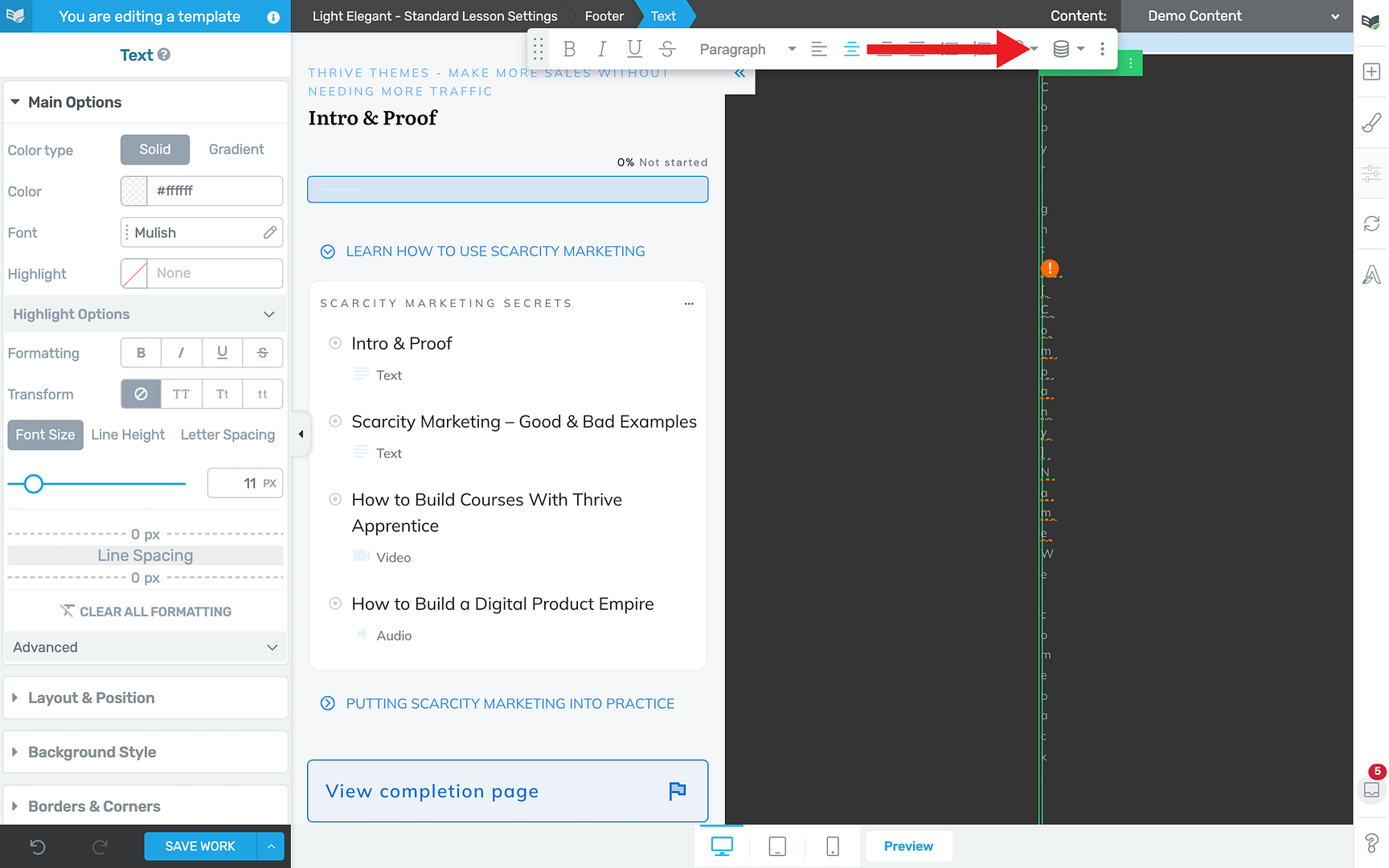
- In the text editing toolbar, click the Dynamic Text icon (or look for the Insert Dynamic Field option).

- Browse the available dynamic text categories and select the tag you want to insert.

- The tag will appear as a placeholder in the editor—it will display the actual personalized content on the front end.

Available Dynamic Text Tags
Thrive Apprentice offers a variety of dynamic text tags organized by category:
Course Information:
- Course Title — Displays the name of the current course.
- Course Progress — Shows the student’s completion percentage for the course.
- Course Lesson Count — Displays the total number of lessons in the course.
- Completed Lesson Count — Shows how many lessons the student has finished.
Module Information:
- Module Title — Displays the name of the current module.
- Module Lesson Count — Shows the total number of lessons in the module.
- Module Progress — Displays the student’s progress within the current module.
Lesson Information:
- Lesson Title — Displays the name of the current lesson.
- Lesson Number — Shows the lesson’s position in the course sequence.
- Next Lesson Title — Displays the name of the upcoming lesson.
Student Information:
- Student First Name — Displays the logged-in student’s first name.
- Student Last Name — Displays the logged-in student’s last name.
- Student Display Name — Shows the student’s chosen display name.
Walkthrough: Adding Dynamic Text to a Lesson Template
Here’s a practical example of adding a personalized welcome message and progress indicator to your lesson template:
- Navigate to Thrive Dashboard > Thrive Apprentice > Design.
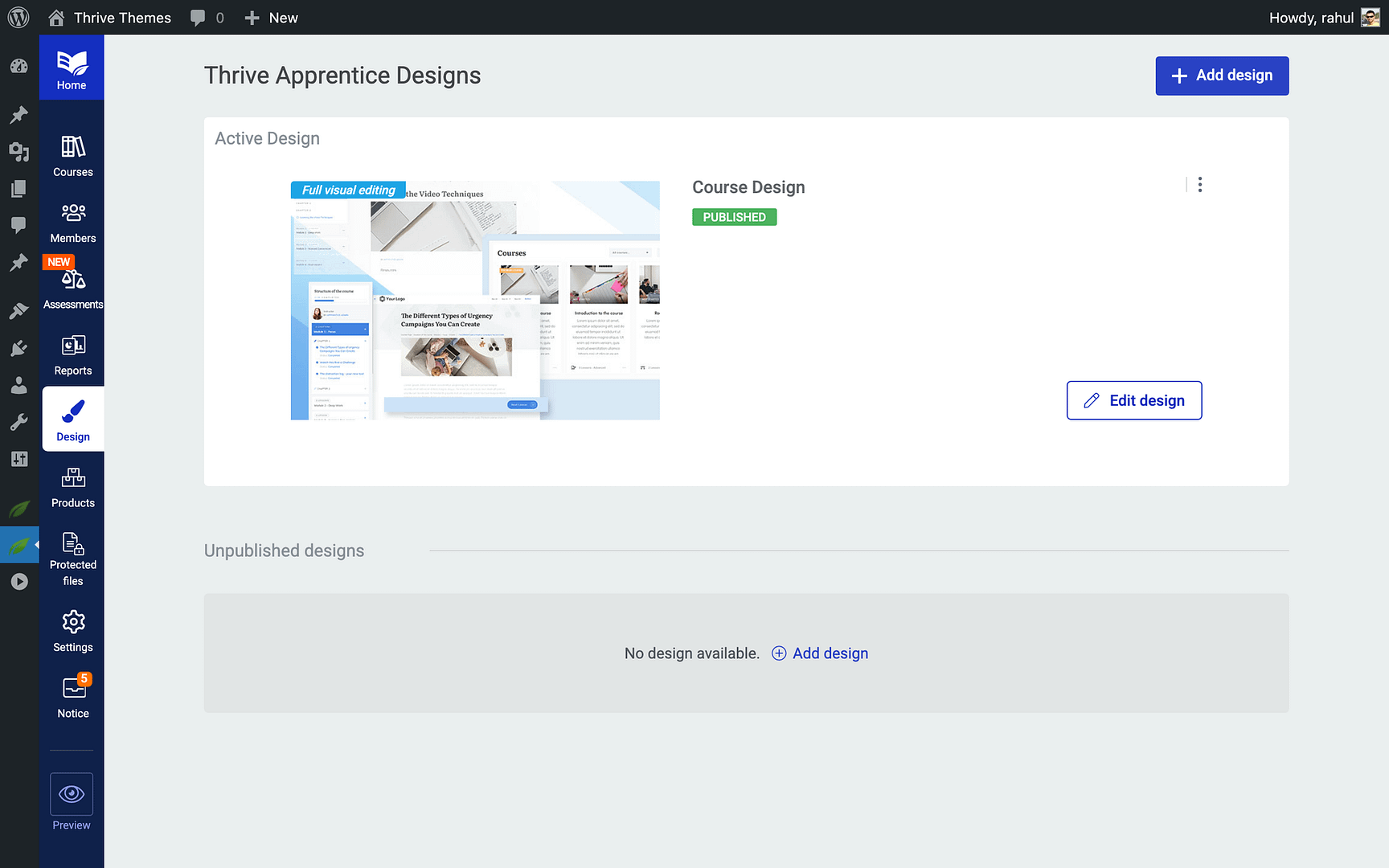
- Click Manage Templates and find your Lesson Template.
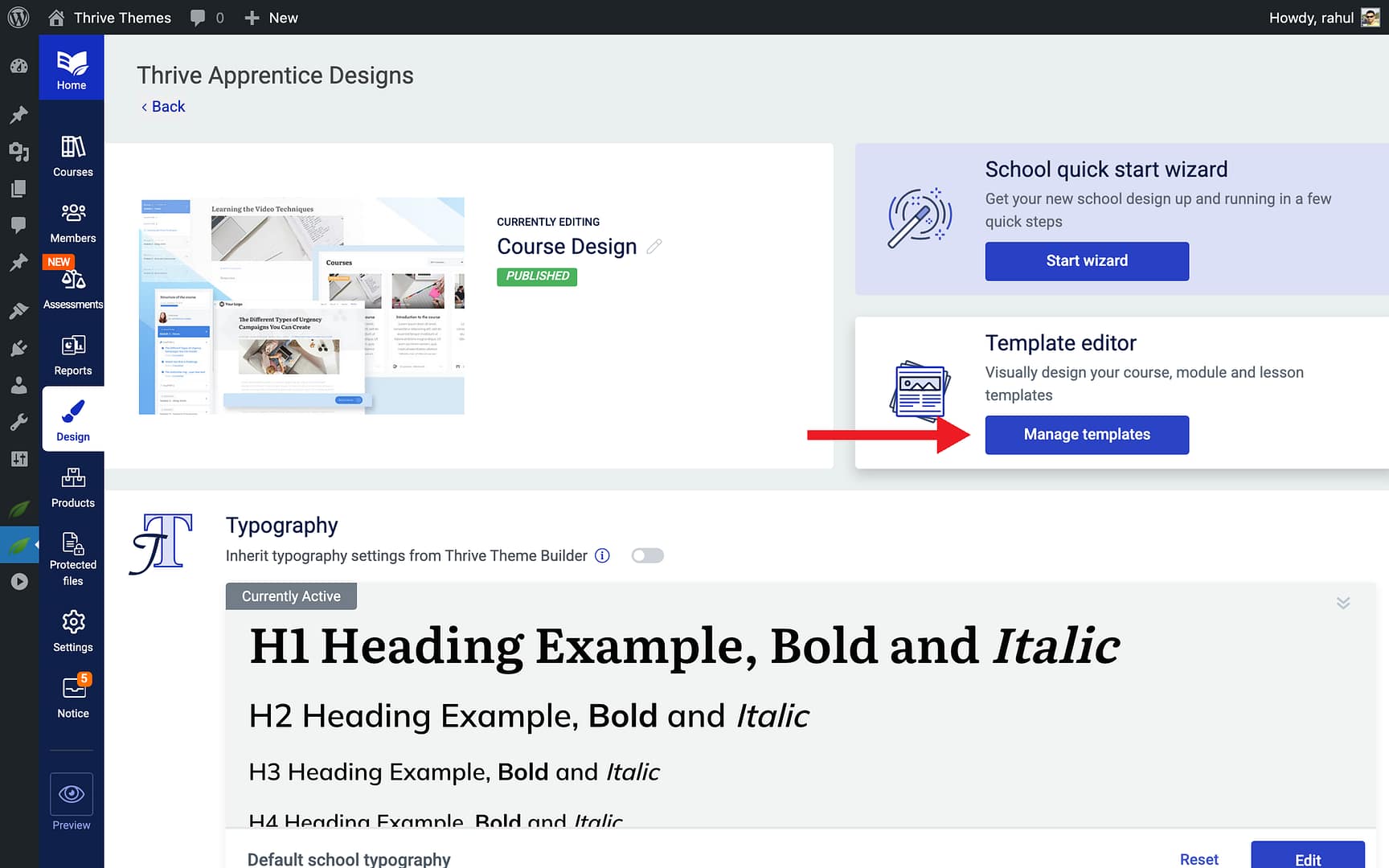
- Click Edit to open the template in Thrive Architect.
- Add a Text element at the top of the lesson area.
- Type “Welcome back, ” and then click the Dynamic Text icon.
- Select Student First Name from the student information category.

- Continue typing “! You’ve completed ” and insert the Course Progress tag and then finish with “% of this course.”

- Click Save Work, then click Done to return to Thrive Apprentice.

That’s it! You’ve successfully learned how to access the template editor, insert dynamic text tags, and create personalized content that adapts to each student’s progress and profile.
Related Resources
- Course Content Types: Learn about course content types, navigation, and progress tracking to understand how courses are structured.
- Student Profile Pages: Learn how to create a student profile page so students can manage their account information.
- Thrive Apprentice Design: Explore the Thrive Apprentice design and template options for customizing your school’s appearance.
- Thrive Apprentice Knowledge Base: Browse the full Thrive Apprentice Knowledge Base for more tutorials.