In this article, you’ll learn how to use your Thrive Theme Builder header and footer designs on Thrive Architect landing pages.
How It Works
When using a Thrive Theme Builder theme, your pages and landing pages include dedicated Top Section, Bottom Section, Header, and Footer areas. You can control the visibility of each area through the Visibility Settings panel in the Thrive Architect editor. Each section can be set to Show, Hide, or Inherit (from the theme template).
Prerequisites
Before using theme sections on pages and landing pages:
- You must be using a Thrive Theme Builder theme as your active WordPress theme.
- The page must be edited with Thrive Architect.
Showing or Hiding the Header on a Page
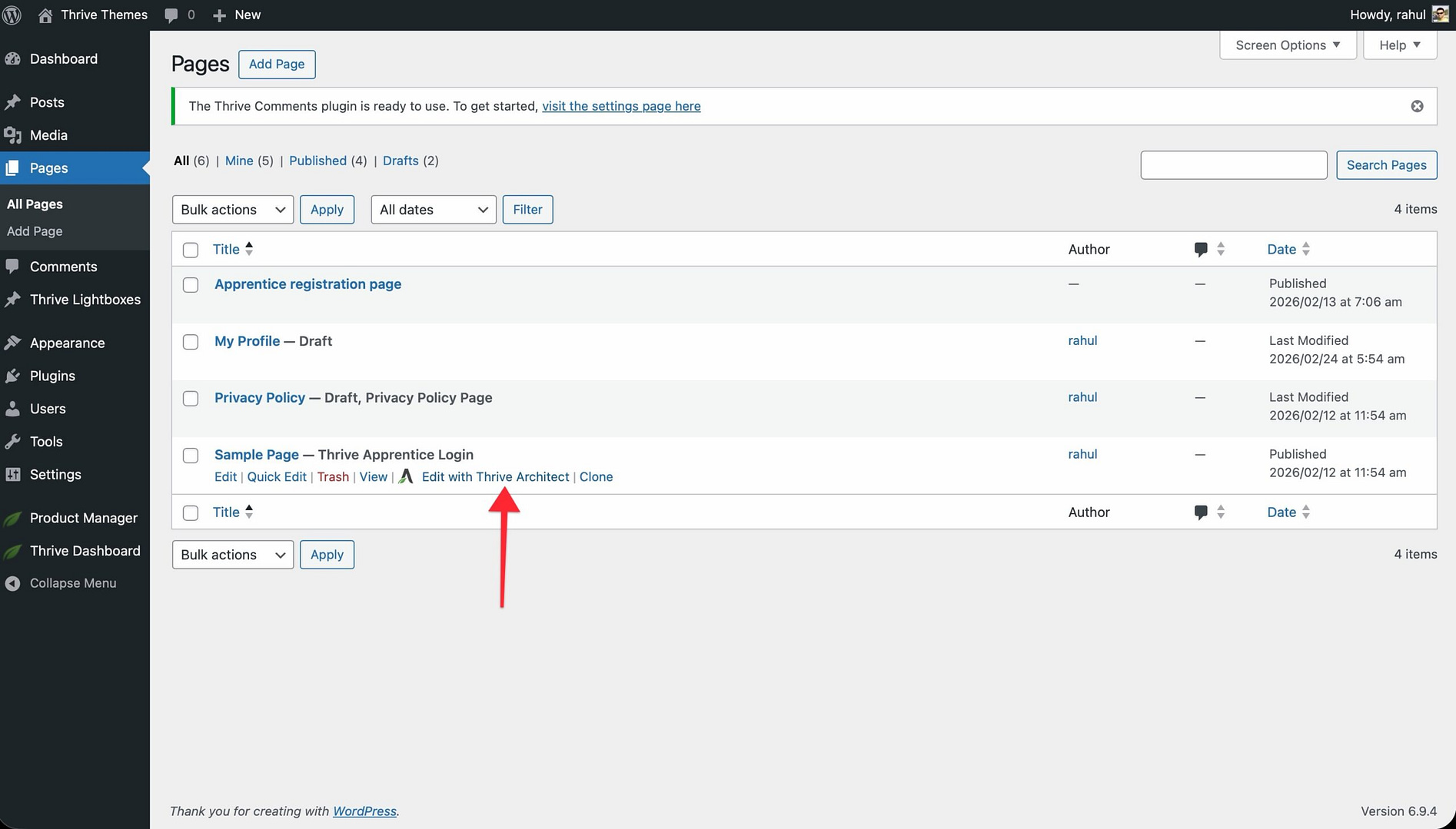
- In the WordPress admin, go to Pages and open the page with Thrive Architect.
- In the left sidebar, click the Page settings icon (gear icon at the top).
- Expand the Visibility Settings section.
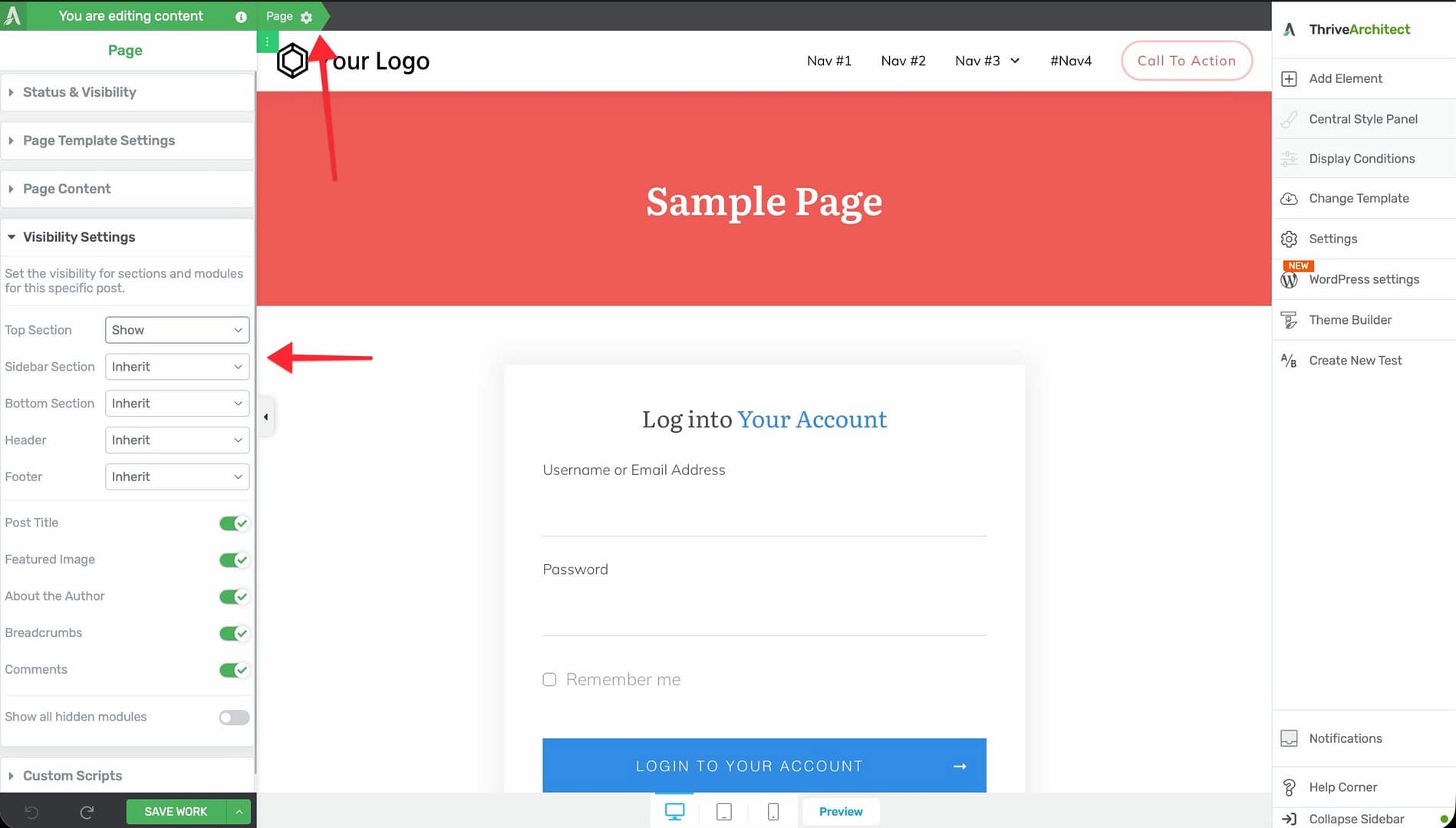
- Find the Header dropdown and set it to Show, Hide, or Inherit.
- If set to Show, the theme header appears at the top of the page. Click on it in the editor canvas to edit its contents.
Showing or Hiding the Footer on a Page
- In the left sidebar under Visibility Settings, find the Footer dropdown.
- Set it to Show, Hide, or Inherit.
- If set to Show, the theme footer appears at the bottom of the page. Click on it in the editor canvas to edit its contents.
Using the Top and Bottom Sections
In addition to the Header and Footer, Thrive Theme Builder provides Top Section and Bottom Section areas:
- In the left sidebar under Visibility Settings, find the Top Section and Bottom Section dropdowns.
- Set each to Show, Hide, or Inherit.
- When set to Show, the section appears in the editor canvas. Click on it to add and edit content.
The Top Section sits between the Header and the main content area, while the Bottom Section sits between the main content area and the Footer.
Visibility Options Explained
Each section dropdown offers three options:
- Show — The section is visible on this specific page, regardless of the template default.
- Hide — The section is hidden on this specific page, regardless of the template default.
- Inherit — The section follows whatever the assigned theme template specifies (this is the default).
Additional Visibility Toggles
Below the section dropdowns, you will also find toggles for:
- Post Title — Show or hide the post/page title.
- Featured Image — Show or hide the featured image.
- About the Author — Show or hide the author box.
- Breadcrumbs — Show or hide breadcrumb navigation.
- Comments — Show or hide the comments section.
Important Notes
- Per-page control — Visibility settings are saved per page. Changing a section to Show or Hide on one page does not affect other pages.
- Inherit follows the template — When set to Inherit, the section visibility is determined by the Thrive Theme Builder template assigned to that page.
- Theme requirement — These visibility controls require an active Thrive Theme Builder theme. If you switch to a non-TTB theme, these options will not be available.
Related Resources
- Using the Header Section: Learn how to customize your theme header.
- Using the Footer Section: Learn how to customize your theme footer.
- Creating Page Templates: Learn how to create page templates.