In this article, you’ll learn how to use the Post Content element, the Post Meta element, the Taxonomy Term Description element, and the Related Posts element in your Thrive Theme Builder templates.
Post Content Element
The Post Content element is a dynamic placeholder that displays the actual body content of a page or post. When a visitor views a post, the text, images, and media they see come from this element.
Key Facts
- Automatically placed — The Post Content element is automatically added to all post templates and page templates (both default and custom).
- Cannot be deleted — Since every template needs a content area, this element cannot be removed from a template.
- Dynamic — It adapts to display whichever page or post is being viewed. The content itself is managed in the WordPress editor, not in the Thrive Theme Builder template.
What You Can Customize
While you can’t edit the actual post content from the template editor, you can customize how the content area is presented:
- Position the element within the template layout.
- Adjust spacing around the content area (padding and margins).
- Set the content area background and borders.
- Control the width of the content area.
Post Meta Element
The Post Meta element displays metadata about a post—such as the author name, publish date, categories, and tags.
Adding the Post Meta Element
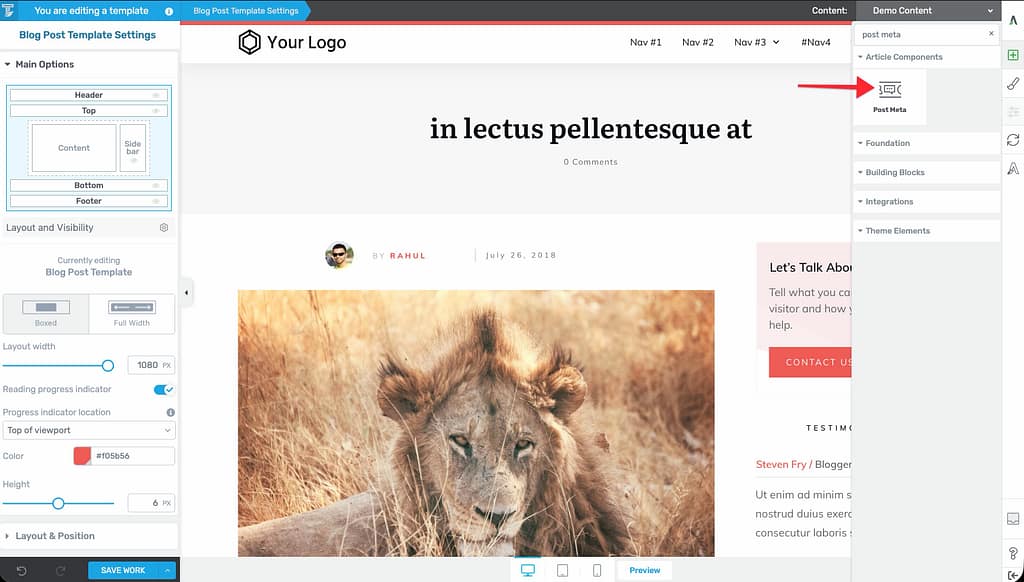
- In the Thrive Theme Builder editor, click the plus (+) icon in the right sidebar.
- Search for Post Meta.
- Drag the element into position on the template (typically above or below the post content, or near the post title).
Available Metadata Fields
The Post Meta element can display:
- Author name — The post author’s display name, optionally linked to the author archive page.
- Publish date — When the post was originally published.
- Categories — The categories assigned to the post.
- Tags — The tags assigned to the post.
- Comments count — The number of comments on the post.
Displaying the “Last Updated” Date
By default, the Post Meta element shows the publish date. To display the “last updated” date instead:
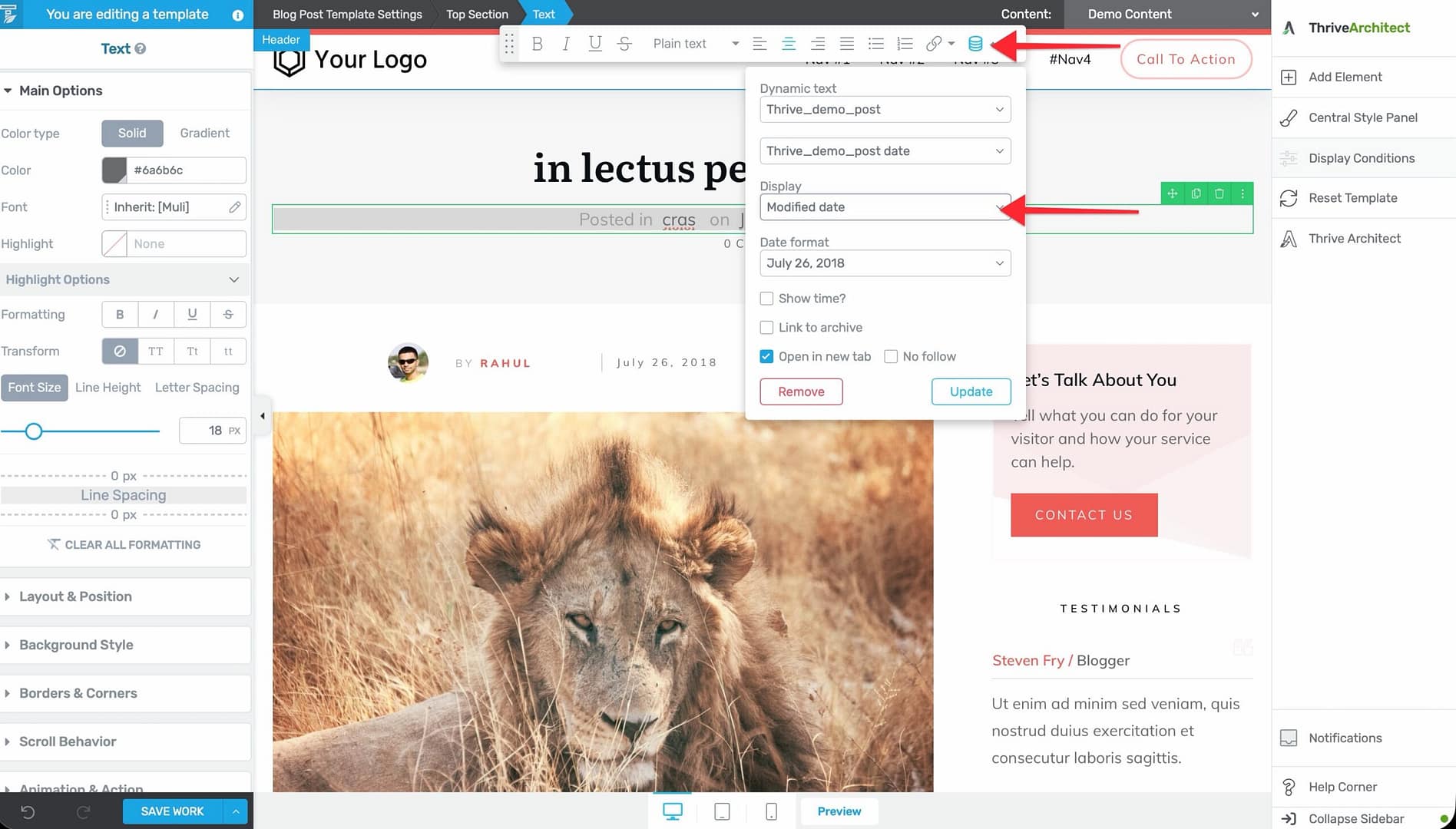
- Select the Post Meta element in the editor.
- Use the dynamic text feature to replace the published date field with the last modified date.
This is useful for content that gets updated regularly, as it signals to readers (and search engines) that the information is current.
Taxonomy Term Description Element
The Taxonomy Term Description element displays the description of a category or tag on archive pages.
Prerequisites
- Categories or tags must have descriptions added in the WordPress admin (Posts > Categories or Posts > Tags > edit the term and add a description).
Adding the Element
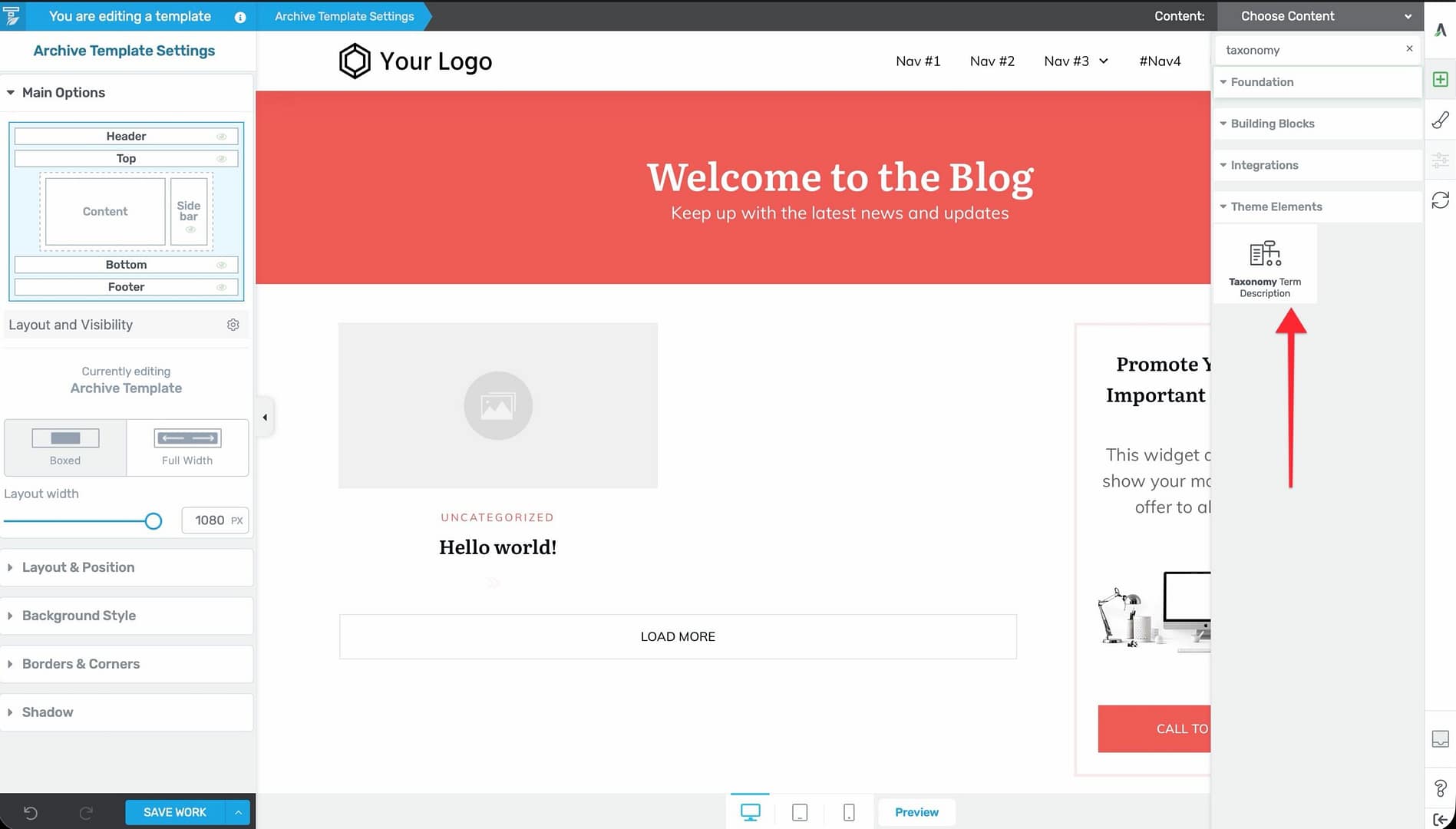
- Open an archive template in the Thrive Theme Builder editor.
- Click the plus (+) icon in the right sidebar.
- Search for Taxonomy Term Description.
- Drag it into position on the template (typically near the top, below the archive title).
How It Works
The element dynamically displays the description of whichever category or tag archive page is being viewed. For example, if a visitor is on the “Marketing” category archive page, it shows the description you wrote for the “Marketing” category.
Related Posts Element
You can display related posts on your templates using the Post List element with filtering.
Adding Related Posts
- Open the template in the Thrive Theme Builder editor (typically your blog post template).
- Click the plus (+) icon in the right sidebar.
- Search for Post List and drag it into position (typically below the post content).
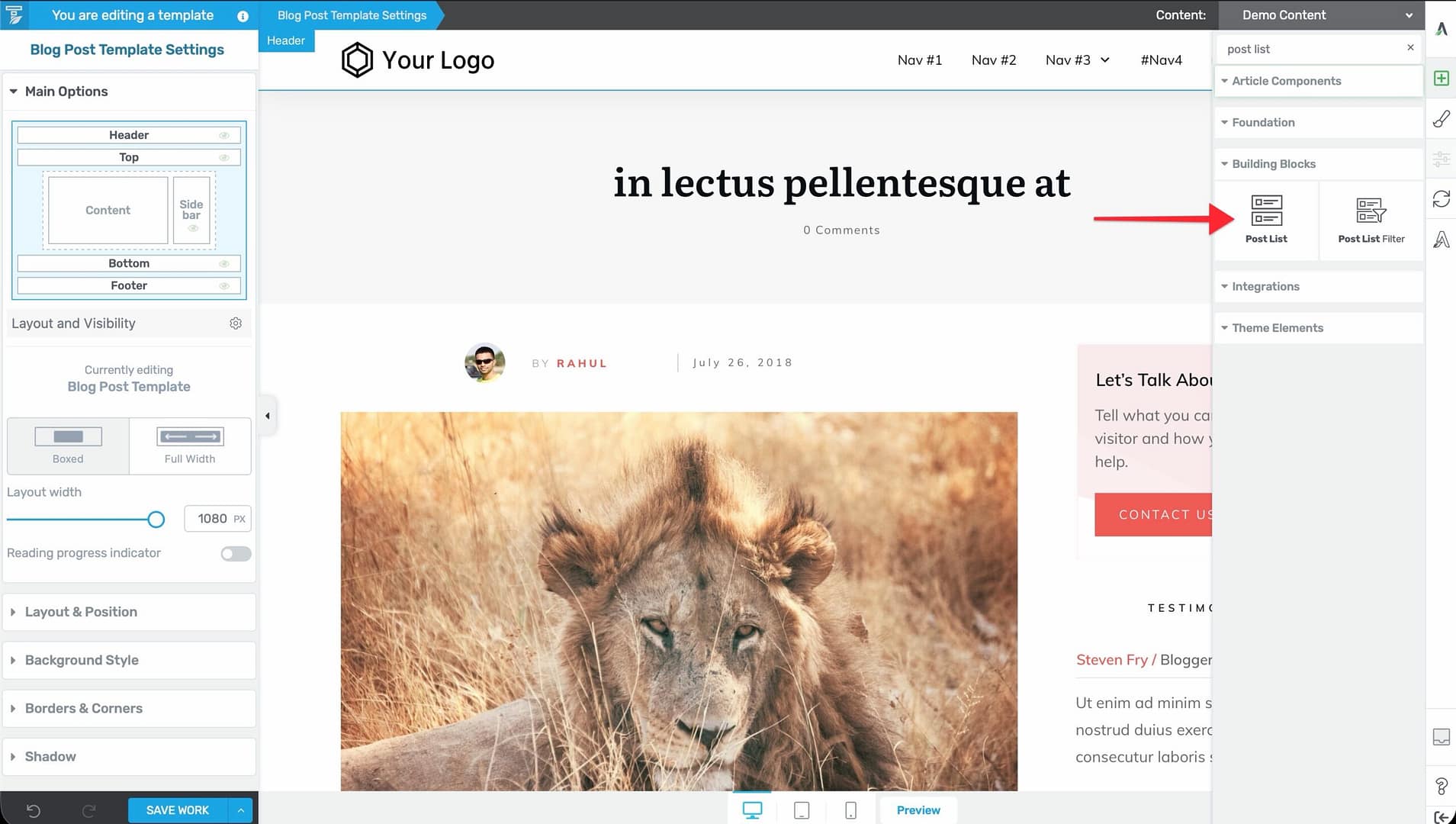
- Configure the Post List element:
- Set the Filter Posts option to display posts related to the current post (e.g., same category or tags).
- Choose the number of posts to display.
- Configure the layout (grid, list, etc.).
- Select what information appears for each post (title, excerpt, featured image, date).
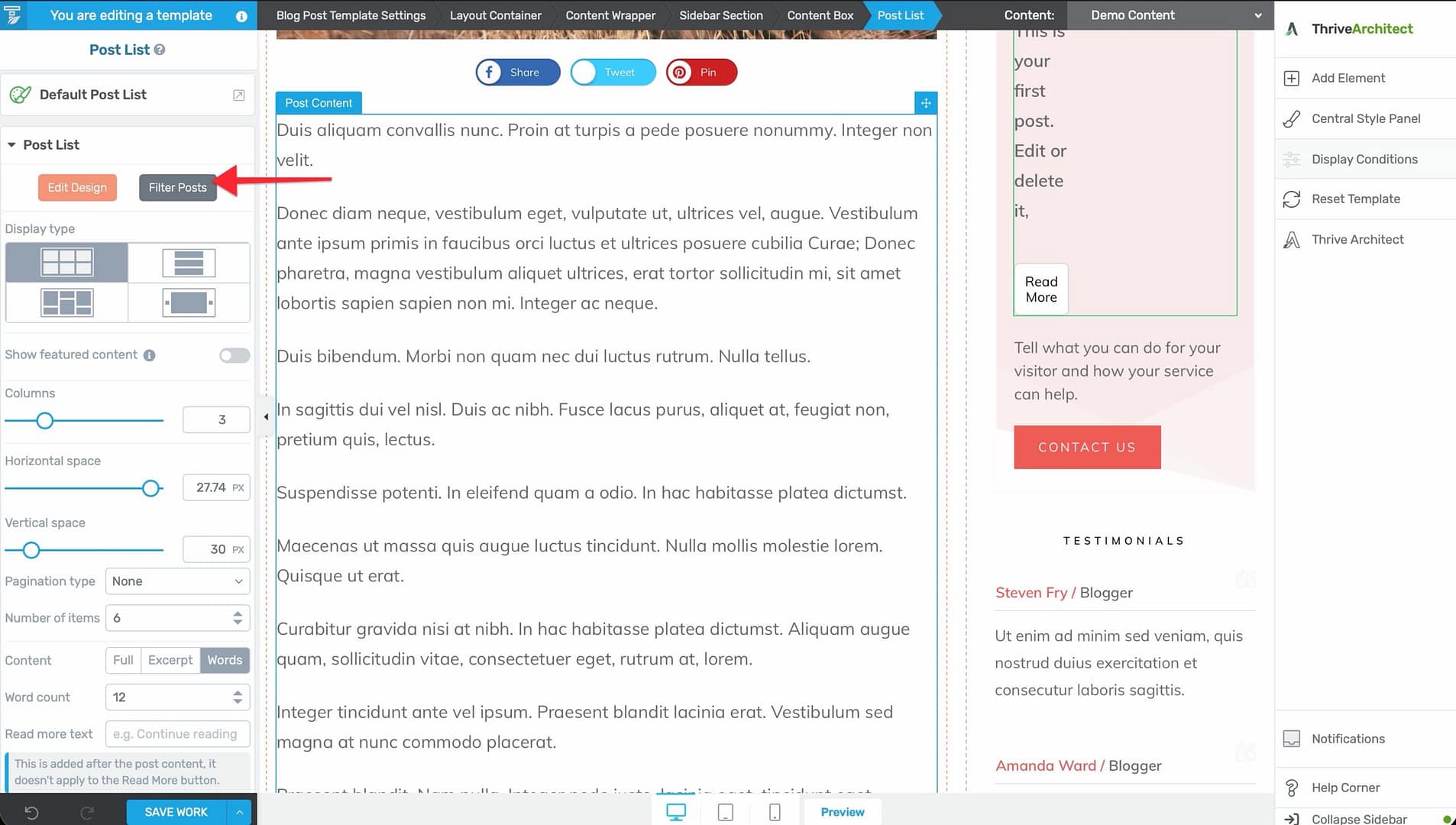
The Post List element is a powerful, flexible element with extensive configuration options. For detailed setup instructions, refer to the Thrive Architect Post List documentation.
Related Resources
- Using Author Elements: Learn about author-related elements.
- Using Navigation Elements: Learn about breadcrumbs and post navigation.
- Creating Post Templates: Learn how to create and customize post templates.