In this article, you’ll learn how to use shortcodes inside Thrive Architect pages and posts. You’ll see how to add the WordPress Content element, enter your shortcode text, and understand the styling limitations that apply.
Shortcodes are special tags in WordPress (written in square brackets, like [contact-form-7 id="123"]) that let you embed dynamic content from plugins and themes. Thrive Architect supports rendering shortcodes through the WordPress Content element, which processes any valid WordPress shortcode and displays its output directly on the page.
When to Use Shortcodes
Use shortcodes in Thrive Architect when you need to embed content generated by another WordPress plugin or theme feature. Common examples include:
- Contact forms — Embed forms from plugins like Contact Form 7, WPForms, or Gravity Forms
- Image galleries — Display galleries from NextGEN Gallery, Envira Gallery, or similar plugins
- WooCommerce products — Show product grids, carts, or checkout forms using WooCommerce shortcodes
- Membership content — Render gated content from membership plugins
- Custom embeds — Display maps, calendars, tables, or any other plugin-generated content
Adding a Shortcode to Your Page
To add a shortcode in Thrive Architect, you’ll use the WordPress Content element. Follow these steps:
- Open your page or post in the Thrive Architect editor.
- Click the green plus (+) icon in the right sidebar to open the element panel.
- Search for WordPress Content in the search field, or scroll down to the Advanced section to find it.
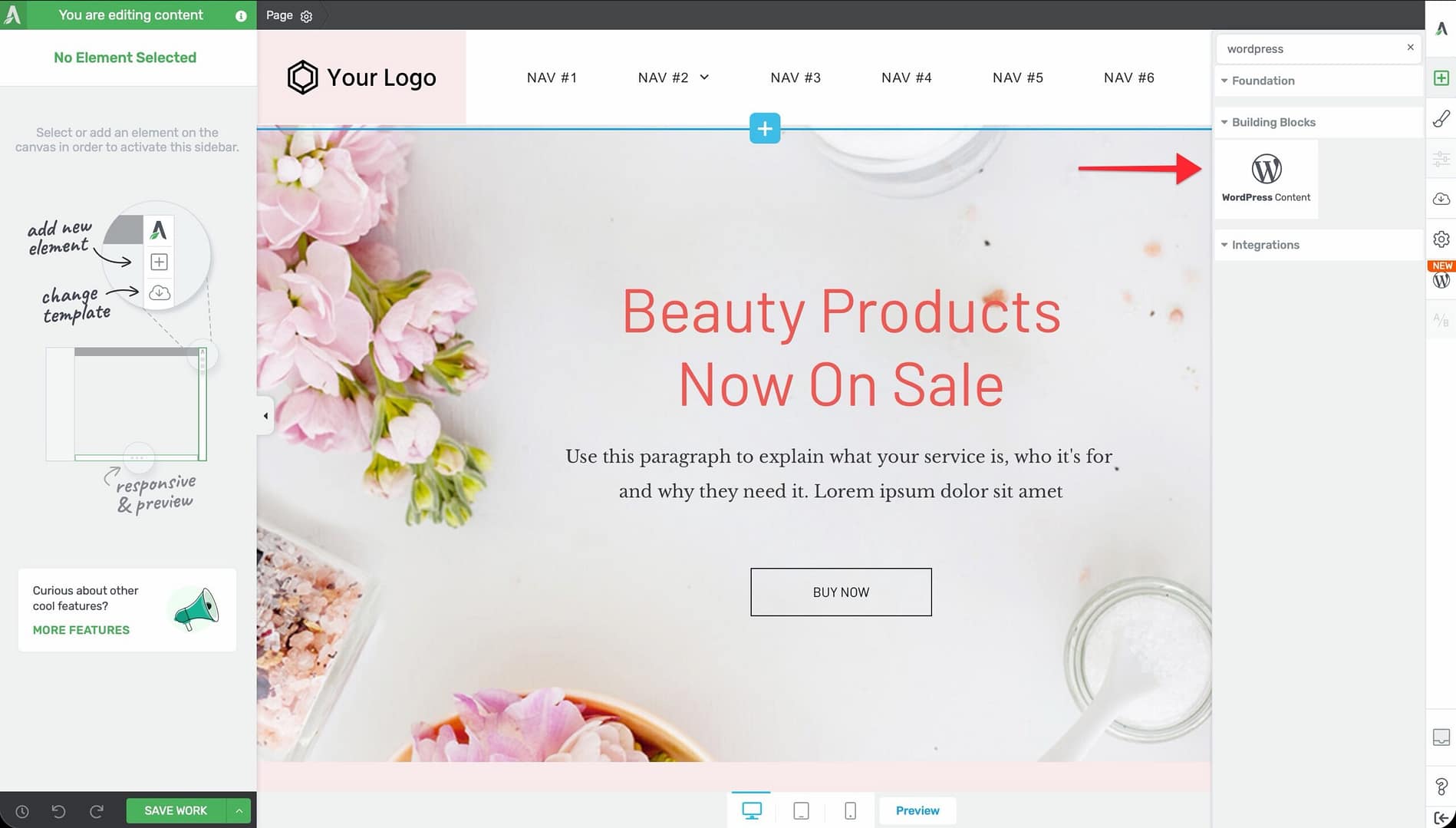
- Drag the WordPress Content element onto your page canvas and drop it where you want the shortcode output to appear.
- With the element selected, look at the left sidebar. You’ll see a text area labeled WordPress Content.
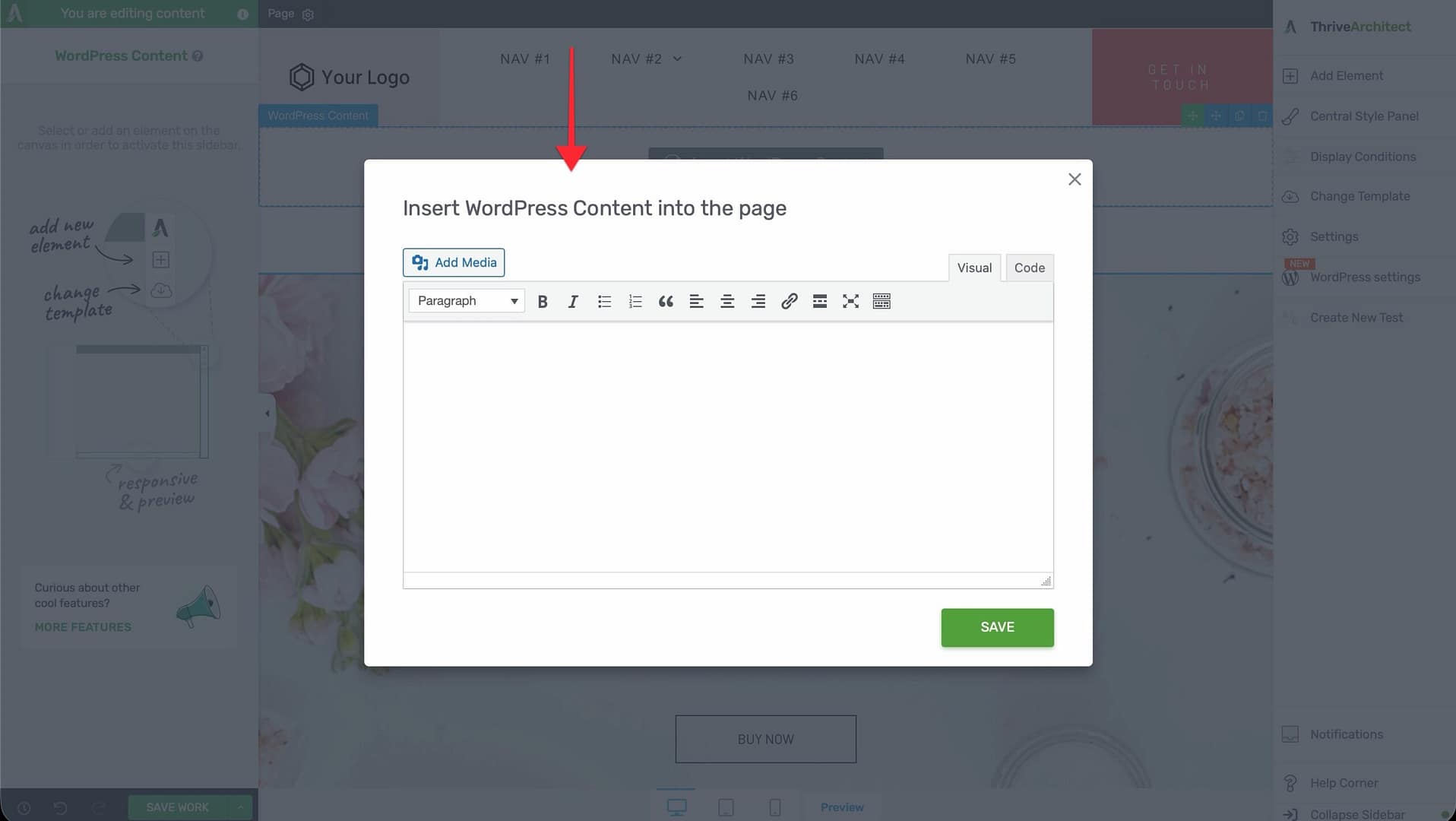
- Paste or type your shortcode into the text area (for example,
[contact-form-7 id="123" title="Contact Form"]). - The shortcode output will render on the frontend when you preview or publish the page.
Understanding Styling Limitations
The WordPress Content element has important styling restrictions. Because the shortcode output is generated by an external plugin, Thrive Architect can only control a limited set of options:
What You Can Customize
- Layout & Position — Margins, padding, width, alignment, and float settings
- Display conditions — Conditional visibility rules
- Responsive settings — Device-specific visibility
What You Cannot Customize
The following styling options are not available for the WordPress Content element:
- Typography (font family, size, color, and line height)
- Borders and corners
- Background color, gradient, or image
- Box shadow and text shadow
- CSS animations
Troubleshooting Shortcodes That Don’t Render
If your shortcode isn’t displaying correctly, check the following:
- Verify the shortcode syntax — Make sure the shortcode is typed exactly as the plugin specifies, including the correct ID, attributes, and bracket format.
- Confirm the plugin is active — The plugin that provides the shortcode must be installed and activated. Go to Plugins in your WordPress admin to verify.
- Preview the page — Some shortcodes don’t render inside the editor. Click Preview to see if the shortcode works on the frontend.
- Check for conflicts — If the shortcode renders in the WordPress editor but not in Thrive Architect, there may be a plugin conflict. Try deactivating other plugins one at a time to isolate the issue.
- Use the correct element — Make sure you’re using the WordPress Content element from the Advanced section, not a plain Text element.
Important: Shortcodes that rely on JavaScript may not render inside the Thrive Architect editor. They will typically work correctly on the published page.
Frequently Asked Questions
Can I Add Multiple Shortcodes to One Element?
Yes. You can enter multiple shortcodes in a single WordPress Content element. Each shortcode will render its output in sequence.
Can I Use Shortcodes Inside a Text Element?
While you can type a shortcode into a Text element, it’s recommended to use the WordPress Content element instead. The WordPress Content element is specifically designed to process and render shortcodes reliably.
Why Does My Shortcode Show as Plain Text?
If the shortcode displays as plain text (showing the brackets), the plugin that provides it is likely not activated, or the shortcode name is misspelled. Double-check the plugin status and shortcode syntax.
Related Resources
- WordPress Content Element: How to Use the WordPress Content Element in Thrive Architect
- Custom CSS: Editing HTML and Adding Custom CSS
- Getting Started: Getting Started with Thrive Architect
That’s it! You now know how to add and configure shortcodes in Thrive Architect using the WordPress Content element. Whether you’re embedding a contact form, a product grid, or a custom gallery, the process is the same—drag in the element, paste your shortcode, and preview the result.