In this article, you’ll learn how to use the Audio element in Thrive Architect. This element lets you embed an audio player on any page or post, allowing visitors to listen to podcasts, music samples, narration, or any other audio content directly on your site.
The Audio element is one of the simplest building blocks in Thrive Architect. It provides a clean, native audio player with minimal configuration. You either paste a URL to an external audio file or upload one from your WordPress media library, and Thrive Architect renders a fully functional audio player on your page.
What Is the Audio Element?
The Audio element is a lightweight media player designed to play audio files directly on your page. It renders the browser’s native HTML5 audio player, which provides standard playback controls (play, pause, volume, and a progress scrubber) without requiring any additional plugins or JavaScript libraries.
Key characteristics of the Audio element:
- Plays audio from a URL (including SoundCloud and Spotify links) or from a file uploaded to your WordPress media library
- Uses the browser’s native audio player for maximum compatibility
- Supports External Fields, allowing you to dynamically populate the audio source from custom fields or other data sources
- Has a minimal set of controls—there are no complex configuration options to manage
- Works across all modern browsers and devices
Adding the Audio Element to a Page
Follow these steps to add an Audio element to your page:
- Open your page or post in the Thrive Architect editor.
- Click the green plus (+) icon in the right sidebar to open the element panel.
- Type Audio in the search field at the top of the panel.
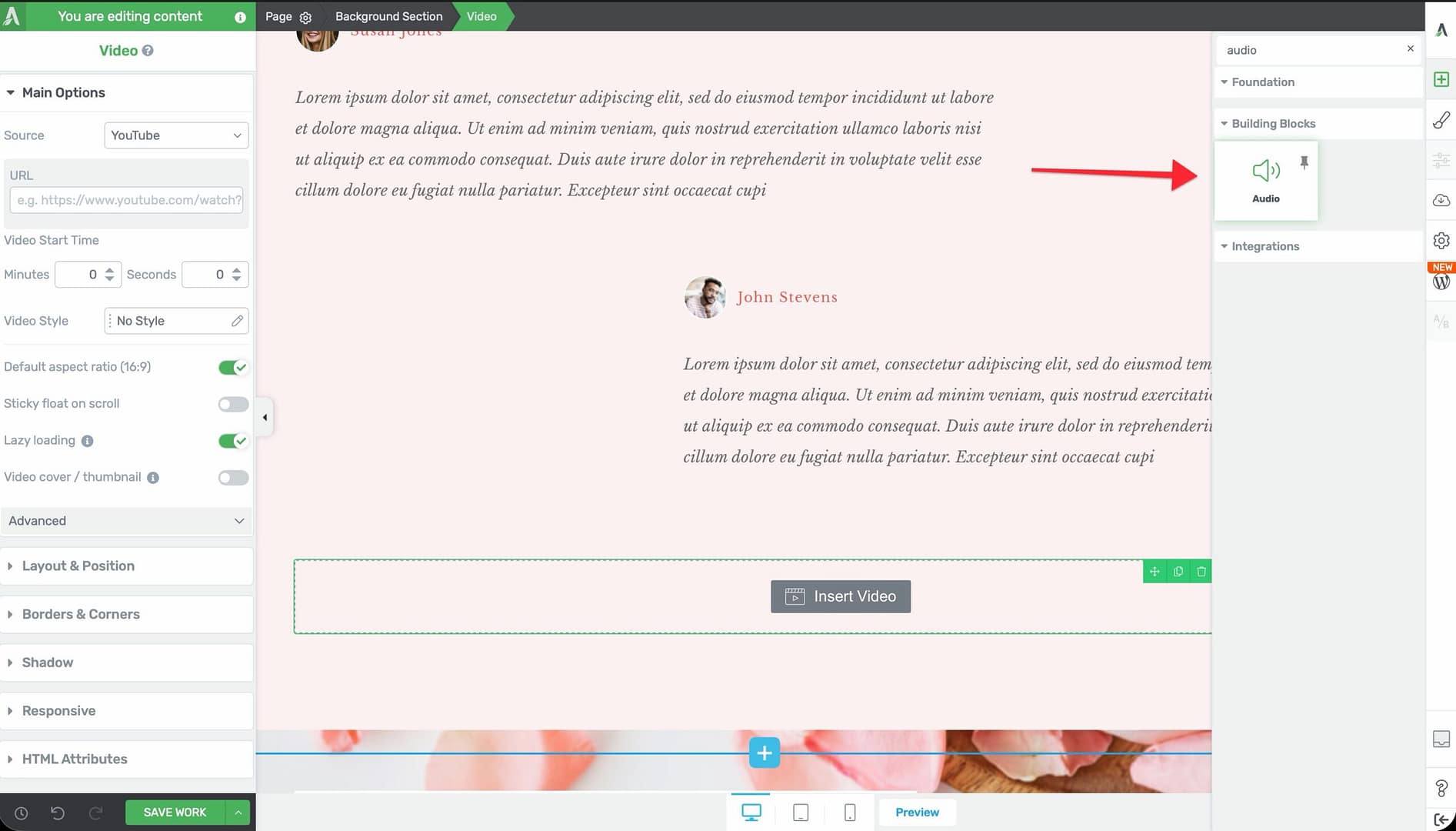
- Alternatively, scroll down to the Building Blocks section in the element list to find the Audio element.
- Drag the element from the panel and drop it onto your page canvas.
An audio player placeholder will appear on the canvas. You’ll need to set an audio source before it can play anything.
Setting the Audio Source
After adding the Audio element to your page, you need to provide an audio file:
- Click on the Audio element on the canvas to select it.
- In the left sidebar, locate the audio source control.
- Choose one of the following methods:
- Paste a URL — Enter the direct URL to an audio file (MP3, OGG, WAV, or other browser-supported formats). You can also paste a SoundCloud track URL or a Spotify episode/track URL directly into the source field, and Thrive Architect will embed the appropriate player.
- Upload a file — Click the upload option to open the WordPress media library, where you can upload a new audio file or select an existing one
Thrive Architect will render the audio player with the specified source. The player will display standard playback controls including play/pause, a progress bar, volume control, and a time display.
Using External Fields for Dynamic Audio
The Audio element supports External Fields, which let you populate the audio source dynamically from a custom field, ACF field, or other data source. This is particularly useful for:
- Podcast pages where each post has a different audio file stored in a custom field
- Course lessons where audio narration varies per lesson
- Dynamic templates in Thrive Theme Builder where the audio source changes based on the current post
To use External Fields:
- Click on the Audio element to select it.
- In the left sidebar, look for the External Fields option (represented by a database/link icon).
- Click it to open the external fields picker.
- Select the data source and field that contains your audio file URL.
The audio player will then automatically pull its source from the selected field for each page or post that uses the template.
Additional Design Options
While the Audio element itself has minimal controls, it supports the following standard Thrive Architect design options:
- Layout & Position — Control margins, padding, display settings, and element positioning
- Borders & Corners — Add borders and adjust corner radius around the audio player container
- Shadow — Apply box shadow effects to the audio player container
These options let you style the area around the audio player to match your page design, even though you cannot customize the player’s internal appearance (which is determined by the visitor’s browser).
Common Use Cases
Podcast Episode Pages
Add an Audio element to each podcast episode post. Use External Fields to dynamically pull the episode’s audio file from a custom field, so each post automatically displays the correct episode. This approach works especially well with Thrive Theme Builder templates.
Music or Audio Samples
Embed short audio clips on a portfolio or product page. For example, musicians can showcase song samples, voice-over artists can display demo reels, and sound designers can present audio clips for potential clients.
Guided Meditations or Audio Lessons
On membership or course sites, use the Audio element to deliver audio-based lessons, guided meditations, or narrated walkthroughs. Pair it with text content so visitors can follow along while listening.
Supplementary Audio Content
Add an audio version of a blog post or article for visitors who prefer listening over reading. Place the Audio element near the top of the post so visitors can start listening immediately.
Testimonials and Interviews
Embed audio testimonials from customers or audio clips from interviews. This adds authenticity and a personal touch to your pages that text alone cannot provide.
Frequently Asked Questions
What Audio Formats Are Supported?
The Audio element uses the browser’s native HTML5 audio player, so it supports any format your visitor’s browser can play. In practice, MP3 is the safest choice for universal compatibility. OGG and WAV are also widely supported.
Can I Style the Audio Player’s Appearance?
The audio player’s internal appearance (play button, progress bar, volume slider) is determined by the visitor’s browser and cannot be customized through Thrive Architect. You can, however, style the container around the player using borders, shadows, padding, and margins.
Can I Add Multiple Audio Elements on One Page?
Yes. You can add as many Audio elements as you need to a single page. Each one operates independently with its own source and playback controls.
Does the Audio Element Support Autoplay?
The Audio element does not include an autoplay toggle. Modern browsers generally block autoplaying audio to protect user experience. If you need audio to play automatically, you would need to handle that through custom code.
Can I Use a CDN-Hosted Audio File?
Yes. As long as the URL points directly to a valid audio file and the CDN allows cross-origin access, you can paste the CDN URL into the audio source field.
Related Resources
- Video Element: How to Use the Video Element — Embed responsive video content from multiple platforms
- Content Reveal: How to Use the Content Reveal Element — Reveal content after a time delay to pair with audio listening
- Dynamic Content: How to Use Dynamic Content — Populate element data from custom fields and external sources
- Getting Started: Getting Started with Thrive Architect — Overview of the editor and element panel
That’s it! You’ve successfully learned how to use the Audio element in Thrive Architect. With its simple setup and External Fields support, you can quickly embed audio content on any page, from podcast episodes to audio lessons and testimonials.