In this article, you’ll learn about the building block elements available in the Thrive Theme Builder editor and how to use the Dynamic Styled List element to display dynamic content lists.
Building Block Elements
Building block elements in Thrive Theme Builder are the standard design components you use to build template layouts. Many of these elements are shared with Thrive Architect and work identically in both editors.
Common Building Block Elements
These elements are available in the element panel (click the plus (+) icon in the right sidebar):
- Text — Headings, paragraphs, and formatted text blocks.
- Image — Static images or dynamically sourced images.
- Button — Call-to-action buttons with styling and link options.
- Columns — Multi-column layout containers.
- Background Section — Full-width sections with background styling.
- Content Box — Styled containers for grouping content.
- Divider — Horizontal lines or decorative separators.
- Icon — Vector icons from the icon library.
- Video — Embedded video from YouTube, Vimeo, or custom sources.
- Countdown Timer — Countdown clocks for events or promotions.
- Star Rating — Display rating stars.
- Table — Data tables with rows and columns.
Theme-Specific vs. Shared Elements
- Shared elements — Work identically in Thrive Theme Builder and Thrive Architect. For documentation on these elements, refer to the Thrive Architect knowledge base.
- Theme-specific elements — Only available in the Thrive Theme Builder editor (e.g., Post Content, Post Meta, Breadcrumbs, Comments Section). These are documented separately in this category.
Dynamic Styled List Element
The Dynamic Styled List element automatically generates and displays lists of content from your WordPress site. Instead of manually creating lists, this element pulls content dynamically and keeps the list updated as your site changes.
Adding the Dynamic Styled List
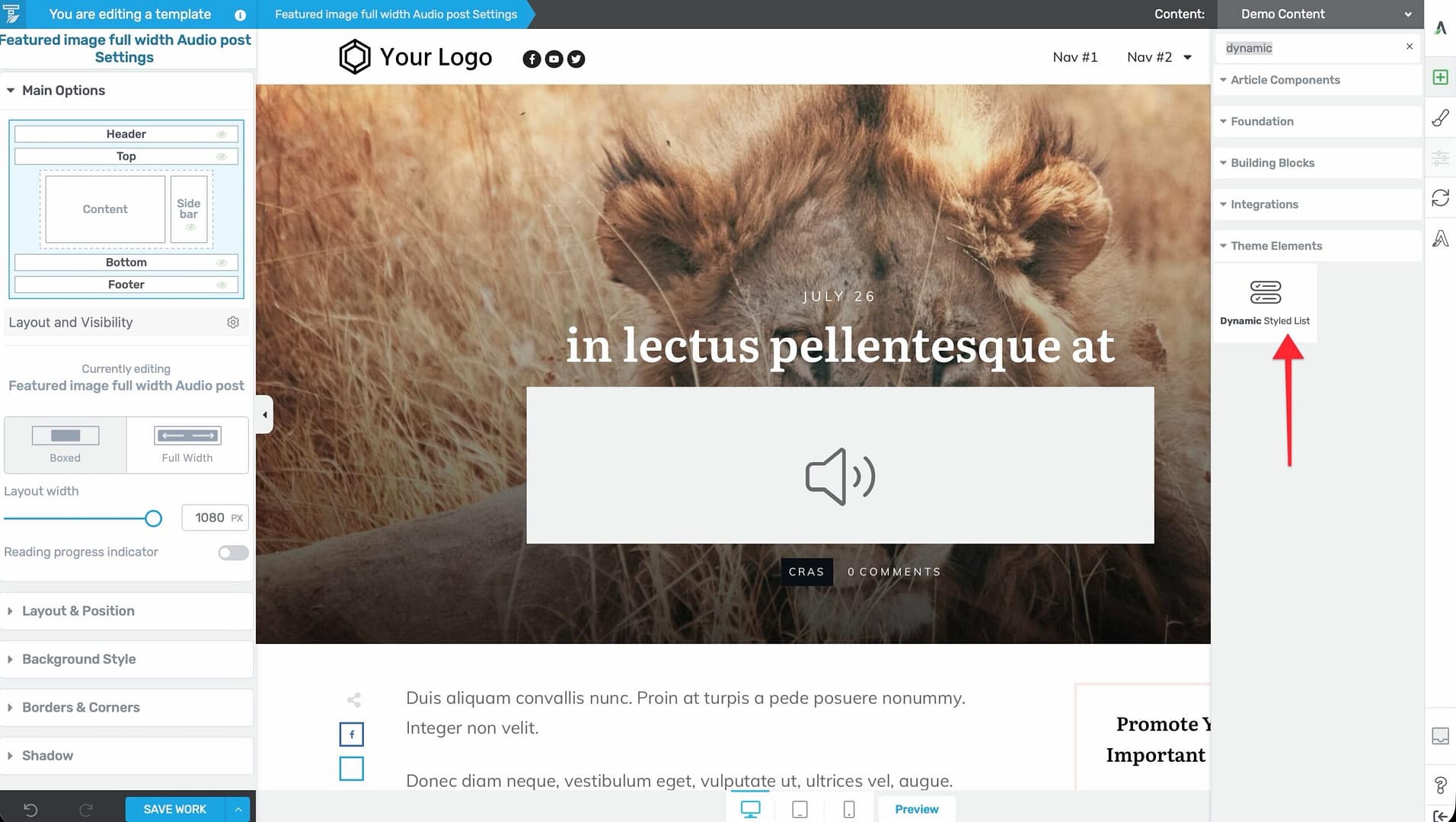
- In the Thrive Theme Builder editor, click the plus (+) icon in the right sidebar.
- Search for Dynamic Styled List.
- Drag the element into position on the template.
Available List Types
The Dynamic Styled List can display:
- Categories List — A list of all post categories.
- Tags List — A list of all post tags.
- Authors List — A list of authors who have published content.
- Monthly List — A list of months organized by year (date-based archives).
- Meta List — A list of WordPress site meta links.
- Pages List — A list of published pages.
- Recent Comments List — The most recent comments on your site.
- Recent Posts — The most recently published posts.
Customization Options
- Max Items to Display — Limit the number of items shown (1–100).
- Layout — Choose between vertical (stacked) and horizontal (inline) layout.
- Enable Icons — Add icons next to each list item.
- Icon Style — Choose and customize the icon used for list items.
- Item Spacing — Control the space between list items (in pixels or ems).
- Typography — Style the text of list items (font, size, color, weight).
Common Use Cases
- Sidebar categories — Display a styled list of categories in the sidebar for easy navigation.
- Footer recent posts — Show recent posts in the footer area.
- Author page — List all authors on a dedicated page.
- Archive navigation — Display a monthly archive list for chronological browsing.
Best Practices
- Use Dynamic Styled Lists for navigation — They’re ideal for sidebars and footers where visitors need quick access to content categories.
- Limit the number of items — Long lists can overwhelm visitors. Show 5–10 items and link to a full archive page for the rest.
- Match the styling to your theme — Customize colors, fonts, and spacing to ensure the list integrates seamlessly with your template design.
- Choose the right list type — Categories and Recent Posts are the most commonly used list types. Monthly lists are useful for sites with a long publishing history.
Related Resources
- Using the Foundation Element: Learn about shared elements and the foundation element.
- Using the Widget Area & Calendar Elements: Learn about widget area and calendar elements.
- Sidebar Widgets & Content: Learn how to add content to the sidebar.