In this article, you’ll learn how to use the Content Reveal element in Thrive Architect. This element lets you hide content on your page and reveal it automatically after a specified time delay.
The Content Reveal element is a simple, time-based tool with just three controls. It works by keeping a section of your page hidden when a visitor first arrives, then making it visible after a set number of seconds. This is especially useful for building anticipation, controlling the pace of content consumption, and creating urgency-driven offers.
How the Content Reveal Element Works
The Content Reveal element uses a time-based trigger only. There are no scroll-based or click-based triggers. Here’s the basic behavior:
- When a visitor lands on your page, the content inside the Content Reveal element is hidden.
- A countdown timer runs in the background (invisible to the visitor).
- After the specified number of seconds, the hidden content appears instantly on the page.
- Optionally, the page can scroll to the revealed content or redirect to a different URL.
Important: The content reveal happens instantly after the time delay. There is no fade, slide, or other animation effect—the content simply appears.
Adding the Content Reveal Element to a Page
Follow these steps to add a Content Reveal element to your page:
- Open your page or post in the Thrive Architect editor.
- Click the green plus (+) icon in the right sidebar to open the element panel.
- Type Content Reveal in the search field at the top of the panel.
- Alternatively, scroll down to the Building Blocks section in the element list to find the Content Reveal element.
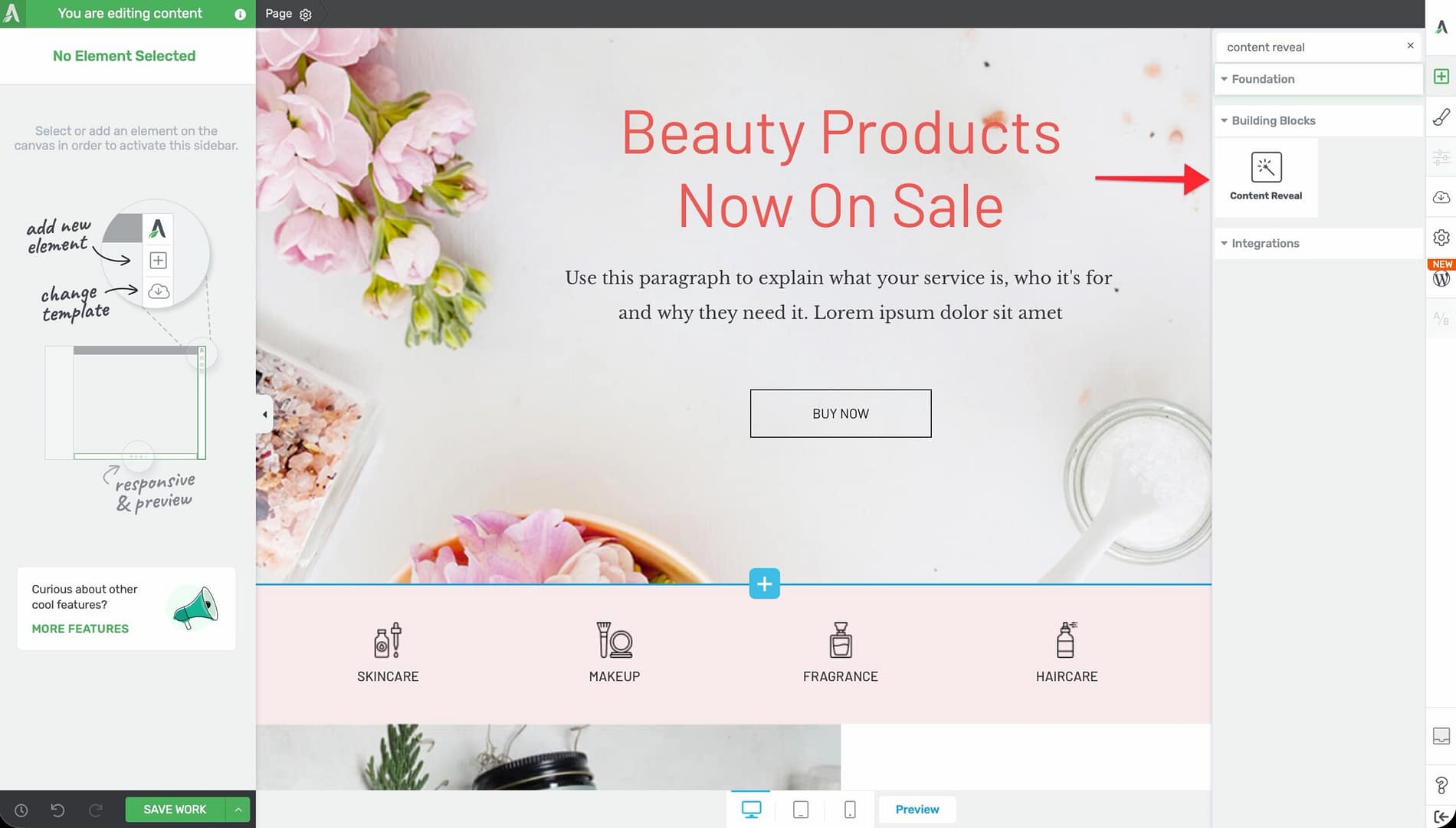
- Drag the element from the panel and drop it onto your page canvas.
A Content Reveal container will appear on the canvas. Any elements you place inside this container will be hidden until the time delay elapses.
Configuring the Main Options
The Content Reveal element has a simple three-control interface. After selecting the element, the left sidebar displays the following options:
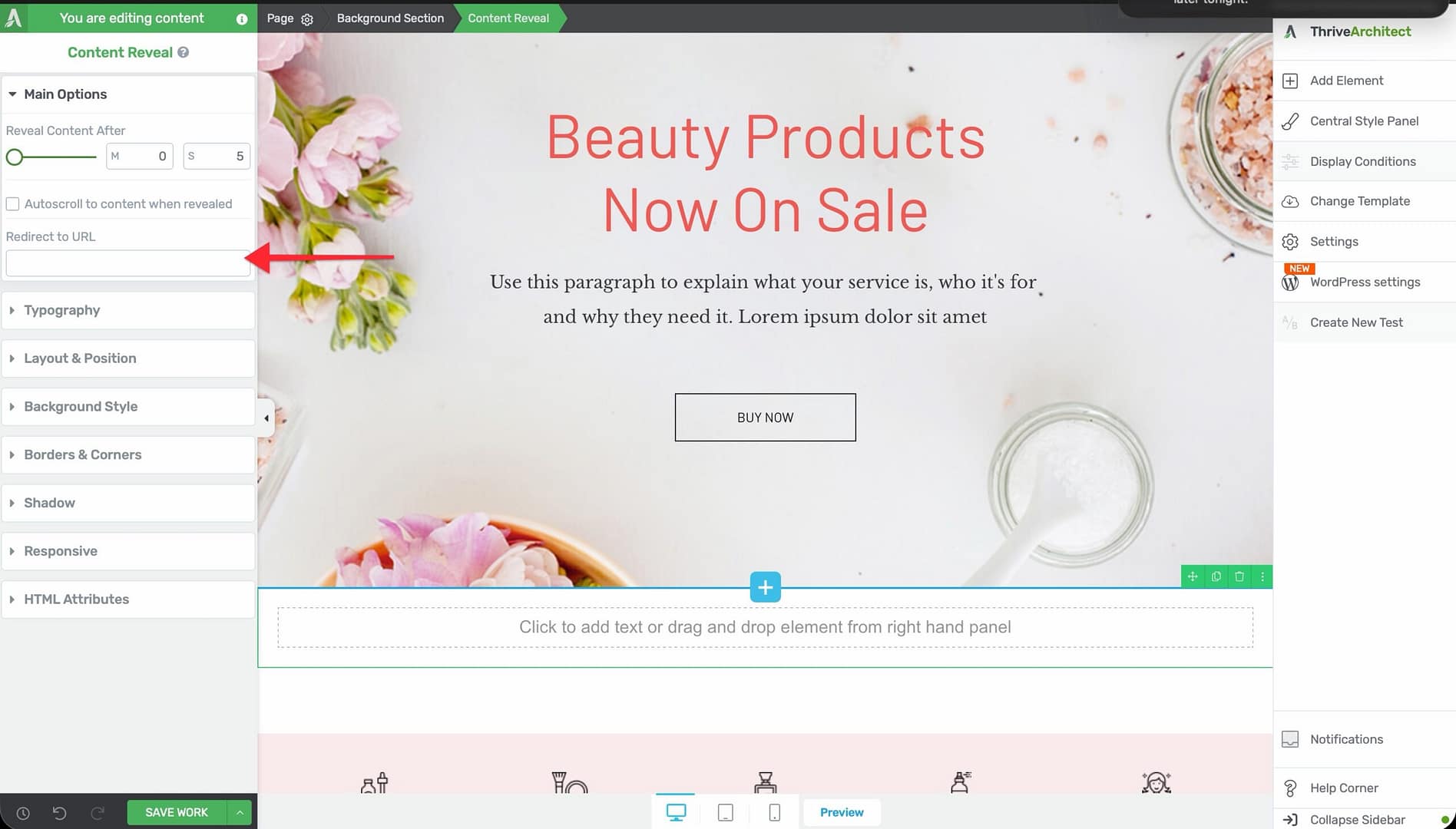
Redirect to URL
An optional text input field where you can enter a URL. When a value is entered, the visitor will be redirected to that URL after the content is revealed.
Leave this field empty if you want the visitor to stay on the current page and see the revealed content.
Reveal Content After
A time slider that controls how long the content stays hidden before being revealed:
- Default: Auto (the element determines the timing based on content)
- Range: 0 to 21,600 seconds (up to 6 hours)
Set this to the number of seconds you want the visitor to wait before the content appears. For example:
- 30 seconds — Reveal a call-to-action after the visitor has had time to read an introduction
- 300 seconds (5 minutes) — Reveal a bonus offer after a video finishes playing
- 3600 seconds (1 hour) — Reveal exclusive content after an extended waiting period
Autoscroll to Content When Revealed
Enable this checkbox to automatically scroll the visitor’s browser to the revealed content once it appears. This ensures the visitor sees the new content immediately, even if it’s further down the page.
Adding Content Inside the Content Reveal Element
To add the content that will be hidden and then revealed:
- Click inside the Content Reveal container on the canvas.
- Add any Thrive Architect elements you need—text, images, buttons, forms, videos, countdown timers, and more.
- Arrange and style the elements as you normally would.
Everything inside the Content Reveal container will be hidden when the page first loads and will appear after the specified time delay.
Common Use Cases
Revealing a Call to Action After a Video
Place a Content Reveal element below an embedded video. Set the delay to match the approximate video length (for example, 300 seconds for a 5-minute video). The call-to-action button, opt-in form, or purchase link appears only after the visitor has had time to watch the video.
Time-Delayed Bonus Offers
Create urgency by revealing a bonus offer or discount code after a set period. For example, on a webinar replay page, reveal a limited-time offer after the visitor has been on the page for 30 minutes.
Progressive Content Disclosure
On long-form sales pages, use multiple Content Reveal elements at different time intervals to progressively reveal testimonials, features, or pricing sections. This guides the visitor through your content at a controlled pace.
Redirecting After a Waiting Period
Combine the time delay with the Redirect to URL option to send visitors to a different page after a set period. This is useful for:
- Redirecting to a checkout page after a product demo
- Sending visitors to a members-only area after a waiting period
- Forwarding to a thank-you page after content consumption
Gated Content Preview
Show a teaser section of your content immediately, then reveal the full content after a brief delay. This creates a sense of exclusivity and encourages visitors to stay on the page.
Frequently Asked Questions
Does the Content Reveal Element Work on Mobile?
Yes. The Content Reveal element works on all devices—desktop, tablet, and mobile. The time-based trigger functions identically across all screen sizes.
Can I Use Multiple Content Reveal Elements on the Same Page?
Yes. You can place multiple Content Reveal elements on a single page, each with its own time delay. This lets you reveal different content sections at different intervals for a progressive disclosure effect.
What Happens if the Visitor Refreshes the Page?
The timer resets when the page is refreshed. The Content Reveal element does not store state between page loads, so the visitor will wait through the full delay again.
Can I Trigger the Reveal on Scroll or Click Instead of Time?
No. The Content Reveal element is time-based only. It does not support scroll-triggered or click-triggered reveals. If you need content to appear on click, consider using a toggle, lightbox, or button-triggered visibility instead.
Is There an Animation When the Content Appears?
No. The Content Reveal element does not include animation options. The hidden content appears instantly once the time delay elapses. The Animation component is hidden for this element.
What Is the Maximum Delay I Can Set?
The maximum delay is 21,600 seconds, which equals 6 hours. For most use cases, delays of 10 seconds to 30 minutes are the most practical.
Related Resources
- Toggle Element: How to Use the Toggle Element — Collapsible content sections triggered by click
- Page Events: How to Set Up Page Events and Lightboxes — Time-based and exit intent lightbox triggers
- Video Element: How to Use the Video Element — Embedding videos to pair with timed content reveals
- Getting Started: Getting Started with Thrive Architect — Overview of the editor and element panel
That’s it! You’ve successfully learned how to use the Content Reveal element in Thrive Architect. With its simple time-based trigger, optional URL redirect, and autoscroll feature, you can control exactly when visitors see key content on your pages.