In this article, you’ll learn about the Foundation element in Thrive Theme Builder and how to use standard Thrive Architect elements within your templates.
What Is the Foundation Element?
The Foundation element (also called the Template Wrapper) is the outermost container of your Thrive Theme Builder template. It wraps all template content—header, content area, sidebar, and footer—and provides global template-level controls.
When you open a template in the Thrive Theme Builder editor, the Foundation element is represented by the #wrapper container. You can select it by clicking the outermost area of the template or through the breadcrumbs at the top of the editor.
Foundation Element Settings
The Foundation element provides these global template controls:
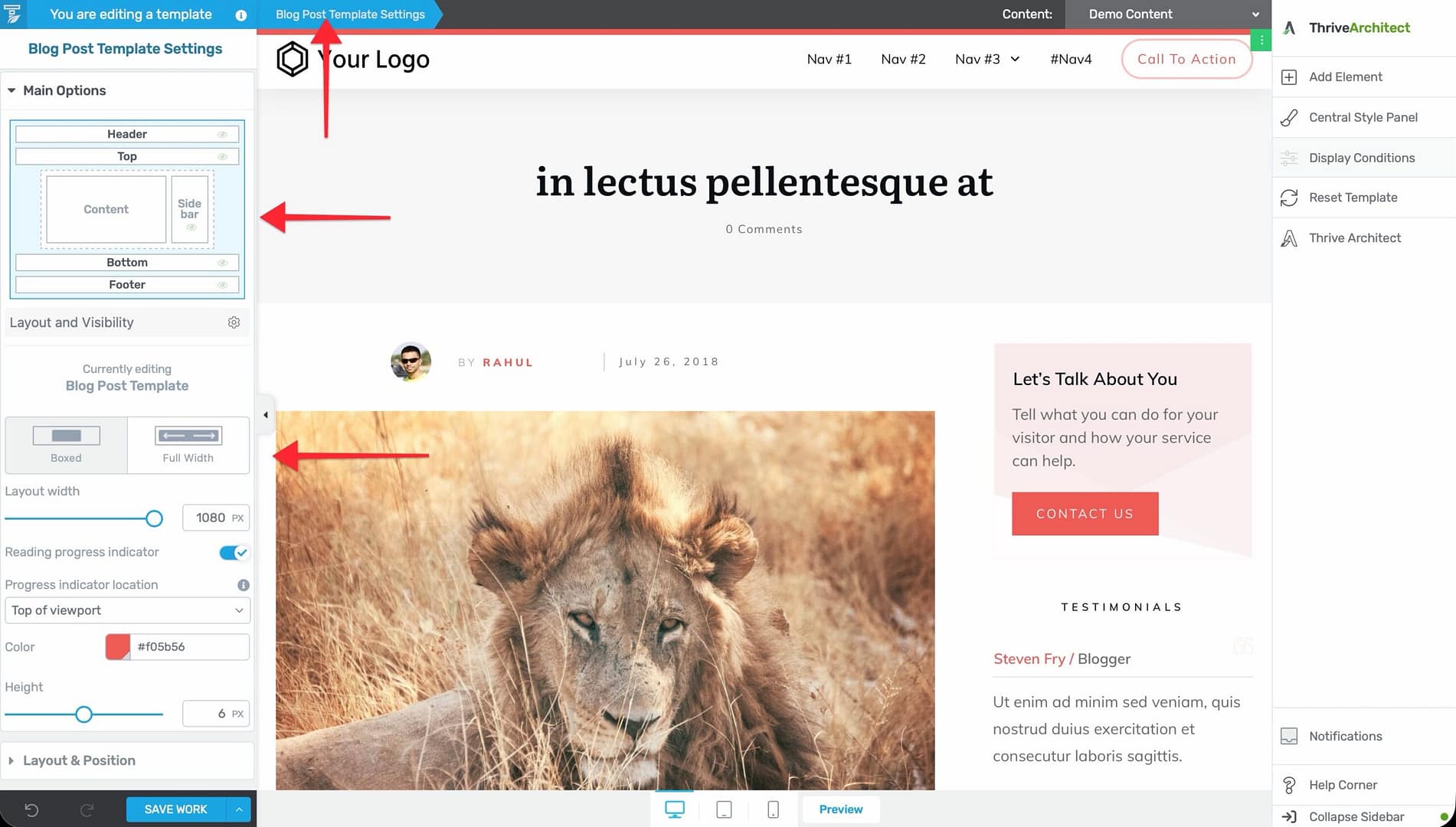
- Content Width — Set the maximum width of the template’s content area (in pixels or percentage).
- Layout Width — Set the overall layout width.
- Reading Progress Indicator — Enable or disable the reading progress bar for this template. See Using the Reading Progress Indicator.
These settings affect the entire template and all elements within it.
Shared Elements Between Thrive Theme Builder and Thrive Architect
Many elements available in the Thrive Theme Builder editor are the same elements found in the Thrive Architect editor. These shared elements work identically in both editors:
- Text — Headings, paragraphs, and formatted text.
- Image — Static and dynamic images.
- Button — Call-to-action buttons with link and styling options.
- Columns — Multi-column layouts for organizing content.
- Background Section — Full-width sections with background colors, images, or videos.
- Content Box — Styled containers for grouping content.
- Lead Generation — Opt-in forms for email collection.
- Video — Embedded video players.
- And many more — Dividers, icons, countdown timers, tables, star ratings, etc.
How to Add Elements
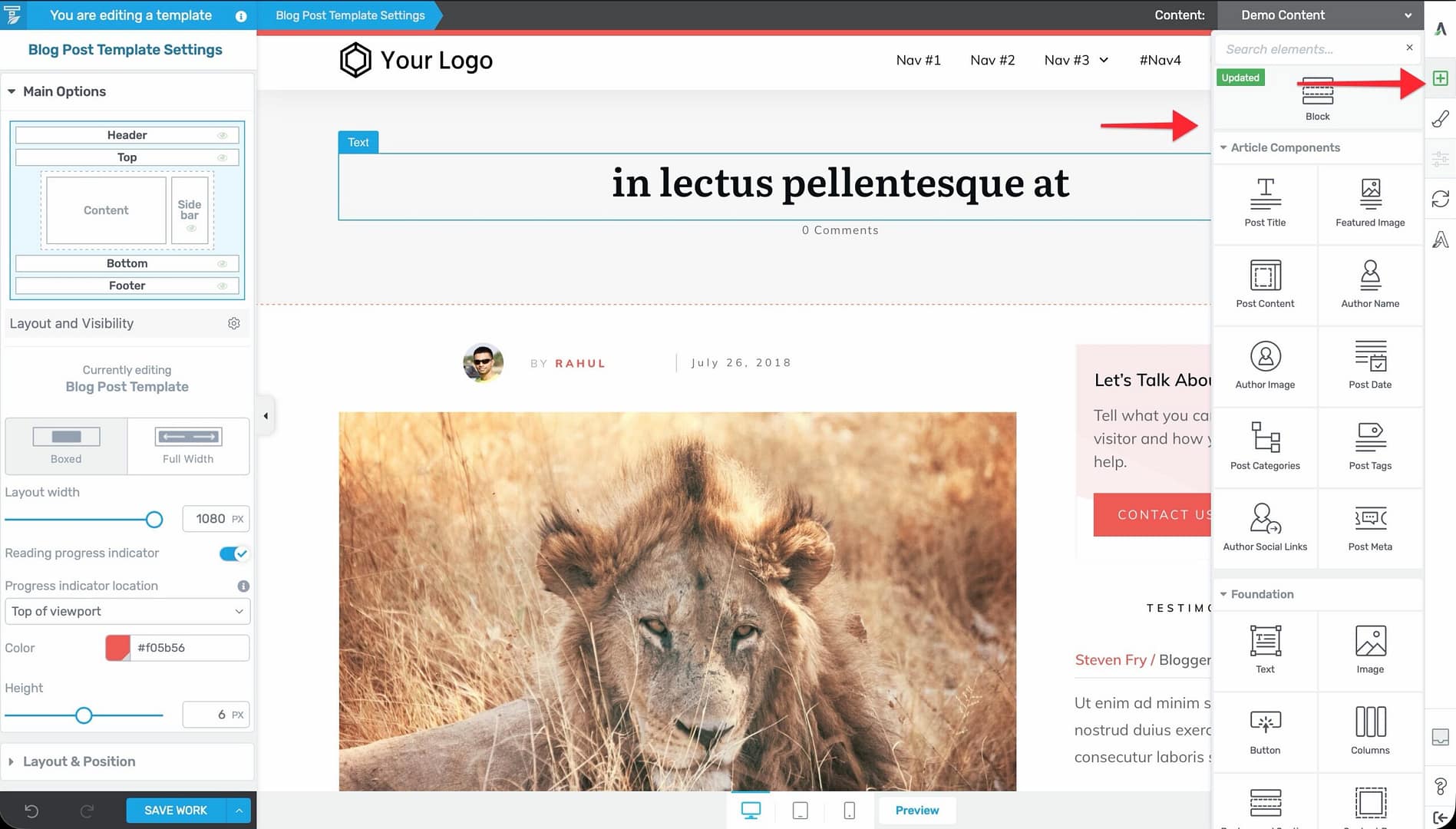
- In the Thrive Theme Builder editor, click the plus (+) icon in the right sidebar.
- Browse or search for the element you need.
- Drag the element from the panel and drop it into position on the template.
For detailed documentation on individual shared elements, refer to the Thrive Architect documentation—the behavior, options, and customization are identical.
Theme-Specific Elements
In addition to the shared foundation elements, Thrive Theme Builder includes elements that are exclusive to theme templates:
- Post Content — Displays the body content of a page or post.
- Post Meta — Displays metadata like author, date, and categories.
- Featured Image — Displays the post’s featured image dynamically.
- About the Author — Shows author bio and profile information.
- Breadcrumbs — Shows a navigation path (Home > Category > Post).
- Previous/Next Content — Navigation between posts.
- Comments Section — WordPress comments area.
- Dynamic Styled List — Lists of categories, tags, authors, or posts.
- Widget Area — Container for WordPress widgets.
- Social Follow — Links to your social media profiles.
These theme-specific elements are covered in detail in the other articles in this category.
Related Resources
- Using Post Content & Meta Elements: Learn about post content and metadata elements.
- Using Author Elements: Learn about author-related elements.
- Using the Thrive Theme Builder Editor: Learn about the editor tools and interface.