In this article, you’ll learn how to use the More Tag element in Thrive Architect. The More Tag is a WordPress built-in feature that splits your post content into two parts: the excerpt portion (shown on blog and archive pages) and the full content (shown when a visitor clicks through to the individual post). Thrive Architect makes it easy to add this tag visually by dragging and dropping the More Tag element onto your page.
The More Tag gives you precise control over exactly how much of your post content appears in blog listings, archive pages, and anywhere WordPress displays post excerpts.
What the More Tag Is
The More Tag is a content divider that tells WordPress where to cut off the post content for excerpt display. Everything above the More Tag is shown as the excerpt on blog pages, archive pages, search results, and other listing views. Everything below the More Tag is hidden on those pages and only visible when the visitor navigates to the full post.
How It Differs From Manual Excerpts
WordPress provides two ways to control what appears in post listings:
- More Tag — Placed directly within the post content. It uses a portion of the actual post body as the excerpt. The excerpt includes all formatting, images, and elements that appear above the tag.
- Manual excerpt — A separate text field in the WordPress post editor (found in the Excerpt panel). It is a plain-text summary that is completely independent of the post content.
Key differences:
- The More Tag preserves your Thrive Architect formatting, styles, images, and layout in the excerpt. The manual excerpt is plain text with no formatting.
- The More Tag uses your actual post content, so the excerpt always matches the beginning of the post. The manual excerpt can say anything — it does not need to match the post content at all.
- The More Tag adds a “Read More” link after the excerpt on blog pages (the exact text depends on your theme). The manual excerpt may or may not include a read more link, depending on your theme’s settings.
- Some themes and page builders prioritize the manual excerpt over the More Tag. Check your theme’s documentation for specifics on excerpt display behavior.
Adding the More Tag Element in Thrive Architect
Follow these steps to add a More Tag element to a post:
- Open the post you want to edit in the Thrive Architect editor.
- Click the green plus (+) icon in the right sidebar to open the element panel.
- Type More Tag in the search field at the top of the panel.
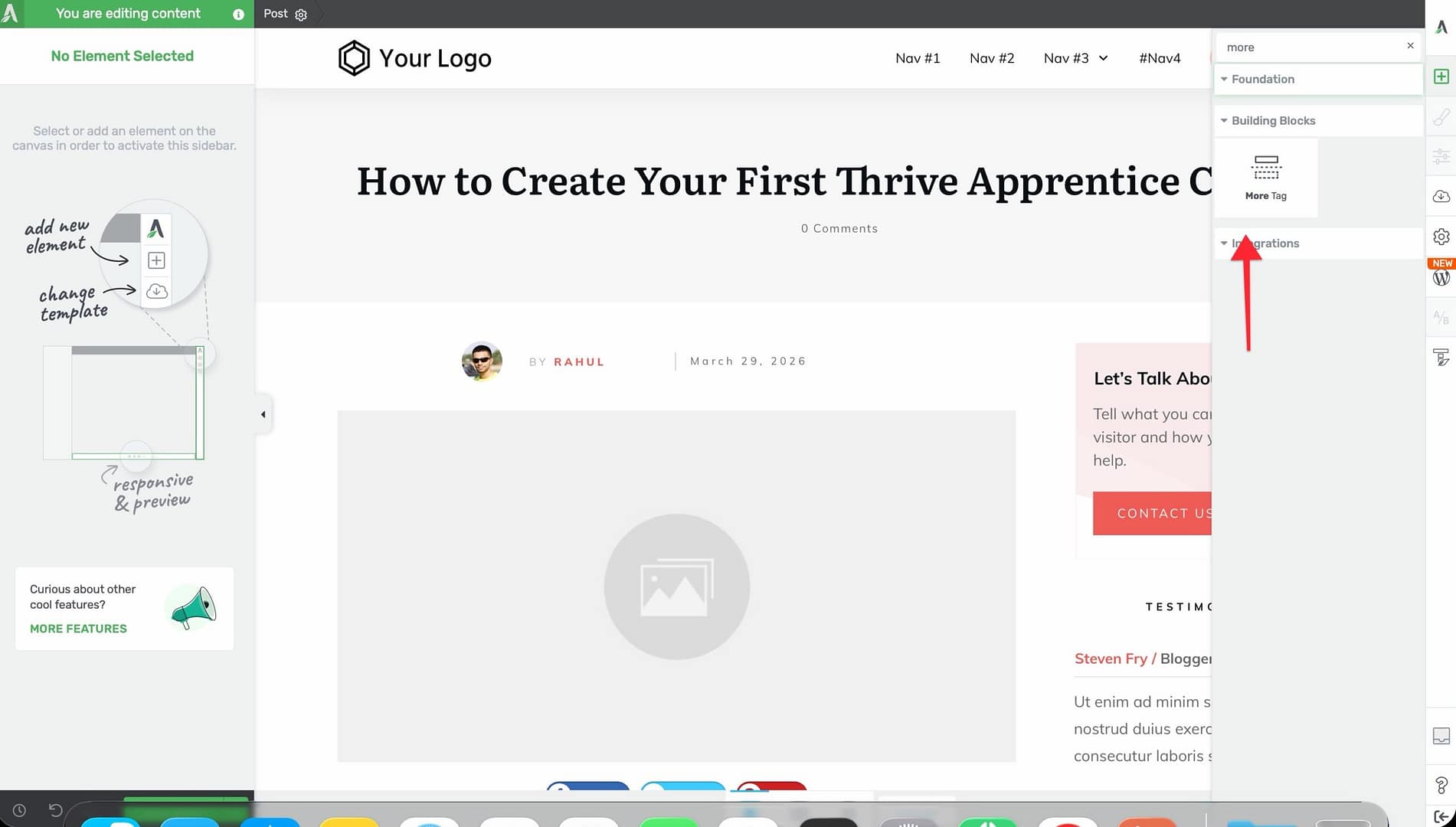
- Alternatively, scroll down to the Building Blocks section in the element list to find the More Tag element.
- Drag the element from the panel and drop it onto the post canvas at the position where you want the excerpt to end.
A horizontal dashed line labeled “More” will appear on the canvas, indicating where the content split occurs.
Positioning the More Tag
The placement of the More Tag determines how much content appears in the excerpt:
- Position it after an introductory paragraph to show a brief teaser that encourages visitors to read more.
- Position it after a heading and first paragraph to give visitors context about the post topic before they click through.
- Position it after an image and introductory text to create a visually rich excerpt that includes a featured image or illustration.
Tip: Place the More Tag at a natural break point in your content — after a complete thought or paragraph. Cutting off mid-sentence creates a poor reading experience on blog and archive pages.
Moving or Removing the More Tag
To move the More Tag after placing it:
- Click on the More Tag element on the canvas to select it.
- Drag it to a new position on the page.
To remove the More Tag:
- Click on the More Tag element to select it.
- Press the Delete key on your keyboard, or click the trash icon in the element’s floating toolbar.
How the More Tag Works on Blog and Archive Pages
Once you have placed the More Tag in a post, WordPress uses it to control content display across different page types.
Blog Page (Posts Page)
On your blog page (the page designated in Settings > Reading as the Posts page):
- Only the content above the More Tag is displayed for each post.
- A “Read More” link (or button, depending on your theme) appears after the excerpt content.
- Clicking the Read More link takes the visitor to the full post page, where all content is visible.
Archive Pages
On category, tag, date, and author archive pages:
- The same excerpt behavior applies — content above the More Tag is shown, and content below is hidden.
- The Read More link directs visitors to the full post.
Single Post Page
On the individual post page (when a visitor clicks through to read the full post):
- The More Tag is invisible. All content is displayed as one continuous piece — both the content above and below the tag.
- The More Tag does not create any visual break, divider, or separator on the single post page.
Search Results
On WordPress search results pages:
- Depending on your theme, the More Tag may control the excerpt shown in search results, or the theme may use its own excerpt logic.
- Most themes respect the More Tag for search result excerpts, but behavior varies.
Common Use Cases
The More Tag is useful in several scenarios:
- Blog post excerpts — Control exactly which content appears on your blog listing page, including formatted text, images, and styled elements, rather than relying on WordPress to auto-generate a plain-text excerpt.
- Archive page teasers — Show an engaging preview of each post on category and tag archive pages that includes Thrive Architect styling and visual elements.
- Consistent excerpt lengths — By placing the More Tag at a similar position in each post, you create a uniform look across your blog page where all excerpts have a similar length.
- Featured content preview — Include an image, heading, and a few sentences above the More Tag to create visually appealing post previews that entice visitors to click through.
Sidebar Options
The More Tag element has no sidebar configuration options. It functions purely as a content divider and does not include settings for styling, layout, or behavior. Its only purpose is to mark the split point between excerpt content and full content.
The More Tag also does not include Layout, Typography, Borders, Animation, or Background panels. It is a functional marker, not a visual element.
Frequently Asked Questions
Does the More Tag Work on Pages, or Only on Posts?
The More Tag is designed for posts. WordPress does not display excerpts for pages on blog or archive listings by default. While you can technically add a More Tag to a page, it will not have any effect unless your theme or a plugin specifically uses page excerpts.
What If My Theme Ignores the More Tag?
Some themes use the manual excerpt field instead of the More Tag for blog and archive pages. If your More Tag does not seem to work, check your theme’s settings for an excerpt or blog display option. You may need to set the theme to use the “content” display mode rather than the “excerpt” mode.
Can I Have Multiple More Tags in One Post?
Only the first More Tag in a post is recognized by WordPress. If you place multiple More Tags, all except the first one will be ignored. Content above the first More Tag becomes the excerpt.
Does the More Tag Affect SEO?
The More Tag itself does not directly affect SEO. However, it influences the content that appears on blog and archive pages, which search engines do index. Providing a meaningful excerpt above the More Tag ensures that your blog listings contain relevant, keyword-rich content.
Will the More Tag Show a Visual Divider on the Published Post?
No. On the single post page, the More Tag is completely invisible. It does not create any line, divider, space, or visual break in the published content. It only functions as a content split marker for blog and archive pages.
Related Resources
- Text Element: How to Use the Text Element — Creating and formatting post content in Thrive Architect
- Post List Element: How to Use the Post List Element — Displaying blog posts with custom layouts and excerpt settings
- Getting Started: Getting Started with Thrive Architect — Overview of the editor, element panel, and drag-and-drop workflow
- Landing Pages: How to Get Started with Landing Pages — Building standalone pages (where the More Tag does not apply)
That’s it! You’ve successfully learned how to use the More Tag element in Thrive Architect. By placing the More Tag at a strategic position in your post content, you control exactly what appears as the excerpt on blog and archive pages, creating engaging previews that encourage visitors to click through and read your full posts.