In this article, you’ll learn how to use the Navigator Panel in Thrive Architect to see your entire page as an organized outline, search for any element, and select it with one click.
The Navigator gives you a complete outline of your page inside Thrive Architect. Instead of clicking around the canvas to find a specific element, you can see everything on the page as an indented list, search it, and click any item to jump straight to it. It is especially helpful on long or complex pages where elements are stacked or nested inside one another.
How to Open the Navigator Panel
- Open any page or template in Thrive Architect.
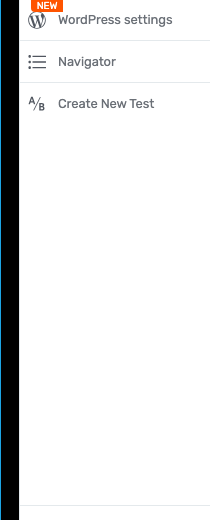
- In the sidebar, click the Navigator icon.
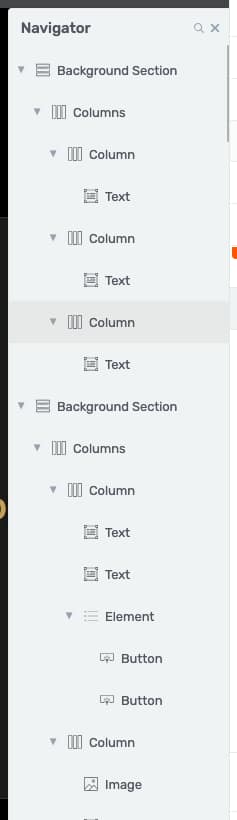
- The Navigator opens as a panel showing your page’s elements in a tree (outline) view.
How to Understand the Page Outline
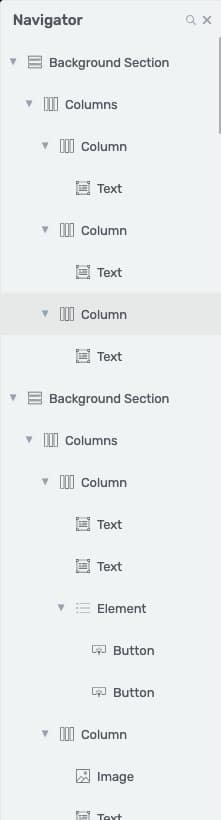
Each item in the list is one element on your page. From left to right, a row shows:
- An expand/collapse arrow (only on items that contain other items). Click it to show or hide that group’s contents.
- An icon showing the element type (for example, Background Section, Button, or Text). Elements without a specific icon show a simple generic icon.
- The element’s name – its type as shown in the editor (such as Background Section, Columns, Button, or Content Box).
Indentation shows nesting. Items nested inside a container are indented further to the right, so you can see at a glance what lives inside what (for example, a Button inside a Column inside a Background Section).
Tip: If a name is long, it may be shortened with “…”. Hover over it to see the full name.
Note: The list updates as you add, remove, or move elements on the canvas. You do not need to refresh the panel manually.
How to Select Elements From the Navigator or Canvas
Selection works both ways:
- Click an item in the Navigator to select that element on the page. The canvas scrolls to it when needed, and the editing options for that element open in the left sidebar.
- Click an element on the page and the Navigator automatically highlights it in the list, expanding its parent groups if needed, so you always know where you are.
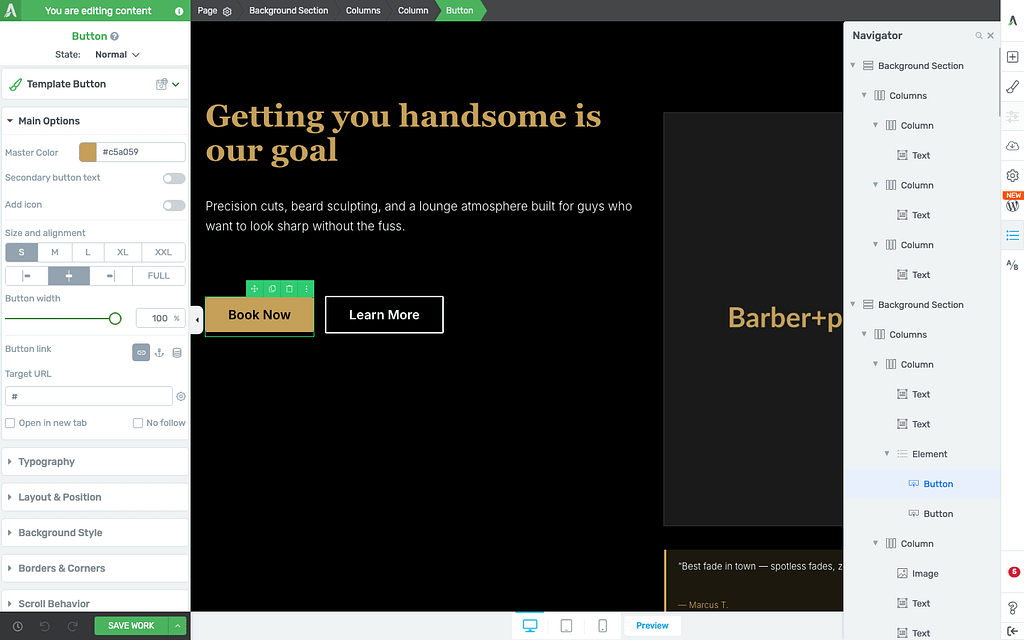
Important: Selecting an element in the Navigator works the same as clicking it on the canvas. Any changes you make in the left sidebar apply to the selected element.
How to Search for an Element
When your page has many elements, use search to narrow the list instantly.
- With the Navigator open, click the search icon at the top of the panel.
- Type in the Search elements… field – for example,
buttonorimage. - The list filters in real time as you type. Parent containers stay visible so you can see where each match sits in the page structure.
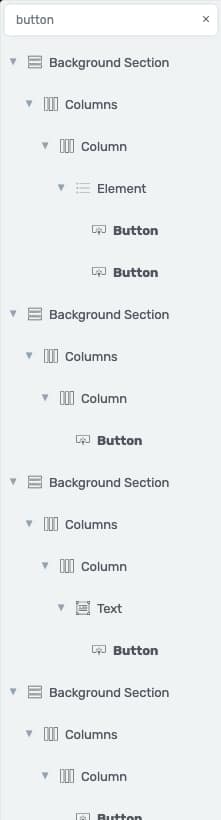
If nothing matches your search, you will see No elements found.
On a brand-new or empty page, you will see No elements on this page.
How to Expand and Collapse Groups
- Click the arrow next to any container to collapse it (hide its contents) or expand it.
- Your collapsed and expanded choices are remembered while you work – even as you add or move elements, and when you close and reopen the panel.
How to View Inner Elements in Forms, Symbols, and Special Blocks
Some items, such as opt-in forms, Symbols, the Post List, and similar dynamic blocks, keep their inner contents hidden in the Navigator until you enter their edit mode.
For example, on a form you click Edit Form Elements on the canvas. This is intentional – it matches how you edit those items on the page.
Once you enter edit mode:
- A form’s input fields (such as Input or Email Field) appear as items inside it.
- When you finish editing, click DONE in the bottom bar. Those inner items collapse away again.
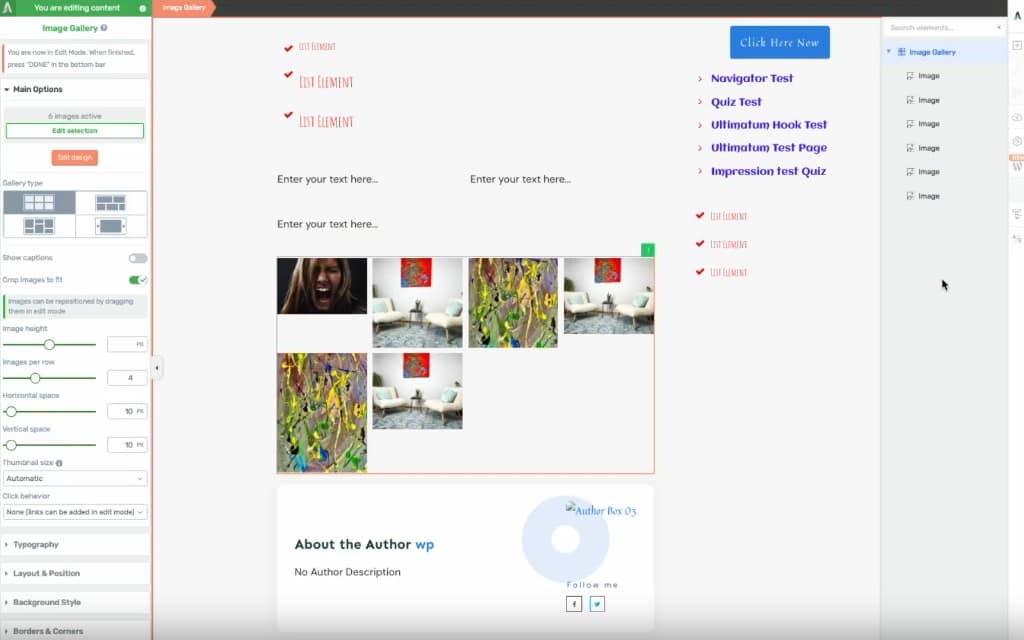
Important: If you do not see form fields in the Navigator, click into the form’s edit mode first. The fields appear only while you are editing that block.
Some items, such as opt-in forms, Symbols, the Blog List, and similar dynamic blocks, keep their inner contents hidden in the Navigator until you enter their edit mode (for example, clicking “Edit Form Elements” on a form). This is intentional; it matches how you edit those items on the page. Once you enter edit mode:
- A form’s input fields (such as Name, Email, Textarea) appear as items inside it.
- When you finish editing (click DONE), those inner items collapse away again.
Question: “Why don’t I see my form fields in the Navigator?”
Answer: Click into the form’s edit mode, and they’ll appear.
What this version can and cannot do
This first version of the Navigator is for viewing and selecting elements. In this version, you can:
- See your full page structure
- Search for elements
- Expand and collapse groups
- Select any element with one click
In this version, you cannot yet (planned for future updates):
- Drag items to reorder them
- Rename elements or give them custom labels
- Right-click for a menu
- Toggle element visibility per device
Quick troubleshooting
“I don’t see my form’s fields.”
Click into the form and enter its edit mode; the fields will appear in the Navigator.
“An element isn’t showing.”
Some non-editable sub-pieces (like a button’s icon or a textarea’s character counter) are intentionally hidden to keep the list clean.
“It feels slow on a huge page.”
It’s built to stay fast and has no effect when closed. If you experience slowness, note your page size and report it to support.