In this article, you’ll learn how to add the Social Follow element to your Thrive Theme Builder templates so visitors can find and follow your social media profiles.
What Is the Social Follow Element?
The Social Follow element displays clickable icons that link to your brand’s social media profiles (Facebook, Twitter/X, Instagram, LinkedIn, YouTube, etc.). Unlike the Author Social Links element (which shows per-author social profiles), the Social Follow element displays your site-wide social accounts—the same profiles on every page.
Adding the Social Follow Element
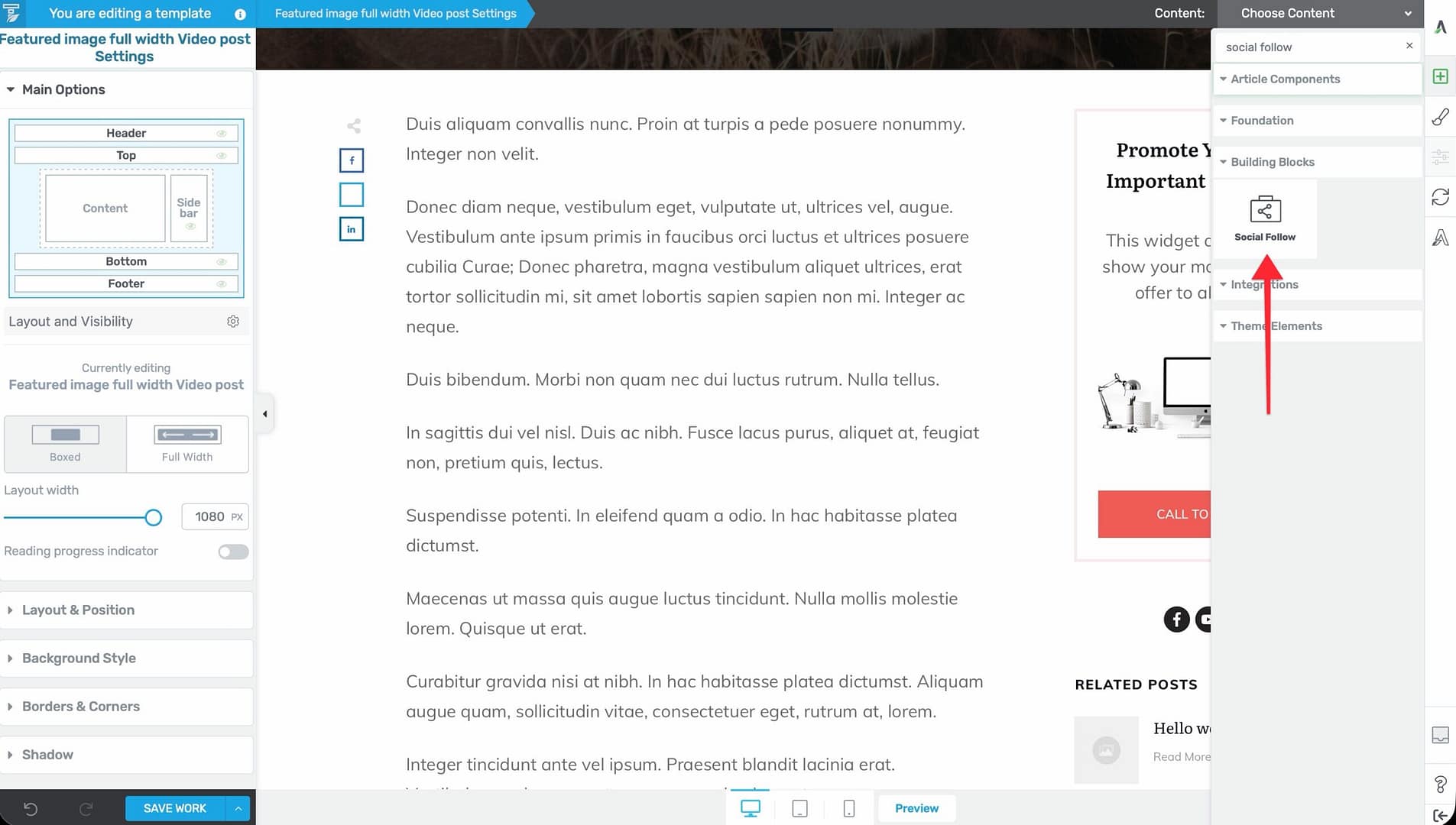
- Open a template in the Thrive Theme Builder editor.
- Click the plus (+) icon in the right sidebar.
- Search for Social Follow.
- Drag the element into position on the template.
Recommended Placements
- Footer — The most common location. Visitors expect to find social links in the footer.
- Header — For prominent social media visibility on every page.
- Sidebar — As a secondary navigation element alongside other sidebar content.
- About the Author area — Below the author box for additional social context.
Configuring the Element
After placing the Social Follow element, select it to see its options in the left sidebar:
Social Networks
Choose which social media platforms to display. Add or remove networks from the element’s configuration. Common options include:
- X (formerly Twitter)
- YouTube
Each network’s icon links to the URL you specify.
Style and Appearance
- Icon style — Choose from multiple pre-designed icon styles (solid, outline, rounded, etc.).
- Size — Adjust the icon size.
- Spacing — Control the gap between icons.
- Colors — Use brand colors or custom colors for each icon.
- Alignment — Set the alignment of the icon row (left, center, right).
Social Follow vs. Author Social Links
| Feature | Social Follow | Author Social Links |
|---|---|---|
| Scope | Site-wide (your brand’s accounts) | Per-author (individual author’s accounts) |
| Content | Same on every page | Changes based on post author |
| Typical placement | Footer, header, sidebar | Inside the About the Author box |
| Use case | Brand promotion | Reader-author connection |
Use Social Follow when you want visitors to follow your brand’s social media. Use Author Social Links when you want readers to connect with the specific author of a post.
Best Practices
- Include 3–5 platforms — Display only the social networks where you’re most active. Too many icons can look cluttered.
- Keep links updated — Make sure all social profile URLs are correct and point to active accounts.
- Use recognizable icons — Stick with standard icon styles that visitors will immediately recognize.
- Place in the footer at minimum — Even if you add social icons elsewhere, always include them in the footer for visitors who scroll to the bottom.
- Match your brand — Customize icon colors to complement your template design while keeping them recognizable.
Related Resources
- Using Author Elements: Learn about author-related elements including Author Social Links.
- Connecting Social Media Profiles: Learn how to set up your social media profiles.
- Using the Footer Section: Learn how to customize the footer.