In this article, you’ll learn how to use the Templates and Symbols element in Thrive Architect. This element lets you insert reusable content blocks into your pages—either as one-time templates or as globally linked symbols that update everywhere when edited in one place.
Templates and symbols are powerful tools for maintaining consistency across your site. A template is a saved content block that you insert as a one-time copy—changes to the inserted content do not affect the original. A symbol, on the other hand, is globally linked—editing it in one location automatically updates every instance across your entire site.
Understanding Templates vs. Symbols
Before working with the element, it’s important to understand the key difference between templates and symbols:
- Templates — Saved content blocks that are inserted as independent copies. Once placed on a page, the content is no longer connected to the original template. You can edit the inserted copy freely without affecting the original or any other pages.
- Symbols — Globally linked content blocks. Every instance of a symbol is connected. When you edit a symbol, the changes propagate to every page where that symbol appears.
Key characteristics:
- Templates are ideal for starting points—pre-designed layouts you customize per page
- Symbols are ideal for repeated content that must stay identical everywhere, such as headers, footers, call-to-action sections, or legal disclaimers
- A symbol can be “unlinked” to convert it into regular editable content, breaking the global connection
- Both templates and symbols are managed from the Thrive Dashboard
Tip: Use symbols for any content block that appears on multiple pages and needs to stay consistent. This saves significant time when you need to make site-wide updates.
Adding the Templates and Symbols Element to a Page
Follow these steps to insert a template or symbol onto your page:
- Open your page or post in the Thrive Architect editor.
- Click the green plus (+) icon in the right sidebar to open the element panel.
- Type Templates & Symbols in the search field at the top of the panel.
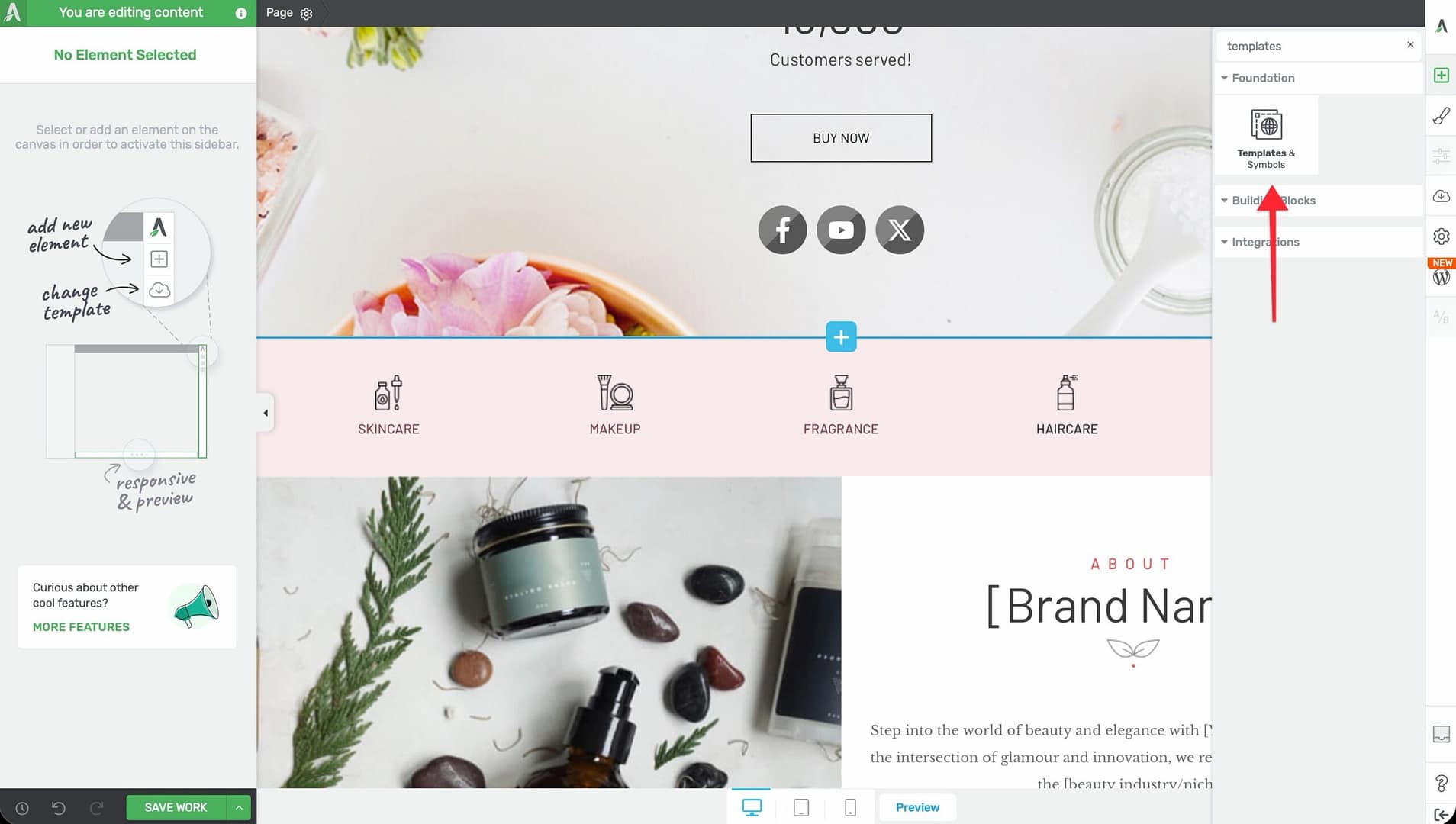
- Alternatively, scroll down to the Building Blocks section in the element list to find the Templates & Symbols element.
- Drag the element from the panel and drop it onto your page canvas.
A modal window will open, displaying your saved templates and symbols. Browse the library, then click on the item you want to insert.
Browsing and Selecting From the Library
When the modal opens after dragging the element onto the canvas, you can:
- Browse templates — View all saved content templates organized by category
- Browse symbols — View all saved symbols, each marked with a global link indicator
- Search — Use the search field at the top of the modal to quickly find a specific template or symbol by name
- Preview — Hover over items to see a preview before inserting
Click on any item to insert it onto your page at the position where you dropped the element.
Working With Symbols on the Canvas
After inserting a symbol, it appears on the canvas with a distinctive indicator showing that it is globally linked. When you select an inserted symbol, two action buttons appear:
Edit as Symbol
Click the Edit as Symbol button to open the symbol in its global editing mode. In this mode:
- Any changes you make will apply to every instance of the symbol across your entire site
- The editor interface will indicate that you are editing a global symbol
- Save your changes when finished, and all pages using this symbol will update automatically
Unlink
Click the Unlink button to convert the symbol into regular editable content. This action:
- Breaks the global link between this instance and the original symbol
- Converts the content into standard Thrive Architect elements that you can edit freely
- Does not affect other instances of the symbol on other pages—those remain globally linked
Saving Content as a New Template or Symbol
You can save any content on your page as a new template or symbol for future reuse:
Saving as a Template
- Select the element or group of elements you want to save on the canvas.
- Right-click to open the context menu, or click the Save option in the element toolbar.
- Choose Save as Template.
- Enter a name for the template and click Save.
The content is now available in your template library for insertion on any page.
Saving as a Symbol
- Select the element or group of elements you want to save on the canvas.
- Right-click to open the context menu, or click the Save option in the element toolbar.
- Choose Save as Symbol.
- Enter a name for the symbol and click Save.
The content is now a globally linked symbol. Any future edits to this symbol will update all instances across your site.
Choosing Element Templates
In addition to full-page content templates and symbols, Thrive Architect also offers element templates—pre-designed layouts for individual elements. These are available for specific elements like buttons, headers, content boxes, and more.
When you add certain elements to the canvas, a template picker modal appears automatically, showing you pre-designed layout options for that element type. You can:
- Browse the available designs in the cloud template library
- Click a design to apply it to the element instantly
- Customize the design after insertion using the element’s sidebar controls
Element templates provide a quick starting point so you don’t have to design every element from scratch. They differ from the Templates and Symbols element in that they apply to a single element type rather than a reusable block of mixed content.
Managing Templates and Symbols in the Thrive Dashboard
To view, organize, edit, or delete your saved templates and symbols:
- Navigate to your WordPress admin area.
- Go to Thrive Dashboard in the left sidebar menu.
- Click on Templates & Symbols (or access through the Smart Templates section, depending on your version).
- From here, you can:
- View all saved templates and symbols
- Edit symbol content directly
- Rename or delete templates and symbols
- See where each symbol is used across your site
Frequently Asked Questions
What Happens if I Edit a Symbol on One Page?
If you click Edit as Symbol and make changes, those changes apply to every page where the symbol is used. The edit is global by design.
Can I Convert a Template Into a Symbol?
Not directly. You would need to insert the template onto a page, then save the inserted content as a new symbol using the right-click context menu.
How Do I Know if Content Is a Symbol or Regular Content?
Symbols display a distinctive visual indicator on the canvas and show the Edit as Symbol and Unlink buttons when selected. Regular content does not have these controls.
Can I Nest Symbols Inside Other Symbols?
No. Thrive Architect does not support nesting symbols within symbols. Each symbol should be a self-contained content block.
Related Resources
- Content Box: How to Use the Content Box Element — Container element often saved as reusable templates
- Background Section: How to Use the Background Section Element — Full-width sections commonly saved as symbols
- Importing and Exporting: How to Import and Export Content — Moving templates and content between sites
- Getting Started: Getting Started with Thrive Architect — Overview of the editor and element panel
That’s it! You’ve successfully learned how to use the Templates and Symbols element in Thrive Architect. With templates for one-time content insertion, globally linked symbols for site-wide consistency, and element templates for quick pre-designed layouts, you can build and maintain your pages more efficiently than ever.