In this article, you’ll learn how to use the Thrive Theme Builder section—the left sidebar area in the template editor where you manage the six main sections of any template: Header, Footer, Top, Bottom, Content, and Sidebar.
Accessing the Builder Section
- In the Thrive Theme Builder dashboard, click Templates in the left sidebar.
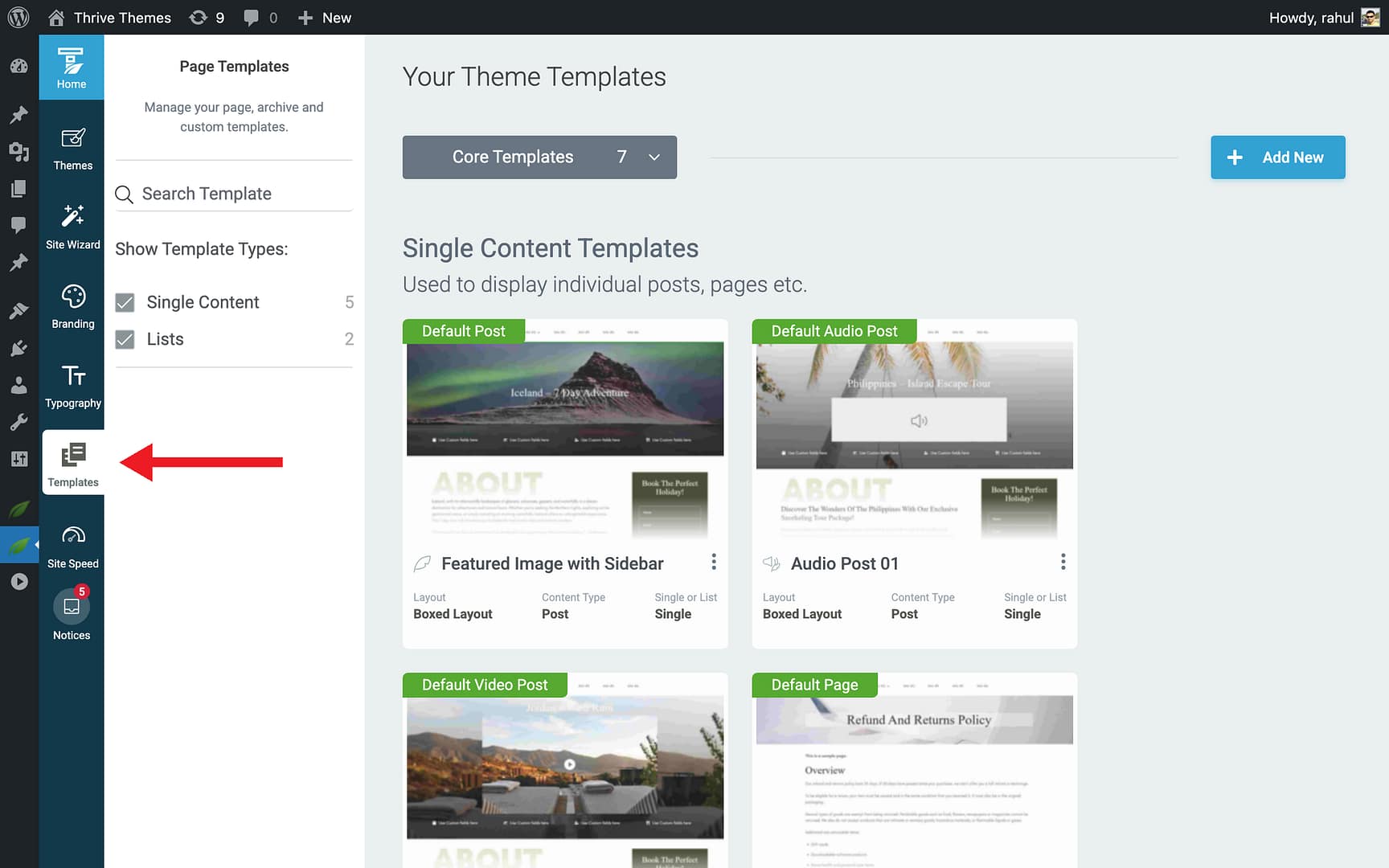
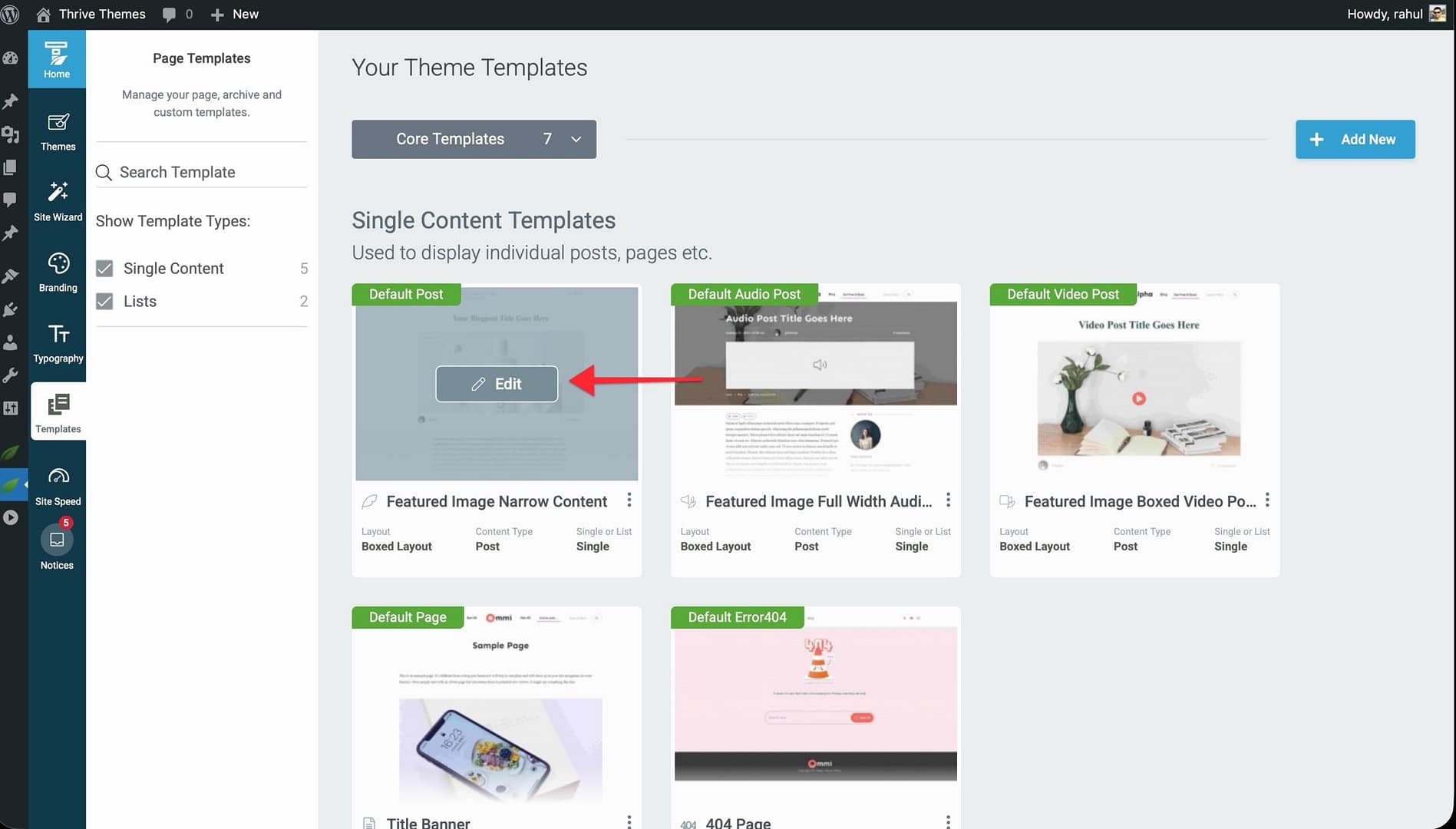
- Find the template you want to edit.
- Hover over the template and click Edit.
- The Thrive Theme Builder editor opens, displaying the left sidebar with all available sections.
Template Sections Overview
Every Thrive Theme Builder template is made up of six sections. Each can be toggled on or off, customized individually, and swapped with pre-designed layouts.
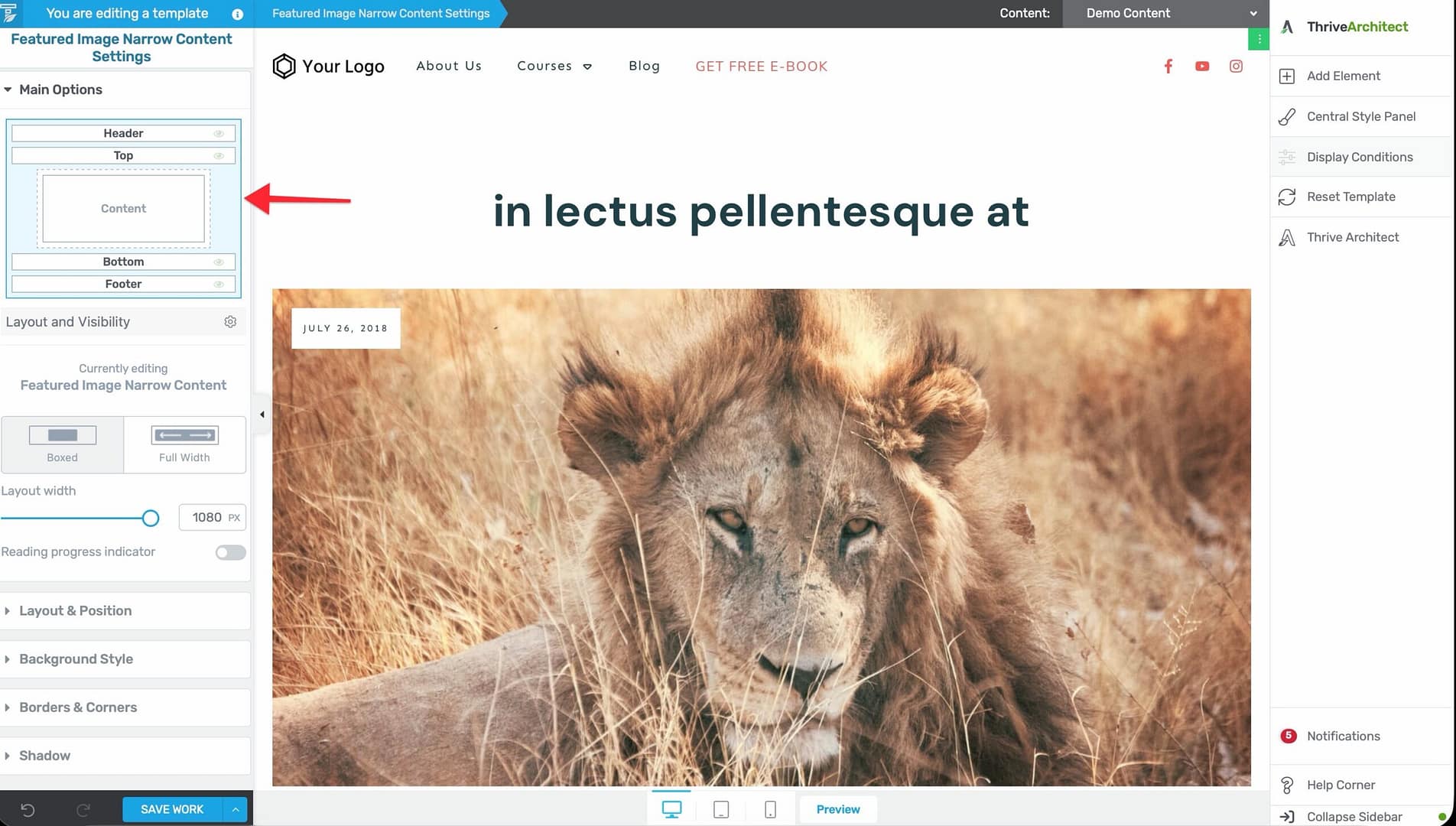
Header
The Header section appears at the top of your template and typically contains your logo, navigation menu, and optional elements like a search bar or CTA button.
- Click Header in the left sidebar to select it.
- Click Edit to enter Edit Mode and start customizing.
- You can choose from ready-made header designs or build one from scratch.
Top Section
The Top section sits above the main content area (below the Header). It’s commonly used for title banners, breadcrumbs, or promotional bars.
Content
The Content section is the main body of your template where the actual page or post content is displayed.
Sidebar
The Sidebar section provides an additional column alongside the main content. It can hold widgets, opt-in forms, recent posts lists, or any other elements.
- To enable or disable the sidebar, toggle its visibility in the left sidebar.
- You can configure custom triggers for sidebar behavior using the element settings.
Bottom Section
The Bottom section appears below the main content area (above the Footer). It’s often used for related posts, author bios, or comment sections.
Footer
The Footer section appears at the very bottom of the template. It typically contains copyright text, navigation links, social media icons, and contact information.
Editing a Section
To edit any section:
- Click the section name in the left sidebar (e.g., Header).
- Click Edit to enter Edit Mode for that section.
- In Edit Mode, you can:
- Add new elements using the plus sign in the right sidebar.
- Rearrange, style, and configure existing elements.
- Choose a ready-made design from the section options.
- When finished, save your changes.
Toggling Section Visibility
Each section can be toggled visible or hidden for a specific template. In the left sidebar, use the visibility controls next to each section name to show or hide it.
For example, you might hide the Sidebar on your homepage template but keep it visible on blog post templates.
Related Resources
- Using the Header Section: Learn how to customize your header with logos, menus, and buttons.
- Using the Footer Section: Configure your footer layout with links and social icons.
- Customizing the Template Layout: Adjust the overall layout of your templates.