In this article, you’ll learn how to use the WordPress Content element in Thrive Architect. This element lets you embed native WordPress shortcodes, plugin-generated content, and custom post type output directly inside your Thrive Architect pages.
The WordPress Content element acts as a bridge between Thrive Architect and the rest of your WordPress ecosystem. Whenever you need to display content from another plugin—such as a contact form, a WooCommerce product grid, or membership-gated content—the WordPress Content element is the tool to use.
When to Use the WordPress Content Element
The WordPress Content element is designed for embedding dynamic content that is generated by WordPress or third-party plugins. Use it when you need to:
- Display a contact form from plugins like Contact Form 7, WPForms, or Gravity Forms
- Embed WooCommerce shortcodes for product listings, carts, or checkout pages
- Render membership plugin output such as protected content areas or login forms
- Show custom post type content using plugin-provided shortcodes
- Include gallery, slider, or table output from specialized plugins
- Display calendar, booking, or scheduling widgets
Tip: If you’re unsure whether a plugin’s shortcode will work, add it to the WordPress Content element and click Preview to test the output on the frontend.
Adding the WordPress Content Element to a Page
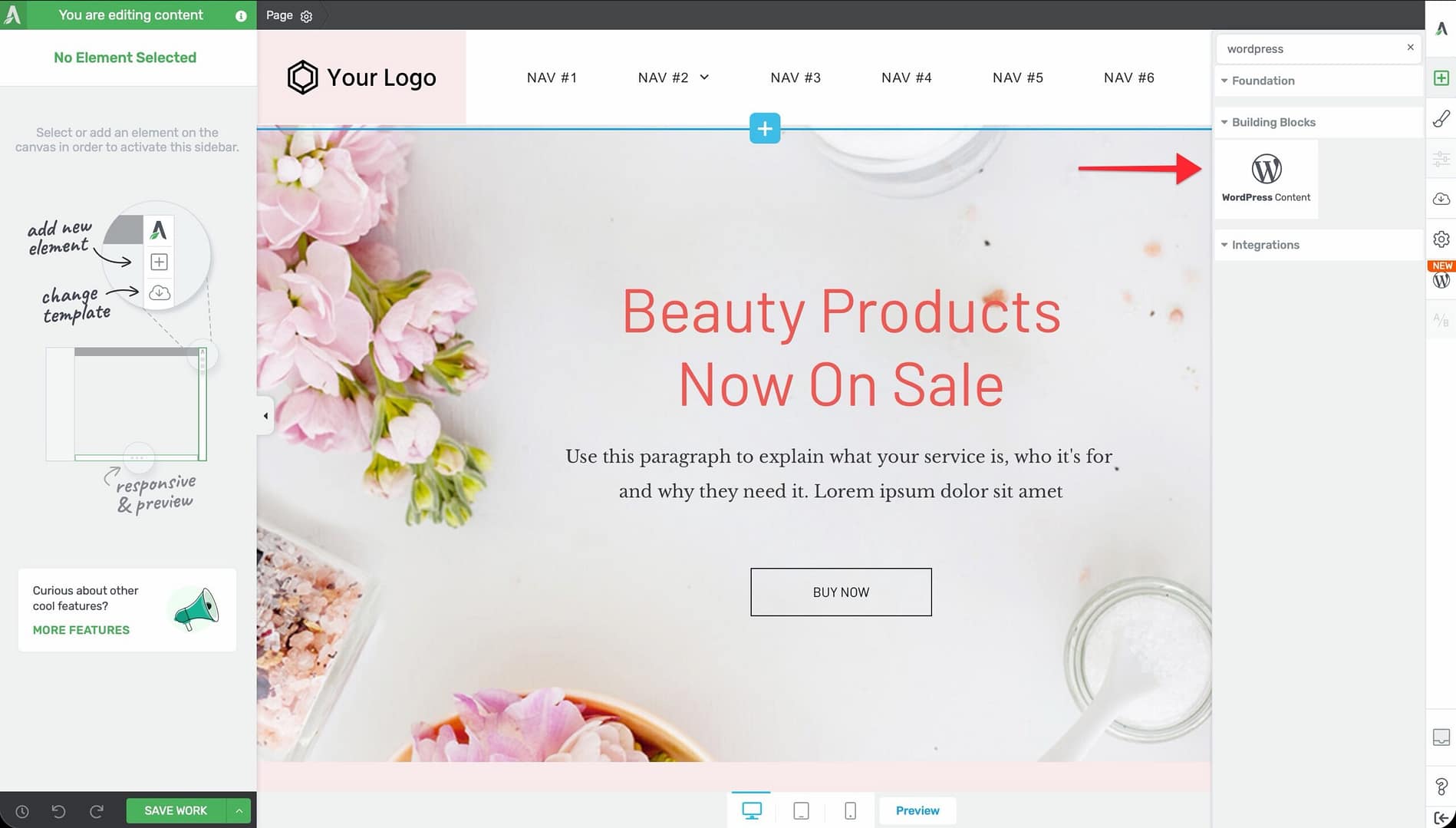
Follow these steps to add the WordPress Content element to your page:
- Open your page or post in the Thrive Architect editor.
- Click the green plus (+) icon in the right sidebar to open the element panel.
- Type WordPress Content in the search field at the top of the panel.
- Alternatively, scroll down to the Advanced section in the element list to find the WordPress Content element.
- Drag the element from the panel and drop it onto your page canvas where you want the content to appear.
A placeholder block will appear on the canvas, indicating where the WordPress Content element has been placed.
Configuring the WordPress Content Element
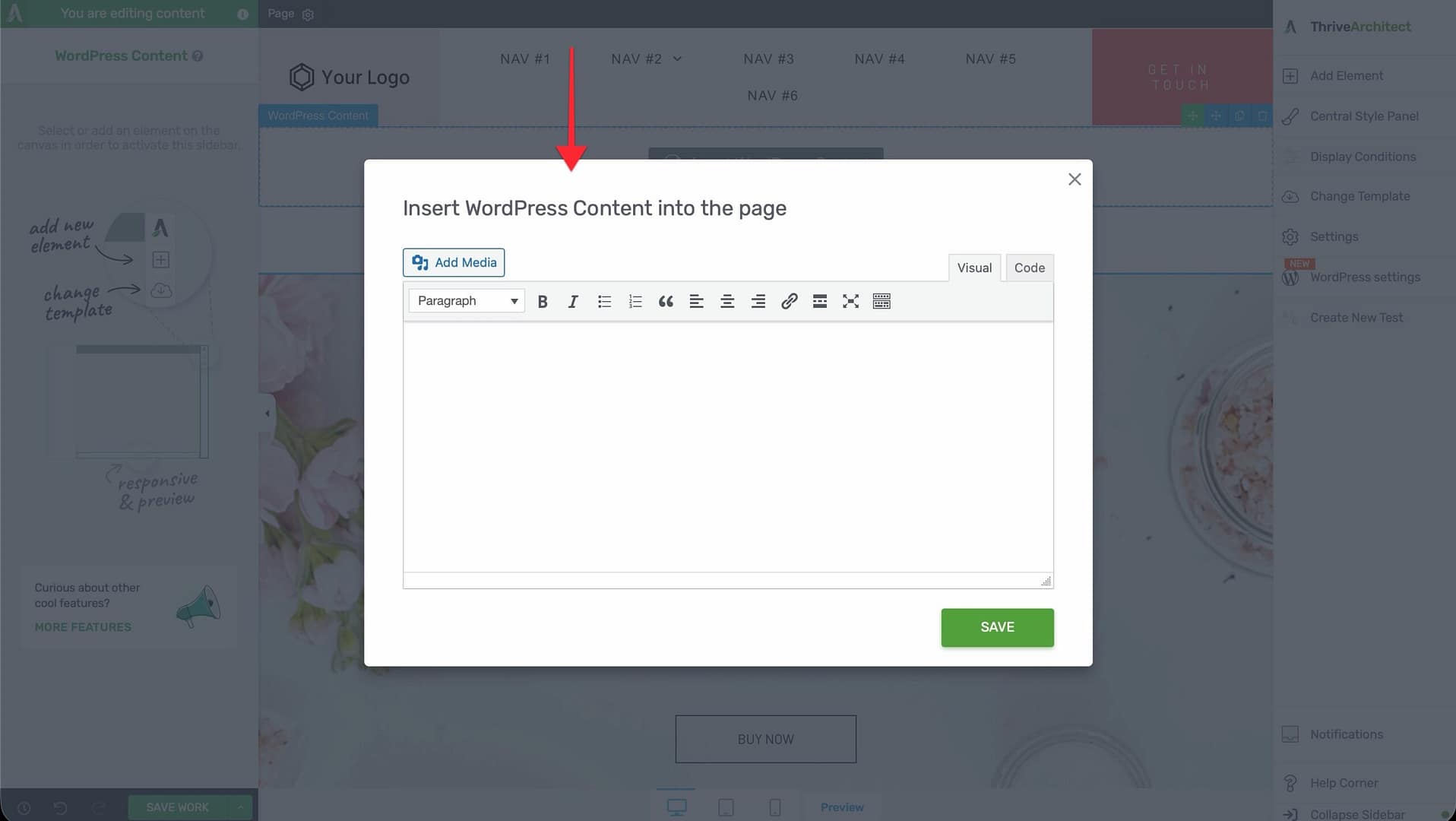
After adding the element to your page, you need to enter the shortcode or content that it should render:
- Click on the WordPress Content element on the canvas to select it.
- In the left sidebar, you’ll see a text area labeled WordPress Content.
- Enter your shortcode or WordPress content markup in the text area. For example:
[contact-form-7 id="456" title="Signup Form"][woocommerce_cart][memberpress_account]
- The element will process the shortcode. In some cases, a preview will appear in the editor; in others, you’ll need to click Preview in the bottom toolbar to see the rendered output.
Styling Limitations of the WordPress Content Element
The WordPress Content element has specific styling restrictions because the output is generated by an external plugin, not by Thrive Architect. Here’s what you can and cannot control:
Customizable Options
- Layout & Position — Set margins, padding, width, alignment, and float to control where the element sits on the page
- Responsive settings — Control device-specific visibility (show or hide on desktop, tablet, or mobile)
- Display conditions — Apply conditional visibility rules
Non-Customizable Options
The following styling options are hidden for the WordPress Content element and cannot be modified through Thrive Architect:
- Typography (font family, font size, color, and line height)
- Borders and corners
- Background (color, gradient, image, or video)
- Box shadow and text shadow
- CSS animations
Important: To style the content rendered by the WordPress Content element, use the styling options provided by the source plugin itself, or add custom CSS through Settings (gear icon) > Advanced Settings > Custom CSS in the Thrive Architect editor.
Common Use Cases
Embedding a Contact Form
Many contact form plugins provide shortcodes. To embed one:
- Copy the shortcode from your form plugin (for example,
). - Add a WordPress Content element to your page.
- Paste the shortcode into the text area in the left sidebar.
- Preview the page to verify the form renders correctly.
Displaying WooCommerce Content
WooCommerce provides several shortcodes for displaying products, carts, and account pages:
[products limit="4" columns="2"]— Display a product grid[woocommerce_cart]— Show the shopping cart[woocommerce_checkout]— Display the checkout form[woocommerce_my_account]— Render the customer account page
Add any of these to a WordPress Content element to embed WooCommerce functionality in your Thrive Architect page.
Rendering Membership Plugin Output
If you’re using a membership plugin like MemberPress, Restrict Content Pro, or WishList Member, you can embed their shortcodes to display login forms, account pages, or restricted content areas inside your Thrive Architect designs.
Troubleshooting
If the WordPress Content element isn’t displaying your content correctly, check these common issues:
- Plugin not active — The plugin that provides the shortcode must be installed and activated. Verify under Plugins in your WordPress admin.
- Incorrect shortcode syntax — Double-check the shortcode text, including attribute names, IDs, and bracket formatting.
- JavaScript-dependent output — Some plugins rely on JavaScript to render their content. This may not display inside the editor but will work on the published page. Use Preview to confirm.
- Caching conflicts — If you’re using a caching plugin, clear your cache after adding or modifying a WordPress Content element.
- Wrong element used — Make sure you’re using the WordPress Content element from the Advanced section of the element panel, not a Text or Custom HTML element.
Frequently Asked Questions
Can I Add Multiple Shortcodes in One WordPress Content Element?
Yes. You can enter multiple shortcodes in a single WordPress Content element. Each shortcode will render its output in sequence, one after the other.
What Is the Difference Between WordPress Content and Custom HTML?
The WordPress Content element processes shortcodes through WordPress’s do_shortcode() function, rendering dynamic plugin output. The Custom HTML element renders raw HTML and JavaScript without shortcode processing. Use WordPress Content for shortcodes and Custom HTML for custom code snippets.
Can I Nest a WordPress Content Element Inside a Column or Section?
Yes. The WordPress Content element works like any other Thrive Architect element—you can place it inside columns, background sections, content boxes, and other container elements.
Related Resources
- Shortcodes: How to Use Shortcodes in Thrive Architect — Detailed guide to adding and troubleshooting shortcodes
- Custom CSS: Editing HTML and Adding Custom CSS — Adding custom CSS to style plugin output
- Getting Started: Getting Started with Thrive Architect — Overview of the editor and element panel
That’s it! You’ve successfully learned how to use the WordPress Content element in Thrive Architect. This element is your go-to tool for embedding plugin-generated content, shortcodes, and dynamic WordPress output inside your visually designed pages.