In this article, you’ll learn how to use Thrive Automator alongside Thrive Apprentice to build powerful automation workflows. From enrolling students after a quiz to revoking access after a trial period, these ready-made recipes cover the most common scenarios you’ll encounter as a course creator.
Each recipe below includes the trigger, the action, and the steps you need to set it up. Pick the one that matches your use case and follow along.
Getting Started with Thrive Automator + Thrive Apprentice
Thrive Automator is the automation engine that connects Thrive Apprentice with other plugins and services on your WordPress site. It works on a simple principle: a Start Trigger fires when something happens, and one or more Actions execute automatically in response.
To access Thrive Automator, navigate to Thrive Dashboard > Thrive Automator. From there, click + Add New to create a new automation. Every recipe in this guide follows that same starting point.
Note: Make sure you have at least one published Thrive Apprentice course linked to a product before creating automations. The triggers and actions below rely on your courses and products being properly configured.
Recipe 1: Enroll Users in a Course Only After They Pass a Quiz
What it does: Automatically grants course access to students who achieve a passing score on a Thrive Quiz Builder test. This ensures only qualified learners move forward.
Trigger: User completes a quiz (Thrive Quiz Builder)
Action: Grant access to a Thrive Apprentice product
- Go to Thrive Dashboard > Thrive Automator and click + Add New.
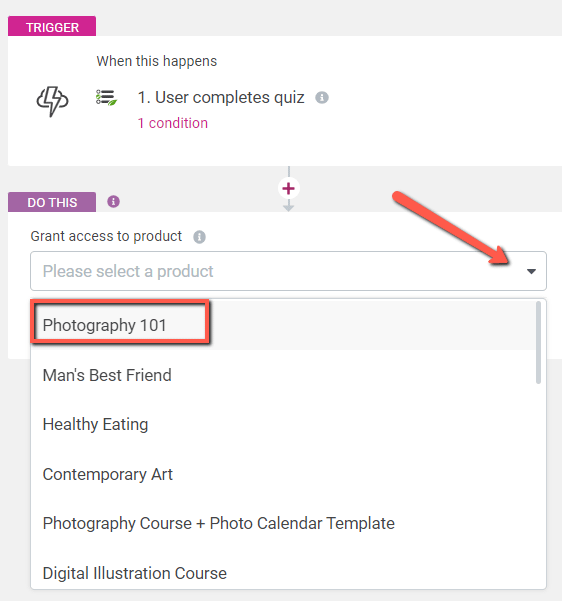
- Set the Start Trigger to User completes quiz.

- Choose the specific quiz from the dropdown.
- Add a Filter to check that the user’s score meets your passing threshold.
- Add an Action and select Grant access to product.

- Choose the Thrive Apprentice product that contains your course.
- Click Save and Activate to enable the automation.

Recipe 2: Notify Students When New Content Is Unlocked
What it does: Sends an email notification to students whenever new lessons become available through a drip schedule. This keeps learners engaged and coming back to your course.
Trigger: Thrive Apprentice lesson becomes available (via drip schedule)
Action: Send email notification or tag user in autoresponder
- First, ensure your course uses a Drip Schedule to release content over time. Configure this under Thrive Dashboard > Thrive Apprentice > Courses > your course > Drip.
- Go to Thrive Dashboard > Thrive Automator and click + Add New.
- Set the Start Trigger to Lesson becomes available.
- Select the course from the dropdown.
- Add an Action and choose Send email notification or tag the user in your connected autoresponder to trigger a campaign.
- Customize the email content or tag name.
- Click Save and Activate.
Tip: Set up a campaign in your autoresponder ahead of time so that tagging the user automatically sends a well-designed email with a link back to the newly unlocked lesson.
Recipe 3: Revoke Course Access After a Certain Period
What it does: Automatically removes a student’s access to a course after a set number of days. This is ideal for time-limited courses, seasonal programs, or subscription-based access models.
Trigger: User receives access to a Thrive Apprentice product
Action: Delay + Remove access from product
- Go to Thrive Dashboard > Thrive Automator and click + Add New.
- Set the Start Trigger to User receives access to product.
- Select the relevant Thrive Apprentice product.
- Add a Delay action and set the duration (e.g., 30 days, 90 days).
- After the delay, add an Action and select Remove access from product.
- Choose the same product you selected in the trigger.
- Click Save and Activate.
Important: Once access is revoked, the student will no longer see the course content. If you want to offer a renewal option, consider sending a reminder email a few days before the access period ends using a separate automation.
Recipe 4: Grant Access to Multiple Free Courses at Once
What it does: Enrolls a new user in several free courses simultaneously when they register on your site or complete a specific action. This is perfect for onboarding sequences or free course bundles.
Trigger: User registers on site (or a custom trigger of your choice)
Action: Grant access to multiple Thrive Apprentice products
- Go to Thrive Dashboard > Thrive Automator and click + Add New.
- Set the Start Trigger to User registers (or another trigger that fits your workflow).
- Add an Action and select Grant access to product. Choose your first free course product.
- Click + Add another action and select Grant access to product again. Choose your second free course product.
- Repeat for each additional free course you want to include.
- Click Save and Activate.
Tip: You can also bundle multiple courses into a single Thrive Apprentice product. However, using separate actions gives you more flexibility to add or remove individual courses from the bundle later.
Recipe 5: Unlock a Premium Lesson When a User Completes a Free Course
What it does: When a student finishes a free course, this automation automatically grants them access to the first lesson of a premium course—giving them a taste of paid content and encouraging an upgrade.
Trigger: User completes a course in Thrive Apprentice
Action: Grant access to a premium product (with restricted content)
- Create a premium course with its first lesson accessible and remaining content locked behind a purchase.
- Go to Thrive Dashboard > Thrive Automator and click + Add New.
- Set the Start Trigger to User completes course.
- Select the free course from the dropdown.
- Add an Action and select Grant access to product.
- Choose the premium course product. Configure it so the user receives access only to the introductory content.
- Click Save and Activate.
Recipe 6: Remove Users from a Premium Course After a Free Trial Expires
What it does: Gives users temporary access to a premium course for a trial period, then automatically removes them when the trial ends. This is a great way to let prospects preview your paid content.
Trigger: User receives access to a Thrive Apprentice product
Action: Delay + Remove access from product
- Go to Thrive Dashboard > Thrive Automator and click + Add New.
- Set the Start Trigger to User receives access to product.
- Select the premium course product you’re offering as a trial.
- Add a Delay action and specify the trial duration (e.g., 7 days, 14 days).
- After the delay, add an Action and select Remove access from product.
- Choose the same premium product.
- Click Save and Activate.
Tip: Pair this with a separate automation that sends a reminder email 1–2 days before the trial expires, encouraging the user to purchase full access.
Recipe 7: Send a Thank-You Email After a Course Purchase
What it does: Automatically sends a personalized thank-you email when someone purchases a Thrive Apprentice product. This improves the customer experience and builds trust right from the start.
Trigger: User purchases a Thrive Apprentice product
Action: Send email notification
- Go to Thrive Dashboard > Thrive Automator and click + Add New.
- Set the Start Trigger to User purchases product.
- Select the Thrive Apprentice product from the dropdown.
- Add an Action and select Send email notification.
- Write your thank-you message in the email body. Include the course name, login link, and any getting-started instructions.
- Click Save and Activate.
Tip: You can also tag the user in your autoresponder and trigger a full welcome email sequence instead of a single message.
Recipe 8: Send a Discount Code After a Course Is Purchased
What it does: Rewards buyers with a discount code for another course immediately after they complete a purchase. This drives upsells and increases customer lifetime value.
Trigger: User purchases a Thrive Apprentice product
Action: Tag user in autoresponder + Send email with discount code
- Create a discount code in your payment or coupon system for the upsell course.
- Set up an email in your autoresponder that contains the discount code and a link to the upsell course sales page.
- Go to Thrive Dashboard > Thrive Automator and click + Add New.
- Set the Start Trigger to User purchases product.
- Select the Thrive Apprentice product from the dropdown.
- Add an Action and choose Tag user in autoresponder. Select the tag that triggers your discount email campaign.
- Click Save and Activate.
Recipe 9: Grant Access via Digistore24 Purchases
What it does: Connects Digistore24 product purchases to Thrive Apprentice enrollment. When a customer buys a product through Digistore24, they automatically receive access to the corresponding Thrive Apprentice course.
Trigger: Digistore24 purchase (via IPN or webhook)
Action: Grant access to a Thrive Apprentice product
- Ensure the Digistore24 integration is connected in Thrive Dashboard > Thrive Automator > Connections.
- Click + Add New to create a new automation.
- Set the Start Trigger to the Digistore24 purchase event.
- Use Advanced Data Mapping to map the Digistore24 product to the correct Thrive Apprentice product. This is especially important if you sell multiple products through Digistore24.
- Add an Action and select Grant access to product.
- Choose the corresponding Thrive Apprentice product.
- Click Save and Activate.
Note: If you sell multiple Digistore24 products that each map to a different Thrive Apprentice course, you’ll need to create a separate automation for each product-to-course mapping—or use advanced data mapping to handle multiple mappings within a single automation.
Conclusion
That’s it! You’ve successfully explored nine Thrive Automator recipes for Thrive Apprentice. Whether you’re gating courses behind quizzes, offering free trials, or automating post-purchase emails, these workflows save you time and deliver a seamless experience for your students.
Mix and match these recipes to fit your specific course business model. You can always duplicate and modify an existing automation to create new variations.
Related Resources
- Getting started with Thrive Automator: Thrive Automator documentation
- Using quizzes with Thrive Apprentice: How to Use Quizzes in Thrive Apprentice
- Setting up drip schedules: Thrive Apprentice Drip Content documentation
- Digistore24 integration: Connecting Digistore24 to Thrive Automator